1
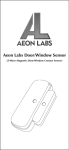
Door/Window Sensor (Z‐Wave Magnetic Door/Window Contact Sensor) The D/W Sensor is a battery‐powered Z‐Wave magnetic door/window contact sensor. The D/W sensor will send radio signals to up to 6 associated Z‐Wave devices within its own Z‐Wave network when the main unit separates from the smaller magnetic unit. Bidirectional mounting plate and push button allows for easy end‐user installation. The D/W Sensor also has tamper prevention and low‐battery alerts. This product uses radio to wirelessly communicate data between itself and other devices. Radio communication is inherently not always 100% reliable, and as such, this product should not be used in situations in which life and/or valuables are solely dependent on its function. 1. Mounting the D/W Sensor to a Wall, Door, or Window Frame 1.1 The main sensor unit and magnet unit should be placed in a manner such that when the door/window is closed, they are within 2cm from each other. By opening the door or window, these two units should separate in proximity. Note: The D/W Sensor should be positioned vertically against the door/window frame. This provides the optimal radio communication distance to other Z‐Wave devices in a typical home. Note: Radio products should not be mounted directly on or near metal framing or other large metallic objects. Large metal objects may weaken the radio signal transmitted. Note: This product should only be placed indoors and away from sources of water/moisture and other extreme weather conditions
1.2 Screw the bidirectional mounting plate and the magnet unit into the wall, door or window frame. Use the provided screw anchors if attaching the D/W Sensor to a soft material (such as drywall). AND/OR
Peel and attach the double‐sided mounting tape to the back of the bidirectional mounting plate and magnet unit to adhere to the wall, door or window frame. Note: Be sure to wipe clean the surface where the D/W Sensor will be mounted. Any dust and particles can reduce the adhesion of double‐sided mounting tape.
1.3 Hook the sensor into the bidirectional mounting plate by first inserting the hitch of the bidirectional mounting plate into the hitch hole of the sensor. Then press the other end of the sensor into the bidirectional mounting plate until the units firmly click together. 1.4 Ensure that the orientation dimples of the sensor unit and the magnet unit are oriented towards each other. If they are not, simply unhinge the sensor unit by depressing the latch button (on the side) to separate the sensor from its bidirectional mount and reinsert the sensor unit with its orientation dimple towards the magnet unit. 2. Including the D/W Sensor into the Z‐Wave Network The D/W Sensor must first be included into an existing Z‐Wave network in order to function. After being included to a Z‐Wave network, the D/W Sensor will then be able to report its open/close state to gateway automatically or control other Z‐Wave devices such as switches and dimmers. 2.1 Press the button on the Z‐Wave Gateway to begin the Z‐Wave inclusion process. Note: To include the D/W Sensor with other controllers, please consult the operation manual for these controllers on how to include Z‐Wave products into an existing network. Always perform exclude operation before inclusion process. 2.2 Press the security tamper switch located at the back of the D/Window Sensor to include it into your Z‐Wave network. 2.3 The D/W Sensor will now stay awake for 10 minutes to receive any other network instructions from your gateway or controller – The LED on the D/W Sensor will be blinking while awake. Note: D/W Sensor can only be taught to communicate to devices within its own network. If the D/W Sensor was not successfully included into any Z‐Wave network, pressing the security switch will illuminate the LED on the front of the D/W Sensor solid red for 5 seconds. If the D/W Sensor was successfully included to a Z‐Wave network, the LED will blink instead of staying solid. 3. Wake the D/W Sensor for 10 Minutes The D/W Sensor can be made to stay awake for 10 minutes by any of the following methods below. Once the D/W Sensor has been woken, the LED will blink every few seconds indicating that it is now awake and ready to receive Z‐Wave network information and instructions. 3.1 Firmly tap the security switch on the back of the D/W Sensor 3 times in quick succession. 3.2 Successfully include the D/W Sensor into any Z‐Wave network. 4. Put the D/W Sensor to Sleep after Being Included into a Z‐Wave Network 4.1 Firmly tap the security switch on the back of the D/W Sensor 3 times in quick succession. The D/W Sensor may be put to sleep by any of the following methods below. Once the D/W Sensor has been put to sleep, the LED will no longer blink indicating that it is now asleep and saving battery life. 4.2 Trigger the D/W Sensor with the magnetic unit 3 times in quick succession. 4.3 Send a Z‐Wave sleep command (Z‐Wave Wake up Command Class) from your controller/gateway to D/W Sensor. 5. Associating Z‐Wave Lights/Switches/ Gateways to the D/W Sensor By associating the D/W Sensor to Z‐Wave devices, it will be able to report its state to gateways, execute scenes through the associated gateways and turn on/off associated Z‐Wave devices when it is triggered with its magnetic switch. Note: If your Z‐Wave gateway is a SUC/SIS type, there is no need to follow the association process below to associate the D/W Sensor to your gateway. The D/W Sensor will do this automatically. 5.1 Press the Z‐Wave button on the product you wish to be controlled by the D/W Sensor when triggered. 5.2 Press the security tamper switch located at the back of the D/W Sensor to complete the association process. Note: The D/W Sensor can be associated to 6 devices total (1 device being a SUC/SIS gateway). 6. Reporting an Alarm when Tampered The D/W Sensor has a built in security tamper switch which will automatically alert (Z‐Wave Alarm Command Class) the associated gateway when the sensor is removed from either the bidirectional mounting plate or pried off the surface to which it was mounted. 7. Removing/Resetting the D/W Sensor from your Z‐Wave Network Removing the D/W Sensor from a Z‐Wave network resets the device to the default factory settings and removes all previous saved associations. 7.1 Hold the ‘Remove’ button on the Gateway to begin the Z‐Wave removal process. Note: Please consult the operation manual for Gateway on how to remove Z‐Wave products from an existing network. 7.2 Press the security tamper switch located at the back of the D/W Sensor to remove it from your Z‐Wave network. Troubleshooting: If the D/W Sensor was removed from the Z‐Wave network, pressing the security switch will illuminate the LED on the front of the D/W Sensor solid red for 5 seconds. If the D/W Sensor was not successfully removed from the Z‐Wave network, the LED will blink instead of staying solid. 8. Replacing Batteries. D/W Sensor has built in battery level detection. It will automatically report it’s battery level (Z‐Wave Battery Command Class) to the associated gateway throughout its life until the battery is fully drained and needs replacing. The battery status will often be displayed in the user interface of the Gateway. When used properly in an optimized Z‐Wave network, the CR2 battery can last up to 2 years with regular usage. 8.1 Unhook the sensor from the bidirectional mounting plate by depressing the latch button (on the side) and pulling the sensor body outward to separate the sensor from its bidirectional mount. 8.2 Insert the CR2 with the negative end first depressing the battery spring. 8.3 Hook the sensor into the bidirectional mounting plate by first inserting the hitch of the bidirectional mounting plate into the hitch hole of the sensor. Then push the other end of the sensor into the bidirectional mounting plate until the units firmly click together. Note: For networks which do not have a method to display the battery level of the D/W Sensor, it is recommended that the sensor be tested occasionally to ensure that the battery still holds enough charge to operate. Batteries naturally lose their charge over time. • 2 year battery life with CR2 battery • Maximum 100ft Z‐Wave RF range (indoors) • Operating Temperatures ‐35 to +85 °C Included: • Sensor Unit – 1x • Bidirectional Mounting Plate – 1x • Magnet Unit – 1x • Magnet Unit Outer Shell – 1x • CR2 Battery – 1x • Double‐Sided Mounting Tape – 6x • Screws – 4x • Screw Anchors – 4x