Download 6.3SP2 PDF - GETTING STARTED

Transcript
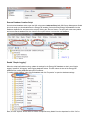
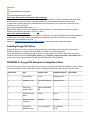
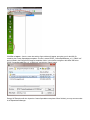
Choose a file server and a folder on that server to contain the EnergyCAP Enterprise report files. These files will be
shared over the Local Area Network (LAN). Record the file server name and the folder path in the EnergyCAP
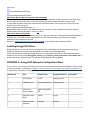
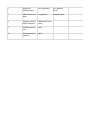
Configuration Worksheet, Reference #8.
When you have created the folder on the server, have a system administrator give read/write access to the folder for
every Windows user in the organization which will be running EnergyCAP.
Update the Global Report Path
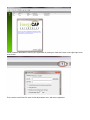
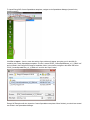
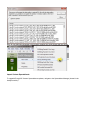
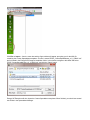
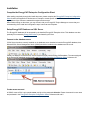
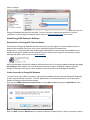
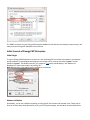
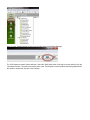
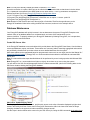
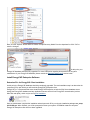
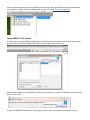
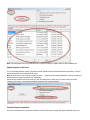
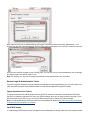
To update the global Reports Path, open EnergyCAP Enterprise and click Tools >> Global Options from the menu
bar. Click on the "Reports" tab.
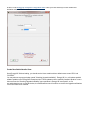
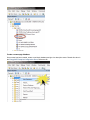
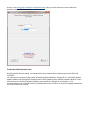
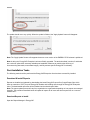
In the "Reports" tab is a setting named "Reports path". This setting specifies the folder path where the report files
will be stored for use by EnergyCAP.
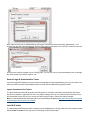
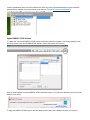
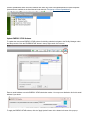
Copy the value from the EnergyCAP Configuration Worksheet, Reference #8 and paste it into the "Reports path"
setting. Click "OK" to save your changes.
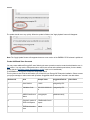
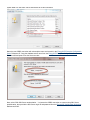
At this point, the global Reports Path setting should be configured, and the EnergyCAP LAN reports may be
downloaded and installed.
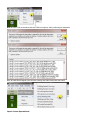
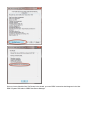
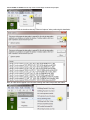
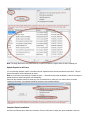
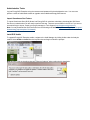
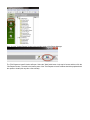
Note: If the Reports icon is not among the available options under the Reporting menu bar, you may be connected
to the database via Internet Connection instead of the Local Area Connection. You must connect to the database via
a LAN connection in order to update reports.