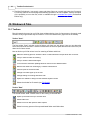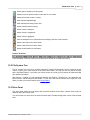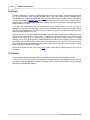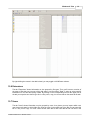
1
TreeSize Professional 4 User's Manual ©1996-2007 by Joachim Marder TreeSize Professional 4 ©1996-2007 by Joachim Marder All rights reserved. No parts of this work may be reproduced in any form or by any means - graphic, electronic, or mechanical, including photocopying, recording, taping, or information storage and retrieval systems - without the written permission of the publisher. Products that are referred to in this document may be either trademarks and/or registered trademarks of the respective owners. The publisher and the author make no claim to these trademarks. While every precaution has been taken in the preparation of this document, the publisher and the author assume no responsibility for errors or omissions, or for damages resulting from the use of information contained in this document or from the use of programs and source code that may accompany it. In no event shall the publisher and the author be liable for any loss of profit or any other commercial damage caused or alleged to have been caused directly or indirectly by this document. Printed: April 2007 Development Joachim Marder Tobias Päutz Ajoschi Roth Harald Binkle Volker Schumacher Christian Bettinger Contact JAM Software Joachim Marder e.K. Bruchhausenstr. 1 54290 Trier Germany FAX: E-mail: WWW: +49-700-70707059 [email protected] http://www.jam-software.com I Table of Contents 1 Overview 1 2 Installation 1 3 Quickstart 1 4 Tips & Annotations 2 5 TreeSize Column for Explorer 3 6 Wasted Space 3 7 Notes on NTFS 4 8 Printing 5 9 FAQ 5 ................................................................................................................................... 5 9.1 General / Registration 9.2 Main Program................................................................................................................................... 6 ................................................................................................................................... 8 9.3 Printing / Export 9.4 File Search ................................................................................................................................... 9 10 Windows & Tabs 10.1 Toolbars 10 ................................................................................................................................... 10 ................................................................................................................................... 11 10.2 File System Tree 10.3 Drive Panel ................................................................................................................................... 11 10.4 Chart ................................................................................................................................... 12 10.5 Details ................................................................................................................................... 12 10.6 Extensions ................................................................................................................................... 13 10.7 Users ................................................................................................................................... 13 10.8 File Ages ................................................................................................................................... 14 10.9 Top 100 Files................................................................................................................................... 14 10.10 History ................................................................................................................................... 14 11 Options 15 ................................................................................................................................... 15 11.1 Options Dialog 11.2 View Tab ................................................................................................................................... 15 11.3 Scan Tab ................................................................................................................................... 16 ................................................................................................................................... 17 11.4 Include/Exclude Tab 11.5 Columns Tab................................................................................................................................... 17 11.6 Startup Tab ................................................................................................................................... 19 ................................................................................................................................... 20 11.7 Shell Extensions TreeSize Professional 4 - Table of Contents I II TreeSize Professional 4 12 The Menus 12.1 File Menu 20 ................................................................................................................................... 20 ................................................................................................................................... 21 12.2 Export Submenu 12.3 Branch Menu................................................................................................................................... 22 12.4 View Menu ................................................................................................................................... 22 12.5 Sort Menu ................................................................................................................................... 23 12.6 Tools Menu ................................................................................................................................... 24 24 12.7 The Context ................................................................................................................................... Menus 13 File Search 26 ................................................................................................................................... 26 13.1 The File Search Window ................................................................................................................................... 27 13.2 File Search Options ................................................................................................................................... 28 13.3 Temporary File Search - Configuration 14 Schedule TreeSize Tasks 28 ................................................................................................................................... 28 14.1 Schedule Dialogue ................................................................................................................................... 29 14.2 Command Line Options 15 Copyright & Contact Index 33 35 TreeSize Professional 4 - Table of Contents Overview 1 1 Overview TreeSize is a powerful and flexible hard disk space manager for Windows 98/ME/2000/XP/2003/Vista. Find out which folders are the largest on your drives and recover megabytes on them. TreeSize shows you the size, allocated and wasted space, the number of files, 3D bar and pie charts, the last access date, the file owner, the NTFS compression rate and much more information for several folders or drives you choose. It also lets you search for old, big and temporary files. The application has an intuitive Explorer-like user interface, it is fast, multithreaded, and supports Unicode and scheduled scans. You can print detailed reports, and the Professional Edition can export the collected data to Excel and to an HTML, XML or ASCII file. TreeSize Professional can be started from the context menu of every folder or drive. For every button and menu item, a short description is displayed in the status bar. If you have further questions, please contact JAM Software. 2 Installation To install TreeSize Professional 4, execute the setup file and follow the instructions. The setup program will copy the necessary files to your hard disk and will create a new program group in the Start Menu. TreeSize Professional 4 may be uninstalled using the Software applet in the Control Panel of Windows. The password needed for installing the registered version is printed on the disk label and is also available online in our customer's area. 3 Quickstart 1. On this toolbar the user can select which drive or path should be scanned. Press the button with the arrow on the right to start scanning. TreeSize Professional 4 here remembers the last paths that have TreeSize Professional 4 - Overview 2 TreeSize Professional 4 been used. 2. Here the user can get an overview of the currently scanned drive. This and the other toolbars can be turned off in their context menu. 3. The "Chart" page shows a pie or bar chart of the currently selected directory. Use the context to show a toolbar with advanced charting features. 4. The "Details" tab shows detailed information about the sub-folders and the files inside the currently selected folder. 5. The "Extensions" tab shows the size information grouped by file types. That way you will get an overview what file types take up most of the space. 6. The "Users" tab shows the size information grouped by user names. This allows you to see which users use most of the disk space. 7. The "File Ages" tab shows when folders have been created. 8. The Top 100 files lists the 100 largest files in the scanned directory tree. 9. The file system tree of the scanned folder or drive gives you an immediate overview of the size of each folder. 10.The drive panel provides an overview of all local and mapped network drives. Additional network drives can be added using the context menu. Double click on a drive to start a scan in TreeSize Professional 4. 11.The status bar informs you about the allocated and free space of the current drive, the file system type, etc. 4 Tips & Annotations Especially scans of network drives may take a long time. With the Professional Edition you may perform such scans overnight using Scheduled Scans and save the results to a XML file which can be loaded again later. The last access date is the day when a file was used the last time, for example when a program was executed, a DLL was loaded or a bitmap was shown the last time. So if a file has not been accessed for a long time, it may probably not be needed on your system. This is a great possibility to recognize and remove unused files from your Windows and System directory. Use the TreeSize File Search to find large or obsolete files on your hard drives. In the main windows TreeSize Professional 4 supports drag&drop file system operations. All folders that are visible in the directory tree on the left will also occur in a printed report or the exported file. In the Options of TreeSize Professional 4 you can set all folders of the current directory tree to be printed or exported. The "Filter" and "User defined cluster size" settings in the Options are not saved to the registry in order to avoid wrong values when using TreeSize Professional 4 the next time. You can use the CD-ROM view to determine how much space a directory tree would occupy on a CD or DVD with ISO file system. In the Recycled Folders you will not see the same file names as in the Explorer. This is necessary to get the size and the last access date of these files. You can scan all shares in a domain by entering the domain name in the drive combo box. TreeSize Professional 4 - Quickstart Tips & Annotations 3 TreeSize Professional 4 ships with an XSLT file that formats the data inside the XML file for output in a browser that supports XSLT processing (e.g. Firefox >V1.0 or Internet Explorer >V5.5). For continuous analyzing of disk usage on large servers we recommend our product SpaceObServer. It collects the data using a background system service and stores it in a SQL database. It uses less RAM than TreeSize Professional 4, and the reporting capabilities are more flexible because it is built on a database. More information is available at http://www.jam-software.com/spaceobserver/ 5 TreeSize Column for Explorer TreeSize Professional 4 now ships with a shell extension that adds an additional column to the Windows Explorer which shows the size not only for files but also for folders. This feature is intended for a quick overview. The new column can be activated using "Choose Columns/Details" in the "View" menu of the Windows Explorer or through the context menu of the column headers of the Windows Explorer. If you would like to enable this column in the Windows Explorer for all folders, then you have to configure this in the "Folder Options" of the Windows Explorer using the button "Apply to All Folders". This column requires Windows 2000 or later and can be configured or fully turned off in the Options dialog. 6 Wasted Space The wasted space is the amount of space in clusters on your hard disk that are not entirely filled. Keep the following formula in mind: size + wasted space = allocated space. Windows 9x with its file system FAT32 may have very large cluster sizes, depending on the partition size. TreeSize Professional 4 - Tips & Annotations 4 TreeSize Professional 4 Partition Size 01 - 08 GB 08 - 16 GB 16 - 32 GB >32 GB FAT32 Default Cluster Size 4 KB 8 KB 16 KB 32 KB If you have for example a single FAT32 partition on a 32GB hard disk, you have a cluster size of 32KB on it. If you store 10 files of 1 KB on this partition, this would use 10*32KB=320KB of your hard disk space, and 320KB - 10KB = 310KB would be wasted. Especially a huge number of small files significantly increases the amount of wasted space on FAT partitions. To reduce the wasted space, there are the following possibilities: Avoid using the FAT32 file system on partitions larger than 16GB. Windows NT/2000/XP provide the possibility to format your hard disk with the NTFS file system. It usually operates with 512 - 4096 Byte clusters and has the best storage efficiency of all Windows file systems. Furthermore NTFS is able to compress selected directory branches. NTFS partitions cannot be accessed from Windows 9x or DOS without use of 3rd party software. 7 Notes on NTFS The file system NTFS can be used with the operating system Windows NT or later. It offers some special features which also have effects for TreeSize Professional 4. In the following we will describe some of these features and their impacts on this software. Access Control Lists A user under Windows NT or later is able to restrict the way other users can access his files and folders. He can grant or deny other users or groups certain rights like reading, writing, executing or deleting files. That way a user may even deny the administrator to access his files and folders. If an administrator tries to access a folder in the Windows Explorer to which the owner denied any other users reading access, an "Access Denied" error message will be displayed. However, TreeSize Professional 4 is able to scan such folders, if you are logged in as administrator or as a user that has the right to perform backups (This option can be changed at "Control Panel" / "Administrative Tools" / "Local Security Policy" under Windows 2000 and with the user editor of Windows NT). File Based Compression NTFS supports compression on an individual file basis. Files that are compressed on an NTFS volume can be read and written without first being decompressed by another program. Decompression happens automatically during the reading of the file. The file is compressed again when it is closed or explicitly saved. The space occupied by a compressed file is usually much smaller than its normal size. As a consequence, for folders that are partially or completely compressed, the allocated space reported by TreeSize Professional 4 may be smaller than the size reported for this folder. TreeSize Professional 4 is able to show the compression ratio in an extra column on the "Details" tab. Additionally it can show compressed files and folders in a different color. These features can be turned on in the Options dialog. TreeSize Professional 4 is able to compress and decompress entire file system branches using the context menu. The NTFS version that comes with Windows 2000 supports an additional concept that is similar to compressed files: sparse files. Files which are large but only partially used are called sparse files. Because the operating system does not allocate disk space for the unused parts of a sparse file, it occupies less disk space than its actual size is. TreeSize Professional 4 treats sparse files like compressed files and also calculates the compression ratio for them. TreeSize Professional 4 - Wasted Space Notes on NTFS 5 Reparse Points: Volume Mount Points and Symbolic Links Since Windows 2000 NTFS supports volume mount points and symbolic links. A volume mount point is an existing path where you "mount" another volume. Given this, users and applications can refer to the mounted volume by that path. It allows you to unify disparate file systems into one logical file system. Symbolic links work similar: If you for example have an empty folder "C:\Documents\Images", you can create a symbolic link to "E:\Pics" in it. Applications will then see the content of "E:\Pics" in "C:\Documents\Images". If the Option "Follow Mount Points and Symbolic Links" is turned on, TreeSize Professional 4 will include the contents of these folders when scanning. Since they are not physically stored on the drive you are scanning, this may produce irritating results. A final note: If you are scanning an NTFS volume via network with the Professional Edition, file based compression and reparse points can only be handled correctly if you are scanning on a Windows NT/2000/XP client. The API of Windows 9x cannot handle these features, thus reparse points and compressed files will appear as normal folders and files. 8 Printing TreeSize Professional 4 has flexible printing functions: You may print a detailed report by selecting "Print Report..." from the "File" menu or by pressing the print button in the toolbar. The report will show the directory structure of the current folder including directory lines and the information you have chosen in the Options. There you can also decide if the whole directory tree should be printed, or just those parts that are expanded in the TreeSize Professional 4 window. This way you are able to choose the folders that will be included in the printed report. If the "Details" tab is active in the right pane of the TreeSize Professional 4 main window, you can print the contents of the folder which is currently selected by using "Print Folder Contents..." from the "File" menu. You will see all files and direct sub-folders in the printout, including the icons and the other information. If you want a listing of all files in the scanned folder or drive, you can copy a list of all files to the clipboard and paste it into your favorite spreadsheet or word processor by selecting "Export List of Files" from the "File" menu (not supported in the Personal Edition). If the "Chart View" is active in the right pane of the TreeSize Professional 4 window, you can print the current chart by selecting "Print Chart" from the "File" menu. You can use the "Page Setup" dialog to adjust the margins for printing. Use the "Print Setup" dialog to choose a printer. Both dialogs can be accessed from the "File" menu. 9 FAQ General / Registration Main Program Printing / Export File Search 9.1 General / Registration Q: Which operating system does TreeSize Professional 4 run on? A: Currently the following operating systems are supported: Windows NT4, Windows 98, Windows ME, Windows 2000 Professional, Windows 2000 Server, Windows XP, Windows 2003 Server, Windows TreeSize Professional 4 - Notes on NTFS 6 TreeSize Professional 4 Vista. Q: Does the setup copy any files to the Windows directory? A: No, all files of TreeSize Professional 4 are copied to the selected installation path. The main executable file is even able to run without installation. Q: Does TreeSize Professional 4 support Unicode? A: Yes, nearly all parts of TreeSize Professional 4 are Unicode enabled on Windows NT+ operating systems. An exception is the chart component which currently does not support Unicode characters. Q: How can I order TreeSize Professional 4 and how will the product be delivered? A: You may order TreeSize Professional 4 online at http://www.jam-software.com/prices.shtml. We accept purchase orders from companies and will invoice them on NET30 terms. After your order is processed you will be able to download the full version of the product in our customer's area. If you choose to receive the software on CD, shipping costs will be added to your order. You will then receive the software by air-mail within 2 to 7 days, depending on where you are located. Q: What is the difference between the Professional and the Personal Edition? A: The Personal Edition has the same features as the Professional Edition, except that it does not support network drives, Windows Server systems, command line options and data export. Q: What is the difference between the evaluation copy and the full version? Will there be additional features? A: The evaluation copy allows you to test the software before you buy it. The maximum time to do this is 21 days. Further usage of the software after this period is not permitted and violates the law. In order to allow our customers to fully test our software products, our evaluation versions usually do not contain significant limitations. But the software may remember you from time to time that you should purchase the software after your testing is finished. Q: I just purchased your product. How can I now activate my trial version? A: You have to download the full version of the software from our customer's area at http://www.jam-software.com/customers/. The login data can be found in the e-mail or in the printed license which you have received after the purchase. In case that you do not have your login data any more, you can request them to be sent to the e-mail address that you have used for purchasing the software. Q: How much do updates costs? A: Updates within 12 months after purchase are free. After this period of time registered customers may purchase the updates to the newer versions for a reduced price in our customer's area at http://www.jam-software.com/customers/ Q: Why don't you use activation codes that turn the trial version into a full version? A: We do not work with activation codes because you can find them very easily on the internet. We are working with separate trial and full versions. After purchasing our software, customers receive the download address for the full version and a password which is needed for installation. You should keep both in a safe place. Q: Although I have purchased the full version of your software product, it still shows "UNREGISTERED" in the window title. Why? A: There are 3 possible reasons why "UNREGISTERED" still shows up: 1. You did not download and install the full version from the URL you received after the purchase. 2. You have accidentally installed the trial version again. (Have you been asked for a password?) 3. You have installed the full version to a different folder than the trial version which is now still on your disk. 9.2 Main Program Q: Why is the occupied space that Windows shows in the properties dialog of the drive larger than the allocated space that TreeSize Professional 4 reports. TreeSize Professional 4 - FAQ FAQ 7 A: The Windows Explorer shows the space that is physically allocated on the drive while TreeSize Professional 4 shows the space that is occupied by all files under a certain path. Beyond the space that is needed for storing the files itself, additional space is used for storing management data like the File Allocation Table of the file system or the boot sector. It is not possible to free this space with TreeSize Professional 4 or any other tool. This is usually 0.5 - 2% of the occupied space. Another possibility is that you are using a Software RAID - like Windows NT/200X offers it - which spreads the data with redundancy over several disks. These disks will appear as one logical volume and the failure of a single disk will not cause any data loss. But for storing the redundant information additional space is needed. If a drive letter points to a sub-folder of a network drive, the allocated space (correctly) reported by TreeSize Professional 4 may also be much smaller than the physically allocated space on this drive reported by the Windows Explorer because possibly the whole drive is not accessible through the network. A further possibility is that not all parts of the drive could be scanned due to access restrictions. Q: For some folders TreeSize Professional 4 shows last accessed / changed dates that are far in the future. Why? A: The last access/change date that TreeSize Professional 4 shows for a folder is the latest last access/change date of a file inside this folder and its sub-folders. Most likely, somewhere in these folders are files with a last access/change date far in the future, and so the last change date of the whole folder has the same date. You can try to search for these files using the Windows file search. These files are often a result of Y2K test or of a client PC with a wrong system date. Q: Why do all files on my disk have the same last access date which is not far in the past? A: Windows updates the last access date of a file each time when an application accesses or reads a file. Many backup and virus tools access every file on your hard disk regularly without restoring the prior last access date. Q: Why doesn't TreeSize Professional 4 include my disk into its calculation, which is mapped to a directory using the Disk Manager of Windows? A: By changing the option "Follow mount points and symbolic links" in the Options of TreeSize Professional 4, you can control if mount points and symbolic links should be followed or if they should be excluded from the calculations. Q: Scanning a server disk via network is very slow. Is it possible to speed up this process? A: Scanning a drive via network is normally much slower than scanning a local disk because the speed of the network is much lower than the speed of your hard disk. Additionally, server drives are usually much bigger and contain more files than local hard disks. But you can use the Command Line Options to perform your scans overnight. Network drives and command line options are supported by the Professional Edition only. For continuous analyzing of disk usage on large servers we recommend our product SpaceObServer. It collects the data using a background system service and stores it in a SQL database. It uses less RAM than TreeSize Professional 4, and the reporting capabilities are more flexible because it is built on a database. More information is available at http://www.jam-software.com/spaceobserver/ Q: Is it possible to have the program ignore folders that are less than a certain size when displaying them in the tree? A: In the context menu of the topmost folder you may choose to remove folders below a certain size. To achieve this, right-click on the topmost icon (or use the "Expand" submenu of the "Branch" menu), select "Expand" and then "Remove Folder <XX MB". Q: Is it possible to add the free space to the bar chart? A: The free space is added to the pie chart if TreeSize Professional 4 is in the "Allocated Space" mode and the root of the scanned drive is selected. In other situations (e.g. if a sub-folder is selected or the "Wasted Space" mode is active), it doesn't make sense to add the free space because the relationship between the free space and the other values displayed is wrong. Q: Can I scan network drives and hidden shares like" \\Server\C$" without connecting them to a drive letter? TreeSize Professional 4 - FAQ 8 TreeSize Professional 4 A: Yes, in the Professional Edition you can use UNC names like "\\SERVERNAME\Share" to access a network drive by entering them in the drive combo box on the top of the main window. You can also use UNC names on the command line. Q: I would like to save a set of drives and folders that are scanned each time I start TreeSize Professional 4. How can I do that? A: You can specify the startup behaviour of TreeSize Professional 4 in the Options dialog. Or you can simply create a shortcut to Tsizepro.exe on your desktop or Start Menu and add those drives and folders to the command line, separated with a space character. See chapter "Owner" for more detailed information. Q: How can I limit a scan to just one user's files? A: Please make sure that the option "Group by user" is activated in the Options of TreeSize Professional 4. After the scan is finished please right-click on this user on the "Users" tab and choose "Limit to this user" from the context menu. Q: On a Novell Netware volume, TreeSize Professional 4 reports compressed files as uncompressed and the user names are missing in the Owner columns. Why? A: Unfortunately the Netware client for Windows does not support information about compression and file owners through standard Windows API functions. So developers have to integrate special support for Netware in their applications. We may address this issue in a later version of TreeSize Professional 4, but so far we do not actively support Netware. All other parts of TreeSize Professional 4 work fine with Netware volumes. Q: Is it possible to perform a silent installation of this software? A: Starting the setup with the command line parameters /SILENT /PASSWORD=YourInstallPassword will perform a silent and automatic installation with the default settings. Please replace YourInstallPassword with the installation password that you received after your registration. Using /VERYSILENT instead of /SILENT will prevent any visual feedback. The option /DIR="x:\dirname" can be used to override the default install path. Q: Is it possible to search for file extensions with TreeSize Professional 4? A: You can for example apply a filter for a scan in the Options by adding patterns like *.bmp to the edit field. A second possibility is to enable the "Group by Extension" feature in the Options. This will provide a detailed statistics for the file types in each sub-tree and you will be able to limit the values in the directory tree to one file type. A third possibility is to use the Temporary File Search of the File Search module by adding your custom extensions on the "Temporary files" tab after pressing the "Configure" button. Our new product SpaceObServer has extended and more flexible reporting features if needed. Q: The wasted space shown by TreeSize Professional 4 is extremely high. How can I reduce the wasted space? A: Most likely you are using the FAT32 file system which usually produces a lot of wasted space due to its large cluster size. Please read the chapter "Wasted Space" in the help file to understand what wasted space is and to learn how to reduce it. Q: The folder "System Volume Information" in the root of my drive uses a lot of disk space. What is the purpose of this folder? A: This folder is part of the Windows System Restore. You shouldn't delete any files in this folder manually. Its size can be reduced by changing the appropriate setting in the System applet of the Windows Control Panel. 9.3 Printing / Export Q: How can I specify the columns that should be included in the printed report / exported Excel file? A: Under "View" / "Options" / "Columns" you may choose the included columns after selecting one of the export options in the pull down box on top of the window. TreeSize Professional 4 - FAQ FAQ 9 Q: I would like to print an entire list of contents of my hard disk including the files. Why does TreeSize Professional 4 not support this? A: A normal Windows 2000 installation itself already has 6000 - 8000 files in the Windows directory. Just printing this directory would produce 90 - 130 pages and printing a whole drive would produce many more pages. Therefore TreeSize Professional 4 only supports printing the contents of the currently selected folder. The Professional Edition of TreeSize Professional 4 allows you additionally to export a complete list of all files of the scanned drive or folder to the clipboard which then allows further processing of the list like inserting it in a database or a spreadsheet. Q: How can I generate a list of files that belong to a certain user? A: Please make sure in the Options of the "Scan" tab that statistical data for the users is collected. Scan the folder and wait for its completion. Go to the "Users" tab in the right pane, right-click on a user and select "Limit on this user". Then right-click on the root of the scanned directory and choose "Export" / "Copy List of Files" which may take a while. Then paste the file list e.g. to a spreadsheet. Q: Why does TreeSize Professional 4 Professional not export the file names to my Excel / HTML / Text file? A: The export functions of TreeSize Professional 4 Professional were mainly designed to export information about folders and their size. However, you can copy a complete list of files to the clipboard using the context menu of any folder in the tree. You may also try our freeware command line utility FileList which was designed to generate simple file lists without the overhead of a GUI application. Q: All prints on my Brother laser-printer appear mirror-inverted. How can this be corrected? A: Please open your "Control Panel" and select "Printers". Now right-click on your Brother printer and select "Properties". In the Properties dialogue click on "Advanced". Here you will find a selection for the print processor (modprint, brprint, winprint). Please choose winprint and try to print again. 9.4 File Search Q: How can I search for files of the type XYZ? A: The Windows file search already does this job in a quite good manner. TreeSize Professional 4 has been created with a focus on cleaning up and finding obsolete files. However there are of course possibilities to find certain file types. You can e.g. activate only the search for Temporary Files, deactivate all search patterns and add patterns for the file type(s) you are interested in. Another possibility: Set a filter in the Options dialog of the main application. Then TreeSize Professional 4 will only include matching files when calculating the folder sizes. The results will provide a good overview of the distribution of these file type(s) and can be exported to a text file using the context menu. Our product SpaceObServer, which keeps the data of watched file system trees in an SQL database, has faster and more flexible search and report features. Q: Is it possible to check several or all files in the File Search window at one time instead of checking them individually? A: You may select several files using a left mouse click while holding the <Shift>- or <Ctrl>-key down. You may also press <Ctrl+A> to select all files in the list. Using "Check" from the context menu then checks all currently selected files. Some successive files can also be easily checked by pressing the space bar several times. The space bar checks the currently focused file and advances to the next file in the list. Q: Which files can I safely delete? A: Unfortunately there is no short and easy answer to this question because usually one cannot know where a file came from and what it is used for. Generally temporary files and cache files of the internet browsers can nearly always be deleted safely. Besides deleting files, the file search of TreeSize Professional 4 offers you to move files to a different drive or to a compressed ZIP file which can then be archived. That way files that are still needed can be easily restored. Q: Does TreeSize Professional 4 have the capability to delete files in specified directories over a certain age and if so, can this be scheduled? TreeSize Professional 4 - FAQ 10 TreeSize Professional 4 A: TreeSize Professional 4 can search, report and delete files over a certain age using the file search. For security reasons we have designed the deleting operation to be not scriptable - with the exception of the possibility to move the files, which is available through a command line option (Professional Edition only). 10 Windows & Tabs 10.1 Toolbars Directly beneath the menu bar you'll find three toolbars showing icons for fast access to frequently used functions. Every single toolbar may be turned on or off in the context menu (right-click on the toolbar). Toolbar "Scan" The first toolbar "Scan" includes on the left side a pull down box with drives. Here you can determine which drive should be scanned. TreeSize Professional 4 saves those paths that were last used in the pull down box for faster access. Next to this box you'll find various icons for scanning of folders and drives. Starts the scanning process. Scans the drive or folder selected in the pull-down box on the left Lets you select a folder for scanning Lets you scan the whole folder again Turns on/off the automatic updating based on news from the Windows Shell Remove this folder from scanning by TreeSize Professional 4 Prints a report for the active folder Change to a folder higher up in the tree Change settings for viewing and folder scan Opens the "Software" dialog from the Windows System Control Shows the window for file search (see File Search) Toolbar "Data" The second toolbar "Data" includes icons for the viewing of collected data. Opens up the folder tree up to a certain level Shows folder size Shows how much disk space a folder requires Shows how many percent of the superordinated folder each folder takes TreeSize Professional 4 - FAQ Windows & Tabs 11 Shows space, wasted by the file system Shows how much space a folder would need on a CD-ROM Shows the number of files in a folder Sorts elements alphabetically Sorts elements according to their size Shows elements without sorting Shows values in kilobytes Shows values in megabytes Shows values in gigabytes Uses an adequate unit of measurement according to the size of the elements Shows a pie chart for the active folder Shows a bar chart for the active folder Shows all information for sub-folders Toolbar "Overview" The third toolbar "Overview" shows you the active drive as well as its usage and seizure. 10.2 File System Tree The file system tree of the drive or folder scanned by TreeSize Professional 4 can be viewed in the left column. It gives you a quick overview of the size of each folder. You may use this tree just like a folder tree in Windows Explorer. If you place your mouse cursor on a folder you'll be shown an elaborate tooltip with detailed information. With "Branch" / "Update" you may update this window; with "Branch" / "Expand" you can determine until which level the tree should show sub-folders. Try the menu bar and the context menu (right-click on a folder) in order to use more functions (see Context Menu) 10.3 Drive Panel The drive panel shows the local drives and connected network drives. More network drives many be added by using the context menu. You can see the size of the drive as well as free disk space. Double-clicking starts a scan of the selected drive. TreeSize Professional 4 - Windows & Tabs 12 TreeSize Professional 4 10.4 Chart TreeSize Professional 4 is able to visualize folder sizes as pie or bar charts. A chart always shows the size of the sub-folders of the currently selected folder. A pie chart shows the size, allocated space, wasted space etc. depending on what kind of view the user selected in the toolbar. The bar chart shows the size, allocated and wasted space together in one chart because: branch size + wasted space = allocated space. If a bar chart doesn't fit in the window, a scrollbar is displayed on the right side, which allows scrolling in the chart. In the pie chart, small folders may be summarized in a slice named "Other". If a root of a drive is displayed in a pie chart and you have switched to the "Allocated Space" mode, the free space of this drive will also be displayed as one slice of the pie. There is an option in the right click menu of the pie chart to turn this behaviour on or off. Clicking on a slice or bar shows detailed information about the corresponding folder, double clicking will change into the selected folder. Under "View" / "Toolbars" or in the context menu of the chart the chart toolbar can be turned on or off. It allows you to manipulate the charts in several ways, for example zooming, turning on or off the grid lines, switching between 2D and 3D mode, changing colors, etc. Using this toolbar, you can also copy the current chart to the clipboard or save it as a file. The color of a chart element can be changed by selecting the appropriate color in the color pull-down menu and then clicking on the chart that you would like to change. Choose "Print Chart" from the "File" menu to print a chart. A chart will be printed exactly as you see it on the screen. 10.5 Details The tab "Details" lists detailed information for sub-folders and files of the selected drive or folder. You'll see a list of all elements in the selected folder. For each element many details are shown, such as size, space usage, wasted space, number of elements, share in super-ordinate folder in percent and the date of last access and last change. TreeSize Professional 4 - Windows & Tabs Windows & Tabs 13 By right-clicking the mouse in the table's head, you may toggle on/off different columns. 10.6 Extensions The tab "Extensions" shows information on size grouped by file types. Thus you'll have an overview of the types of files that use up most of the disk space. Use the toolbar "Data" in order to select specific information for view and the sorting of data. By clicking on the corresponding icons at the upper part of the tab you may also save the file type list in a file, print it, copy it or view a chart on the same tab as well. 10.7 Users The tab "Users" shows information on size grouped by users. At a glance you may inspect which user uses how much space in which folder. By using the icons in the upper part of the tab you can save this list in a file, print or copy it or view a chart on the same tab as well. User that do not own files in the TreeSize Professional 4 - Windows & Tabs 14 TreeSize Professional 4 currently selected file system branch will not be listed. The statistics on file owners can be activated in the Options dialog. 10.8 File Ages The tab "File Ages" shows the distribution of the age of scanned files. Basis for ascertaining the file age is the date of last change. Values for the specified period do not include the other, younger periods. The toolbar offers export features equal to the "Charts" tab. 10.9 Top 100 Files The tab "Top 100" lists the 100 biggest files in the scanned branch together with some details. By using the tool buttons in the upper part of the tab you may save this list to a file, print it or copy it. 10.10History In the "History" tab you can see line charts visualizing the size development of the selected root folder. After each scan the total size of the root folder is stored automatically in an XML file in users profile of the logged in user. These sizes are used to create this view. So the shown interval and frequent depends on the scans you have done for this root before. If you are interested in the size development of subfolders in the scanned file system tree, we recommend using our disk space manager SpaceObServer, which archives file system information in a database and is able to track size development down to file level. TreeSize Professional 4 - Windows & Tabs Windows & Tabs 15 The History toolbar includes the options to copy, save and print the shown graph. 11 Options 11.1 Options Dialog This Options dialog of TreeSize Professional 4 can be opened using the appropriate menu item in the "View" menu. It allows you to change the view and scan options and consists of the following tabs: View Scan Include / Exclude Columns Startup Shell Extensions 11.2 View Tab Determine Icons based on File Extension onl If this option is turned on, then TreeSize uses the default icon for files based on the file extension only. This is much faster, especially on network drives, because Windows opens many file types in order to see if there are any icons inside. By default, this option is turned on. Different Colors for Compressed Files and Folders If this option is turned on, compressed files on an NTFS volume are shown in a blue color. Folders that are partially compressed will have a dark blue color, files and folders that are entirely compressed will show up in a light blue color. For more information on file based compression see Notes on NTFS. Show Long Tooltips in the Tree If this option is active a tool tip window with detailed information will be shown if the mouse cursor pauses over a folder for a while. This is useful if you want to take a look at some detail information of a folder without switching to the "Details" tab. Show Gradient Bars in Directory Tree If this option is active, below a folder in the directory tree now a gradient bar is shown that indicates the size of the folder in relation to the entire scanned file system tree. Show Time with Date Values This option allows you to decide if time values should be shown with the last access, last modified and the creation date. Automatically Update Right If this option is turned on the right pane of the main window will be updated Pane During Scanning from time to time. This allows you for example to watch the bars of a chart growing while scanning large drives. Use the drag bar to set the interval of the updates. Decimals TreeSize Professional 4 - Windows & Tabs Choose the number of decimals that should be used when TreeSize Professional 4 displays or prints values. 16 TreeSize Professional 4 Number of Folders in the Recently Used list Adjust the number of recently scanned folders that TreeSize Professional 4 should remember for quick access in the the pull-down box in the toolbar. Bold Factor If the size of a folder is greater than the set percentage or absolute value of the complete size of the scanned folder, the folder label will be shown bold. This allows you to quickly find the largest folders. If you don't want bold folder labels, choose "100%". You can apply these settings for printed reports as well by using the checkbox below. 11.3 Scan Tab The settings on this page affect the behaviour of TreeSize Professional 4 during scanning. Changes on these settings usually require a rescan of the currently scanned drives and folders to take effect. Thread Priority Allows to define the priority with which the threads are running that are scanning the hard disk. Idle means that they use the CPU will be used only if no other threads are using it. Idle is a good setting if you want to make sure that a scan with TreeSize has no impact on the performance of the PC or server. The default and recommended value is "lower priority". Choosing higher priority will result in the scan threads having a higher priority than the thread of the user interface, which can make the user interface unresponsive during a scan. This setting is also used for the threads of the TreeSize File Search. Follow Mount Points and Symbolic Links You can decide if TreeSize Professional 4 should follow symbolic links and mount points (see Notes on NTFS for additional information). Links that point within the scanned directory will never be followed in order to prevent circular references and folders from being counted twice. This option will be used in the File Search as well. Show Error Messages Use this option to decide if TreeSize Professional 4 should show error messages during scanning. If you for example scan a network drive on a Windows NT server and don't have reading access to all folders, Windows will pop up an error message for every unreadable folder. If you don't want the scanning process interrupted by these message boxes, deselect this checkbox. Create Statistics on File Extensions If this checkbox is activated TreeSize Professional 4 will additionally generate a statistics for the file extensions in each subtree. The results can be viewed on the "Extensions" tab of the main window, where you are also able to limit the values in the directory tree to one file type. Create Statistics on File Owners If this checkbox is activated TreeSize Professional 4 will additionally generate a statistics for the file owners in each subtree. The results can be viewed on the "Users" tab of the main window where you are also able to limit the values in the directory tree to one of the users. Since it is necessary to query the owner of each file, this option will slow down the scanning process if activated. User Defined Cluster Size Use this option to see what the values for allocated and wasted space would be with a different cluster size or file system. Changing this option will make a rescan necessary. This options will not be saved when you exit TreeSize Professional 4 in order to avoid wrong results when using it the next time. TreeSize Professional 4 - Options Options 17 11.4 Include/Exclude Tab The Include/Exclude tab allows you to filter the scanned files and folders: File Types If you need information about certain file types only, you can specify a filter here. You may use multiple filters separated with blanks. So if you for example want to see how much space your executable files and their libraries occupy, use the filter "*.exe *.dll" here. If you want to include all files use "*". Changing this option will make a rescan necessary. This options will not be saved when you exit TreeSize Professional 4 in order to avoid wrong results when using it the next time. Include only Files Created in This option is quite self-explanatory and can be useful to calculate the size the Past XX Days of backups or to identify "heavy growing" folders. Include only Files with Archive Bit Set This option is useful if you are interested in the size of a backup that will be performed on the basis of the Windows Archive Bit. Excludes If you want to exclude certain files or folders from scanning, add matching patterns here. A pattern may look like "Windows" or "*.tmp". Files or folders matching one of the specified patterns will be ignored during a scan. 11.5 Columns Tab The "Columns" tab allows you to choose the columns that should be visible. You may choose the columns separately for each "output media" (details view, Excel export, printed report, text file, etc.) by first selecting the appropriate entry in the pull-down box on the top. The following columns are available: Name The name of the folder or file Full Path The full path, including the object's name Size The size of the object Allocated The space that the object currently occupies on disk (see also: Wasted Space and NTFS Compression) Files The number of files in a directory branch Folders The number of sub-folders in a directory branch Wasted The amount of space that is wasted by the file system (see also: Wasted Space) % of Parent The amount of space in percent that a folder or file occupies relative to its parent folder Last Change The last change date of the object. TreeSize Professional 4 calculates the last change and last access date more precisely than the Windows Explorer, so the values shown in the Windows Explorer may differ. Last Access The last access date of the object Compr. The size in percent by which an object has been compressed using the built in compression of the file system (see also: Notes on NTFS) Owner The user name that owns a folder or file TreeSize Professional 4 - Options 18 TreeSize Professional 4 CD-ROM Size The amount of space that an object would occupy on a CD or DVD with ISO file system Current Date The current date. This column can be useful if you want to process the collected data, e.g. in a database. Attributes The file attributes Readonly (R), Hidden (H), System (S), Archive (A). File Type The file type, e.g. "Text file" Dir Level The level of an object in the file system. This value can be useful when processing the collected data. Creation Date The date at which the object has been created Path (Without Name) The full path to object, not containing the object's name Avg. File Size The average size of a file in a folder Permissions The access permissions of the object in the format: Username1: +/-R +/-W +/-X Username2: ... where "+" means the right is granted and "-" means that the right is denied. "R" stands for read access and "W" for right access. For files "X" means the right to execute, for directories the right to list the directory content. File Version The version number that is included in EXE, DLL OCX and similar binary files Title of Scan By default the title (volume label and drive letter) of a scan. It can be changed using "Set Title" in the File menu. This value can be useful for archiving purposes. MS Office Author This column shows the author information that is extracted from the meta data of the file, taken from MS Office and compatible files. MS Office Last Save Date This column shows the date on which the file was saved the last time, taken from MS Office and compatible files. This information is extracted from the meta data of the file. Note: The column settings of the text export also effect the export to clipboard! The column that should be visible in the details list can easily be selected by right-clicking on the column header: TreeSize Professional 4 - Options Options 19 Export Full Export With this option activated, the whole file system tree that was scanned will be exported or printed. Expanded Folders Only Only those parts of the file system tree will be exported that are expanded on the left pane of the main window. Header Line Use this option to control if a header line containing the column headers should be added to the exported file or the printed report. Default Export File Here you can specify an Excel file into which exported data should be written by default (Professional Edition only). Column Width This option is only available for printed reports and allows you to adjust the column width of the column that is currently selected in the list above. 11.6 Startup Tab On this tab you can now define what TreeSize Professional 4 should do when it starts without a path to scan. It may scan a list of fix paths, it may scan the paths that were active the last time it was used, or it may simply do nothing, which is the default behaviour. TreeSize Professional 4 - Options 20 TreeSize Professional 4 11.7 Shell Extensions This tab allows you to configure the shell extensions of TreeSize Professional 4 for the Windows Explorer. Explorer Context Menu With this option you can decide if TreeSize Professional 4 should appear in the context menu of folders in the Windows Explorer. A click on this menu item will then start TreeSize Professional 4 which will start scanning the selected folder immediately. Explorer Column Use this option to enable or disable the "TreeSize" column for the detailed view of the Windows Explorer which shows not only the file sizes but also the folder sizes. If enabled you can control the unit and the number of decimals here. 12 The Menus 12.1 File Menu The File menu allows you to select folders for scanning, to remove folders from the TreeSize Professional 4 Window and to print or export the collected data. TreeSize Professional 4 - Options The Menus 21 Select Directory Shows a dialog which lets you choose a folder for scanning. After pressing OK TreeSize Professional 4 starts scanning the selected path. You can also enter a path directly into the drive combo box in the toolbar. Load XML Report Opens a XML report that has been saved earlier. That way you can view earlier results without performing a whole scan again. Save XML Report Save the information of the current file system branch to a XML file. This file can be loaded in TreeSize Professional 4 again or can be used to perform a comparison at a later time. TreeSize Professional 4 ships with a XSLT file that formats the data inside the XML file for output in a browser that supports XSLT processing (e.g. Firefox >V1.0 or Internet Explorer >V5.5). Please note that the information about single files is not saved to the XML because this would increase the size of the XML files too much. Thus only the information about folders is included in the file. If you need reporting on file level, our software SpaceObServer may be useful for you. Compare With XML Report Loads a saved XML report and compares it to the current one by "subtracting" the old size information from the current one. That way folders unchanged in size will show up with a size of 0 after the comparison, folders that have grown will have values greater than 0 and will be displayed in red color. Folders that became smaller compared to the loaded report will have negative values and will be displayed in green color. Please note that since the information about individual files is not included in the XML reports, the detailed view will not show the change of the size of individual files. Export Only available in the Professional Edition. See chapter Export Submenu. Set Title Allows you to set a title for the currently active branch which will be used when the folder data is printed or exported. The default title includes the path of the scanned folder and the volume name of the drive where the folder resides in. Print Report Prints a detailed report of the current folder. See Printing. Print Report for All Prints a detailed report for all scanned drives / folders in the left pane Print Chart Prints the currently visible Chart Print Folder Contents Prints a list of all objects in the current folder including the icons, size, date, etc. Page Setup Shows the Page setup dialog where you can specify the margins for printing, paper size etc. Printer Setup Shows the print setup dialog Exit Closes TreeSize Professional 4 12.2 Export Submenu The export of the File menu submenu is only available in the Professional Edition and allows you to export the collected in data in different ways. You may customize the kind of data (columns) that will be exported on the columns tab of the Options dialog. For all ways of exporting applies that only those folders will be exported that are currently visible (expanded) on the left pane of the main window. In the Options you can decide if all folders or just the visible folders should be exported. That way you can control which data will be exported either manually by expanding and collapsing folders or by using the context menu. TreeSize Professional 4 - The Menus 22 TreeSize Professional 4 Save As Text Save the collected data to a tab-separated text file Save as HTML Allows you to save a report as HTML file which can be viewed with any HTML browser later. HTML files are more easy to read than text files and don't require a special application like MS Excel. If a chart is currently visible in the right pane of the window, then it will be embedded in the HTML file as an image. The HTML file will be UTF8-encoded and thus includes Unicode characters. In the Options dialog a stylesheet file can be set for the HTML export. Export Data to Excel Exports the collected data to an MS Excel 97 compatible file Copy to Clipboard Copies the data of the current file system branch to the clipboard in text format Send by E-mail Sends the current data as a text e-mail via MAPI Customize Opens the Options dialog which allows to customize the output columns Use Plain Numbers Activating this option will save the results not in the format "10.2 MB" but will save the size information as the number of bytes in plain (e.g. 10695475). This may make processing of the data easier. Copy List of Files Copies a list of all files in the current folder (and its sub-folders) to the clipboard. You can paste this list to your favorite spreadsheet or word processor. The columns for owner and permissions are optional. They will be included if they are activated for the text export in the Options. Please note that activating these columns will significantly slow down the export process because querying this information under Windows is a slow operation. 12.3 Branch Menu The main menu bar has a "Branch" menu that contains some actions that can be applied to complete scans / branches. Update Rescans the current directory branch completely Automatic Updates Allows you to turn automatic updates on or off for the currently selected scan. If automatic updates are turned on TreeSize Professional 4 keeps track of the Windows change notifications and updates the changed folders. It will also update the size of a folder if it gets listed on the details sheet. If you don't want the size information to change after the scan has finished, you should turn off "Automatic Updates". Expand The Expand submenu equals the one in the context menu. Remove From TreeSize This menu item will remove the currently selected scan from the view. 12.4 View Menu Toolbars Allows to turn the toolbars on or off Show Drives Panel Allows to turn a list with local and remote drives in the lower left corner of the main window on or off . You can choose different types of values for displaying in the tree on the left side: TreeSize Professional 4 - The Menus The Menus 23 Size In this mode the size of the files in a folder including all sub-folders will be shown. Allocated Space This will show the amount of space that is allocated on disk for this folder, again including all sub-folders. Percent Shows how many percent of the parent folder's size each folder occupies Wasted Space Shows the amount of space that is wasted by the file system for the storage of all files in this folder, including all sub-folders CD-ROM Cluster Size This mode will show how much space a folder would occupy on a CD-ROM. Please keep in mind that some space on the CD will be needed to store the directory information. File Count Shows the number of files in each directory branch. Use the next menu items to switch between different tab sheets for the right pane of the TreeSize Professional 4 main window: Chart Shows a chart on the right side of the window. Details Shows a detailed list with all objects in the current folder. For each object, you can see the size, the allocated and wasted space, the number of files, the last access and change date and the percent of the parent folder. Extensions Shows a statistic for the currently selected file system branch that shows the size of each file type in this branch. Users Shows a statistic for the currently selected file system branch that shows a statistic for the users with the summarized size of all files that he owns. File Ages Shows the distribution of the file ages in a bar chart. Top 100 Files Shows a list with the Top 100 largest files in the scanned directory or drive. You can change the way TreeSize Professional 4 displays the sizes using these menu items or the corresponding toolbar buttons. The number of decimals can be changed in the Options dialog. Values as KB All size values will be shown in Kilobytes. Values as MB All size values will be shown in Megabytes. Values as GB All size values will be shown in Gigabytes. Mixed Units For each value an appropriate unit (KB/MB/GB) is chosen automatically To change the main settings of TreeSize Professional 4: Options Shows the Options dialog. 12.5 Sort Menu Sort by size The largest folders will be displayed first. Sort by name The folders will be sorted alphabetically. TreeSize Professional 4 - The Menus 24 TreeSize Professional 4 No Sorting No sorting is done. This can be useful when scanning large folders drives because folders don't permanently change their position. 12.6 Tools Menu Update all Rescans all folders which are currently listed in the TreeSize Professional 4 main window. You can update an individual folder through the context menu of this folder. TreeSize File Search Shows the "File Search" window which allows to search for obsolete files Start TreeSize as Administrator This menu item, which is only available under Windows Vista, will start TreeSize again with full administrative privileges. Schedule TreeSize Scan Opens a window that helps you to schedule scans Add/Remove Software Opens the "Add/Remove Software" applet of the control panel Empty Recycle Bin Empties the recycle bin of Windows Connect Network Drive Opens a window that allows you to connect a network drive to a drive letter (Professional Edition only) 12.7 The Context Menus File System Tree When you right-click on a folder or file in the tree on the left, TreeSize Professional 4 will display the Explorer context menu. Additionally you will find the following menu items in the TreeSize Professional 4 submenu. Apply NTFS Compression Compresses the entire directory branch using NTFS Compression. TreeSize Professional 4 updates its statistical data while it compresses the branch. This operation can take a long time, depending on the amount of data that needs to be compressed. Decompress Decompresses all files in the selected directory branch for which NTFS compression is turned on. This operation can be used to reverse the above operation. New Folder Creates a new folder in the selected folder Update this Branch Updates the statistical data for the selected subdirectory. This is usually faster than updating the whole directory. Remove from TreeSize (Temporarily) Using this menu item you may remove a folder from TreeSize Professional 4 and its calculations. The removal is only temporary, the folder will not be deleted physically from the disk. Thus it will show up again during the next scan. Copy Branch Data to Clipboard Copies the collected statistical data of all folders in the selected directory branch to the clipboard Copy Files of Branch Copies a list of all files in the selected directory branch to the clipboard The topmost item of each scanned folder has a different context menu which looks like this: TreeSize Professional 4 - The Menus The Menus 25 Open Opens the selected folder in a simple Windows Explorer window Explore Opens the selected folder in a Windows Explorer window with directory tree on the left Properties Shows the Properties dialog of the folder or drive New Folder Creates a new folder Expand See below Export data See "Export Submenu" Find Deepest Nesting Searches the folder with the deepest directory level. This can be useful to find folders that violate the path limit of Windows of 255 characters. Remove From TreeSize This menu item will remove the currently selected scan from the view. Update Rescans the current directory branch The Submenu "Expand" Full Expand Expands the selected folder and recursively all its sub-folders To Level x Selecting this menu item will show the first x levels of the current folder Expand Folder over This menu item allows you to expand only those folders in the tree which are larger than a certain size. Remove Folder <xxxMB Selecting this menu item will remove all folders which are smaller than a certain size from the directory tree. Set Size Allows you to specify the folder size for the above two operations Detailed List The detailed list shows the Windows Explorer context menu when you right-click on an item. Additional a submenu labeled "TREESIZE" is included which shows all information that is available about the selected item including the columns that are currently not activated. This submenu may also be used to activate or deactivate columns. TreeSize Professional 4 - The Menus 26 TreeSize Professional 4 13 File Search 13.1 The File Search Window The "File Search" window allows you to search for big, old and temporary files. You will find the following tabs on the top of the window: Biggest Files This page allows to search for the biggest files on your hard disk. You can specify a minimum size in kilobytes or megabytes. All files larger than this value will be shown in the list. Oldest Files This page allows you to search for files that have not been changed or accessed since a certain date. You can limit the search to entire folders. In this case only folders will be listed in which all files match the search criteria. This allows you to identify branches of the file system that are not in use any more. Temporary Files This page allows you to search for temporary files. Use the "Configure" Button to customize the settings of the Temporary File Search. Internet Files This page allows you to search for temporary internet files like the files in the cache of the browsers Netscape Navigator and Internet Explorer. The search for temporary internet files can be automated with the command line option /SEARCH:Internet. Duplicate Files This page lists files which are on your disk more than once. You can choose if duplicates should be indicated by equal name, size and last change date, or by a compare of the md5 checksum of their content. Comparing the file content provides more accurate results, but the search will take longer. A minimum size speeds up the compiling of the list and prevents you from looking through many small files. A checkbox allows to control whether or not the exclude filter should be used. Scan Options Here you can choose which drives and which of the above search types will be included in the search. You can add additional paths to the list by pressing the button below the list. All checked drives will be included in the search. Network drives are only supported in the Professional Edition. View Options Here you can adjust the unit used for displaying size values and set the columns that should be shown. Querying file owners is a slow operation under Windows and can be turned off here if not needed. Columns can also be activated or deactivated by right-clicking on the column header of a result list. You will find the following buttons on the right side of the window: Start This button will start the search. You can now already look at the partial search results by selecting one of the tabs. You will hear an acoustical signal when the search is finished. Stop Stops the currently running search Save Results This button allows you to save the search result of the currently active search type in a text or CSV file. The separator char that is set in the regional options of the control panel will be used as separator in CSV files. The save dialog has an option to save all result lists (instead of the active one only), and an option to save the checked files only. TreeSize Professional 4 - File Search File Search Move Checked 27 This button allows you to move all files in the lists which are checked to the left of their file name to the recycle bin or to a position in the file system that you may specify. If you choose a file system location all files will be moved there under preservation of the file system structure. You may also move the checked files to a ZIP file. TIP: You can easily check a group of files by keeping the space bar pressed or by selecting multiple files with the Shift or Ctrl key and then use the context menu. With the File Search Menu items you can save and load your search settings ('File' menu), start and abort searches ('Search' menu) or customize the information shown in the result lists ('View' Options). 13.2 File Search Options The tab "Scan Options" allows you to configure the file search in different ways. Drives and Paths to include Use the checkboxes in front of each drive to select which paths should be searched by the file search. You can add additional paths and network drives using the buttons below the list. The first button will allow you to type in a path, the second one will open a folder browser dialog. Enabled Search Types Use the checkboxes in front of each item to enable or disable certain search types. Files / Folders to Exclude The file search was designed to identify obsolete or very large files in order to clean up a system. Certain files like system files should however not be deleted because they are necessary for the operating system or other software to run. Files known to be important for a system can be added to the exclude list here and will then not be shown in the results any more. New entries in this list can be easily added using the right click menu of the result lists. TreeSize Professional 4 - File Search 28 TreeSize Professional 4 Additionally you may exclude files that have been changed in the past hours. If a file has been changed recently there is a high probability that the file is not truly obsolete. 13.3 Temporary File Search - Configuration Patterns The main part of the Temporary File Search is based on typical filename patterns. You may customize these patterns using the "Customize" button on the top of the Temporary File Search. You may change or delete existing patterns as well as add new patterns. Using the checkboxes on the left, you can deactivate certain patterns without deleting them. Include files with temporary attribute Applications that create a temporary file may inform the operating system with a special flag about this fact. With this checkbox activated TreeSize Professional 4 will include such files in the search results. Include files that do not belong to a valid account If a Windows account is deleted, files belonging to this account are not deleted automatically and may keep occupying space on the hard disks. With this checkbox activated TreeSize Professional 4 will include such files in the search results. Since it is necessary to get the owner of each file on the searched disks, activating this option will slow down the scanning process. Include links without a valid target path With this checkbox activated TreeSize Professional 4 will check for .LNK and .PIF files if the destination path exists. If this is not the case such a file will be included in the search results. 14 Schedule TreeSize Tasks 14.1 Schedule Dialogue It is possible to schedule tasks using the "Scheduled Tasks" folder of Windows. The dialog below will help you to create a scheduled TreeSize Professional task with the appropriate command line options. This feature is only available in the Professional Edition. TreeSize Professional 4 - File Search Schedule TreeSize Tasks 29 Path to scan Enter the path that should be scanned here. Export Here you can choose which of the export options that TreeSize Professional supports should be used for the scan. The export options correspond to the command line options. Options Here you can specify further options for the scan and activate certain actions that should be executed after the scan. Scheduler Specify here when and in which interval the task should be executed. Command Line Here you can see the full command line of the task. If you don't want to use the Scheduled Tasks of Windows, then you can copy this command line to the clipboard and use it elsewhere, e.g. in a batch file. The created command line can now be added to the Scheduled Task of Windows by pressing the "Add Task" button. 14.2 Command Line Options The Professional Edition of TreeSize Professional 4 accepts command line options which allow you to do scheduled scans or to have the results of a scan on your monitor the next morning. The Schedule dialog will help you to compile a command line with the option below. Tsizepro.exe [/ARCHIVEBITFILESONLY] [/(BAR|PIE)CHART filename] [/COMPARE filename] [/DATE] [/EMAIL] [/EXCEL filename] [/EXPAND [level|xxMB]] [/EXTENSIONSLIST filename] [/FILTER pattern1;pattern2;...] [/HTML filename] [/MOVETOZIP filename] [/NOGUI] [/OPEN] [/PRINT] [/SAVE filename] [/SEARCH[:Start|:Internet]] [/USERSLIST filename] [/XML filename] Directories TreeSize Professional 4 - Schedule TreeSize Tasks 30 TreeSize Professional 4 /ARCHIVEBITFILESONL This option will include only files in the scans which have the archive bit set. Y This option can be very useful if you want to calculate the size of a backup. In this case, you can create a shortcut to TreeSize Professional 4 on your desktop or in your start menu that will automatically start calculating the size of your backup: tsizepro /ARCHIVEBITFILESONLY \\Server\Backup\This /BARCHART Saves the bar chart of the scanned directory to a bitmap, PNG or JPEG file. The file type depends on the extension of the specified file name. This example creates a JPEG image of the bar chart for drive C: tsizepro /BARCHART C:\Documents\c.jpg C:\ /COMPARE Compares the scanned path with a saved XML report. The following example scans drive C: and compares the result with a saved XML report for this drive: tsizepro /COMPARE "C:\temp\TSP XML\c.xml" C:\ Alternatively, you can compare two already saved XML reports e.g. "c1.xml" and "c2.xml" by using this command : tsizepro /OPEN "C:\temp\TSP XML\c1.xml" /COMPARE "C:\temp\TSP XML\c2.xml" The /OPEN command prepares the comparison of the two files by expanding the first file ("c1.xml" into a scan file. The second file ("c2.xml") will be compared to this expanded scan file, just like it would happen, if we would compare "c2.xml" to a "real" scan. /DATE This switch will add the current date to all file names occurring after it on the command line. This is useful if you want to do scans regularly every night or every weekend. If you want the date included in all filenames, then /DATE should be your first command line option. The following example will scan the network path \\host\share and save the result to a file like C:\scans\name_03-12-20_1550.xls: tsizepro /DATE /EXCEL C:\scans\name.xls \\host\share /EMAIL Sends the collected data to the given e-mail address using MAPI. Your e-mail application must be configured properly for MAPI. Multiple recipients can be separated with semicolons or commas. Example: tsizepro /EMAIL [email protected] \\SERVER\C$ /EXCEL Exports the collected data to Excel and saves it under the given file name. If the file name already exists, the file will be opened and a new sheet will be added. The application will terminate itself after saving. Example: tsizepro /EXCEL C:\Documents\c.xls C:\ /EXCLUDE This option allows to specify patterns for files and folders that should be excluded from a scan. Multiple exclude patterns can be separated using a semicolon. If one or more of the patterns contain spaces, the complete pattern string must be set into quotes. This command line option is equal to the Exclude list in the Options dialog. The following example will ignore folders that end with ".001" and folders that are named ".system": tsizepro /EXCLUDE "*.001;.system" \\server\Users TreeSize Professional 4 - Schedule TreeSize Tasks Schedule TreeSize Tasks /EXPAND 31 This option lets you specify how many levels in the directory tree will be expanded after scanning. If you don't specify a number, all folders will be expanded. Instead of a directory level you can also indicate an amount in MB. In this case all folders larger than the given amount will be expanded. The unit "MB" must follow the number without a blank. The following example will scan the folder "H:\user", expand all folders larger than 10MB and save the result to the Excel file C:\Results\Allusers.xls: tsizepro /EXCEL C:\Results\Allusers.xls /EXPAND 10MB H:\user /EXTENSIONSLIST This option allows you to save the statistics on file extensions / file types of the scanned file system branch to a text or CSV file. The following example scans drive C: and creates a CSV file in "C:\Temp" with the statistics of the file types on this drive: tsizepro /EXTENSIONSLIST C:\temp\C_filetypes.csv C:\ /FILTER Allows to set a file filter so that only files with certain extensions, e.g. .MP3 or .DOC, will be counted. Multiple patterns may be passed, you can use spaces, commas or semicolons as separator between the patterns. The following example will search for AVI and MP3 files in the users directory on the server: tsizepro /EXCEL C:\Results\MediaUsers.xls /FILTER "*.mp3;*.avi" \\Server\Users When performing a File Search, you can also use the /FILTER command line switch to specify the patterns for the Temporary File Search. /HTML Saves the collected data to a HTML file which can be viewed with any HTML browser later. If you also have a /PIECHART or /BARCHART parameter in your command line, the image will be included in the HTML file. The following example will generate an HTML report for the drive C: and saves it to D:\html: tsizepro /DATE /HTML d:\html\treesize.html /PIECHART d:\html\treesize.jpg C:\ If you would like to scan and export multiple drives or folders, we recommend that you either use one call for each drive or folder, or that you use the command line option like in the following example: tsizepro /HTML d:\html\drive-c.html /PIECHART d:\html\drive-c.jpg C:\ /HTML d:\html\drive-d.html /PIECHART d:\html\drive-d.jpg D:\ /MOVETO Allows to move the results of a file search to a ZIP file, another path or the recycle bin. It can only be used in connection with a /SEARCH:Start command line option. To move the files to the recycle bin, specify the name of the recycle bin as seen in the Windows Explorer. The following command will search drive C:\ for internet cache files and move them to a ZIP file called ObsoleteFiles.zip: tsizepro /SEARCH:Internet /MOVETO C:\temp\ObsoleteFiles.zip C:\ The second will use the previous search options and move all files that were found on Drive C: to a path E:\Obsolete Files: tsizepro /SEARCH:Start /MOVETO "E:\Obsolete Files" C:\ /NOGUI No window will be shown and the application will not appear in the task bar. Useful for background scans. Caution: Use this switch only if you have tested the rest of the command line options because error messages cannot be displayed in this mode. However, it tries to log errors in the event log of Windows. Make sure that this is the first command line switch when using it. TreeSize Professional 4 - Schedule TreeSize Tasks 32 TreeSize Professional 4 /OPEN Opens a saved XML report on application start. Example: tsizepro /OPEN C:\Reports\Drive_C.xml /PIECHART Saves the pie chart of the scanned directory to a bitmap, PNG or JPEG file. The following example will scan the drives C:\ and D:\ and produce a chart for each one in PNG format: tsizepro /PIECHART C:\Temp\c.png C:\ /PIECHART C:\Temp\d.png D:\ /PRINT Prints a report for the scanned folder to the default printer. The application will be terminated after printing. Usage example: tsizepro /PRINT C:\ D:\ /PRINT1 Prints only the first page of a report for the scanned folder to the default printer. The application will be terminated after printing. Usage example: tsizepro /PRINT1 \\SERVER\USERS /RESTRICTED Starts TreeSize Professional 4 in a "readonly" mode in which the user does not have access to Explorer context menu, may not rename or delete files or folders and the buttons for the Software applet and to connect a network drive are not available in the tool bar. /SAVE Saves the results to a text file after scanning is finished. The application will terminate itself after saving. Example: tsizepro /SAVE C:\Results\c.txt C:\ /SEARCH Opens the File Search window of TreeSize Professional 4. If ":Start" is added to this command line option, the search is started immediately with the settings used the last time. Files that are added to the result lists will be checked automatically. If TreeSize Professional 4 finds ":Internet" added to this command line option, it will start searching for temporary internet files and delete them. The drives activated during the last regular scan will be scanned, a special set of drives and paths can be specified on the command line (separated with blanks). Usage example: tsizepro /SEARCH:Internet The settings of the last performed file search will be used. However, you can specify the search patterns for the temporary file search using the /FILTER command line option. Tip: You can use the /SAVE command line option to save the results of the file search to a text or CSV file. /TITLE Can be used to change the title of the printed or exported report. That allows you to supply additional information to the user when using TreeSize Professional 4 in an automated environment. tsizepro /TITLE "This is drive C on Server3" /PRINT \\Server3\C$ /UNITTYPE N This option can be used to specify the unit that should be used for displaying size values: N can have the values 0 to 4 which mean: 0 = Bytes, 1 = KB, 2 = MB, 3 = GB. Without this option the value will be used that was set the last when the TreeSize File Search was used. TreeSize Professional 4 - Schedule TreeSize Tasks Schedule TreeSize Tasks /USERSLIST 33 This option allows you to save the statistics showing the results grouped by username to CSV file. The following example scans drive C: and creates a CSV file in "C:\Temp" with the statistics of the users on this drive: tsizepro /USERSLIST C:\temp\C_users.csv C:\ /XML Saves the results to a XML file that can be loaded again later and can be used for comparisons tsizepro /XML C:\Results\Allusers.xml H:\users\ Directories At the end of the command line, you may pass one or more paths that should be scanned by TreeSize Professional 4. The wildcards "*" and "?" are allowed. Example: tsizepro H:\users\A* To start one instance of TreeSize Professional 4 for each folder, you may use the Windows for-command like this: for /D %i in (C:\Windows\S*) do @start /w tsizepro.exe %i Scheduled Start You can use the "Scheduled Tasks" folder of Windows to run TreeSize Professional daily at a certain time, the Schedule dialog of TreeSize Professional will help you setting up a scheduled task. If you are using Windows NT4 or later, you can also use the at command to perform scheduled scans. If you for example want to scan the drives C: and E: next night at 03:00 a.m. and save the results to an Excel file, you must enter the following on the NT command line: at 03:00 "C:\Program Files\JAM Software\TreeSize Professional\tsizepro.exe" /EXCEL c:\temp\tsp.xls /EXPAND 2 c:\ e:\ If you want to see the results of the file search on your screen when you come into your office in the morning, you should enter something like: at 06:00 /INTERACTIVE "C:\Program Files\JAM Software\TreeSize Professional\tsizepro.exe" /SEARCH:Start Read more about the at command in the Windows NT help. Error messages occurring during scheduled scans are listed in the Event Log of Windows. Windows Scripting Host If you intend to use the Windows Scripting Host (WSH), your command to start TreeSize Professional will look like: Set Shell = CreateObject("WScript.Shell") Shell.Run """C:\Program Files\TreeSize Professional\tsizepro.exe"" /XML c:\temp\drive_c.xml c:\" 15 Copyright & Contact Copyright ©1996-2007 by Joachim Marder JAM Software Joachim Marder e.K. Bruchhausenstr. 1 54290 Trier Germany FAX: +49-700-70707059 TreeSize Professional 4 - Schedule TreeSize Tasks 34 TreeSize Professional 4 WWW: http://www.jam-software.com Support: http://www.jam-software.de/customers/contact.php E-Mail: [email protected] TreeSize Professional 4 - Copyright & Contact Index Index D Data Export 21 dates in the future Decimals 15 Details 12 Diagram 12 Drive Panel 11 Drives Panel 22 / /BARCHART 29 /DATE 29 /EMAIL 29 /EXCEL 29 /EXPAND 29 /OPEN 29 /PIECHART 29 /PRINT 29 /SAVE 29 /SEARCH 29 /XML 29 E Error messages 16 Excel Export 21 Exclude from scanning 17 Expand directory trees 24 Expanding big folders 24 Expanding directory tree 24 Explorer Context Menu 20 Export (FAQ) 8 Export complete list of files 21 Export data 21 Export Options 17 Extensions 13 A Access Control 4 Administrator 4 Allocated Space 6, 22 Archive Bit 17 at command 29 Author 33 Automatic Updates 22 Automatic updates during scanning Bar Chart 12 Bold folders 15 Branch Menu 22 C TreeSize Professional 4 - Index 15 F FAT file system 3 File Age 14 file extensions statistics 6 File extensions statistics 16 File list 21, 24 File Menu 20 File owners statistics 16 File Search (FAQ) 9 File Search Options 27 File System Tree 11 File Types 13 Filter 16 B Chart Type 22 Charts 12 Cluster Size 3 Columns 17 Command Line Options 29 Compare Reports 20 Compressed files and folders Compression 4 Contact JAM Software 33 Contents 1 Context Menu 24 Copy to Clipboard 21 Copyright 33 6 15 G Group by extensions Group by users 16 H History 14 16 35 36 TreeSize Professional 4 I S Installation 1 Installation (FAQ) Save Report 20 Scheduled Scans 28 Settings 15 Shell Extensions 20 Silent Installation 6 Silent Installation (FAQ) 5 Sorting 23 Sparse Files 4 Startup 19 Symbolic links 4, 16 System Volume Information 5 J JAM Software 33 L Links 4 Load Report 20 M T Mac files 6 Mountpoints 16 Temporary File Search - Configuration Temporary files 26 Tips & Annotations 2 Toolbars 10, 22 Tools Menu 24 Tooltips 15 Top 100 Files 14 TreeSize Explorer Column 3 N NTFS 4 NTFS file system 3 NTFS Kompression 24 O Occupied Space Options 15 Overnight Scans Overview 1 6 28 Unattended Installation (FAQ) Unit 22 Update scan 22 User defined cluster size 16 Users 13 Pie Chart 12 Print Chart 5 Print directory 5 Printer Setup 20 Printing 5 Printing (FAQ) 8 Program Start 19 5 V View Menu 22 Visible columns 17 W Wasted Space 3, 22 Windows Explore 20 Windows Explorer 3 Q 1 R RAID arrays 6 Removing small folders Reparse Points 4 Report 5 28 U P Quickstart 6 X 24 XML Export XML Report 20 29 TreeSize Professional 4 - Index