1
10
TreeSize Professional 4
A: TreeSize Professional 4 can search, report and delete files over a certain age using the file search.
For security reasons we have designed the deleting operation to be not scriptable - with the exception
of the possibility to move the files, which is available through a command line option (Professional
Edition only).
10 Windows & Tabs
10.1 Toolbars
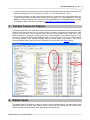
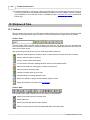
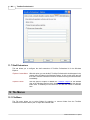
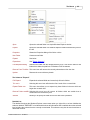
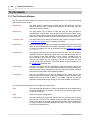
Directly beneath the menu bar you'll find three toolbars showing icons for fast access to frequently used
functions. Every single toolbar may be turned on or off in the context menu (right-click on the toolbar).
Toolbar "Scan"
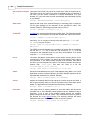
The first toolbar "Scan" includes on the left side a pull down box with drives. Here you can determine
which drive should be scanned. TreeSize Professional 4 saves those paths that were last used in the pull
down box for faster access.
Next to this box you'll find various icons for scanning of folders and drives.
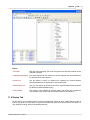
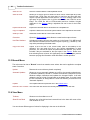
Starts the scanning process. Scans the drive or folder selected in the pull-down box on the left
Lets you select a folder for scanning
Lets you scan the whole folder again
Turns on/off the automatic updating based on news from the Windows Shell
Remove this folder from scanning by TreeSize Professional 4
Prints a report for the active folder
Change to a folder higher up in the tree
Change settings for viewing and folder scan
Opens the "Software" dialog from the Windows System Control
Shows the window for file search (see File Search)
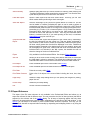
Toolbar "Data"
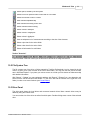
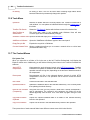
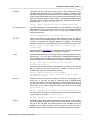
The second toolbar "Data" includes icons for the viewing of collected data.
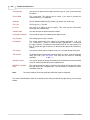
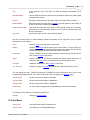
Opens up the folder tree up to a certain level
Shows folder size
Shows how much disk space a folder requires
Shows how many percent of the superordinated folder each folder takes
TreeSize Professional 4 - FAQ