1
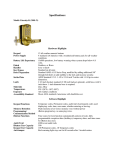
One‐Time‐Use Keycode Setup What is One‐Time‐Use Keycode Setup? If your lock has a keypad (CrossOver X25 or X15), you can set as many as 10 four‐ to eight‐digit codes that will allow one‐time access to the lock. These could be used if, for instance, a repairman needed access to your facility. They could punch in their one‐time keycode and enter your facility. Note: Once the code is used it cannot be used again, so you have a total of more than 11 million combinations. Here’s how to set it up: 1. Start the AccessPilot software and enter your username and password. 2. Click the “Lock Operations” menu and choose “One‐Time‐Use Keycode Setup” from the menu that appears. 3. Follow directions on the pop‐up screen. Questions and answers How do I … •
… Set up the lock I’ve just purchased? See Page 10. •
… Add users to my lock? See Page 12. •
… Set up a user of the lock so they can operate the lock only on certain days between certain times? See Page 14. •
… Set up a user so they can operate the lock only between certain dates? See Page 14. •
… Set up a user for one‐time use of a lock with a keypad (CrossOver X15 and X25)? See Page 21. •
… Set the time and date on my lock? See Page 17. •
… Tell whether I have the optional DS1997 iButton key, which contains an internal clock? See Page 17. •
… Lock out everyone from my facility, for instance on a holiday, even though users ordinarily would have access on that day? See Page 15. •
… Tell the difference between Classroom Mode and Storehouse Mode? See Page 11. •
… Set the lock to automatically unlock or lock at a certain time and day? See Page 13. •
… Find the reset button on my lock? See Pages 4 and 5. •
… Know when to replace the batteries on my lock? See Page 4. •
… Open the lock if the batteries are dead? See Page 4. •
… Know whether I have a 32‐bit or a 64‐bit version of Windows? See Page 5. •
… Get the data from my old iKeypad software into AccessPilot? See Page 23. •
… Set up a new user and assign him or her an iButton key? See Page 9. •
… Find out where on my computer network my lock data is being stored? See Page 7. •
… Make the red LED on the lock blink, so I can see it at night. See Page 18. •
… Give another person the authority to assign iButton keys and make changes to my locks. Or give another person the authority to see who has access to locks, but NOT the authority to make changes or add users. See Page 18. •
… Make changes to a user’s profile. See Page 8. 21