1
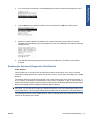
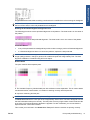
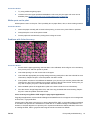
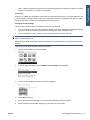
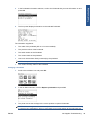
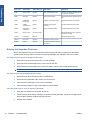
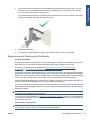
Clean the electrical connections on the backside of the printhead with a lint-free cloth. You can
carefully use a mild rubbing alcohol if moisture is needed to remove residue. Do not use water.
You can use the Flex Contacts Cleaning Tool.
Troubleshooting
4.
This is a delicate process and may damage the printhead. Do not touch the nozzles on the bottom
side of the printhead, especially not with any alcohol.
5.
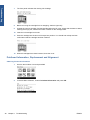
Reinsert the printhead.
6.
Check the front panel display message. If the problem remains, try a new printhead.
Maintaining and Cleaning the Printheads
Clean the printheads
As long as the printer is kept turned on, an automatic cleaning is performed periodically. This ensures
there is fresh ink in the nozzles and prevents nozzle clogs, which ensures color accuracy.
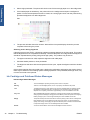
If you have not already done so, please read Horizontal Lines Across the Image (Banding)
on page 19 and The Service Image Quality Diagnostic Print on page 6 before proceeding.
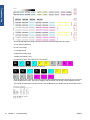
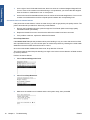
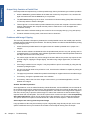
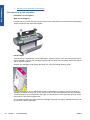
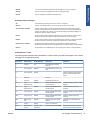
To clean the printheads, press the Menu key to return to the main menu and select the Image Quality
Maintenance menu icon, then Clean printheads. If you have gone through the Image Quality Diagnostic
print process, you know which colors are failing. Select to the pair of printheads which contain the failing
colors. If you are not sure which colors to clean, you can also select to clean all printheads.
Cleaning all printheads takes about nine minutes. Cleaning a single pair of printheads takes about six
minutes. Cleaning all printheads uses more ink than cleaning a single pair.
If you have cleaned the printheads using the Clean printheads procedure from the front panel and are
still experiencing image quality problems, you can try cleaning the printhead nozzles manually using the
following procedure.
NOTE: This is a delicate process and may damage the printhead. Do not touch the electrical
connections on the backside of the printhead.
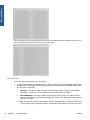
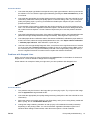
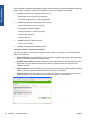
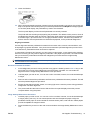
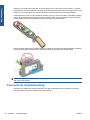
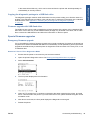
You must remove the printhead (see Changing a Printhead on page 39) and using a cotton swab and
a little de-ionized, distilled water, or Carriage Interconnect Wiper clean the bottom of the printhead until
the residue is removed.
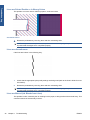
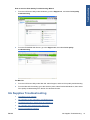
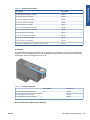
Flex Contacts Cleaning Tool
NOTE: The Flex Contacts Cleaning Tool is part of the Maintenance Tool Kit. All the instructions needed
to use the Flex Contacts Cleaning Tool will be packaged with the kit.
ENWW
Ink Supplies Troubleshooting
45