1
hager
The Tebis devices have been now installed. All of the electrical cables have been
checked. The electrical loads (lights, shutters ...) are in place and connected.
You only need to establish the links between the inputs and the outputs, and you can
then operate the installation.
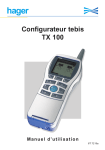
Tebis Configurator
TX 100
The Tebis TX100 portable configurator is a configuration tool intended for establishing these links for the entire range of Tebis devices:
Twisted-pair devices
RF bidirectional devices
RF unidirectional devices
This tool is only used during the installation configuration phase. It has no role
to play in normal operation of the installation.
User manual
6T 7157a
Definitions
Description of the keys
ON / OFF
key
Display
”Menu access”
key
(same function
as
)
Input
- Selects an input
number
- Selects a function assigned to
the selected
input
- Movement in the
menus
Output
- Selects an output
number
- Movement in the
menus
Alphanumeric
keypad
Screen keys
The function of each key is
indicated on the screen
above it. The function varies
depending on the screen
- Confirms the current operation
- Selects a menu
- Confirms the entry
- Changes the function of
the left
keys (selection of an input number
or function)
- Returns to the previous
menu
- Activates the selected output
- Starts numbering of the
installation outputs
Description of the display
Number of inputs piloting
the selected output
(e.g. output 25 is piloted by
2 inputs including output 17)
Total number of installation defaults
Output-related
information
Battery load level
Output
Title bar
Input
Number of outputs
linked to the displayed
input (e.g. 5 outputs
for input 17)
RF device
Twisted-pair device
Input no.
Input function
Default on
displayed
output
Default on
displayed
input
Number of
installation
inputs
Preparation of a link
Output no.
Output type
Number of
installation
outputs
cannot receive information from the other channels in the installation.
Bidir :
designates an emitting/receiving device or channel. All of the output channels are “bidir”.
Twisted-pair: designates a device or channel that is linked to the twisted-pair bus.
Technical specifications
Device power supply:
Rechargeable batteries:
Dry-cell batteries:
External charge:
Consumption during charge:
Operation life:
Charge time:
Central frequency:
Emission power:
Reception sensitivity:
Emission speed:
Duty Cycle :
Memory card:
Operating temperature:
Storage temperature:
Protection index:
Weight:
Size:
Access to the installation
help screens
Menu access
Input-related
information
Channel: designates an input or an output.
Unidir:
designates an emitting input device or channel. "Unidir" channels
1
Established link
1
Deletion of a link
4 rechargeable batteries or 4 AA dry-cell batteries
Ni-Mh 1.2V 1550mA/h (min.)
Alcaline 1.5V LR6
Via a 230V / 9V, 1A (min.) transformer
0.2A (for mains loading)
- Batteries charged in the tool:
8h
- Batteries charged outside of the tool:6h
- New dry-cell batteries:
10h
3h30min
868.3 MHz
5 dBm (min.)
-100 dBm (min.)
16384 bauds
1%
SmartMedia 8-64 MB
0°C - +45°C
-20°C - +70°C
IP20
340g
75 x 169 x 34,5 mm (excluding aerial)
Addressing area
Physical address for twisted-pair devices: 0.2.00 - 0.2.55
Group addresses: 24/4/00 - 27/7/255 ETS mode deactivated
10/4/00 - 13/7/255 ETS mode activated (by default)
The system’s limits
Sounds
• A single “beep sound” indicates a successful operation
• A double “beep sound” indicates
an operation that has failed
250 RF devices
250 twisted-pair devices
1024 channels divided into 512 input channels and 512 output channels
1 media coupler
6 repetition levels in a message
General contents
General information . . . . . . . . . . . . . . . . . . . . . . . . . . . . . . . . . . . . . .2
1. Starting-Up . . . . . . . . . . . . . . . . . . . . . . . . . . . . . . . . . . . . . . . . . . . . . . . . .2
1.1
1.2
1.3
1.4
1.5
Inserting rechargeable batteries or dry-cell batteries . . . . . . . . . . . . . . . . . . . .2
Battery life and load . . . . . . . . . . . . . . . . . . . . . . . . . . . . . . . . . . . . . . . . . . . .2
Card reader . . . . . . . . . . . . . . . . . . . . . . . . . . . . . . . . . . . . . . . . . . . . . . . . . .3
Switching on / off . . . . . . . . . . . . . . . . . . . . . . . . . . . . . . . . . . . . . . . . . . . . .4
Language selection . . . . . . . . . . . . . . . . . . . . . . . . . . . . . . . . . . . . . . . . . . . .4
2 The different installation types . . . . . . . . . . . . . . . . . . . . . . . . . . . . . . . . . . .5
2.1 RF installation . . . . . . . . . . . . . . . . . . . . . . . . . . . . . . . . . . . . . . . . . . . . . . . .5
2.2 Twisted-pair installation . . . . . . . . . . . . . . . . . . . . . . . . . . . . . . . . . . . . . . . . .5
2.3 Mixed RF / twisted-pair installation . . . . . . . . . . . . . . . . . . . . . . . . . . . . . . . . .5
3 The different types of uses . . . . . . . . . . . . . . . . . . . . . . . . . . . . . . . . . . . . .6
3.1 Configuration . . . . . . . . . . . . . . . . . . . . . . . . . . . . . . . . . . . . . . . . . . . . . . . . .6
3.2 Management, RF tools and settings . . . . . . . . . . . . . . . . . . . . . . . . . . . . . . . .6
Configuration . . . . . . . . . . . . . . . . . . . . . . . . . . . . . . . . . . . . . . . . . .7
1 Principle . . . . . . . . . . . . . . . . . . . . . . . . . . . . . . . . . . . . . . . . . . . . . . . . . . .7
2 Selecting a media coupler . . . . . . . . . . . . . . . . . . . . . . . . . . . . . . . . . . . . . .8
2.1 For a new installation . . . . . . . . . . . . . . . . . . . . . . . . . . . . . . . . . . . . . . . . . . .8
2.2 For an already-configured installation . . . . . . . . . . . . . . . . . . . . . . . . . . . . . . .8
2.3 Using the tool coupler . . . . . . . . . . . . . . . . . . . . . . . . . . . . . . . . . . . . . . . . . .8
3 Device-learning . . . . . . . . . . . . . . . . . . . . . . . . . . . . . . . . . . . . . . . . . . . . . .9
3.1 Device-learning and output numbering . . . . . . . . . . . . . . . . . . . . . . . . . . . . . .9
3.2 Numbering an input and assigning a function . . . . . . . . . . . . . . . . . . . . . . . .10
3.3 Deleting an input . . . . . . . . . . . . . . . . . . . . . . . . . . . . . . . . . . . . . . . . . . . . .11
4 Creating and managing the links . . . . . . . . . . . . . . . . . . . . . . . . . . . . . . . .12
4.1 Creating a simple link . . . . . . . . . . . . . . . . . . . . . . . . . . . . . . . . . . . . . . . . . .12
4.2 Creating a multiple link . . . . . . . . . . . . . . . . . . . . . . . . . . . . . . . . . . . . . . . . .14
4.3 Deleting a link . . . . . . . . . . . . . . . . . . . . . . . . . . . . . . . . . . . . . . . . . . . . . . .14
5 Visualizing the links . . . . . . . . . . . . . . . . . . . . . . . . . . . . . . . . . . . . . . . . . .15
Management, RF tools and settings . . . . . . . . . . . . . . . . . . . . . . . .16
1 Device reset . . . . . . . . . . . . . . . . . . . . . . . . . . . . . . . . . . . . . . . . . . . . . . . . .18
2 Delete . . . . . . . . . . . . . . . . . . . . . . . . . . . . . . . . . . . . . . . . . . . . . . . . . . . . .19
3 Device information . . . . . . . . . . . . . . . . . . . . . . . . . . . . . . . . . . . . . . . . . . . .19
4 Repeater (device) . . . . . . . . . . . . . . . . . . . . . . . . . . . . . . . . . . . . . . . . . . . . . .20
5 ETS Addressing . . . . . . . . . . . . . . . . . . . . . . . . . . . . . . . . . . . . . . . . . . . . . . .20
6 Download (device) . . . . . . . . . . . . . . . . . . . . . . . . . . . . . . . . . . . . . . . . . . . .21
7 Installation reset . . . . . . . . . . . . . . . . . . . . . . . . . . . . . . . . . . . . . . . . . . . . . . .21
8 Smartcard . . . . . . . . . . . . . . . . . . . . . . . . . . . . . . . . . . . . . . . . . . . . . . . . . . . .22
9 Coupler selection . . . . . . . . . . . . . . . . . . . . . . . . . . . . . . . . . . . . . . . . . . . . . .23
10 Smartcard update . . . . . . . . . . . . . . . . . . . . . . . . . . . . . . . . . . . . . . . . . . . . .23
11 Installation information . . . . . . . . . . . . . . . . . . . . . . . . . . . . . . . . . . . . . . . . . .24
12 Download (installation) . . . . . . . . . . . . . . . . . . . . . . . . . . . . . . . . . . . . . . .24
13 RF noise . . . . . . . . . . . . . . . . . . . . . . . . . . . . . . . . . . . . . . . . . . . . . . . . . . . .25
14 Emission / Reception . . . . . . . . . . . . . . . . . . . . . . . . . . . . . . . . . . . . . . . . . .25
15 Konnex Traffic . . . . . . . . . . . . . . . . . . . . . . . . . . . . . . . . . . . . . . . . . . . . . . . .26
16 Repeater (simulation) . . . . . . . . . . . . . . . . . . . . . . . . . . . . . . . . . . . . . . . . . .26
17 Input . . . . . . . . . . . . . . . . . . . . . . . . . . . . . . . . . . . . . . . . . . . . . . . . . . . . . . .27
18 Expert / Standard mode . . . . . . . . . . . . . . . . . . . . . . . . . . . . . . . . . . . . . . . .27
19 Date and time . . . . . . . . . . . . . . . . . . . . . . . . . . . . . . . . . . . . . . . . . . . . . . . .28
20 Sounds . . . . . . . . . . . . . . . . . . . . . . . . . . . . . . . . . . . . . . . . . . . . . . . . . . . . .28
21 Language . . . . . . . . . . . . . . . . . . . . . . . . . . . . . . . . . . . . . . . . . . . . . . . . . . .29
22 Address format . . . . . . . . . . . . . . . . . . . . . . . . . . . . . . . . . . . . . . . . . . . . . . .29
23 Display backlight . . . . . . . . . . . . . . . . . . . . . . . . . . . . . . . . . . . . . . . . . . . . . .30
24 Tool coupler selection . . . . . . . . . . . . . . . . . . . . . . . . . . . . . . . . . . . . . . . . . .30
25 ETS mode . . . . . . . . . . . . . . . . . . . . . . . . . . . . . . . . . . . . . . . . . . . . . . . . . .31
Appendix . . . . . . . . . . . . . . . . . . . . . . . . . . . . . . . . . . . . . . . . . . . . .32
1
General Information
1
1.3 Card reader
Starting-Up
• Open flap A.
1.1 Inserting rechargeable batteries or dry-cell batteries
• Remove screw A.
A
• Open cover B to access the battery compartment.
• Position switch C according to the power supply being used:
Position 1
Powered by dry-cell batteries
B
A
• Insert a smartcard into the configurator in
accordance with the figure shown opposite.
The smartcard must be inserted before the
configurator is switched on.
Position 2 (by default at delivery)
1
Powered by rechargeable batteries (supplied)
• Insert dry-cell batteries or rechargeable batteries ensuring that the polarities are respected,
then close and screw down the cover.
2
There are 2 types of smartcards:
Memory card
It allows you to save the parameters of an
installation.
- A memory card is essential for configuring an installation.
- You must use a separate memory card
for each installation.
C
1.2 Battery life and load
If you are using rechargeable batteries, connect
the mains charger provided to socket D.
D
The battery level indicator is displayed during
loading.
If the charger is connected to the device when it
is operating on dry-cell batteries and the selection switch is still in the rechargeable battery
position, there is a risk of destroying the Tebis
TX100 configurator.
Charge the battery completely before the
first use (3h 30min).
2
Software update smartcard
The software update smartcard allows
you to download a new version of the software in order to benefit from the latest
improvements to the configurator. Press
the YES screen key to confirm the software version update; a standby screen is
then displayed. Once the update is complete, remove the smartcard and then
press the
screen key to restart the
configurator with the new version of the
software.
The software cannot be updated if the battery
load level is very low.
3
General Information
General Information
2
1.4 Switching on / off
A
• Press the A button until the sound signal is
activated in order to start or stop the configurator.
A standby screen is displayed for a few seconds.
The different installation types
2.1 RF installation
This type of installation only consists of RF devices.
2.2 Twisted-pair installation
The installation information contained on the
memory card is automatically displayed when
the configurator is switched on.
• Press the
screen.
screen key to move to the next
• Press the
screen key to change the card.
This installation only consists of devices connected to the bus.
This installation type requires a media coupler to be installed during the entire
configuration phase.
The media coupler can be removed at the end of the configuration procedure.
2.3 Mixed RF / twisted-pair installation
This installation consists of RF devices and devices connected to the bus.
This installation type requires a media coupler to be installed.
The media coupler assures communication between the various devices and
must remain in the installation.
1.5 Language selection
When started up for the first time, the configurator displays the screens in English.
To change the language:
• Select the language to be used with the
or
keys.
• Press the
4
key to confirm your selection.
5
General Information
General Information
Configuration
3
1
The different types of uses
Principle
Configuring a new installation consists of the following steps:
3.1 Configuration
In this use, it is possible to number the outputs and inputs, establish links and
visualize all of the established links.
The installation is not operational in this case.
Configuration operations are divided up into three modes.
Twisted-pair
Installation
RF Installation
Selecting a
media coupler
Mixed
Installation
Selecting a
media coupler
Chapter 2
Numbering Mode (Num)
This mode allows you to:
- number the inputs
- assign a function to an input
- delete an input and its associated function
Installation
learning
Device-learning
and output numbering
Chapter 3
Numbering
an input
Link Establishment Mode (Prog)
This mode allows you to:
- number the outputs
- locate the outputs
- establish links
- delete links
- visualize the established links
Assigning a function
to an input
Creating the links
Chapter 4
Selecting
an input
Visualization Mode (Visu)
This mode allows you to visualize all of the links in an installation.
The
tool must be placed in the Auto mode before you can use or test the
installation.
3.2 Management, RF tools and settings
This mode can be accessed by pressing the
This menu allows you to:
- manage the devices and the installation
- take RF tools and carry out simulations
- configure some of the tool’s functionalities
S
I
N
G
L
E
key or the “menu access” key.
Selecting
an output
Preparing
a link
Selecting
an output
Preparing
a second link
L
I
N
K
Preparing
a n th link
Confirmation
6
7
M
U
L
T
I
P
L
E
L
I
N
K
Configuration
2
Selecting a media coupler
A selection sequence must be followed for installations requiring the use of a
media coupler (twisted-pair or mixed installations only).
2.1 For a new installation
Once the configurator is switched on, it asks
you if the installation consists of twisted-pair
devices.
If YES, the Coupler Selection screen is then
displayed.
• In this case, select the media coupler to be
used by pressing its
button until the red
indicator turns on (4 sec).
3
Device-learning
3.1 Device-learning and output numbering
The configurator must know the inputs and the outputs present in the installation
before any links can be established. The procedure shown below enables:
- Learning of the outputs
- Automatic assignment of a number to each output channel
- Learning of the “bidir” and twisted-pair inputs
This
operation is essential prior to input numbering
Select the Prog mode.
• Hold down the
key to start automatic output numbering.
The configurator automatically searches for all
outputs present in the installation.
• Release the button.
A sound signal is activated when the selection
has been made.
• Wait until the Auto screen is displayed to continue with the configuration.
This
operation lasts for 1 to 10 minutes
depending on the number of devices present in
the installation.
The title bar on the current screen flashes if
the configurator is not within RF reach of
the media coupler.
At the end of the device-learning phase, the
screen displays the characteristics of the first
output A as well as the number of outputs
detected B.
All of the outputs are then numbered.
A
2.2 For an already-configured installation
It is not necessary to follow a coupler selection procedure for an already-configured installation unless the coupler has been changed.
The media coupler selected during the initial configuration will be automatically
detected and used for the following operations.
B
2.3 Using the tool coupler
It is possible to always use the same media coupler for configuring twisted-pair
installations. This coupler can be designated as the “tool coupler”.
Once it has been selected (cf. Tool / Settings / Tool Coupler Selection menu), it
will be automatically recognised when the configurator is switched on.
8
9
Configuration
Configuration
3.2 Numbering an input and assigning a function
In order to be able to number all of the inputs, the device-learning and output numbering procedure must be carried out first (see previous page).
Select the Num (numbering) mode.
RF unidirectional devices
• Press the push-button or toggle the switch that is connected to the input to be
numbered.
• Place the configurator within immediate reach of the input to be numbered.
• Press the Learn screen key.
• Hold down the key that corresponds to the input to be numbered.
A sound signal is activated when the input has been detected. The configurator
automatically assigns a number to it.
• Press the
key to assign a function to the input.
• Select the function from the proposed functions with the left
keys.
A complete list of functions and their symbols is available in Appendix 1.
• - Press the
key to confirm the selected function.
A sound signal confirms that the function has been loaded.
Assigning the number
Selecting the function
• The central screen key
facilitates function selection by allowing you to
activate a function filter to limit scrolling to a family of functions. The All function corresponds to scrolling all of the functions.
• The numbers are assigned in ascending order starting from 1.
• To find the number assigned to a channel, you just have to activate it.
RF bidirectional and twisted-pair devices
• Press the push-button or toggle the switch that is connected to the input to be
numbered.
The configurator automatically assigns a number to it.
• Press the
key to assign a function to this input.
3.3 Deleting an input
• Select the function from the proposed functions with the left
keys.
A complete list of functions and associated symbols is available in Appendix 1.
• Select the input to be deleted, either:
- With the left
keys.
- By pressing the button that corresponds to the input.
• Press the
• Hold down the
key to confirm the selected function.
The central screen key
facilitates function selection by allowing you to
activate a function filter to limit scrolling to a family of functions. The All function corresponds to scrolling all of the functions.
10
key.
• Press the YES screen key to confirm deletion
of the input.
The numbers deleted during this operation
will be reassigned in priority during one of the
following numbering procedures.
11
Configuration
Configuration
4
Creating and managing the links
The configurator now knows the output and
input channels. The link establishment phase
can now begin. Select the Prog mode to establish the links.
➜
➜
Briefly pressing the
key allows you to directly control the output displayed
on the configurator. For ON/OFF lighting, for example, pressing the
key
once turns on the lamp corresponding to the output displayed on the
configurator and pressing it again turns it off. In the case of twisted pair devices,
the LED for the channel corresponding to the output displayed on the configurator is turned on (only if in the manual position on the output module).
For devices equipped with a push-button, pressing the push-button displays the
corresponding number on the configurator. The indicator associated to the selected
channel is then turned on.
Confirming a link
• Hold down the
key to confirm the link.
The characteristics of the link are saved in the
output channel, the input channel and on the
memory card in the configurator.
4.1 Creating a simple link
Selecting an input
• Press the left
be linked.
keys to display the input to
Once the characteristics of the link have been
saved, the symbol shown by A confirms that the
link has been established.
Or
• Press the push-button or the switch corresponding to the input to be linked.
The number and the function of this input are
then displayed.
A
Selecting an output
• Press the right
to be linked.
keys to display the output
Or
If the output number is not known, there are
2 possibilities available for physically locating the
output:
Inputting a possible parameter
Certain functions require a parameter (e.g. lighting time delay) to be input.
• Hold down the
key to display the list of
parameters that are compatible with the
selected function.
• Press the
parameter.
• Press the
12
13
or
keys to select or set the
key to confirm and save the link.
Configuration
Configuration
5
4.2 Creating a multiple link
The system allows you to link an input to several outputs. The steps are identical
to those followed when creating a simple link but the procedure is different:
• Select an input.
• Select an output.
• Prepare the link by briefly pressing the
key.
• Select another output.
• Prepare the link by briefly pressing the
again.
key
• Repeat the procedure for each new output to
be linked.
• When all of the links have been prepared, confirm the links by holding down the
key. The
configurator then invites you to input a parameter if required (timer duration...). This parameter will be identical for all of the outputs.
Visualizing the links
Press the Visu screen key to select the visualization mode.
This mode allows you to see all of the links in an
installation.
The links can be visualized:
- Via the inputs, by selecting the no. or by
directly pressing the button corresponding
to an input. Use the right
keys to scroll
the outputs linked to the current input.
- Via the outputs, by selecting the no. or by
directly pressing the button corresponding
to an output (if the output is associated
with one). Use the left
keys to scroll
the inputs linked to the current output.
Once the link has been saved, the right ring
5
indicates the number of outputs linked
to the current input.
4.3 Deleting a link
• Select the appropriate input and output to display the link to be deleted.
• Hold down the
key to delete the link.
In order to delete a multiple link, you have to
delete the links for each output.
14
15
Configuration
Management, RF tools and settings
• Press the
key or the “menu access” key
to display the menu.
• Select the desired function with the
keys.
or
• Confirm with the
keys.
The
key allows you to return to the previous
menu.
Installation management
The menu allows you to access the functions
indicated on the next page.
RF tools
Simulation
16
§ 1
Device reset
§ 2
Delete
§3
Device information
§ 4
Repeater (device)
§ 5
ETS addressing
§ 6
Download (device)
§ 7
Installation reset
§ 8
Smartcard management
§ 9
Coupler selection
§ 10
Smartcard update
§ 11
Information
§ 12
Download (installation)
§ 13
RF noise
§ 14
Emission/Reception
§ 15
Konnex Traffic
*
§ 16
Repeater (simulation)
§ 17
Input
*
Expert/Standard mode
§ 18
Settings
§ 19
Date and time
§ 20
Sounds
§ 21
Language
§ 22
Address format
§ 23
Display backlight
§ 24
Tool coupler selection
§ 25
ETS mode
17
*
*
*
*
*
*
*
*
*
*
Functions also accessible without a memory card
Device management
*
In this use of the configurator, it is possible to access all of the measurement,
simulation and setting management functions.
To access these functions:
Management, RF tools and settings
Management, RF tools and settings
1 Device reset
2 Delete
Device management
Device management
Device reset
Delete
This function allows you to return a device to its factory configuration.
This function allows you to remove a device saved on the memory card without
returning the configurator to its factory configuration.
• Select a device from the list, either:
- With the
or
keys.
- By pressing the button corresponding to an input.
- By pressing the button corresponding to the
output channel, if it exists.
Product in the current installation
The list of known devices in the installation is
displayed:
• Select a device from this list, either:
- With the
or
keys.
- By pressing the button corresponding to
an input.
- By pressing the button corresponding to
the output channel, if it exists.
• Press the
keys.
• Press the YES screen key to confirm the
"device reset".
• Press the
.
• Press the YES screen key to confirm the “deletion”.
A “device reset” then re-learning will be required
before the device can be configured again.
3 Device information
Device management
Device not belonging to the installation
(Not instal. device)
• Select “Not instal. device”.
• Press the
key to confirm.
• Select the device type in the proposed menu.
• Follow the instructions indicated by the configurator.
All
of the links and parameters are erased
from the device after confirmation.
Re-learning
will be required before the
device can be configured again.
18
Device information
This function allows you to visualize the main characteristics of a device present in the installation.
A list of the devices present in the installation is displayed:
• Select a device from this list, either:
- With the
or
keys.
- By pressing the button corresponding to an input.
- By pressing the button corresponding to
the output channel, if it exists.
• Press the
key.
The characteristics are then displayed.
• Press the
screen key to return to the list
of devices.
In the shutter or blind modules, the PARAM screen
key allows you to access the screen where you can
select the complete ramp-up time for the shutter or
the blind.
19
Management, RF tools and settings
Management, RF tools and settings
6 Download (device)
4 Repeater (device)
Device management
Device management
Download
Repeater
This function allows you to activate or deactivate the repeater function in an RF bidirectional
device. A list of the RF bidirectional devices
present in the installation is displayed:
This function allows you to force downloading of a
device.
• Select a device from this list, either:
- With the
or
keys.
- By pressing the button corresponding to
an input.
• Select a device from the list, either:
- With the
or
keys.
- By pressing the button corresponding to an input.
- By pressing the button corresponding to the
output channel, if it exists.
• Press the
• Press the
key.
• Press the YES screen key to confirm activation or deactivation of the "repeater" function.
key.
• Press the YES screen key to confirm the
"download“.
5 ETS Addressing
7 Installation reset
Device management
ETS addressing
Instal. management
This function allows you to:
- Place a twisted-pair or RF bidirectional
device in the physical addressing mode (for
use with ETS).
- Activate emission by an RF unidirectional
device of the information necessary for configuring the devices to ETS.
A list of the devices in the installation is then
displayed:
• Select a device from the list, either:
- With the
or
keys
- By pressing the button corresponding to an input.
- By pressing the button corresponding to the
output channel, if it exists.
• Press the
Installation reset
This function allows you to reset all of the
twisted-pair and RF bidirectional devices in the
installation. These devices are returned to their
factory configuration.
The unidirectional devices have to be reset individually (see 1. Device-reset).
• Press the YES screen key to confirm the
“installation reset”.
Re-learning will be required before the installation can be configured again.
key.
• Press the YES screen key to activate the “Prog
mode”.
20
21
Management, RF tools and settings
Management, RF tools and settings
8 Smartcard
9 Coupler selection
Instal. management
Instal. management
Smartcard
Coupler selection
This function allows the user to erase or copy the contents of a memory card.
This function allows you to select a media coupler in an installation.
• Select the media coupler to be used by pressing its
button until the red indicator turns on
(4 sec).
Erasing the smartcard
• Press the YES screen key to erase the smartcard.
Copying the smartcard
• Release the button.
A sound signal is activated when the selection
has been made.
10 Smartcard update
• Insert the original smartcard to be copied.
• Press the
card.
screen key to read the smart-
• Insert a new smartcard.
• Press the
screen key to copy the installation parameters.
22
Instal. management
Smartcard update
This function allows you to erase the devices not
used in the installation from the memory card.
The numbers of products with no links is displayed.
• Press the YES screen key to confirm the smartcard update.
The configurator realises a "device reset" for the
unused twisted-pair and RF bidirectional devices.
RF unidirectional devices are not concerned by
this function.
23
Management, RF tools and settings
Management, RF tools and settings
11 Installation information
13 RF noise
RF tools
Instal. management
RF noise
Installation information
This function allows you to detect any possible
RF disruptions using the same frequency band
as the devices present in the installation.
A measuring cycle starts as soon as the function
is selected.
At the end of the cycle, the configurator displays
the noise level and automatically takes a new
measurement.
This function provides general information about
the installation.
• Press the Stop screen key to stop the measuring cycle.
• Press the Start screen key to restart the measuring cycle.
The
screen key allows you to return to the
previous screen.
12 Download (installation)
14 Emission / Reception
Instal. information
Download
This function allows you to force downloading of
the installation.
• Press the YES screen key to confirm the installation “download”.
24
RF tools
Emission/Reception
This function allows you to measure the emission power of a radio transmitter and the reception sensitivity of a receiver.
It can only be accessed from the Prog menu by
pressing the
key.
The reception sensitivity is displayed either:
- As a direct measurement from the transmitter to the desired receiver.
- As a repeated signal. In this case, the measurement indicates the sensitivity of the
receiver in relation to that of a repeater.
25
Management, RF tools and settings
Management, RF tools and settings
17 Input
15 Konnex Traffic
Simulation
RF tools
Input
Konnex Traffic
This function allows you to measure the RF level emitted by any Konnex transmitter.
A measuring cycle starts as soon as the function
is selected. When each telegram is received, the
configurator displays:
- the serial number of the emitting device.
- the signal level.
- the total number of telegrams received since
the start of the measuring cycle.
- if necessary, a low-battery alert for the
active transmitter.
• Press the Stop screen key to stop the measuring cycle.
• Press the Start screen key to restart the measuring cycle.
The
screen key allows you to return to the
previous screen.
16 Repeater (simulation)
This function allows the configurator to replace
an input.
The last input selected in the Num or Prog
mode is displayed.
• Press the
button to simulate the input.
The
screen key allows you to return to the
previous screen.
18 Expert / Standard mode
Simulation
Expert mode
Simulation
Repeater
This function allows the configurator to simulate the repeater function in order to
correctly position a repeater in the installation.
• Press the
key to start the simulation.
• Press the Stop screen key to stop it.
26
This function allows you to activate the expert
mode. In expert mode, the input and output
functions are presented via the objects of communication.
• Press the YES screen key to activate or deactivate the expert mode.
27
Management, RF tools and settings
Management, RF tools and settings
19 Date and time
21 Language
Settings
Settings
Language
Date and time
This function allows you to set the date and the
time.
• Press the right
keys to increase or
decrease the value of the selected field.
The language used is selected during the initial
start-up.
It is however possible to change it at a later
stage.
• Select the language with the
or
keys.
• Press the
• Press the
• Press the left
to the next.
keys to move from one field
screen key to confirm.
key to confirm.
The
screen key allows you to return to the
previous screen.
20 Sounds
22 Address format
Settings
Settings
Sounds
Address format
Activating the sounds allows you to obtain a
confirmation beep sound for certain actions.
• Press the YES screen key to activate or deactivate “the sounds”.
This function allows you to set the address format or the input format for group addresses.
• Press the screen key corresponding to the
desired format.
The
screen key allows you to return to the
previous screen.
28
29
Management, RF tools and settings
Management, RF tools and settings
25 ETS mode
23 Display backlight
Settings
Settings
Display backlight
ETS mode
This function allows you to activate or deactivate the display backlight.
• Press the YES screen key to activate or deactivate “the display backlight”.
This function allows you to use the RF group
addresses in ETS.
• Press the YES screen key to activate or deactivate “the ETS mode".
The ETS mode is activated by default. Any installation can therefore be extended with ETS.
Deactivating the ETS mode changes the
addressing area. Installations realised when
the ETS mode is deactivated can not be
extended.
Reminder of the group addressing areas:
• 24/4/00 - 27/7/255 ETS mode deactivated
(addresses can not be reached by ETS).
• 10/4/00 - 13/7/255 ETS mode activated (by
default)
24 Tool coupler selection
Settings
Tool coupler selection
This function allows you to define a media coupler as the tool coupler.
• Select the media coupler to be used by pressing its
button until the red indicator turns on
(4 sec).
• Release the button.
A sound signal is activated when the selection
has been made.
30
31
Management, RF tools and settings
Appendix
Application
Notes
Symbol
Lights
...
Blinds / Roller
shutters
Heating
Timer
Dusk-to-dawn
switch
Ambience
controller
All
applications
...
Type of command
Switching on
Switching off
ON / OFF, with switch
ON / OFF, with remote-control switch
ON / OFF, with remote-control switch for unidirectional devices
Increasing the dim level
Reducing the dim level
Dim, with push-button
Priority shutdown
Priority ON
Timer ON
Timer OFF
Ambience level: 25%, 50%, 75% or 100%
Up, with push-button
Down, with push-button
Up / Down status, with push-button
Priority Up
Priority Down
Security for bad weather
Comfort
Eco
Comfort / Eco
Frost-free
Priority OFF
Priority comfort
Priority Eco
Timer-controlled Comfort
Time-controlled Eco
Master timer
Slave timer
Up / Down Function, with switch
Down / Up Function, with switch
Up Function, with switch
Down Function, with switch
Master dusk-to-dawn switch
Slave dusk-to-dawn switch
Display area on the ambience controller (1 - 4)
Logic function
No function
Ambience level: 1 to 8
32
33
Notes
Notes
34
35
Notes
36
hager
Hager Tehalit Systèmes SAS
132 Boulevard d’Europe
BP 78
F-67212 Obernai Cedex
FRANCE
www.hager.com