1
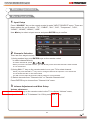
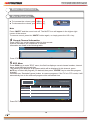
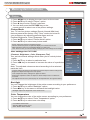
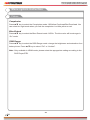
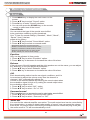
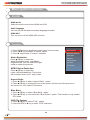
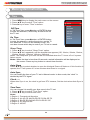
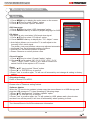
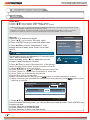
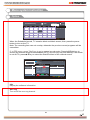
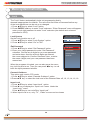
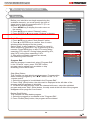
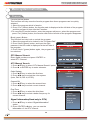
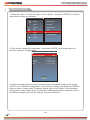
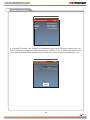
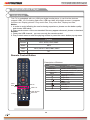
Menu system instruction Picture 1. Press MENU key to display the main menu on the screen. 2. Press / key to select "Picture" option. 3. Press key to enter "Picture" submenu. 4. You can also press the PICTURE key on the remote control to select one of the picture settings. Picture Sound Function Picture Mode Time Your TV has four picture settings (Sports, Normal,Mild,User) that are preset at the factory. Only "User" mode can be set to your preference by adjusting particular items such as Contrast, Brightness, Color, Sharpness, Tint. 1. Press / key to select "Picture Mode" option. 2. Press / key to select one picture mode. Option Lock Channel Sports: Select the picture for exquisite program. Normal: Selects the picture for optimum display in a normal environment. Mild: Selects the picture for comfortable display in a dark room. User: Select to view your favorite display settings (see User settings for PICTURE). User settings for PICTURE (Contrast, Brightness, Color, Sharpness,Tint) Your set has several settings which allow you to control picture quality. 1. Press ▲/▼ key to select a particular item. 2. Press / key to decrease or increase the value of a particular item. Note: The adjusted values are stored according to the selected particular item. Contrast: Adjusts the lightness and darkness between objects and the background. Brightness: Adjusts the brightness of the picture. Color: Adjusts the colors, making them lighter or darker. Sharpness: Adjusts the outline of objects to either sharpen them or make them more dull. Tint: Adjusts the Tint of the picture(Only can be adjusted when the signal is NTSC). Picture Mode Comtrast 70 Brightness 50 Color 70 Sharpness 20 Tint 0 Backlight 100 Color Temperature Backlight You can Change the brightness of the entire screen according to your preference. 1. Press / key to select "Backlight" option. 2. Press/ key to increace or decreace the backlight value. Backlight: Adjusts the brightness of the whole screen. Color Temperature You can change the color of the entire screen according to your preference. 1. Press / key to select "Color Temperature" option. 2. Press / key to select one color temp. Cool: Makes whites bluish. Standard: Makes whites nature Warm: Makes whites reddish. 19 19