1
eyeheight
BF-2
Fade to black and silence processor.
user manual
Table of Contents
1 System overview ................................................................................................4
1.1
Applications for the BF-2.........................................................................4
1.2
Associated Equipment for the BF-2 ........................................................5
1.2.1 Chassis Types .....................................................................................5
1.2.2 Control Surfaces ..................................................................................5
2 Installation ..........................................................................................................7
2.1
Installation of the BF-2 product ...............................................................7
2.2
Installing the BF-2 into a flexiBox............................................................7
2.3
Connecting to a BF-2. .............................................................................7
3 Operation ...........................................................................................................9
3.1
Manual control of the BF-2......................................................................9
3.2
Automation Control of the BF-2...............................................................9
3.3
Operational Menus for the BF-2............................................................10
4 Technical Appendix ..........................................................................................13
4.1
Technical Specification for the BF-2 .....................................................13
4.2
Jumpering the I-BUS (CAN-BUS) Termination .....................................13
4.3
CHP-100 SDI-TC-GPI Card ..................................................................14
4.3.1 Jumper Links on the Timecode and GPI I/O card .............................14
4.3.2 Rear 15W D-Type Pinout...................................................................15
-2eyeheight Unit 34 Park House Watford Business Park Greenhill Crescent Watford Herts GB WD18 8PH
Reg. No. 2855535 Telephone: +44 (0) 1923 256 000 Fax: +44 (0) 1923 256 100 email: [email protected]
Table of Figures
Figure 1-1 BF-2, fade to black and silence PCB. ..................................................4
Figure 1-2 FlexiBox with flexiPanel fitted...............................................................5
Figure 1-3 FP-10 desktop modular panel ..............................................................5
Figure 1-4 FP-9 1RU panel. ..................................................................................6
Figure 2-1 SDI video in/out and AES connections ................................................7
Figure 2-2 15W D-type connections. .....................................................................8
Figure 4-1 Location Of I-Bus Termination Link....................................................13
Figure 4-2 jumpers on the BF-2 I/O card.............................................................14
-3eyeheight Unit 34 Park House Watford Business Park Greenhill Crescent Watford Herts GB WD18 8PH
Reg. No. 2855535 Telephone: +44 (0) 1923 256 000 Fax: +44 (0) 1923 256 100 email: [email protected]
1 System overview
The BF-2 is a fade to black and silence processor. This system will fade an SDI
signal to black while also fading embedded audio group 1 to silence. The unit
also has two channels of AES audio, which can be faded to silence also. The
main features of the BF-2 are as follows:
•
Full 10-bit processing.
•
Programmable auto fade to Black and Silence.
•
AES and embedded audio fade with 2 AES channels and one embedded
group (A1234)
•
Manual panel or automation control.
•
GPI Control.
•
EDH re-insertion
•
Passes all horizontal and vertical interval data.
Figure 1-1 BF-2, fade to black and silence PCB.
1.1
Applications for the BF-2
Applications for the BF-2 include the following:
•
Add on unit for eyeheight playout master control.
•
Any simple FTB applications. The unit will stand-alone for miscellaneous
applications
-4eyeheight Unit 34 Park House Watford Business Park Greenhill Crescent Watford Herts GB WD18 8PH
Reg. No. 2855535 Telephone: +44 (0) 1923 256 000 Fax: +44 (0) 1923 256 100 email: [email protected]
1.2 Associated Equipment for the BF-2
The BF-2 is a module and requires both a chassis and a control surface to
function.
1.2.1 Chassis Types
•
flexiBox is a 1RU chassis. The order code is FB-9. This will hold a
maximum of 6 BF-2 Modules with “Hot Swap” redundant PSU option and
“Hot Swap” BF-2 modules.
•
maxiBox is an alternative low cost 1RU chassis. The order code is MX-9.
This also will hold a maximum of 6 BF-2 modules but it has no redundant
PSU option and the BF-2 units must be factory fitted.
Figure 1-2 FlexiBox with flexiPanel fitted
1.2.2 Control Surfaces
•
FlexiPanel is a IRU control surface that fits on the Front of a 1RU flexiBox.
The order code is FP-9. A FlexiPanel can also be used in conjunction with
a miniBox, in this case the extra accessory (Order code RR-9) will be
required
•
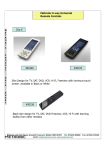
FP-10 is a desk mounting control surface (Order code FP-10). This unit is
a modular unit, which can be used in conjunction with the units below.
Figure 1-3 FP-10 desktop modular panel
-5eyeheight Unit 34 Park House Watford Business Park Greenhill Crescent Watford Herts GB WD18 8PH
Reg. No. 2855535 Telephone: +44 (0) 1923 256 000 Fax: +44 (0) 1923 256 100 email: [email protected]
Figure 1-4 FP-9 1RU panel.
-6eyeheight Unit 34 Park House Watford Business Park Greenhill Crescent Watford Herts GB WD18 8PH
Reg. No. 2855535 Telephone: +44 (0) 1923 256 000 Fax: +44 (0) 1923 256 100 email: [email protected]
2 Installation
2.1 Installation of the BF-2 product
If this unit is already pre-installed in a flexiBox (FB-9), or a maxiBox, with either a
local or a remote panel from the factory then refer to the "Hardware Installation
Guide" which will be enclosed with the system. If this unit is pre-installed in a
miniBox (MB-9), then also refer to the "Hardware Installation Guide" which will be
enclosed with the system
If this unit has been ordered separately, we assume here that you already have a
flexiBox system with a Flexipanel and that the flexiBox has at least one spare slot
for the BF-2 card.
2.2 Installing the BF-2 into a flexiBox
To install the BF-2 into a flexiBox it is desirable (but not necessary) to power
down the flexiBox. Follow these instructions.
On the rear of the flexiBox are 6 slots for Products. Remove any spare blanking
plate. There are 2 off M2.5 Screws, which require unfastening for each blanking
plate.
Slide the Product PCB into the spare slot and firmly push it "home".
Use the two thumbscrews to fasten the unit in place.
Now refer to the "GeNETics User Guide". If your system consists of a single
flexiBox with a single flexiPanel then refer to the section titled "flexiPanel Auto
Set-up". If your system is part of a network with more than one flexiPanel then
refer to the section titled "flexiPanel Manual Set-up". This will guide you through
acquiring your product as a device on the flexiPanel.
2.3 Connecting to a BF-2.
Figure 2-1 SDI video in/out and AES connections
Pin Number
1
2
3
4
5
6
7
Function
AES 1 Input+
AES 1 InputAES 2 Input+
AES 2 InputAES 1 Output A+
AES 1 Output AAES 2 Output A+
-7-
eyeheight Unit 34 Park House Watford Business Park Greenhill Crescent Watford Herts GB WD18 8PH
Reg. No. 2855535 Telephone: +44 (0) 1923 256 000 Fax: +44 (0) 1923 256 100 email: [email protected]
8
9
10
11
12
13
14
15
AES 2 Output AAES 1 Output B+
AES 1 Output BAES 2 Output B+
AES 2 Output BGPI1 Activate/de-activate FTB
GPI2 De-activate FTB
GND
Figure 2-2 15W D-type connections.
GPI’s are short to ground to activate.
-8eyeheight Unit 34 Park House Watford Business Park Greenhill Crescent Watford Herts GB WD18 8PH
Reg. No. 2855535 Telephone: +44 (0) 1923 256 000 Fax: +44 (0) 1923 256 100 email: [email protected]
3 Operation
3.1 Manual control of the BF-2
Manual Control of the BF-2 is done using one or more of the following control
surfaces:
•
The 1RU FP-9 Flexipanel.
•
The FP10 Desk mounting Panel
The FP-9 and the FP-10 have identical manual control systems. (The FP-10 is
simply a desktop version of the FP-9). The BF-2 is, as are all genetics modules,
controlled using a set of MENUS. Each of these menus contains up to 3
parameters that are adjusted using the rotary digipots. The Menus define all of
the adjustable operational parameters in the BF-2. Pressing the rotary digipots
brings the parameter to its default value. Device selection is done using the
device select switches which, when pressed, will offer the name of the device in
the LCD Window. Modules can be acquired and then de-acquired using the setup switch. For a full description of the operation philosophy of the geNETics
system refer to the “geNETics User Guide” (section “Operation of the flexiPanel”)
A full list of the Menus and their functions are given in section 3 of this chapter.
3.2 Automation Control of the BF-2
Automation of the geNETics products is achieved via an RS422 port.** This port
is marked RS422 on the rear of a flexiBox. For the port to work a flexiPanel
MUST be connected locally on the front of the flexiBox.
Automation control of the BF-2 is possible using the geNETics automation
protocol.
Genetics protocol is described in detail in the “GeNETics User Guide” section
titled “Automation Protocol on the geNETics Platform”. The menu list in section 3
of this chapter contains the data information for the protocol.
**On most flexiBoxes later than 1/10/02 the RS422 port has been replaced by a
“D-Bus” Port. The D-Bus port is for High Speed data transfer and is not used for
serial control. In order to achieve serial control of any products on an I-Bus
network Eyeheight Ltd have developed a RS232ÆI-bus converter “dongle”, (DG9) which enables greater flexibility of products on the I-Bus network whilst using
the same protocols as the RS422 port. Please refer to the “User guide for the
DG-9 eyeheight dongle and set-up software.
-9eyeheight Unit 34 Park House Watford Business Park Greenhill Crescent Watford Herts GB WD18 8PH
Reg. No. 2855535 Telephone: +44 (0) 1923 256 000 Fax: +44 (0) 1923 256 100 email: [email protected]
3.3 Operational Menus for the BF-2.
Menus 00-03 Top Level Menus.
FTB
&
Silenc
Menu Num.
00
01
02
03
BF-2
221203
Ver2.0
Heading
Title
Software
version
NEXT->
Automation
none
none
Next
Function
This can be programmed by the
user. See genetics user guide.
This prompts the user to hit the next
key for further menus.
Menus 04-07 Set-up and Take.
(Press “NEXT/PREV” to navigate)
Fade
To
Black
Menu Num.
4
5
Fade
Time
= 1.0s
Heading
Fade "To"
or "From"
Black
Status
(Take
button)
Fade
Time
Automation
Fade To
Fade From
[0Æ1]
Fade
Type
Fade
Amount
= 100%
Function
This is effectively the "Take" button
causing a fade FROM black and
silence or a fade TO Black and
silence.
This indicates the time taken to fade
to and from black and silence.
0 SecsÆ
20 Secs
[0Æ200] (1/10
sec's)]
6
Fade
Type
Auto
th
This indicates the option of automatic
(programmed) or manual "fade to
Black and silence"
Auto
Manual
[0Æ1]
- 10 eyeheight Unit 34 Park House Watford Business Park Greenhill Crescent Watford Herts GB WD18 8PH
Reg. No. 2855535 Telephone: +44 (0) 1923 256 000 Fax: +44 (0) 1923 256 100 email: [email protected]
7
Fade
Amount
0Æ100%
[0Æ256]
This indicates the amount of fade
when the system is in manual mode.
0% indicates Black and silence and
100% indicates fully faded up.
Menu 08-11: Memory Controls
------ ------ ------ ----------- ------ ------ -----(Mem1) (Mem2) (Mem3) (Mem4)
Menu
Num.
8
Heading
Automation
Function
MEM1
1=Recall
Pressing this will recall Memory
number 1.User Names can be
programmed in to the
memories using a keyboard.
See “geNETics User guide”,
section “Giving product
Memories names”
9
MEM2
1=Recall
Pressing this will recall Memory
number 2.
10
MEM3
1=Recall
Pressing this will recall Memory
number 3.
11
MEM4
1=Recall
Pressing this will recall Memory
number 4.
Menu 12-15: Memory Controls
Save
Mem.
1
Menu
Num.
Heading
Save
Mem.
2
Save
Mem.
3
Automation
Save
Mem.
4
Function
- 11 eyeheight Unit 34 Park House Watford Business Park Greenhill Crescent Watford Herts GB WD18 8PH
Reg. No. 2855535 Telephone: +44 (0) 1923 256 000 Fax: +44 (0) 1923 256 100 email: [email protected]
12
Save
Mem. 1
1= Save
Pressing this will Save Memory
number 1.
13
Save
Mem. 2
1= Save
Pressing this will Save Memory
number 2.
14
Save
Mem. 3
1= Save
Pressing this will Save Memory
number 3.
15
Save
Mem. 4
1= Save
Pressing this will Save Memory
number 4.
Menu 16-19: Top Level Controls
Set As Recall TOTAL!
BF-2
Pow On Pow On RESET! 221203
Memory Memory !!!!!! Ver2.0
Menu Num.
16
Heading
Set As
Pow On
Memory
Recall
Pow On
Memory
Automation
1=save
Function
Pressing this will save the current
set up as the power on default.
1=Recall
Pressing this will recall the power on
default settings.
18
TOTAL
RESET
1=Reset
Pressing this will reset the system.
19
Software
Version
N/A
Shows the current software version.
17
- 12 eyeheight Unit 34 Park House Watford Business Park Greenhill Crescent Watford Herts GB WD18 8PH
Reg. No. 2855535 Telephone: +44 (0) 1923 256 000 Fax: +44 (0) 1923 256 100 email: [email protected]
4 Technical Appendix
4.1
Technical Specification for the BF-2
Number of Inputs
Type of Inputs
3
1 off 270 Mbit Serial Digital Video Inputs 75 Ohm,
2 off AES Audio Inputs
Line Length
At least 200 Meters of PSF1/3 (Typically 275 Meters)
for video input.
1 Output BNC’s , 1 SDI output.
2 off AES audio output streams.
Number of Outputs
Type Of Outputs
Total Number Of
BNC Connections
SDI Output Jitter
270Mbit Serial Digital Video Outputs, 75 Ohm, 800mV
2, consisting of 1 Input, 1 output.
The system will add less than 0.2UI to the input Jitter.
(This is only guaranteed on issue 2 or later cards)
Current Consumption <800mA at +5V
Size
215mm by 100mm
4.2
Jumpering the I-BUS (CAN-BUS) Termination
The I-BUS Network is the "control system" under which all Products and Panels
are networked together. Under certain circumstances, it is necessary to terminate
the network. This can be done on a Panel or a "Product". To terminate this
product, locate J6 on the BF-2 Processor Card supplied which is between U1
(The large square "chip") and the Edge connector. (This is on the half of the card
labelled "CHP-100 Spartan2 Processor"). Jumper this with a 2mm link.
J6
Figure 4-1 Location Of I-Bus Termination Link
- 13 eyeheight Unit 34 Park House Watford Business Park Greenhill Crescent Watford Herts GB WD18 8PH
Reg. No. 2855535 Telephone: +44 (0) 1923 256 000 Fax: +44 (0) 1923 256 100 email: [email protected]
4.3
CHP-100 SDI-TC-GPI Card
4.3.1 Jumper Links on the Timecode and GPI I/O card
The AES output has a number of jumper links, which effect the formatting of the
AES, output data.
LK1ÆLK10
Data Format
Jumpers.
Figure 4-2 jumpers on the BF-2 I/O card
Link No.
10
9
2
1
4
7
8
3
6
Function of LK1ÆLK10 Links
Emphasis1, combined with Emphasis0 sets the
Equalisation data on the channel status bits
Emphasis0, combined with Emphasis1 sets the
Equalisation data on the channel status bits
Stereo mode set in Channel Status bits. (Link to
set)
User Bit set in Channel Status bits. (Link to clear)
Diagnostic MUST BE LINKED!!
Validity Bit set in Channel Status bits. (Link to clear)
Sampling Freq1. combined with Sampling Freq0
sets the Sampling Frequency data on the channel
status bits.
Non-Audio Bit set in Channel Status bits. (Link to
set)
Professional Mode Bit set in Channel Status bits.
Standard
No Link
Link
Link
Link
Link
No Link
No Link
No Link
Link
- 14 eyeheight Unit 34 Park House Watford Business Park Greenhill Crescent Watford Herts GB WD18 8PH
Reg. No. 2855535 Telephone: +44 (0) 1923 256 000 Fax: +44 (0) 1923 256 100 email: [email protected]
5
Emphasis0
No Link
Link
No Link
Link
(Link to set)
Sampling Freq0. combined with Sampling Freq1
sets the Sampling Frequency data on the channel
status bits.
Emphasis1
No Link
No Link
Link
Link
Sampling Freq0
No Link
Link
No Link
Link
Link
Function
Undefined Emphasis
No Emphasis
50/15uS Emphasis
CCITT J17 Emphasis
Sampling Freq1
No Link
No Link
Link
Link
Function
32.0K Sampling
48.0K Sampling
44.1K Sampling
Sampling Freq Not Indicated.
4.3.2 Rear 15W D-Type Pinout
Pin Number
1
2
3
4
5
6
7
8
9
10
11
12
13
14
15
Function
AES 1 Input+
AES 1 InputAES 2 Input+
AES 2 InputAES 1 Output A+
AES 1 Output AAES 2 Output A+
AES 2 Output AAES 1 Output B+
AES 1 Output BAES 2 Output B+
AES 2 Output BGPI1 Activate/de-activate FTB
GPI2 Not currently used
GND
GPI’s are short to ground to activate.
- 15 eyeheight Unit 34 Park House Watford Business Park Greenhill Crescent Watford Herts GB WD18 8PH
Reg. No. 2855535 Telephone: +44 (0) 1923 256 000 Fax: +44 (0) 1923 256 100 email: [email protected]