1
ExpressCard Adapter for CF
User Manual & Driver
Installation Guide
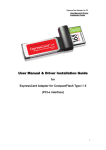
User Manual & Driver Installation Guide
for
ExpressCard Adapter for CompactFlash Type I / II
(PCI-e interface)
1
ExpressCard Adapter for CF
User Manual & Driver
Installation Guide
Table of Content
Section A : User Manual
Page
A.1
Features
3
A.2
How to use
4
2.1
Recommended mode of operation : Fast Removal mode
5
2.2
Advanced option : Operating under Performance mode
6
Specification
7
A.3
Section B : Driver Installation Guide
B.1
Important Information – MUST READ
8
B.2
How to install the driver under Microsoft Windows
8
B.3
How to install the driver under Mac OS
12
B.4
How to un-install the driver under Microsoft Windows
14
B.5
How to un-install the driver under Mac OS
15
2
ExpressCard Adapter for CF
User Manual & Driver
Installation Guide
Section A -- User Manual
A.1
Features
Thanks for choosing this ExpressCard Adapter for CompactFlash (Type I / II).
This
Adapter is the world’s first and fastest reader for transferring data between high-speed
CF (Type I / II) and Notebook with ExpressCard slot.
Unlike most of the memory card readers and adapters commonly available in the
market, this ExpressCard Adapter is operated under the PCI-express interface.
That is to say, its theoretical throughput is at least 5 times faster than that of USB 2.0
interface.
For CompactFlash with UDMA mode, the data transfer speed can reach
40MB/sec*.
With the following features, this adapter is the perfect solution for users with
high-speed CF card and looking for maximum capability, efficiency and data
throughput :
Suitable for computers / laptops equipped with ExpressCard™ 34 or
ExpressCard™ 54 slot ;
Support CompactFlash Type I, CF Type II, PIO mode, and UDMA mode
(according to CompactFlash Spec. Rev. 4.1) ;
Extremely high speed for CompactFlash with UDMA mode, data transfer speed
(sequential read / write) up to 40 MB/sec* ;
Reliable and rugged stainless steel cover ;
Power supply from ExpressCard socket and no external power required ;
Support power saving mode to reduce power consumption ;
Support future new card specifications through driver upgrade ;
Certified with ExpressCard Logo Standard which is defined by PCMCIA
(for further information, please visit www.expresscard.org)
*
Based on internal testing as performance figure will be various upon different host
environment.
3
ExpressCard Adapter for CF
User Manual & Driver
Installation Guide
Section A -- User Manual
A.2
How to Use
First-time Use
This Adapter requires the installation of the driver provided in this CD disk.
Please
must install the driver for the First-time Use of this Adapter in your Notebook
system.
Please refer to Section B on how to install the driver.
Use of this Adapter in transferring data
1)
First plug-in the CF card into the Adapter ;
2)
Insert the Adapter with card into the ExpressCard slot (either 34 or 54) of your
notebook (as shown in the picture below) ;
3)
In few seconds, this Adapter will be recognized by the operating system of your
notebook.
Then, you can start viewing / copying data between memory card
and computer via this Adapter.
Remark :
The procedure Step 1) and 2) could be swapped.
4
ExpressCard Adapter for CF
User Manual & Driver
Installation Guide
Section A -- User Manual
This Adapter enables user of Windows OS (Vista / XP / 2000) to operate either
at :
1)
Fast Removal mode (highly recommended as hot-swap is enabled) ; OR
2)
Performance mode (hot swap is NOT enabled due to the enhancement in
“Write” speed)
To choose which mode of operation, please refer to Section B.2 (pp.8)
A.2.1
Recommended mode of operation : Fast Removal mode
Under this mode of operation (as defined during driver installation, please see below
screen), plug-and-play / hot-swapping is always supported at both ends :
between Adapter and computer ;
between Adapter and CF card.
5
ExpressCard Adapter for CF
User Manual & Driver
Installation Guide
A.2.2
Advanced option : Operating under Performance mode
The Performance Optimized mode is designed for professional computer user whom
may prefer optimizing data transfer speed (i.e. by enabling the write cache of the
system and device). As a result, the “write speed” under this mode will be even
faster than that of Fast Removal Mode.
However, you MUST perform “safely
remove hardware” before unplugging either the adapter or CF card.
How to perform “safely remove hardware”
1)
Click the “Safely Removable Hardware Icon”
of the bottom-right size of
your Windows OS ;
2)
The following window shall be popped up, please click “Stop button" for
removing this Adapter in a safely manner
Important :
Under this Performance Optimized mode, you may lose the
data copied in the CF card if the Adapter or CF card is
physically removed WITHOUT performing “Safely Remove
Hardware”
6
ExpressCard Adapter for CF
User Manual & Driver
Installation Guide
Section A -- User Manual
A.3
Specifications
Link interface
: High Speed
2.5Gbps)
PCIe Spec. Rev. 1.1 (Data transfer rate up to
:CompactFlash Spec. Rev. 4.1
Memory card standard compliant
Dimensions
:
:101 x 55 x 10 mm (L x W x H)
Weight 25 g
:
OS supported Windows 2000 / XP / Vista, Mac 10.4.X or above
:+3.3 VDC (+/-5% wide range power supply)
Environment support:
- Working @ 0℃ to 55℃ (Temp.); 0 ~ 50% (RH)
- Storage @ -20℃ to 65℃ (Temp.); 0 ~ 90% (RH)
Operating power
7
ExpressCard Adapter for CF
User Manual & Driver
Installation Guide
Section B – Driver Installation Guide
B.1
Important Information – MUST READ
Before installing the driver, please MUST
have the adapter with CF card inserted
into the ExpressCard slot
B.2
How to install the driver under Microsoft Windows
This section describes the procedures for installing the “Driver” provided in
this CD under Windows Vista / XP / 2000
(A)
Before installing the driver, you have to first plug in this adapter into the
ExpressCard slot with CompactFlash card inserted;
(B)
Insert the Driver CD into CD/DVD Drive, the following screen will pop-up
double-click for running setup.exe
*
If the above screen does not show up, double-click “Setup.exe” under the
folder “Windows” on the CD
8
ExpressCard Adapter for CF
User Manual & Driver
Installation Guide
(C)
(D)
The install shield wizard will activate as follows
Click next for the following pop-up screen
When the following screen pop-up, please choose the operating mode
according to your preference :
9
ExpressCard Adapter for CF
User Manual & Driver
Installation Guide
Mode 1 : Fast Removal Optimized
Under this operating mode, plug-and-play and hot-swapping feature is fully supported.
However, the data transfer speed will not be optimized as the “Write Cache” feature is
disabled.
Mode 2 : Performance Optimized
Under this operating mode, user MUST perform “safely remove hardware” as the “Write
Cache” feature is enabled.
Important :
Under this Performance Optimized mode, you may lose the data copied
in the CF card if the Adapter or CF card is physically removed WITHOUT
performing “Safely Remove Hardware”
*
(E)
For difference between these two modes of operation, please refer to pp. 5 & 6
Upon the above selection, click “install”, the driver will begin the installation
Please wait for around 5 seconds before the “Installation Progress Bar” pop-up
10
ExpressCard Adapter for CF
User Manual & Driver
Installation Guide
(F)
Upon completing the installation, please re-boot the system by choosing
11
ExpressCard Adapter for CF
User Manual & Driver
Installation Guide
B.3
How to install the driver under Mac OS
This section describes the procedures for installing the “Driver” provided in
this CD under Mac OS 10.4.X and 10.5.X
A)
Before installing the driver, you have to first plug in this adapter into the
ExpressCard slot with CompactFlash card inserted
B)
Insert the Driver CD into CD/DVD player, under the folder “Mac”, double-click
the file named “JMicronATA”
C)
The Driver Installer will activate as follows, click “continue” to proceed
D)
Upon completing the installation, please re-boot the system by choosing
“Restart”
12
ExpressCard Adapter for CF
User Manual & Driver
Installation Guide
Remark :
1.
Due to the difference in OS architecture between Windows and Mac,
only “Performance Optimized Mode” is supported for Mac OS. Thus,
it is highly recommended to perform “Safely Remove Hardware” (i.e.
press eject button or drag the device into “Trash”)
2.
Although there is a native driver pre-installed for Mac OS 10.5.X.
However, this driver was originally designed for PATA harddisk
device of which hot-swapping feature is not enabled.
In order to
avoid any compatibility issue by hot-plugging this Adaptor, it is highly
recommend to install the driver provided in Mac OS 10.5.X.
13
ExpressCard Adapter for CF
User Manual & Driver
Installation Guide
B.4
A.
How to Un-install the driver under Windows OS
Before un-installing the driver, you have to ensure that this Adapter with
CompactFlash card had been plugged-in the ExpressCard slot
B.
In the “Control Panel”, double-click the icon “Program / Function”
C.
Select “ExpressCard CF Adapter” and right-click for removing the program
from the system
14
ExpressCard Adapter for CF
User Manual & Driver
Installation Guide
B.5
How to Un-install the driver under Mac OS
A.
Insert the Driver CD onto your computer, under the folder “Mac”, double-click
the file named “JMicron_Driver_Remover”
B.
The following screen will pop-up, click “OK” if you are sure to un-install the
driver. The un-installation program will start
C.
Upon completing the un-installation, please re-boot the system by choosing
“Restart”
15