1
Installing the R&S Software
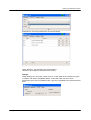
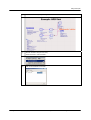
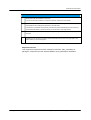
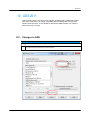
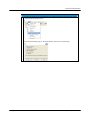
For the RS ADS Interface, SITE LEVEL or USER LEVEL is recommended.
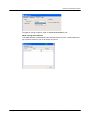
10. After selecting a level, click OK in the Install ADS Design Kit dialog to install and
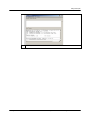
enable the design kit. An Information Message dialog stating that the design kit
was successfully enabled appears. Click OK to clear the Information Message
dialog. Your design kit is now ready for use.
Details on the installation and usage of Design Kits into ADS can be found in the ADS
manual "Design Kit Installation and Setup" which can be found on the Internet [13] or
on your ADS Installation CD-ROM's or PC Installation.
Please restart ADS in order to complete the Design Kit installation.
4.4 Checking for successful installation
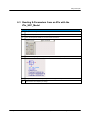
After a successful installation and a restart of your ADS design environment, you will
find
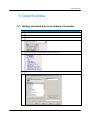
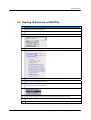
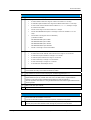
1. New Menu Entries
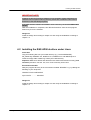
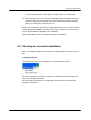
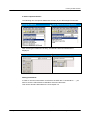
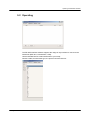
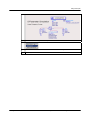
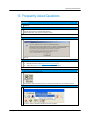
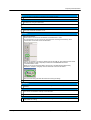
The following new menu entry will appear in your ADS schematic menu:
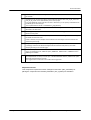
Use "Start simulation" to start your simulation in combination with a data import and
export from the R&S instruments.
Use "Open RS ADS Interface" for configuration of the instrument connection and
interface customization.
1MA72_9e
Rohde & Schwarz Using R&S® Instruments within Agilent® ADS® Software 9