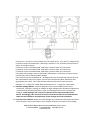
1
4.
5.
6.
7.
inverters. Voltage transformers (NOT SUPPLIED) are needed for medium voltage inverters. Turn the power switch of the AMT Toolkit and AMU unit on. Ensure that AMU’s Power led is on. Ensure that “IDLE” message appeared in the AMU’s LCD display. If the unit is not in IDLE mode, press clear button until IDLE message appears in the LCD display. Refer to section 3 in user manual for detailed information for the use of AMU unit. Configuring AES for AMT Software Configuration of AMU unit using the “set up wizard” is described below. Alternative configuration is possible from the front panel by using the buttons of the AMU unit as described in section 3 in user manual. 1. Before configuring AES Configuration Application, ensure that motor is running and voltage & current sockets are connected. 2. Select AMU model on the AES panel according to secondary amps value of current transformers (AMU 1A or AMU 5A). 3. Right click on it. 4. Select the ‘Setup Wizard’ menu item. 5. Click ‘Next’ button. 6. Enter equipment’s ‘Nominal Voltage’, ‘Nominal Current’, ‘Frequency’ and ‘Motor Speed’. 7. Choose connection type. 8. Click ‘Next’ button. 9. Enter voltage transformers’ conversion ratio (Default value is 1). If there are no voltage transformers used, leave the conversion ratio as 1. 10. Click ‘Next’ button. 11. Enter current transformers’ conversion ratio (Default value is 1). e.g. If the 100/5A is used, set the conversion ratio as 20. 12. Click ‘Next’ button. 13. Wait for 90 seconds. 14. Click physical parameters button to see the measured parameters. 15. Ensure that electrical values (currents, voltages) are same as expected and phase ordering (see section 3.4.4 in user manual for detailed information) is right. 16. Click ‘Close’ button. 17. Click ‘Next’ button. 18. Click ‘No’ button. 19. Wait for the AMU device to finish ‘Learn’ and ‘Improve’ modes, and to get into ‘Monitor’ mode. 20. Right‐click on the device and select “Waveform…” submenu. Download waveform data until ‘Save’ icon enabled and save it to a text file. Close the waveform window. 21. By clicking the ‘AMT Report’ menu, open reporting user interface. 22. If the company information was not recorded before, click on ‘Companies’ group on the left bottom on the reporting user interface or ‘Company’ menu. GOSB TeknoParki Hightech Binasi Kat: 3/B 10 41480 Gebze, Kocaeli / Turkey P: +90‐262‐678‐8860 F: +90‐262‐678‐8855 [email protected] www.artesis.com