1
Remote IP Feature Phone
User’s Guide
Troubleshooting
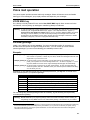
Important: The audio quality of the Remote IP Feature Phone is dependent on the quality of the connection
between the Remote Phone and the IP PBX at the main office. High data traffic on a poor or
overloaded connection will cause significant audio distortion, which may include pops and clicks,
or warbling. In this case, contact your ESI Reseller or network administrator for assistance.
The quality of your main office’s outside phone lines also can affect the audio quality of the
Remote IP Feature Phone. Due to the interface between advanced, packet-based phone
systems and the traditional public telephone network, a poor-quality phone line can degrade
audio quality, causing an echo on outside calls. An occasional echo isn’t unusual and doesn’t
necessarily indicate a problem with your system or lines; however, if this problem occurs
persistently, contact your ESI Reseller for assistance.
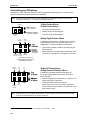
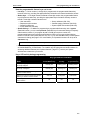
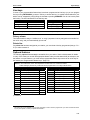
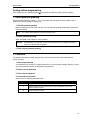
Condition
Procedure
Remote Phone display
is blank
• Check other phone functions. If you get dial tone when you lift the receiver and
the display is blank, the phone is defective.
• Make sure the Ethernet cable is plugged into the phone’s NETWORK jack (and
not the PC port).
• If no phone functions operate check the phone power supply. It should be
plugged into the phone and into an active AC outlet. If the display is still blank the
phone is defective.
Contact your ESI Reseller if the phone is defective.
Remote Phone display
shows software version
The Remote IP Feature Phone either is faulty or is, in fact, a non-remote (i.e., local)
IP Feature Phone. Contact your ESI Reseller.
Remote Phone
connects but doesn’t
operate correctly
The remote phone may be defective. Contact your Reseller or use Esi-Test to test all
of the Remote IP Feature Phone’s capabilities. (Esi-Test is part of the Esi-Tools
Users’ Kit and can be installed on a PC from the CD-ROM.)
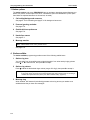
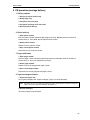
Remote Phone
won’t connect
Important:
See page A.6 for instructions on connecting a Remote Phone.
• Check the cable between the phone and network access device (router, hub or
switch). This cable should be plugged into the port on the bottom of the phone
labeled NETWORK.
• Check that the link light for the port on router is illuminated. If this light is not lit
check the power supply connection for the router.
• Check the cable between the network access device and the modem. The WAN
port on a router should be plugged directly into the modem. If using a hub or
switch, connect its UPLINK port to the modem.
• Check your IP connection by using your PC to access a site on the Internet (after
accessing a Web page, press Ctrl R [for Refresh] to verify that your Web browser
is displaying fresh data).
• Call the main office with a regular phone. Make sure the problem is not with the
network or IP connection at the main office.
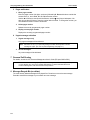
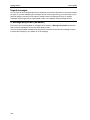
Phone works correctly but
the audio quality is poor
G.2
The problem is probably with the connection between the Remote Phone and the
IP PBX at the main office. Ask your Network Administrator or ESI Reseller to
evaluate your connection to the main office using Esi-Networx.