Download latest PDF - Read the Docs

Transcript
Enzo Documentation, Release 2.4
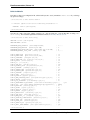
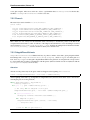
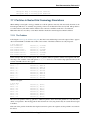
This will launch 4 xterms, each of which is running a separate gdb process, that in turn is set to run Enzo.
Within each of these xterms, enter the remaining command-line arguments needed to run enzo, e.g.:
(gdb) run -d -r DD0096/DD0096
Once you have hit [enter] in each terminal Enzo will start, with all process-specific output displayed in it’s own xterm.

If you wish to set breakpoints, these GDB commands should be entered at the various GDB prompts prior to issuing
the run command.
NOTE: It is possible to insert all of your GDB commands into a GDB script file, and then have each process run the
same script, eliminating the need to type the commands separately within each xterm. To do this, create a file with all
of your GDB commands (in order, one command per line); let’s call this file gdb.in. Then when you start mpirun,
you can specify this script to the GDB processes:
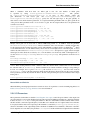
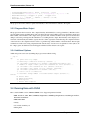
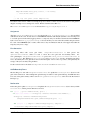
18:16:32 [dreynolds@zeno ~]$
mpirun -np 4 xterm -e gdb -x gdb.in ./enzo.exe
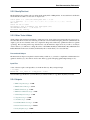
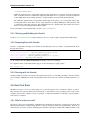
6.4.2 II. Attaching GDB to existing Enzo processes
6.4.3 Modify Enzo to allow GDB to attach to a running Enzo process
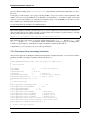
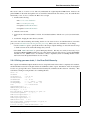
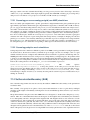
Open enzo.C, located in the main Enzo source directory, and modify the beginning of the MAIN_NAME function (the
main function where execution begins) so it looks like the following:
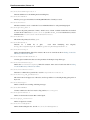
Eint32 MAIN_NAME(Eint32 argc, char *argv[])
{
int i;
// Initialize Communications
CommunicationInitialize(&argc, &argv);
#define DEBUG_MPI
#ifdef DEBUG_MPI
if (MyProcessorNumber == ROOT_PROCESSOR) {
int impi = 0;
char hostname[256];
gethostname(hostname, sizeof(hostname));
printf("PID %d on %s ready for debugger attach\n", getpid(), hostname);
fflush(stdout);
while (impi == 0)
sleep(5);
}
#endif
All you should need to do is uncomment the #define DEBUG_MPI line. This code block will make Enzo print the
name of the host its being run on and the process ID number. You will need both of these pieces of information when
you try to attach to Enzo with GDB.
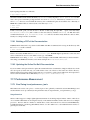
Once you’ve modified enzo.C, you will need to rebuild Enzo. If you haven’t done so already, you should make sure
Enzo is built with debugging symbols and with compiler optimizations turned off. This can be accomplished on most
systems by setting make opt-debug at the command line (see The Enzo Makefile System).
6.4.4 Run Enzo
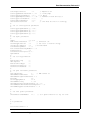
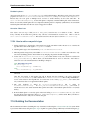
Now you’re ready to run a test simulation. This method works best when using only a few processors, so don’t start a
simulation with hundreds of processors and try to attach to it with GDB unless you know what you’re doing. If you’re
6.4. Debugging Enzo with GDB
165