1
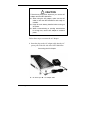
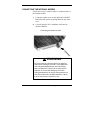
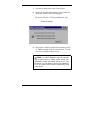
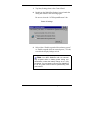
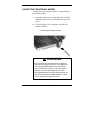
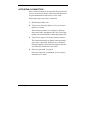
4. Read the instructions about connecting your device and
click Next.
The host PC verifies the availability of a COM port and
polls the MobilePro for synchronization settings. The
New Partnership window appears.
Proceed to the next section to complete the installation.
Creating a Partnership
Once the host PC verifies the availability of a COM port
and polls the MobilePro for synchronization settings, the
New Partnership window appears.
1. Click Next to display the Select Synchronization Set-
tings window.
2. Select the desired synchronization settings and click
Next.
The Setup Complete window appears.
3. Click Finish to complete the installation process.
Verifying Synchronization Settings
Look for the new Microsoft ActiveSync desktop icon on
your host PC. Follow these steps to verify synchronization
settings on the MobilePro.
1. Double click the ActiveSync icon.
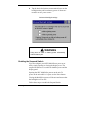
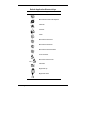
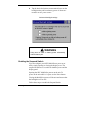
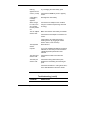
2. Click Tools, Options and verify that the
desired synchronization services are checked. Modify
the selections as required.
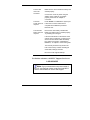
Note: By default, synchronization of email
messages is not checked. Be sure to select the
checkbox for this service if you want to synchronize
email between your MobilePro to your host PC.
1-16 Getting Started