1
Saving Images
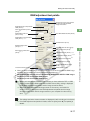
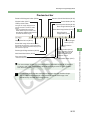
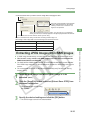
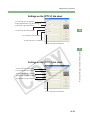
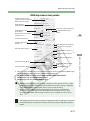
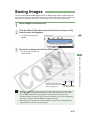
The image is saved as a new image in the same folder as the selected image.
Allows you to specify the folder
in which the image will be saved.
When the [Save in following specified folder] radio button has been selected, this
button allows you to specify the folder in which the image will be saved. The
name of the destination folder is displayed next to the [Browse] button.
Select a setting for [Quality] (compression ratio) when you have selected [JPEG]
from the list box, from [4 (Highest image quality)] through [1 (High compression
ratio)]. Higher values give higher quality of the JPEG image.
Click this checkbox to also save JPEG
images taken in RAW+JPEG format.
*This function is only available with
EOS 20D RAW+JPEG images.
Specify the resolution for
saving images in a range
of 10 to 2000 pixels/inch.
If some of the images to be saved are RAW images, select [Do not convert], [JPEG], or [TIFF] for the
conversion format. If you select [TIFF], you can select the number of bits used when you save images from
[8bit/ch], [16bit/ch] and [16bit/ch linear]. If you select [JPEG], the images are saved in the [8bit/ch] format.
The extensions used for the saved files are shown below.
Conversion Format
Do not convert
Extension
EOS 20D
.CR2
EOS 10D, EOS DIGITAL REBEL/300D
DIGITAL, EOS D60, EOS D30
.CRW
JPEG (8bit/ch)
.JPG
TIFF (8bit/ch)
.TIF
TIFF (16bit/ch, 16bit/ch linear)
.TIF
M-42



























































![1 Sélectionnez le menu [Fichier]](http://vs1.manualzilla.com/store/data/006414880_1-7fd5d1aa0838e2e6203eddbbda503b57-150x150.png)