1
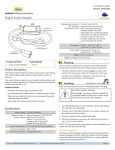
In-line Switch Module • Installation Guide
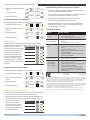
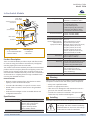
Menu button
Used to select a menu in a
mode by clicking a number
of times. Hold the Menu
and Set buttons together to
access a mode.
Set button
Used to select an option in
a menu by clicking a
number of times. Hold the
Set and Menu buttons
together to access a mode.
Menu LED
Displays the active
mode: green for Basic Setup,
amber for Advanced Setup, and none
for Normal Operation. Displays a
selected menu by the number of blinks.
Set LED
Displays the
selected menu option by
the number of blinks. Active
settings are green, and pending
settings are amber.
The Menu LED or Set LED display solid for a number of seconds in a certain color to indicate a mode or a confirmation.
The Menu LED blinks a number of times in a color to indicate a selected menu.
The Set LED blinks a number of times in a color to indicate
an option.
A number in a white box indicates the number of times to
click the Menu button or Set button.
A number in a black box indicates the number of seconds to
hold down the Menu button or Set button.
link...” section. The Set (right) LED will turn red briefly to indicate the link was successfully removed.
To restore factory defaults
Follow these steps to clear all linked devices and restore the Inline Switch Module to its factory default settings.
1. Press and hold both buttons for 15 seconds
Hold buttons until the Menu (left) LED is solid RED and the
Set (right) LED is solid Amber (Both LEDs will turn various
colors as the module cycles through the resetting process.
2. Press and hold the Set (right) button for 3 seconds to confirm factory reset.
3. Device will reboot.
Configuring
The default settings on the module support common control
and installation scenarios. However, some occupancy settings
can be adjusted on the module using the setup interface, if
required.
Setting
Default
Auto-On
Automatically If linked to an occupancy senDetermined
sor, the default is Enabled.
To link a transmitter to a transceiver
If linked to a switch, the default
is Disabled for manual control.
1. Access Basic Setup mode.
NOTE: By default, the Accept Link option in the Linking
menu is selected. Once activated, this option stays active for
two minutes to provide time to link multiple devices.
Ready to accept links.
2. For the transmitter to be linked, do one of the following according to the type of device:
A. Sensor: click the designated link button.
B. Key Card Switch: insert/remove the card 3 times quickly.
C. Rocker Pad: click the top button 3 times quickly.
Device linked successfully.
Set LED displays solid
green for 3 seconds.
The relay will toggle once to indicate a successful learn in.
After a device is linked, additional learn telegrams from
that device will cause the relay to toggle once.
Ready to accept new links.
3. To exit mode and return to normal operation, press and hold
both buttons for 2 seconds.
To unlink a device
Follow the same steps as described in the “To link...” section
above with the following deviations:
▪▪ After step 1 in the “To link...” section above, click the “Set”
(right) button 3 times to enable the “Remove Link” option.
Application
Vacancy Check
15 minutes
If linked to a occupancy senor
and a door sensor.
Switched Auto-Off
Disabled
If linked to a rocker pad or key
card switch.
Motion Auto-Off
15 minutes
If linked to occupancy sensor.
Door/Window Ajar 2 minutes
If linked to a window sensor or
patio door.
Egress
If linked to a key card switch.
30 seconds
Auto-Off
There are two auto-off menus, one for occupancy sensors,
and one for rocker switches. For linked occupancy sensors,
the default is 15 minutes. For
Option
Clicks Blinks
linked rocker pads and key card
switches, the default is Disabled
Disabled
to allow manual control.
5 mins.
From the auto-off timer menu,
the active option is indicated by
15 mins.
the number of green blinks on
the Set LED; amber blinks indicate 30 mins.
an unsaved change. Click the Set
button an appropriate number of 60 mins.
times to select an option.
To change the switched auto-off option:
This example shows changing the option from Disabled to 5
minutes.
1. Access Basic Setup mode.
Ready to remove links.
▪▪ Follow the same instructions as shown in Step 2 of the “To
© 2015 EnOcean GmbH
Page 3