1
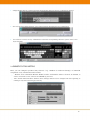
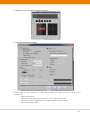
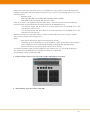
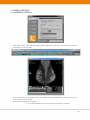
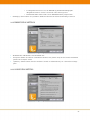
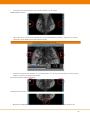
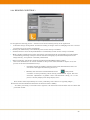
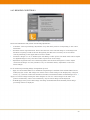
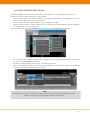
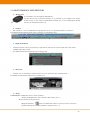
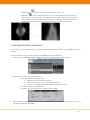
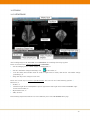
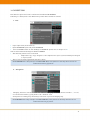
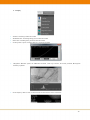
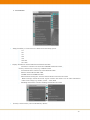
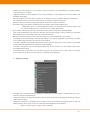
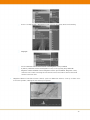
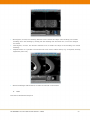
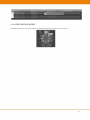
Display the active image in a new window: using this feature, no measurements or blockers will be copied into the new window Flipping: enables vertical flipping of the selected window or all windows (all measurements and blockings will be kept) Inverse: enables inversion of the selected or all windows (if the automatic image positioning is activated the breast area will be inverted and the surrounding area will stay dark) Rotation: rotates the selected image 90 degrees clockwise or counter-clockwise Automatic image positioning: reloads all tiles according to the current hanging step Additionally, the one touch initialization features as selected in the General settings will be carried out (please refer to chapter 9.9.5 for further information) Close window: unloads the selected or all windows (tiles will stay blank until otherwise filled) One touch initialization: all features selected in the General settings will be carried out using this button (please refer to the chapter 9.9.5 for further information) Manual vertical positioning: used to manually adjust the vertical alignment of the images Automatic vertical positioning: automatically adjusts the vertical alignment of the image according to the nipple height position in the selected or all windows Automatic gamma adjustment: The gamma value from the histogram of the image is calculated and automatically adjusted in the selected or in all windows. Automatic margin cut: cuts the margin automatically in the selected or in all windows and colours the background in black. Automatic breast region detection: this feature detects the skin line of the breast. This is necessary for inverting only the breast tissue and for the automatic breast alignment. 5. Image Processing Window level adjustment for all windows: copies the current window settings from the active window to all other loaded images Zoom all windows or selected window: mouse point zoom when clicking in the image (mouse pointer has changed) Magnifier: activates a magnifier lens overlay in the active window during left mouse click, an additional right mouse click on the active lens opens the Magnifier settings dialog: Shape: 3 shape options - square, circle, rectangle 44