1
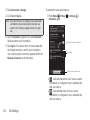
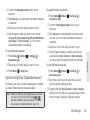
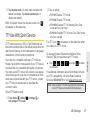
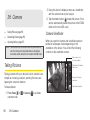
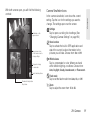
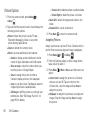
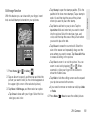
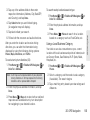
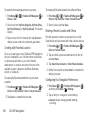
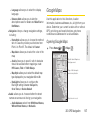
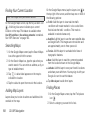
Registering TeleNav GPS Navigator 䡲 Before you can use TeleNav GPS Navigator, your device and service must be registered. 1. Press Home > > TeleNav GPS Navigator . 2. Follow the onscreen instructions to enter and submit the required information. Maps & Traffic lets you view maps and get traffic information for your current location or for any other location (same categories as Drive To). 䡲 Share & More provides access to additional features such as My Stuff, Movies, Product Tour, Preferences, and more. Note: For more information about TeleNav GPS Navigator, visit www.sprint.com/navigation. Using TeleNav GPS Navigator 1. Press Home > > TeleNav GPS Navigator 2. Select an option and follow the onscreen instructions to get directions or view maps. 䡲 Drive To lets you enter an address (by speaking it or by using the keypad) or select from categories such as My Favorites, Recent Places, or Businesses to search for turn-by-turn directions. 䡲 Search provides a categorized list of locations such as Gas Stations, Grocery Stores, and Hospitals to help find local businesses and services. . Getting Driving Directions The built-in GPS hardware (when enabled) allows you to get driving directions to selected locations or establishments based on your current location. Using a Physical Address 1. Press Home > Drive To > Address. > TeleNav GPS Navigator 2. Manually enter the new address and receive driving directions from the GPS network. Tip: You can also tap the Microphone icon to use the Voice recognition feature. Follow the onscreen prompts to say a command, address or keyword. 154 3D. GPS Navigation