1
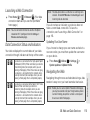
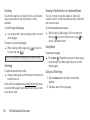
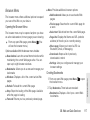
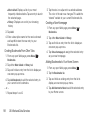
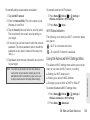
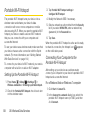
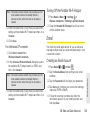
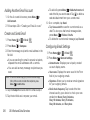
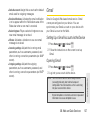
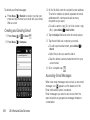
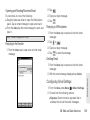
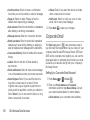
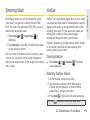
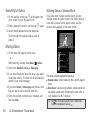
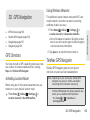
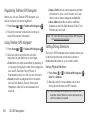
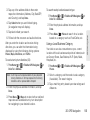
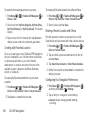
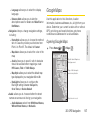
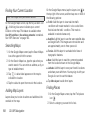
Navigation 1. On the Google Maps screen, press Menu > Directions. 2. Do one of the following: In the first text box, type your starting point place, and then type the destination in the second text box. 䡲 Tap the location source buttons to open the location source menu and select a starting point and destination. 䡲 3. Tap Go. The directions to your destination appears in a list. Viewing Directions on Map On the Directions list screen, tap Show on map to view the directions on a map. Clearing the Map When you have reached your destination, press Menu > Clear Map to reset the map. Another Google Maps navigation application is available on your device. It uses your current location (provided by GPS communication to your device) to provide various location-based services. 1. Press Home > > Navigation . 2. Read the onscreen disclaimer and tap Accept. 3. Choose from the following onscreen options: Speak Destination to use the voice recognition feature to search for matching locations in your area. 䡲 Type Destination to manually enter a destination address. 䡲 Contacts to receive turn-by-turn directions to the address stored for a selected Contacts entry. 䡲 Starred Places to obtain directions to locations that have been starred within Google maps (maps.google.com). 䡲 3D. GPS Navigation GPS Navigation Getting Directions 159