1
(f.e. isopropinol). Make sure you use it safely, that stuff is pretty flammable. Also make
sure there is no solvent mixed in, this will remove the screen printing of the pedal.
We noticed by using a clean toothbrush you can cleanup the sensor! We recommend
using a soft or medium one, not too hard, so you don’t scratch the sensor surface.
I have my DAW as a master clock controlling the RH301 but the tempo is fluctuating.
What can I do?
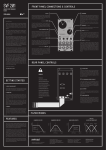
BASIC SETTINGS
FEATURES
Many sequencer programs and other music software will send all available MIDI
information on all available MIDI channels at the same time which can sometimes lead
to unstable MIDI clock information because of sound card or hardware limitations. Try
to disable unnecessary MIDI information and choose the right MIDI channel to send
your data to the RH301. This will improve the accuracy of the MIDI clock signal being
sent into the RH301.
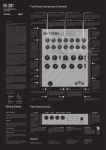
The RH301 enables you to accomplish a couple of different tasks, including converting clock signals from different formats into other formats. The RH301 can work with
and be synced to analog clocks, MIDI and the DIN Sync format.
My LFO will randomly reset while syncing to external clock signals?
For most applications it is necessary to achieve two things: First, sync the tempi of
two or more pieces of gear so that they are running at the same speed. The second
thing you need to achieve is to have the two synced tempi run in phase, for example
let them start running at the same time. These two steps are solved differently in the
three clock formats that the RH301 is compatible with.
Please check your MIDI/DIN Sync/analog clock connections. Many problems come
from cheap or broken cables. Also make sure that you don’t accidentally modulate
your LFO rate via a CV signal attached to LFO SPEED and keep in mind that if you do
so, the LFO needs one bar to adjust to the new tempo.
MIDI is a digital communication standard from the 80s, coming in the flavor of a serial
protocol. With MIDI clock, the clock signal itself consists of 24 pulses (called ‘ticks’)
per quarter note to sync the tempi together. For a synchronized start and stop of sequencers, LFOs or other functions, start and stop bytes are sent over the same cable.
When you run the RH301
in SLAVE mode, all incoming MIDI messages are merged
with the clock to the output.
I connected my DAW to the RH301 via MIDI but the pedal doesn’t seem to start?
First make sure that you set the master clock sync source to EXT and make sure
that your DAW is sending the correct MIDI signals. The RH301 expects a MIDI clock
signal, not a MIDI time code. Further, your DAW should send a start signal whenever
you hit play. Sometimes it can happen that programs only send a start signal in the
beginning of a song, not every time when you hit Play – for example in Ableton Live
you should try to set “MIDI Clock Type” to “Pattern” in the MIDI Sync preferences tab.
Your RH301 also won’t start to sync to MIDI when there is a cable plugged into the EXT.
CLOCK jack on the patch bay – even if no clock signal is present at that input. Also,
check your MIDI cables. A large percentage of problems with MIDI sync come from
cheap or broken MIDI cables. If you have the opportunity, try different MIDI cables.
Some of my equipment is starting to hum when I attach a MIDI cable?
This can happen in some setups, mostly involving USB MIDI interfaces or other
equipment with a USB MIDI connection (sound cards, hardware MIDI controllers,
etc.). Try to prevent ground loops and check your MIDI connections – did we already
mention that a lot of problems come from cheap or broken MIDI cables?
RH301 AS MASTER
EXT CLOCK AS MASTER
For the RH301 to be the master clock
source, there are two possibilities: set the
master clock to FREE and adjust the tempo with the TEMPO knob. Pressing the black
push button, creates the start / stop functions. Or set the master clock to TAP, then
use the black push button to tap a tempo.
After the third tap a start byte and gate is
created automatically.
Set the master sync source to EXT. and
insert a cable with a clock into the EXT.
CLOCK jack. The pedal reacts to rising edge
clock signals from 0V to at least 3V. Use
the black push button to send start / stop
bytes (MIDI) and start / stop gates (DIN) on
the next rising edge trigger. The EXT. CLOCK
input is a switching type jack that overrides
the other sync settings.
When I connect my drum machine to the DIN OUT of the RH301 it starts and stops
randomly?
Please check the DIN cable that you use. Like with MIDI, most of the problems stem
from defective or wrong DIN cables. Make sure that all the pins on the cable are
connected from one end to the other. With some MIDI cables it can happen that only
the pins used for MIDI are actually connected through the cable. MIDI and DIN use the
same cable and plug but not the same pins on that cable.
DIN Sync is an even older synchronization possibility from the pre-MIDI age. It usually
uses 24 pulses (sync24 – seldom sync48, sync96 or even sync192 (you can set your
preferred DIN sync format via a jumper on the main PCB, it’s set to Syns24 by default)
per quarter to sync tempi together. For the synchronized starting and stopping of
devices, a gate signal is used. If the gate is high, it means start/run,while if it is low,
it means stop.
With analog clocks, the matter is also pretty straight forward: the clock signal consists of a pulse or square wave that syncs the tempi. Starting and stopping can be
solved through various approaches, most of them include a start/stop gate. All of
the mentioned standards have been brought together in the RH301 to provide a usable working environment, no matter what setup you use.
The difference between MIDI, DIN Sync and Analog Clock Signals
ANALOG CLOCK IN
ANALOG CLOCK OUT
MIDI
DIN SYC
I patch my sensor to the CV inputs and it doesn’t seem to change anything?
Make sure you use the correct PSU (9V, 500mA, center polarity negative) for the
sensor to work correctly. Have a look at the back of the pedal and check if your CV
attenuators are in the right setting. Also keep in mind that the incoming CV signal is
added to the corresponding knob on the front panel (LFO RATE and LFO SYMMETRY)
and you won’t hear your changes if they are set too high.
I set my RH301 to FREE mode / EXT. mode and sync to an external clock signal but my
DAW/synthesizer/drum machine doesn’t start playing?
The RH301 converts incoming start / stop signals from MIDI to DIN Sync. If, however,
you miss those start/stop signals because they were sent before you plugged in the
cable or none are sent at all you have to create them yourself by pressing the large
black pushbutton.
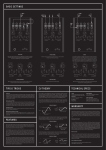
CV THEORY
SYNC OFF BEAT
RHYTHMICALLY
CHANGING LFO PATTERN
Take a standard 1/4” patch cable and connect it from the envelope output to the
LFO speed input. Set both LFO and envelope generator to sync and create a slowly changing envelope. The envelope will
change the LFO division in a rhythmical
manner. Pattern mayhem!
LO-FI PWM OSCILLATOR
Use the LFO as an oscillator and a looping ENV into the LFO SYMM to modulate
the pulse width of the waveform. Experiment with other wave shapes for different
sounds and adjust the speed to change
the pitch.
The concept of control voltage (CV) is not hard to understand: Instead of turning a
knob on your pedal, you simply connect a voltage – the control voltage – to the corresponding CV input that does the job for you. So for example if you want to have
a quickly varying LFO SYMMETRY you don’t have to turn that knob all the time, back
and forth until your fingers fall off, but simply connect an alternating CV to the LFO
SYMMETRY input.
BIPOLAR CV SIGNALS
S-TRIG
LFO ENVELOPE PING PONG
Some synthesizers – especially older Korg,
Moog and Yamaha ones – expect S-Triggers
on certain trigger inputs. Set the LFO to
square wave and connect the inverted LFO
output to the S-Trigger input. Set the LFO to
sync mode, turn the LFO symmetry fully CCW
to be on-beat, and turn it clockwise to add
a groovy feeling to it.
LFO Envelope Ping Pong: Take a standard
1/4” patch cable and connect it from the
inverted LFO output to the envelope gate
input (ENV GATE). Set the LFO to SYNC and
chose the square wave shape. Play around
with the LFO symmetry knob. Your envelope
will now start its cycle every time the LFO
just went low, so they are playing in a nice
ping-pong way but still in sync with the rest
of the clock signals.
Casing
Powder coated aluminum casing, silk
screened text and wooden side panels.
Dimensions
23 cm x 20 cm x 5 cm (L x W x H) /
9" x 9.8" x 2" (L x W x H)
Net. Weight
1000 gr / 2.2 lbs
Shipping Weight
1.5 kg. / 3.3 lbs including power adapter
and this instruction manual.
Power requirements
9V DC power adapter, 500mA min, center
polarity negative (only use the KOMA
adapter shipped with the pedal).
WARRANTY
Returning your product?
You must obtain prior approval in the form of a RMA (Return Material Authorization)
number from KOMA Elektronik before returning any product.
Email us at [email protected] to request the RMA number. All products
must be packed carefully and shipped with the KOMA Elektronik supplied power
adapter. Sorry, the warranty will not be honored if the product is not properly packed.
Once you have received the RMA#, write it on the box together with the word:
WARENRUCKSENDUNG and carefully pack your product, ship the product to KOMA
Elektronik with transportation and insurance charges paid, and include your return
shipping address.
BIPOLAR CV SIGNALS
UNIPOLAR CV SIGNALS
The RH301 provides the possibility of updating its firmware by sending (‘dumping’)
MIDI SysEx data through a MIDI cable connected to the DIN/MIDI input on the back of
the pedal. To get into firmware update mode, unplug the power cable as well as any
other connections on the patchbay or back panel jacks. Press and hold the large
black pushbutton while re-connecting the power cable. Keep holding the button
for 2 seconds. If executed correctly, the blue light around the pushbutton should
now steadily glow blue. Connect a MIDI cable between the DIN/MIDI input on the back
panel of the RH301 and your MIDI host. The RH301 is now ready to receive firmware
updates. For more detailed information on this topic and the latest firmware please
check out the RH301 product page on www.koma-elektronik.com
KOMA Elektronik warrants its products to be free of defects in materials / workmanship
and conforming to specifications at the time of shipment for a period of two years
from the date of purchase. During the warranty period any defective products will be
repaired or replaced at KOMA Elektronik’s option on a return-to-factory basis. This
warranty covers defects that KOMA Elektronik determines are no fault of the user.
So, what happens? The incoming CV signal is shifted around the voltage that you
select with the corresponding knob. Example: if you insert a -5V to +5V sine wave
into the LFO SYMMETRY CV jack you will get the following results while turning the
SYMMETRY knob:
A similar thing happens to unipolar CV signals: Their point of origin (0V) is shifted by
the amount set with the corresponding knob. In other words: You add the voltage of
your knob to the voltage of your incoming unipolar CV signal.
UPDATING FIRMWARE
TECHNICAL SPECS
You can use control signals from any source to manipulate certain features of the
RH301. All of the CV inputs of the RH301 accept bipolar as well as unipolar control
voltages, but work best with CV from 0 – 5V. The incoming CV signals are mixed together with the corresponding knob on the RH301 itself and we provide you with a
attenuator for each CV input on the backside of the panel.
If you notice a significant distortion or clipping in your control signal waveform or
strange CV behavior simply turn the attenuator counter-clockwise (towards the word
‘CV’) until you hear your desired result. By turning it counter-clockwise you attenuate
the incoming CV signal. Fully counter-clockwise means that the incoming CV signal
is completely gone, whereas fully clockwise means that the incoming CV signal is
arriving to the circuit unattenuated. Furthermore you can set an offset voltage to
your control voltage to adjust the CV signal to your needs. The offset voltage is set
by the corresponding knob on the front panel (LFO RATE and LFO SYMMETRY). There’s
also a distinction between bipolar and unipolar signals. This is best explained with
a few pictures:
The push button can also be used to sync “off beat”: If you push it while the RH301 is
running already the pedal will reset its internal clock to 0, in sync with the incoming
clock. This way you can manually sync the RH301 into shifted clock signals.
What will we do?
DIN AS MASTER
DAW AS MASTER
Set the master sync source to EXT and plug
the DIN cable into the DIN/MIDI IN jack. An
incoming start / stop gate is translated
into a corresponding start / stop byte at
MIDI OUT. If no start / stop gate is received
by the pedal, create your own by pressing
the black push button. This starts the pedal
and sends a MIDI start / stop byte to MIDI
OUT as well as a start / stop gate to DIN OUT.
Set the master sync source to EXT. and plug
the MIDI cable with the clock signal into the
DIN/MIDI IN jack. A start / stop byte from the
external clock is translated into a corresponding byte, received by the pedal and
sent to the DIN and MIDI OUT jacks. If there’s
no start / stop byte, the black push button
can be used to start/stop the pedal and
send out the information from the DIN and
MIDI OUT jacks.
Once received, we will examine the product for any obvious signs of user abuse or
damage as a result of transport. If the product has been abused, damaged in transit,
or is out of warranty, we will contact you with an estimate of the repair cost. Warranty
work will be performed and KOMA Elektronik will ship and insure your product to your
address free of charge.
How to initiate your warranty?
Please initiate your warranty online by sending an email to
[email protected]!