1
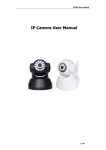
IP Camera
IE Setup User Manual
Ver 1.0
IP Camera
IE Setup User Manual
CONTENTS A. LIVE View ................................................................................... 1 B. Setup‐Status ............................................................................... 2 C. Setup‐Network ........................................................................... 3 D. Setup‐Stream Profiles ................................................................. 5 E. Setup‐Security ............................................................................ 6 F. Setup‐Time ................................................................................ 7 G. Setup‐Alarm ............................................................................... 8 H. Setup‐System ............................................................................. 9 ‐i‐ IP Camera
IE Setup User Manual
A. LIVE View 1. Play:
Start/Stop the live image. 2. Full Screen:
Full Screen button: Press the button to display the image in full screen mode. Press “ESC” to back to normal screen mode. 3. Record:
Manual Record: Record the video manually. Press again to stop the recording. Default folder for saved video files is in “C:\record". 4. Snapshot:
Snapshot: Manually take a snapshot for current picture. Default folder for saved picture files is in “C:\record” 5.
6.
Select Main/Sub Streaming for the video. You can modify the parameters for resolution, fps, etc., for each streaming. : Live View: This button will let users back to Live display mode immediately and display the image in main video streaming. 7. OSD:OSD (On‐screen display) will display date and time at the upper left corner of the image. The time format is year/month/day/hour/minute/second. ‐1‐ IP Camera
IE Setup User Manual
B. Setup‐Status 1.
Status Display Page 2.
This page will display the current IPCAM information. Manufacturer:The manufacturer of IP camera Model:Model name for the IP camera Firmware Version:The current firmware version for the IPCAM Serial Number:Serial number for the IPCAM Hardware ID:IPCAM Product ID MAC Address:MAC address for the IPCAM ‐2‐ IP Camera
IE Setup User Manual
C. Setup‐Network Netwrok Setup Page 1.
TCP/IP 2.
i.
ii.
DHCP Enable If DHCP is enabled, the IPCAM will automatically search for the DHCP server and acquire the IP address automatically. If disabled, the user has to set TCP/IP settings manually. IP address IP address for the IPCAM. This IP address must be different from other network devices. iii.
Subnet Mask A sub‐network, or subnet, is a logically visible subdivision of an IP network. Usually the setting will be 255.255.255.0. For more details, please contact your MIS staff for more information. iv.
Default Router Also called default gateway. The Gateway Address (or Default Gateway) is a router interface connected to the local network that is used to send packets out of the local network. You can use the router’s IP address as the Default Gateway or consult your ISP for it. ‐3‐ IP Camera
IE Setup User Manual
v.
Primary DNS Server Set up your primary DNS server’s IP address. When locating a network device, you need to input a numerical IP address, which is difficult to remember. DNS (Domain Name System) allows you to input an IP address in text format and automatically maps it to the numerical IP address of that network device. For example, when a user inputs a registered domain name (such as www.yahoo.com), the DNS server automatically maps the domain name to an IP address such as 72.30.2.43 vi.
Secondary DNS Server Set up your secondary DNS server’s IP address. Once the primary DNS server failed, the IPCAM will use the secondary DNS server instead. 3.
SNTP i.
SNTP Server Simple Network Time Protocol This will allow your IPCAM to connect to the SNTP Server and synchronize the current time with the server. A valid SNTP server is needed. 4.
Host Name ii.
The user can modify the name for the IPCAM. Default value is “IPCAM" 5.
Ports The user can change the http/rtsp port for IPCAM ‐4‐ IP Camera
IE Setup User Manual
D. Setup‐Stream Profiles 1.
Setup Page Base 2.
i.
ii.
iii.
iv.
v.
vi.
Profiles Choose the main/sub streaming and modify the parameters for it at below. Resolution Selectable values are 320x240、640x480、1280x720、1600x1200 Quality Picture quality: Values from 1~5 (1: Lowest, 5: Best) Frame‐rate Set up the frame rate for the IPCAM. Maximum frame rate will be 30 fps but at the resolution of 1280x720 or 1600*1200, the maximum frame rate will be only 15fps. Bit‐rate Limit Bit‐rate per second (unit: kbit/sec). High bit‐rate will allow the user have a better image quality but will impact on transfer speed and smoothness. QP Quantization Parameter (QP) in H.264/AVC decoded video ‐5‐ IP Camera
IE Setup User Manual
E. Setup‐Security 1.
Setup Page 2.
Security Setup You can add users and set up privileges for each users at the following page. ‐6‐ IP Camera
IE Setup User Manual
F. Setup‐Time 1.
Setup Page 2.
Timezone Setting Set up your time zone for your IPCAM. 3.
Upgrade System time You can manually set up the date/time for your IPCAM or synchronize the time with your personal computer. ‐7‐ IP Camera
IE Setup User Manual
G. Setup‐Alarm 1.
Setup Page 2.
Motion Detection You can modify the sensitivity for motion detection here. When enabled, IPCAM will send notification by email or to FTP when the alarm is triggered. 3.
SMTP & FTP Setting Set up your SMTP/FTP server for the IPCAM ‐8‐ IP Camera
IE Setup User Manual
H. Setup‐System 1.
Setup Page 2.
Server Maintenance Restart:Reboot your IPCAM Restore:Restore all the values to the default factory values except for the IP settings. Default:Restore all the values to the default factory values ‐9‐