1
Contacts
In the Contacts application, you can enter information about your personal contacts, for
example, phone numbers and email addresses. When you view a contact, you get quick
access to all communication with that contact.
Opening Contacts for the first time
The first time you open the Contacts application, you get hints on how to start adding
contacts to your phone. This is a good time to choose a method that suits your situation
and setup. You can get existing contact information into your phone using several
methods:
•
•
•
•
1
2
3
4
5
1
2
3
Use a synchronization service, such as Google Sync™. This way, you can manage your
contacts both directly in the phone and from a computer. And you always have a backup
online.
Import contacts from a memory card. Be aware that it is not always possible to transfer
contacts from one phone to another using this method, since some phones do not
support the import or export of contacts from/to a memory card.
Use a Bluetooth™ connection to transfer contacts from one phone to another. Both
phones need to be switched on.
You can send contacts via messaging services such as SMS, MMS or email. Not all
phones support the sending of contacts via messaging services.
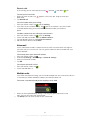
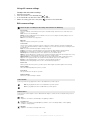
To import contacts from a memory card
From your Home screen, tap , then tap Contacts.
Press
, then tap Import/Export.
Tap Import from SD card.
If you have set up a synchronization account, you can add the imported memory
card contacts under that account. Or you can choose to only use the imported
contacts in the phone. Select your desired option.
If you have more than one vCard file on the SD card, a list appears showing
different batches of phone contacts, with the corresponding dates for when they
were created. Select the batch you want to import.
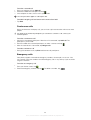
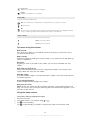
To synchronize your phone contacts with a synchronization account
From your Home screen, tap , then tap Contacts.
Press
, then tap Accounts.
To set up a synchronization account, tap Add account and follow the on-screen
instructions. If you have already set up a synchronization account and you want to
, and tap Sync now.
sync with that account, tap the account, press
To receive contacts sent using a messaging service
1
2
When you receive a new text message, multimedia message, or email message,
open the message.
The received contact data appears as a vCard attachment. Tap, or touch and
hold the vCard file to open a menu so you can save the contact data.
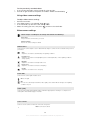
To receive contact data sent using Bluetooth™ technology
1
2
3
•
Make sure you have the Bluetooth™ function turned on and your phone set to
visible. If not, then you cannot receive data from other devices.
When you are asked to confirm whether you want to receive the file, tap Accept.
Drag down the Notification panel and tap the file you received to import the
contact data.
To view your contacts
From your Home screen, tap
, then tap Contacts.
If you have not set up your phone for synchronization with a web service, you can choose to
do so the first time you open the Contacts application. You can then merge contacts
29
This is an Internet version of this publication. © Print only for private use.