1
Finding Your Way in Photo Editor
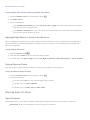
Working in the Editing Window
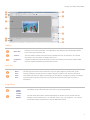
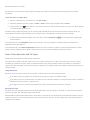
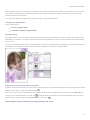
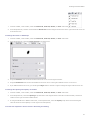
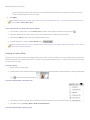
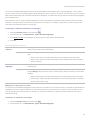
When you apply certain adjustments, a new window opens. This is called the Editing window. Here you will see the unadjusted
photo and the adjusted photo. You will also see additional adjustment options in a panel to the right of the photos.
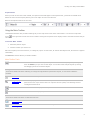
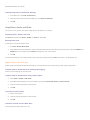
You will see a few familiar tools in the Editing window, such as:
Hand Tool
Magnifying Glass Tool and zoom drop-down slider
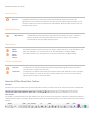
Actual Size, Fit On Screen, and Print Size options
Changing the Position of the Photos
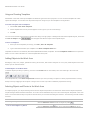
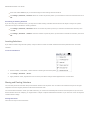
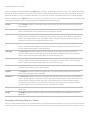
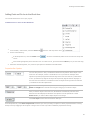
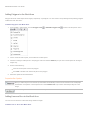
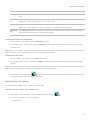
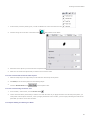
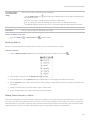
When you open the Editing window, the unadjusted photo displays above the adjusted photo. You can change the position of the
photos by selecting one of the options from the View drop-down list.
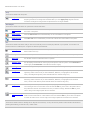
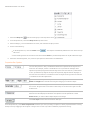
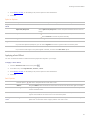
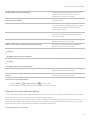
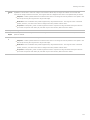
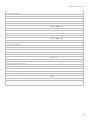
View Options
Before and After
(Landscape)
Displays the before and after, with the unadjusted image at the top. This option is preferable if the
Before and After
(Portrait)
Displays the before and after, with the unadjusted image on the left. This option is preferable if the
Before only
Displays only the unadjusted image.
After only
Displays only the adjusted image.
Preview
composition
Select this option to view the other objects or images within the work area. When this option is not
image has a landscape orientation.
image has a portrait orientation.
selected, only the selected photo or object is displayed.
Making Additional Adjustments to the Photo
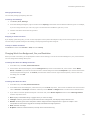
You can make additional adjustments to a photo in the Editing window.
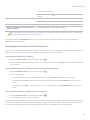
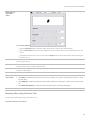
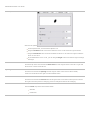
For example, when you apply the motion blur effect to a photo, you may want to alter the amount or the angle of the blur. You can
increase or decrease the blurriness and change the angle of the blur by using the options on the Settings tab, located in the
bottom right corner of the window. The options shown in the Settings tab change for each type of adjustment. For example, the
options for motion blur are different from the options for radial blur.
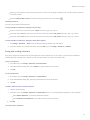
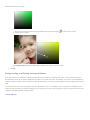
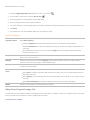
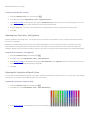
Of course, the fastest method for making additional adjustments to a photo is to click one of the preview images on the Variations
tab in the upper right of the Editing window. Each preview image shows the effects of a unique combination of options. You can see
the options change in the Settings tab as you click each preview image. When you click a preview image, those options are applied
to the photo.
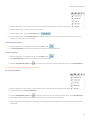
If you like one of the preview images but not the others, select the preview image that you like and drag the variation slider to the
left. New preview images display that are similar to the one you selected. Or, if the preview images are too similar and you want to
see more varied images, drag the variation slider to the right. New preview images display that are less similar to the one you
selected.
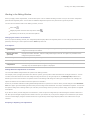
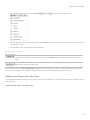
Accepting or Rejecting the Adjustments
13