1
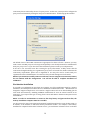
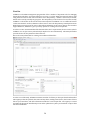
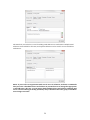
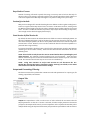
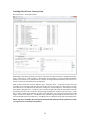
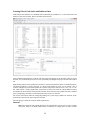
include a header row that shows the field names at the top of each file. The field delimiter can
be chosen here by selecting Space, Tab, or by entering whatever character you wish to use
(comma ‘,’ is the most commonly-used character). Finally, choose the fields you wish to
include in the file. The up and down arrows to the right of the Field Name list allows users to
move fields up and down. NOTE: Rearranging the field order will slow down file creation
speed.
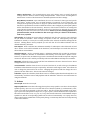
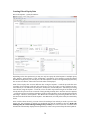
File Header: You can optionally elect to include a header as the first line in each output file
by checking the Include Header checkbox. By default, the header row will include the name of
each field, in the specified order, delimited by the specified delimiter. However, if you would
like to change the standard header to a custom value, you can do so by clicking the Add Custom
Header button entering your own header. This is useful if your internal systems require a
certain header or you need to name the output fields differently. Note that the custom header
is written exactly as entered; if any changes are made to the field selection the custom header
must be changed accordingly.
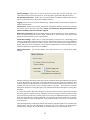
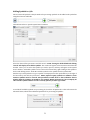
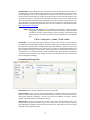
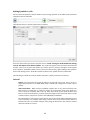
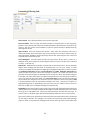
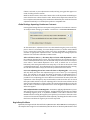
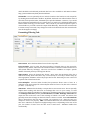
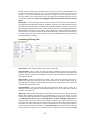
Formatting/Filtering Tab:
Date Format: Select the desired date format for the output file.
Price Decimals: Used to select the desired number of decimal places in the output file.
Default is set by default, and will use the standard number of decimal places required for the
contract. The user can also force TickWrite to output a specific number of decimal places by
selecting from the list.
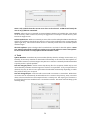
Time Format: Select the desired time format. Since some data Tick Data offers has a
millisecond stamp, while others have only a second stamp or even only a minute stamp, by
selecting Optimal, TickWrite will use the proper time format. Alternately, the user can choose
a specific time format from the list.
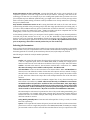
Price Multiplier: Activated when checked, this parameter allows users to factor in a
multiplier to the entire output file. This multiplier must be a factor of 10, but can be a decimal
(i.e. .001, .1, 10, 100, etc.).
Time Zone: TickWrite has the ability to output data in various time zones. This is especially
helpful when working with data from an exchange that is not in your country, as some
countries have different schedules for adjusting for Daylight Savings Time. The three choices
are Exchange Time Zone (default), Local Time Zone, and GMT. Exchange Time Zone will
output the data in the time zone of the exchange on which it is traded. For Indices, this
generally means the exchange on which the futures contract is traded. One notable exception
is the DJIA cash index data, which is in Eastern Standard Time even though the DJ futures
contract is traded in CST on the CBOT. The Local Time Zone value is derived from the time
zone to which your computer is set. Please be sure your computer’s clock is set properly. GMT
66