1
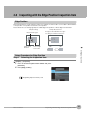
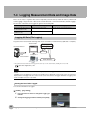
Cat. No. Z302-E1-03
FQ
Vision Sensor
USERS MANUAL
User's Manual
Vision Sensor
FQ
APPLICATION CONSIDERATIONS
(Please Read)
1
Introduction
1
Installation and Connections
2
Taking Images
3
Setting Up Inspections
4
Testing and Saving Settings
5
Operation
6
Convenient Functions
7
Communications with External Devices
8
Troubleshooting
9
Appendices
10
READ AND UNDERSTAND THIS DOCUMENT
Please read and understand this document before using the products. Please consult your OMRON
representative if you have any questions or comments.
WARRANTY
OMRON’s exclusive warranty is that the products are free from defects in materials and workmanship for a
period of one year (or other period if specified) from date of sale by OMRON.
OMRON MAKES NO WARRANTY OR REPRESENTATION, EXPRESS OR IMPLIED, REGARDING NONINFRINGEMENT, MERCHANTABILITY, OR FITNESS FOR PARTICULAR PURPOSE OF THE PRODUCTS.
ANY BUYER OR USER ACKNOWLEDGES THAT THE BUYER OR USER ALONE HAS DETERMINED THAT
THE PRODUCTS WILL SUITABLY MEET THE REQUIREMENTS OF THEIR INTENDED USE. OMRON
DISCLAIMS ALL OTHER WARRANTIES, EXPRESS OR IMPLIED.
LIMITATIONS OF LIABILITY
OMRON SHALL NOT BE RESPONSIBLE FOR SPECIAL, INDIRECT, OR CONSEQUENTIAL DAMAGES,
LOSS OF PROFITS OR COMMERCIAL LOSS IN ANY WAY CONNECTED WITH THE PRODUCTS,
WHETHER SUCH CLAIM IS BASED ON CONTRACT, WARRANTY, NEGLIGENCE, OR STRICT LIABILITY.
In no event shall responsibility of OMRON for any act exceed the individual price of the product on which
liability is asserted.
IN NO EVENT SHALL OMRON BE RESPONSIBLE FOR WARRANTY, REPAIR, OR OTHER CLAIMS
REGARDING THE PRODUCTS UNLESS OMRON’S ANALYSIS CONFIRMS THAT THE PRODUCTS WERE
PROPERLY HANDLED, STORED, INSTALLED, AND MAINTAINED AND NOT SUBJECT TO
CONTAMINATION, ABUSE, MISUSE, OR INAPPROPRIATE MODIFICATION OR REPAIR.
SUITABILITY FOR USE
THE PRODUCTS CONTAINED IN THIS DOCUMENT ARE NOT SAFETY RATED. THEY ARE NOT DESIGNED OR
RATED FOR ENSURING SAFETY OF PERSONS, AND SHOULD NOT BE RELIED UPON AS A SAFETY COMPONENT OR PROTECTIVE DEVICE FOR SUCH PURPOSES.
Please refer to separate catalogs for OMRON’s safety rated products.
OMRON shall not be responsible for conformity with any standards, codes, or regulations that apply to the
combination of products in the customer’s application or use of the product.
At the customer’s request, OMRON will provide applicable third party certification documents identifying ratings
and limitations of use that apply to the products. This information by itself is not sufficient for a complete
determination of the suitability of the products in combination with the end product, machine, system, or other
application or use.
The following are some examples of applications for which particular attention must be given. This is not
intended to be an exhaustive list of all possible uses of the products, nor is it intended to imply that the uses
listed may be suitable for the products:
• Outdoor use, uses involving potential chemical contamination or electrical interference, or conditions or
uses not described in this document.
2
FQ User’s Manual
• Nuclear energy control systems, combustion systems, railroad systems, aviation systems, medical
equipment, amusement machines, vehicles, safety equipment, and installations subject to separate industry
or government regulations.
• Systems, machines, and equipment that could present a risk to life or property.
Please know and observe all prohibitions of use applicable to the products.
NEVER USE THE PRODUCTS FOR AN APPLICATION INVOLVING SERIOUS RISK TO LIFE OR
PROPERTY WITHOUT ENSURING THAT THE SYSTEM AS A WHOLE HAS BEEN DESIGNED TO
ADDRESS THE RISKS, AND THAT THE OMRON PRODUCT IS PROPERLY RATED AND INSTALLED FOR
THE INTENDED USE WITHIN THE OVERALL EQUIPMENT OR SYSTEM.
PERFORMANCE DATA
Performance data given in this document is provided as a guide for the user in determining suitability and does
not constitute a warranty. It may represent the result of OMRON’s test conditions, and the users must correlate
it to actual application requirements. Actual performance is subject to the OMRON Warranty and Limitations of
Liability.
CHANGE IN SPECIFICATIONS
Product specifications and accessories may be changed at any time based on improvements and other
reasons.
It is our practice to change model numbers when published ratings or features are changed, or when significant
construction changes are made. However, some specifications of the product may be changed without any
notice. When in doubt, special model numbers may be assigned to fix or establish key specifications for your
application on your request. Please consult with your OMRON representative at any time to confirm actual
specifications of purchased products.
DIMENSIONS AND WEIGHTS
Dimensions and weights are nominal and are not to be used for manufacturing purposes, even when
tolerances are shown.
ERRORS AND OMISSIONS
The information in this document has been carefully checked and is believed to be accurate; however, no
responsibility is assumed for clerical, typographical, or proofreading errors, or omissions.
PROGRAMMABLE PRODUCTS
OMRON shall not be responsible for the user’s programming of a programmable product, or any consequence
thereof.
COPYRIGHT AND COPY PERMISSION
This document shall not be copied for sales or promotions without permission.
This document is protected by copyright and is intended solely for use in conjunction with the product. Please
notify us before copying or reproducing this document in any manner, for any other purpose. If copying or
transmitting this document to another, please copy or transmit it in its entirety.
FQ User’s Manual
3
Meanings of Signal Words
The following signal words are used in this manual.
Indicates a potentially hazardous situation which, if not avoided, will result in minor or
moderate injury, or may result in serious injury or death. Additionally there may be
significant property damage.
Meanings of Alert Symbols
The following alert symbols are used in this manual
Indicates general prohibitions for which there is no specific symbol.
Indicates the possibility of laser radiation.
Indicates the possibility of explosion under specific conditions.
Indicates prohibition when there is a risk of minor injury from electrical shock or other
source if the product is disassembled.
This product is not designed or rated for ensuring safety of persons.
Do not use it for such purposes.
The Sensor emits visible light, which may adversely affect the eyes in rare instances.
Do not look directly into the light emitted from the Sensor. When the subject is a specular
reflective object, protect your eyes from reflected light.
A lithium ion battery is built into the Touch Finder and may occasionally combust, explode, or
burn if not treated properly.
Dispose of the Touch Finder as industrial waste, and never disassemble, apply pressure that
would deform, heat to 100 °C or higher, or incinerate the Touch Finder.
High-voltage parts inside; danger of electrical shock. Do not open the product cover.
4
FQ User’s Manual
Precautions for Safe Use
The following points are important to ensure safety, so make sure that they are strictly observed.
1. Installation Environment
• Do not use the product in environments where it can be exposed to inflammable/explosive gas.
• To secure the safety of operation and maintenance, do not install the product close to high-voltage devices
and power devices.
• Install the product in such a way that its ventilation holes are not blocked.
• Tighten mounting screws at the torque specified in this manual.
2. Power Supply and Wiring
• The power supply voltage must be within the rated range (24 VDC ±10%), and an AC voltage must not be
used.
• Reverse connection of the power supply is not allowed. Do not short the load of the open collector output.
• The load must be within the rated range.
• High-voltage lines and power lines must be wired separately from this product. Wiring them together or
placing them in the same duct may cause induction, resulting in malfunction or damage.
• Use the products within the power supply voltages specified in this manual.
• Use the specified size of crimp terminals to wire connections. Do not connect wires that have been simply
twisted together directly to the power supply or terminal block.
• Use a DC power supply with safety measures against high voltages (safety extra low-voltage circuit).
• Use independent power sources for the products. Do not use a shared power source.
• Tighten mounting screws at the torque specified in this manual.
• Always turn OFF the power supply before connecting or disconnecting cables or the power supply wiring.
3. Battery
• Do not short the positive and negative terminals of the Battery.
• Do not use the Touch Finder in an environment that exceeds the operating temperature range of the Battery.
If the Touch Finder is used at temperatures that exceed the operating temperature range, the protective
device may activate and prevent charging.
• Do not connect the Battery directly to a power supply or car cigarette lighter socket.
• Do not use the Touch Finder with any other type of battery.
• Turn OFF the power supply immediately if the Battery leaks or produces an odor. Electrolyte leaked from the
Battery may ignite, possibly causing smoke, rupture, or fire.
• If during usage, charging, or storage, the Battery produces an odor, heats, becomes discolored, becomes
misshapen, or exhibits any other unusual conditions, remove it and do not use it. Continuing to use such a
Battery may result in the Battery heating, smoking, rupturing, or igniting.
• If the Touch Finder (FQ-D31) will be installed permanently or semi-permanently, remove the Battery (FQBAT1). If the rated temperature is exceeded with the Battery inserted, the protective circuit may activate and
stop the Touch Finder.
4. AC Adapter
• Use an AC cable that is suitable for the power supply and power voltage you are using.
• Do not touch the power plug with a wet hand. Doing so may result in electrical shock.
• If you notice an abnormal condition, such as smoke, abnormal heating of the outer surface, or a strange
odor, immediately stop using the AC Adapter, turn OFF the power, and remove the power plug from the
outlet.
Consult your dealer, as it is dangerous to attempt to repair the AC Adapter yourself.
• If the AC Adapter is dropped or damaged, turn OFF the power, remove the power plug from the outlet, and
contact your dealer. There is a risk of fire if you continue using the AC Adapter.
FQ User’s Manual
5
5. Other
•
•
•
•
•
•
•
•
•
Do not use this product in safety circuits associated with nuclear power and human life.
Do not disassemble, repair, modify, deform by pressure, or incinerate this product.
Dispose of this product as industrial waste.
Connect the special products (Sensor, Touch Finder, Cables). The product might break down or malfunction
if you use a part not included in the special products.
If you notice an abnormal condition, such as a strange odor, extreme heating of any product, or smoke,
immediately stop using the product, turn OFF the power, and consult your dealer.
The Sensor surfaces become hot during use. Do not touch them.
Do not drop or subject the products to shock.
Use the special Sensor (FQ-S), Touch Finder (FQ-D), Cables (FQ-WN and FQ-WD), Battery (FQ-BAT1),
and AC Adapter (FQ-AC). Using other than the specified products may cause fire, burning, malfunction or
failure.
If the product has a lock mechanism, always make sure it is locked before using the product.
6. Laws and Regulations, Standards
• This product complies with the following EC Directives and EN Standards:
EC Directive No.2004/104/EC
EN Standards EN61326
6
FQ User’s Manual
Precautions for Correct Use
Observe the following precautions to prevent failure to operate, malfunctions, or undesirable effects on product
performance.
1. Installation Site
Do not install this product in locations subjected to the following conditions:
• Ambient temperature outside the rating
• Rapid temperature fluctuations (causing condensation)
• Relative humidity outside the range of 35 to 85%
• Direct vibration or shock
• Strong ambient light (such as other laser beams, light from arc-welding machines, or ultraviolet light)
• Direct sunlight or near heaters
• Strong magnetic or electric field
Also, do not install this product in locations subjected to the following conditions to ensure its protective
performance as described in the specifications:
• Presence of corrosive or flammable gases
• Presence of dust, salt, or iron particles
• Water, oil, or chemical fumes or spray, or mist atmospheres
2. Power Supply, Connection, and Wiring
• When using a commercially available switching regulator, make sure that the FG terminal is grounded.
• If surge currents are present in the power lines, connect surge absorbers that suit the operating
environment.
• Before turning ON the power after the product is connected, make sure that the power supply voltage is
correct, there are no incorrect connections (e.g. load short-circuit) and the load current is appropriate.
Incorrect wiring may result in breakdown of the product.
• For cables, use only the special products specified in this manual.
p.197, p.198
• Use only combinations of the Sensor and Touch Finder specified in this manual. Using other combinations
may cause malfunction or damage.
• Do not turn the power OFF in the following instances. Doing so will damage data that is in the process of
being saved.
- While data is being saved in internal memory
- While data is being saved on the SD card
• The LCD panel has been made using precision technology, and sometimes a few pixels are missing in the
panel. This is due to the structure of the LCD panel, and is not a malfunction.
• Connector cover
Always attach the covers of I/O cable connector and Ethernet cable connector. This prevents extraneous
material from making malfunction of the Sensor.
3. Battery
• Do not use or charge the Battery with other than the specified products.
• Do not charge the Battery with other than the specified AC adapter.
• When using the Touch Finder, the battery cover screw must be tightened.
4. AC Adapter
• During maintenance and when not using the Touch Finder for an extended time, remove the power plug
from the outlet.
• Do not bend the power cable past its natural bending radius.
• Do not use the AC Adapter with other than the specified products.
• If a voltage higher than 380 V is applied, there is a risk that the capacitor will be damaged, the pressure
valve will open, and vaporized gas will be emitted. If there is a possibility that a voltage higher than 380 V
will be applied, use a protective device.
FQ User’s Manual
7
5. Maintenance and Inspection
Do not use thinner, benzene, acetone or kerosene to clean the Sensor and Touch Finder. If large dust particles
adhere to the Camera, use a blower brush (used to clean camera lenses) to blow them off. Do not use breath
from your mouth to blow the dust off. To remove dust particles from the Camera, wipe gently with a soft cloth
(for cleaning lenses) moistened with a small amount of alcohol. Do not use excessive force to wipe off dust
particles. Scratches to the Camera might cause error.
Editor's Note
■ Meaning of Symbols
Menu items that are displayed on the Touch Finder LCD screen, and windows, dialog boxes and other GUI
elements displayed on the PC are indicated enclosed by brackets "[ ]".
■ Visual Aids
Important
Note
Indicates points that are important to achieve the full product performance,
such as operational precautions.
Indicates application procedures.
Indicates pages where related information can be found.
8
FQ User’s Manual
Table of Contents
1. Introduction
1-1 FQ-series Vision Sensors. . . . . . . . . . . . . . . . . . . . . . . . . . . . . . . . . . . . . . 14
1-2 Measurement Process . . . . . . . . . . . . . . . . . . . . . . . . . . . . . . . . . . . . . . . . 15
1-3 Startup Display and Display Elements . . . . . . . . . . . . . . . . . . . . . . . . . . . 16
1-4 Basic Operational Flow. . . . . . . . . . . . . . . . . . . . . . . . . . . . . . . . . . . . . . . . 18
2. Installation and Connections
2-1 System Configuration . . . . . . . . . . . . . . . . . . . . . . . . . . . . . . . . . . . . . . . . . 20
2-2 Part Names and Functions . . . . . . . . . . . . . . . . . . . . . . . . . . . . . . . . . . . . . 21
2-3 Installation . . . . . . . . . . . . . . . . . . . . . . . . . . . . . . . . . . . . . . . . . . . . . . . . . . 23
2-4 Wiring . . . . . . . . . . . . . . . . . . . . . . . . . . . . . . . . . . . . . . . . . . . . . . . . . . . . . . 28
2-5 Setting Up Ethernet. . . . . . . . . . . . . . . . . . . . . . . . . . . . . . . . . . . . . . . . . . . 33
Table of Contents
3. Taking Images
3-1 Selecting a Sensor for Configuration . . . . . . . . . . . . . . . . . . . . . . . . . . . . 36
3-2 Adjusting Image Quality . . . . . . . . . . . . . . . . . . . . . . . . . . . . . . . . . . . . . . . 37
3-3 Adjusting the Object Position . . . . . . . . . . . . . . . . . . . . . . . . . . . . . . . . . . 42
3-4 Preventing Mutual Interference of Multiple Sensors . . . . . . . . . . . . . . . . 46
4. Setting Up Inspections
4-1 Inspection Item Selection Guide . . . . . . . . . . . . . . . . . . . . . . . . . . . . . . . . 48
4-2 Setup Procedure for Inspection Items . . . . . . . . . . . . . . . . . . . . . . . . . . . 49
4-3 Configuring Inspection Items. . . . . . . . . . . . . . . . . . . . . . . . . . . . . . . . . . . 50
4-4 Inspecting with the Search Inspection Item . . . . . . . . . . . . . . . . . . . . . . . 52
4-5 Inspecting with the Edge Position Inspection Item . . . . . . . . . . . . . . . . . 59
4-6 Inspecting with the Edge Width Inspection Item . . . . . . . . . . . . . . . . . . . 64
4-7 Inspecting with the Area Inspection Item . . . . . . . . . . . . . . . . . . . . . . . . . 68
4-8 Inspecting with Color Data Inspection Item . . . . . . . . . . . . . . . . . . . . . . . 72
4-9 Calculations and Judgements Using Inspection Item Data . . . . . . . . . . 75
FQ User’s Manual
9
5. Testing and Saving Settings
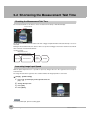
5-1 Performing Test Measurements. . . . . . . . . . . . . . . . . . . . . . . . . . . . . . . . . 86
5-2 Shortening the Measurement Takt Time . . . . . . . . . . . . . . . . . . . . . . . . . . 88
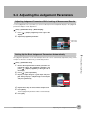
5-3 Adjusting the Judgement Parameters. . . . . . . . . . . . . . . . . . . . . . . . . . . . 89
5-4 Checking a List of All Inspection Item Results . . . . . . . . . . . . . . . . . . . . 91
5-5 Saving Data to the Sensor . . . . . . . . . . . . . . . . . . . . . . . . . . . . . . . . . . . . . 92
6. Operation
6-1 Starting Operation. . . . . . . . . . . . . . . . . . . . . . . . . . . . . . . . . . . . . . . . . . . . 94
6-2 Configuring the Run Mode Display . . . . . . . . . . . . . . . . . . . . . . . . . . . . . . 96
6-3 Checking the Trend of Measurement Results with Graphs . . . . . . . . . . 98
6-4 Adjusting Judgement Parameters during Operation. . . . . . . . . . . . . . . 101
7. Convenient Functions
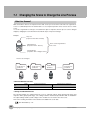
7-1 Changing the Scene to Change the Line Process . . . . . . . . . . . . . . . . . 104
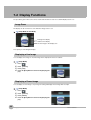
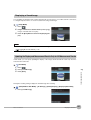
7-2 Display Functions . . . . . . . . . . . . . . . . . . . . . . . . . . . . . . . . . . . . . . . . . . . 106
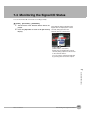
7-3 Monitoring the Signal I/O Status . . . . . . . . . . . . . . . . . . . . . . . . . . . . . . . 109
7-4 Logging Measurement Data and Image Data . . . . . . . . . . . . . . . . . . . . . 110
7-5 Saving Sensor Settings . . . . . . . . . . . . . . . . . . . . . . . . . . . . . . . . . . . . . . 117
7-6
SD Card Operations . . . . . . . . . . . . . . . . . . . . . . . . . . . . . . . . . . . . . . . . . 118
7-7 Convenient Functions for Operation. . . . . . . . . . . . . . . . . . . . . . . . . . . . 120
7-8 Convenient Functions for Setup . . . . . . . . . . . . . . . . . . . . . . . . . . . . . . . 122
7-9 Functions Related to the System. . . . . . . . . . . . . . . . . . . . . . . . . . . . . . . 123
8. Communications with External Devices
8-1 Controlling/Outputting in Parallel . . . . . . . . . . . . . . . . . . . . . . . . . . . . . . 126
8-2 Outputting/Controlling with Ethernet . . . . . . . . . . . . . . . . . . . . . . . . . . . 142
9. Troubleshooting
9-1 Error Table . . . . . . . . . . . . . . . . . . . . . . . . . . . . . . . . . . . . . . . . . . . . . . . . . 168
9-2 Basic Troubleshooting . . . . . . . . . . . . . . . . . . . . . . . . . . . . . . . . . . . . . . . 170
10
FQ User’s Manual
10. Appendices
10-1 Menu Tables. . . . . . . . . . . . . . . . . . . . . . . . . . . . . . . . . . . . . . . . . . . . . . . . 172
10-2 External Reference Parameters . . . . . . . . . . . . . . . . . . . . . . . . . . . . . . . . 183
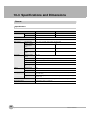
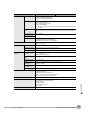
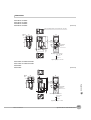
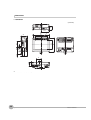
10-3 Specifications and Dimensions . . . . . . . . . . . . . . . . . . . . . . . . . . . . . . . . 188
10-4 Updating the Software . . . . . . . . . . . . . . . . . . . . . . . . . . . . . . . . . . . . . . . 199
10-5 LED Safety . . . . . . . . . . . . . . . . . . . . . . . . . . . . . . . . . . . . . . . . . . . . . . . . . 200
10-6 Requirements from Regulations and Standards . . . . . . . . . . . . . . . . . . 201
Index . . . . . . . . . . . . . . . . . . . . . . . . . . . . . . . . . . . . . . . . . . . . . . . . . . . . . . 206
Version Upgrade Information. . . . . . . . . . . . . . . . . . . . . . . . . . . . . . . . . . 211
Revision History . . . . . . . . . . . . . . . . . . . . . . . . . . . . . . . . . . . . . . . . . . . . 212
FQ User’s Manual
11
12
FQ User’s Manual
1
1-1 FQ-series Vision Sensors . . . . . . . . . . . . . . . . . . . . . . . . . . . . . . . . . . . 14
1-2 Measurement Process . . . . . . . . . . . . . . . . . . . . . . . . . . . . . . . . . . . . . . 15
1-3 Startup Display and Display Elements . . . . . . . . . . . . . . . . . . . . . . . . . 16
1-4 Basic Operational Flow . . . . . . . . . . . . . . . . . . . . . . . . . . . . . . . . . . . . . 18
Introduction
Introduction
1-1 FQ-series Vision Sensors
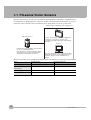
FQ-series Vision Sensors are real-color Vision Sensors with integrated processing. Once configured, they are
used stand-alone for quality inspection of presence, position, and other product characteristics. To set up or
monitor the sensors, either the touch screen based console 'Touch Finder' or a 'PC Tool' can be used.
Setup, Image Confirmation, and Logging Tools
Touch Finder
FQ Vision Sensor
Used to check images and set the judgement
parameters. It can also be used to save
measurement results and check status during
operation.
PC Tool
Includes the camera, lighting, measurement
processor, and I/O functions.
After the Sensor has been set up, it can be
operated alone to perform measurements
without the Touch Finder or PC Tool.
The same functions as those that are provided
by the Touch Finder can be performed from a
computer. The PC Tool is available free of
charge.
FQ-series Vision Sensors are available in two different models. The differences are given in the following table.
14
Model
Standard model
Single-function model
Model number
FQ-S2@@@@@
FQ-S1@@@@@
Number of simultaneous
measurements
32
1
Number of registered scenes
32
8
Position compensation
Supported
Not supported
FQ-series Vision Sensors
FQ User’s Manual
1-2 Measurement Process
This section describes the basic flow of the measurement process.
• The measurement is started by inputting a trigger signal from an external
device.
1
Trigger input
Introduction
• Images are taken according to the trigger.
Take image
• The image is measured to see if it matches the configured settings.
• You can also perform calculations based on the measurement results from
Measurement
inspection items.
• The overall judgement of all inspection items are output using OR logic.
Output
• You can output detailed measurement results from the inspection items.
(An Ethernet connection is required.)
• Measurement data and image data can be logged in memory in the Sensor or
Logging
FQ User’s Manual
in an SD card.
Measurement Process
15
1-3 Startup Display and Display Elements
Startup Display
1
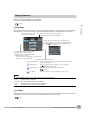
The Sensor is automatically detected by the Touch
Finder when power supply to the Sensor and Touch
Finder is turned ON.
The Auto Connect Display will appear if the Sensor cannot be detected. Check that cables are connected correctly to the Sensor and Touch Finder, and then press
[Auto connect].
Note
If the Sensor is still not detected after pressing [Auto Connect], refer to the following information.
The Sensor cannot be detected: p. 170
2
When the Sensor is detected, the following display will appear.
• The Setup Mode will appear if a Sensor that has not been
set up is connected.
• The Run Mode will appear if a Sensor that has been set
up is connected.
Note
When the Touch Finder is started, IP addresses are automatically set for each Sensor.
To allocate specific IP addresses, set the IP address of each Sensor and the Touch Finder.
Setting Up Ethernet: p. 33
16
Startup Display and Display Elements
FQ User’s Manual
Display Elements
This Sensor has a Setup Mode and a Run Mode.
Refer to the following information for menu items.
p. 172
1
Introduction
Setup Mode
In Setup Mode, you can set the image conditions, judgement parameters, and I/O settings for the Sensor.
The name of the mode or the
menu hierarchy is displayed.
The name of the Sensor being set up is displayed.
The selected scene number is displayed.
The menu changes according to the selected tab page.
• Buttons will appear on the right according to the mode.
• If the [ ] Button appears, pressing it will display the
sub-menu or commands.
The setup flow is shown by these five tabs.
[Image]: Used to adjust the image.
[Inspect]: Used to set the inspection items.
[In/Out]: Used to set the I/O.
[Test]: Used to test and adjust the set measurements.
[Run]: Used to switch to Run Mode.
This button menu is always displayed.
Only-image Button: Used to select either displaying the camera image and messages, or
only the camera image.
Display Button:
Used to select the source of the image or to zoom the image.
Capture Button:
Used to capture the current screen to the SD card.
Display Functions: p. 106
p. 121
Tool Button:
Used to call functions, such as saving data or select scenes.
Note
The Display Button can be used to switch between the following images.
• Live:
The live image is displayed.
• Freeze:
The image that was taken last is displayed.
• Log:
An image saved in internal memory is displayed.
• File:
An image saved on an SD card is displayed.
Run Mode
In Run Mode, measurements are performed, and measurement results are output.
p. 93
FQ User’s Manual
Startup Display and Display Elements
17
1-4 Basic Operational Flow
The following flow shows the basic operation of FQ-series Vision Sensors.
Connections and Wiring
Section 2 Installation
and Connections
Starting the Sensor
Section 1
1-3 Startup Display
and Display Elements
Image Setup
([Image] Tab Page)
Section 3 Taking
Images
Inspection Setup
([Inspect] Tab Page)
Inspection
Section 4 Setting Up
Inspections
Registering
Inspection Items
Teaching
Setting Judgement
Parameters
Calculation
Expression
Setup
Evaluation*1
Judgement
Output Settings
([In/Out] Tab Page)
Testing ([Test] Tab Page)
Test Measurement and
Results Verification
Section 8
Communications with
External Devices
Section 5 Testing and
Saving Settings
Adjusting Judgement
Parameters
Saving the Settings
Operation*2
Starting Operation (Run Mode)
Section 6 Operation
*1: In Setup Mode, the Sensor can be set up and adjusted, but it does not output signals on the I/O lines.
*2: In Run Mode, the Sensor performs measurements and outputs signals on the I/O lines.
18
Basic Operational Flow
FQ User’s Manual
Installation and Connections
2
2-2 Part Names and Functions . . . . . . . . . . . . . . . . . . . . . . . . . . . . . . . . . . 21
2-3 Installation . . . . . . . . . . . . . . . . . . . . . . . . . . . . . . . . . . . . . . . . . . . . . . . 23
2-4 Wiring . . . . . . . . . . . . . . . . . . . . . . . . . . . . . . . . . . . . . . . . . . . . . . . . . . . 28
2-5 Setting Up Ethernet . . . . . . . . . . . . . . . . . . . . . . . . . . . . . . . . . . . . . . . . 33
Installation and Connections
2-1 System Configuration . . . . . . . . . . . . . . . . . . . . . . . . . . . . . . . . . . . . . . 20
2-1 System Configuration
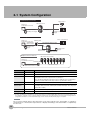
Parallel Interface Connection
Trigger Sensor
FQ Vision Sensor
Setup Tool
Touch Finder or PC Tool
PLC
FQ Ethernet Cable
I/O Cable
24-VDC power supply
24-VDC power
supply
Connecting to Ethernet
Setup Tool
Switching Hub
Touch Finder or PC Tool
Standard RJ45
Ethernet Cable
PLC to control Sensor
Standard RJ45 Ethernet Cable
FQ
Sensor
24-VDC power
supply
Standard RJ45
Ethernet Cable
Multiple Connection Sensors
Setup Tool
Touch Finder or PC Tool
24-VDC power
supply
I/O Cable
FQ Vision Sensors (8 max.)
Switching Hub
Standard RJ45 Ethernet Cable
FQ Ethernet Cable
Product
Model number
Remarks
FQ Vision Sensor
FQ-S@@@@@@
This is the Vision Sensor.
Touch Finder
FQ-D@@
This is a setup console.
PC Tool
---
The PC Tool can be used instead of the Touch Finder. If you register as a member, you can
download the free PC Tool as a special service to purchasers.
Refer to the Member Registration Sheet that is enclosed with the Sensor for the member
registration procedure and the download procedure for special member software.
FQ Ethernet Cable
FQ-WN0@@
Connects the Sensors to external devices such as the Touch Finder, computers, and PLCs.
Standard RJ45
Ethernet Cable*1
---
Connects the Switching Hub to the Touch Finder, computers, and PLCs. Use a connector
that complies with the FCC RJ45 standard. (STP (shielded twisted-pair) cable, category 5e
or 6, impedance: 100 Ω)
I/O Cable
FQ-WD0@@
Connects the Sensor to the power supply and external devices.
Switching Hub
W4S1-0@@
Used to connect multiple Sensors to one Touch Finder or PC Tool.
*1: The shape and dimensions of the Ethernet connector plug and jack are specified in ISO/IEC8877:1992 (JIS X 5110:1996) and RJ-45 of the
FCC regulations. To prevent connector connection failures, the structure of the jack of this product does not allow insertion of plugs that do not
comply with the standard. If a commercially available plug cannot be inserted, it is likely that the plug is non-compliant.
Important
Do not connect network devices other than PLCs on the same network as the Touch Finder or computer. If
another device is connected, the responsiveness of displays and settings of the Touch Finder or computer may
become slow.
20
System Configuration
FQ User’s Manual
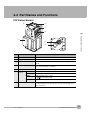
2-2 Part Names and Functions
FQ Vision Sensor
(5)
(6)
(1)
(2)
2
Installation and Connections
(7)
(4)
(3)
No.
Name
Description
(1)
Lighting
LEDs for illumination
(2)
Camera lens
This lens can be focused.
(3)
I/O Cable connector
An I/O Cable is used to connect the Sensor to the power supply and external I/O.
(4)
Ethernet cable connector
An Ethernet cable is used to connect the Sensor to external devices such as
PLCs, the Touch Finder, or computers.
(5)
Focus adjustment screw
Used to adjust the focus of the image.
(6)
Operation
indicators
OR
Lights orange when the OR output signal turns ON.
ETN
Lights orange during Ethernet communications.
ERROR
Lights red when an error occurs.
9-1 Error Table p. 168.
BUSY
Lights green when the Sensor is executing a process.
(7)
Mounting Bracket
FQ User’s Manual
Used to mount the Sensor.
The Mounting Bracket can be attached to the front, left side, right side, or
back of the Sensor.
Part Names and Functions
21
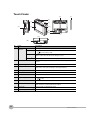
Touch Finder
(6)
(7)
(3)
(1)
(4)
(11)
(2)
(5)
(8)
(9)
(12)
(10)
No.
Name
Description
(1)
Operation
indicators
POWER
Lights green when the Touch Finder is turned ON.
ERROR
Lights red when an error occurs.
9-1 Error Table p. 168.
SD ACCESS
Lights yellow when an SD card is inserted.
Flashes yellow when the SD card is being accessed.
CHARGE*1
Lights orange when the Battery is charging.
(2)
LCD/touch panel
Displays the setting menu, measurement results, and images input by the
camera.
(3)
SD card slot
An SD card can be inserted.
cover*1
(4)
Battery
(5)
Power supply switch
Used to turn the Touch Finder ON and OFF.
(6)
Touch pen holder
The touch pen can be stored here when it is not being used.
(7)
Touch pen
Used to operate the touch panel.
(8)
DC power supply connector
Used to connect a DC power supply.
p. 30
(9)
Slider
Used to mount the Touch Finder to a DIN Track.
(10)
Ethernet port
Used when connecting the Touch Finder to the Sensor with an Ethernet
cable. Insert the connector until it locks in place.
(11)
Strap holder
(12)
The Battery is inserted behind this cover.
Remove the cover when mounting or removing the Battery.
This is a holder for attaching the strap.
*1
AC power supply connector
Used to connect the AC adapter.
*1: Applicable to the FQ-D31 only.
22
Part Names and Functions
FQ User’s Manual
2-3 Installation
Installing the Sensor
Installation Procedure
1
Installation and Connections
3
Mounting
Bracket
2
2
Align the tabs on one side of the Mounting Bracket with
the slot on the Sensor.
The FQ-XL Mounting Bracket can be attached to the back,
side, or front of the Sensor.
Press the Mounting Bracket onto the Sensor until the other tabs click into place.
Use the following optical charts to check the field of view
and installation distance of the Sensor so that it is mounted at the correct position.
Tightening torque (M4): 1.2 N·m
Horizontal field of view
Vertical field
of view
Installation distance (L)
FQ-S10010F, FQ-15010F,
FQ-S20010F, or FQ-25010F
Installation distance (L) (mm)
The optical chart indicates the horizontal
field of view. The vertical field of view will
be approximately 60% of the horizontal
field of view.
Note: The tolerance is ±10%.
FQ-S10100F, FQ-S15100F,
FQ-S20100F, or FQ-S25100F
Installation distance (L) (mm)
55
1,000
45
600
35
6
8
12
10
14
Horizontal field of view (mm)
FQ-S10050F, FQ-S15050F,
FQ-S20050F, or FQ-S25050F
Installation distance (L) (mm)
210
200
0
200
300
100
Horizontal field of view (mm)
FQ-S10100N, FQ-S15100N,
FQ-S20100N, or FQ-S25100N
Installation distance (L) (mm)
400
130
0
50
0
40
20
60
Horizontal field of view (mm)
FQ User’s Manual
0
200
400
Horizontal field of view (mm)
Installation
23
Important
• There is a certain amount of deviation among Sensors in the center of the optical axis. For this reason, when installing the Sensor, check the center of the image and the field of view on the LCD monitor of the Touch Finder and in
the PC Tool.
Removal Procedure
1
Insert a flat-blade screwdriver between the Mounting Bracket and the Sensor case on either side and remove the
Mounting Bracket.
Mounting
Bracket
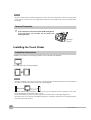
Installing the Touch Finder
Installation Precautions
Install the Touch Finder in the following orientation to allow sufficient heat dissipation.
Do not mount it in the following orientations.
Important
• To improve ventilation, leave space on both sides of the Touch Finder. The distance between the Touch Finder and
other devices should be at least that shown in the following diagram.
15 mm min.
15 mm min.
• Make sure that the ambient temperature is 50°C or lower. If it exceeds 50°C, install an cooling fan or an air conditioner and maintain the temperature at 50°C or lower.
• To prevent interference by noise, do not mount the Sensor on panels which contain high-voltage devices.
• To keep the level of noise from the surrounding environment to a minimum, install the Sensor and Touch Finder at
least 10 m away from power lines.
24
Installation
FQ User’s Manual
Mounting to DIN Track
Installation Procedure
1
2
2
Press the Touch Finder onto the DIN Track until the bottom
clip clicks into place.
3
Installation and Connections
Hook the clip at the top of the Touch Finder on to the DIN
Track.
2
3
Press the slider on the Touch Finder to the top.
1
3
Important
• Attach End Plates (sold separately) on the sides of the Touch Finder on the DIN Track.
• If other devices will be installed next to the Touch Finder on the same DIN Track, make sure that sufficient space is
kept between the devices as indicated on previous page.
• Always hook the clip at the top of the Touch Finder on the DIN Track first. If the lower clip is hooked on first, the
Touch Finder will not be mounted very securely.
Removal Procedure
1
2
Pull down on the slider on the Touch Finder.
Lift the Touch Finder at the bottom and remove it from the
DIN Track.
2
1
Mounting to a Control Panel
The Touch Finder can be mounted on a panel using the FQ-XPM Panel Mounting Adapter.
Important
• Always turn OFF the Touch Finder power before attaching or detaching the Panel Mount Adapter. Attaching or
detaching with the power turned ON may cause a failure.
1
Set the Touch Finder in the Panel Mount Adapter.
FQ User’s Manual
Installation
25
2
3
Press the slider up on the Touch Finder.
Create holes in the panel for mounting.
Refer to the following page for hole dimensions.
p. 195
4
5
6
7
Connect the cable to the Touch Finder.
Mount the Touch Finder with the Panel Mount Adapter from
the front of the panel.
Hook the hooks on the Mounting Bracket in the four holes
of the Panel Mount Adapter and secure them with screws.
(Tightening torque: 1.2 N·m)
Mounting
Bracket
Check that the Touch Finder is attached properly to the
Panel.
Using the Touch Finder as a Portable Device (with Battery)
The Touch Finder with a Battery can be used as a portable device. Use the strap when carrying it to prevent
dropping it.
There are two types of straps (FQ-XH, sold separately), a Neck Strap and a Hand Strap.
Neck Strap
1
26
Hand Strap
Attach the Mini-strap to the Touch Finder.
There are a total of four holes for attaching the Mini-strap on the left and on the right of the Touch Finder.
Installation
FQ User’s Manual
2
Connect the Neck Strap or Hand Strap to the Mini-strap.
Mini-strap
Neck Strap or Hand
Strap
2
Installation and Connections
FQ User’s Manual
Installation
27
2-4 Wiring
Wiring the Sensor
Connect the I/O Cable to the I/O Cable connector located at the bottom of the Sensor.
FQ-WD0@@
I/O Cable
Brown
Blue
Black
Orange
Light blue
Pink
Gray
Green
Red
White
Purple
Yellow
Power supply
GND
OUT0 (OR)
OUT1 (BUSY)
OUT2 (ERROR)
TRIG
IN0
IN1
IN2
IN3
IN4
IN5
Important
Cut off lines that are not required so that they do not come into contact the other signal lines.
Classification
Signal
Application
Power
supply
Power supply
(24 V)
These terminals are for the external power supply (24 V).
GND
Important
Wire the power supply separately from other devices. If the wiring for other devices is placed
together or in the same duct as the wiring for the Vision Sensor, the influences of electromagnetic
induction may cause the Sensor to malfunction or may damage it.
Inputs
Outputs
TRIG
This terminal is the trigger signal input.
IN0 to IN5
These are the command input terminals.
OUT0 (OR)
By default, this is the OR output signal (overall judgement).
The assignment can be changed to an individual judgement signal from OR0 to OR31.
OUT1 (BUSY)
By default, this is the BUSY output signal.
The assignment can be changed to an individual judgement signal from OR0 to OR31.
OUT2 (ERROR)
By default, this is the ERROR output signal.
The assignment can be changed to an individual judgement signal from OR0 to OR31.
Note
The assignments of I/O signals can be changed.
Section 8 Communications with External Devices: p. 125
28
Wiring
FQ User’s Manual
I/O Signal Circuit Diagrams
NPN
PNP
Brown Power supply (24 VDC)
Load
24 VDC
Light blue OUT2 (ERROR)
Orange OUT1 (BUSY)
Black OUT0 (OR)
Blue
Installation and Connections
Internal circuits
24 VDC
Blue GND (0V)
Pink TRIG
Gray IN0
Green IN1
IN2
Red
White IN3
Purple IN4
Yellow IN5
Power supply (24 VDC)
TRIG
IN0
IN1
IN2
IN3
IN4
IN5
2
Internal circuits
Black OUT0 (OR)
Orange OUT1 (BUSY)
Light blue OUT2 (ERROR)
Brown
Pink
Gray
Green
Red
White
Purple
Yellow
Load
GND (0V)
Important
Preventing Chattering
• The Sensor is equipped with an anti-chattering function, but if the chattering is 100 µs or longer, a faulty input may
occur. (Input signals of 99 µs or shorter are ignored. Signals of 100 µs or longer are treated as input signals.)
• Use no-contact output devices (e.g., SSR or PLC transistor output) for the input signals. If contacts (e.g., relay) are
used, chattering may cause the trigger to be input again during execution of a measurement.
Power Supply Specifications When a Switching Regulator Is Connected
Use a power supply that meets the following specifications. (The power supply is sold separately.)
Item
Description
Power supply voltage
24 VDC (21.6 to 26.4 V)
Output current
3.75 A min.
Recommended Power Supply
S8VS-09024@ (24 VDC, 3.75 A)
External power supply terminal screws
M4 (tightening torque: 1.2 N·m)
Important
Supply power from a DC power supply for which measures have been applied to prevent high voltages (e.g., a safety
extra low voltage circuit).
If UL certification is required for the overall system, use a UL Class II DC power supply.
Attaching the LED Warning Label
Attach the enclosed LED warning label to the cable or other location. The LED warning label must be attached
to a location that is readily visible from the Sensor.
Attachment Example
Warning Label
Warning Label
10-5 LED Safety p. 200
FQ User’s Manual
Wiring
29
Wiring the Touch Finder
Power Supply Wiring
Connecting the Power Supply
1
2
3
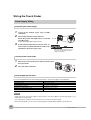
Loosen the two terminal screws using a Phillips
screwdriver.
Attach crimp terminals to the power lines.
Secure the positive and negative lines as indicated
using M3 screws.
Power supply tightening torque: 0.54 N⋅m
24 VDC
In environments where there is excessive noise, attach a ferrite core (ZCAT1730-0730 from TDK or the
equivalent) to the power supply cable.
+
−
When you attach the ferrite core to
the power supply cable, wrap the
cable only one time.
Turning ON the Touch Finder
1
2
Remove the cover from the power switch on the left side of
the Touch Finder.
2
ON
Press the switch toward ON.
1
OFF
Power Supply Specifications
Use a power supply that meets the following specifications. (The power supply is sold separately.)
Item
Description
Power supply voltage
24 VDC (21.6 to 26.4 V)
Output current
0.65 A min.
Recommended Power Supply
S8VS-01524@ (24 VDC, 0.65 A)
External power supply terminal screws
M4 (tightening torque: 1.2 N⋅m)
Recommended power line wire size
AWG16 to AWG22 (length of 5 m max.)
Important
• Supply power from a DC power supply for which measures have been applied to prevent high voltages (e.g., a
safety extra low voltage circuit).
If UL certification is required for the overall system, use a UL Class II DC power supply.
• When using the FQ-D31, do not connect a switching regulator and AC Adapter (FQ-AC@) at the same time.
30
Wiring
FQ User’s Manual
Charging the Battery
This section describes how to charge and install the FQ-D31 Battery and provides applicable precautions.
Charge the Battery while it is attached to the Touch Finder.
Use the AC adapter to charge the battery.
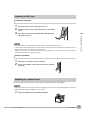
Mounting the Battery in the Touch Finder
2
2
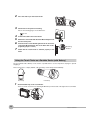
Remove the screw from the battery cover on the top of the
Touch Finder, slide the cover in the direction of the arrow,
and open the battery cover.
Installation and Connections
1
Face the rounded side of the battery toward the back of the
Touch Finder and insert the battery.
Important
Do not insert the battery in the wrong orientation.
3
4
Close the battery cover, slide the battery cover in the direction of the arrow, and tighten the screw on the battery cover.
Attach the AC adapter to the Touch Finder to start changing
the battery.
The CHARGE indicator will be lit while the battery is being
charged. It will go out when charging the battery has been completed.
CHARGE indicator
Note
The Touch Finder will operate even if the AC adapter is connected when no battery is mounted in the Touch Finder.
FQ User’s Manual
Wiring
31
Important
• If the Touch Finder (FQ-D31) will be installed permanently or semi-permanently, remove the Battery (FQ-BAT1). If
the rated temperature is exceeded with the Battery inserted, the protective circuit may activate and stop the Touch
Finder.
• The battery complies with the following recycling regulation.
Japan
EU
Taiwan
Li-ion00
• California regulations concerning perchlorate:
This product is a lithium battery that contains perchlorate, which is regulated by the State of California. Please comply with these regulations. For details see the following URL:
www.dtsc.ca.gov/hazardouswaste/perchlorate/
32
Wiring
FQ User’s Manual
2-5 Setting Up Ethernet
Connecting to Sensors from the Touch Finder
When the Sensor is used with a Touch Finder, IP addresses are automatically assigned. No settings are
required to use Ethernet.
However, if a Sensor or Touch Finder is connected to a network where a PLC or computer is already
connected, the Ethernet must be set to be compatible with the existing network.
2
• Sensor
1
2
Installation and Connections
(Setup Mode) − [Sensor settings] − [Network] − [Ethernet]
Set [Auto connection] to [OFF].
Set the IP address and subnet mask according to the network settings.
• Touch Finder
(Setup Mode) − [TF settings] − [Ethernet]
1
Set the IP address and subnet mask according to the network settings.
Connecting to Sensors from External Devices Such as PLCs
Set the IP address of the Sensor according to the network where the external devices, such as PLCs, are
connected.
(Setup Mode) − [Sensor settings] − [Network] − [Ethernet]
1
2
Set [Auto] to [OFF].
Set the IP address and subnet mask according to the network where the external devices, such
as PLCs, are connected.
Note
If you connect OMRON CS/CJ-series PLCs to the Ethernet, the following default IP addresses are assigned to the
PLCs.
• IP address: 192.168.250.node_address
Connecting to Sensors from a Computer Using the PC Tool
When connecting the Sensor directly to a computer using an Ethernet Cable, set the network settings on the
computer as given below. Setting a fixed IP address is not required if there is a hub between the computer and
Sensor and a DHCP server is used.
The following procedure is for Windows XP.
1
2
Select [Control Panel] from the Windows Start Menu.
Click [Network and Internet Connections] in the control
panel and then double-click [Network Connections].
FQ User’s Manual
Setting Up Ethernet
33
3
4
5
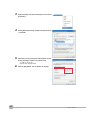
Right-click the [Local Area Connection] Icon and select
[Properties].
On the [General] Tab Page, double-click Internet Protocol (TCP/IC).
Select the Use the following IP address Option and enter the following IP address and subnet mask.
• IP address: 10.5.5.101
• Subnet mask: 255.255.255.0
6
34
Click the [OK] Button. This completes the settings.
Setting Up Ethernet
FQ User’s Manual
Taking Images
3
3-2 Adjusting Image Quality . . . . . . . . . . . . . . . . . . . . . . . . . . . . . . . . . . . . 37
3-3 Adjusting the Object Position . . . . . . . . . . . . . . . . . . . . . . . . . . . . . . . . 42
3-4 Preventing Mutual Interference of Multiple Sensors . . . . . . . . . . . . . 46
Taking Images
3-1 Selecting a Sensor for Configuration. . . . . . . . . . . . . . . . . . . . . . . . . . 36
3-1 Selecting a Sensor for Configuration
If multiple Sensors are connected to a single Touch Finder or computer, you can select the Sensor that you
want to set up.
1
Press [Run].
This will enable setting the current Sensor into RUN
Mode before selecting another Sensor.
2
Then press [Switch to Run mode].
3
Press [Yes].
4
5
Press
− [Switch Sensor].
Press the image of the Sensor to be set up.
will be displayed for Sensors that are not yet set.
Note
Once the Touch Finder detects and records a Sensor, the display order for showing more than one Sensor is fixed. Even if the system
configuration is changed to reduce the number of Sensors, the previous display location will remain for Sensors that were removed.
To update displays of multiple Sensors to the current connection status, press [ ] - [Auto connect] on the right of the display in step 5,
above, to automatically reconnect.
36
6
Press
Mode.
7
Press [Yes].
− [Sensor settings] to return to Setup
Selecting a Sensor for Configuration
FQ User’s Manual
3-2 Adjusting Image Quality
Adjusting the Focus
[Image] − [Camera setup]
1
Display the Camera Setup Display.
The focus can be seen as a numerical value. The higher
the value, the better the focus.
3
Focus Level
3
Manually adjust the focus using the focus adjustment screw on the Sensor while checking the image
and focus value on the Touch Finder.
In the default settings, the field of view is set to the narrowest setting.
Taking Images
2
Focus adjustment screw
Turn clockwise to focus on closer objects.
(The field of view will
narrow.)
Press [Back].
Turn the screw counterclockwise
to focus on objects at a distance.
(The field of view will widen.)
Important
• Turn the focus adjustment screw clockwise or counterclockwise a little bit to make sure that it has not already
reached the dead stop. Do not force the screw if it does not rotate anymore. This will damage the Sensor.
• Do not turn the focus adjustment knob with a force that is greater than 0.1 N·m. This may damage it.
FQ User’s Manual
Adjusting Image Quality
37
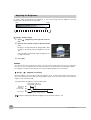
Adjusting the Brightness
To achieve stable measurements, the brightness of the camera image must be adjusted so that the
characteristic to be measured is clearly visible.
Dark
Bright
Brightness of image
0
100
[Image] − [Camera setup]
1
Press [
play.
2
Move the bar to the left or right to adjust the brightness.
Moving it to the right will make the image brighter, while
moving it to the left will reduce the brightness of the image.
] − [Brightness] on the right side of the dis-
Press [AUTO] to automatically adjust the brightness according to the image.
3
Press [OK].
Important
• The exposure time will be longer for larger values. This may cause the image to blur if the object is moving fast. If
the Sensor is used on a high-speed line, check that the images are not blurred under actual operating conditions.
• If the brightness changes inconsistently with each image, turn ON the Brightness Correction Mode.
[Image] − [
] − [Brightness correction]
When the Brightness Correction Mode is ON, the brightness will be consistent but the timing when images are
taken will be delayed by 25 ms. Make sure that appropriate images of the measured objects are taken when the
Brightness Correction Mode is ON.
Timing Chart When the Brightness Correction Mode Is ON
Taking images begins 25 ms
after the TRIG signal is input.
TRIG signal
(Brightness
Correction ON)
ON
OFF
ON for 1 ms min.
ON
BUSY signal
OFF
ON while the measurement
process is being executed.
Reference Timing Chart When the Brightness Correction Mode Is OFF: p. 127
38
Adjusting Image Quality
FQ User’s Manual
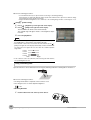
Taking Clear Images of Moving Objects
For quick moving objects, the effect of blurring can be reduced by decreasing the exposure time.
Slow
Moving speed
Fast
0
100
Exposure time
1/30,000
[Image] – [Camera setup] – [
1/250
] – [Brightness]
Adjusting the Brightness: p. 38
3
Taking Images
Important
The image becomes darker the smaller the exposure time. If the Sensor is used in a dark environment, make
sure that the darkness of the image does not cause the measurements to be unstable.
Improving the Image Quality of Metallic and other Shiny Surfaces
When objects with shiny surfaces are being measured, the lighting may be reflected off the surface and affect
the image.
To remove reflections, one of the following two functions can be used.
Function
Description
HDR (High Dynamic Range) If objects have contrasting light and dark areas, the dynamic range can be made wider to
improve the quality of the images.
Polarizing filter
Specular reflections can be eliminated from an image by attaching a polarizing filter to the
Sensor.
• Selection Tips
• When the measurement object is not moving
→ Use the HDR function.
• When the measurement object is moving
→ Use a polarizing filter.
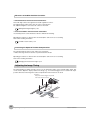
HDR Function
The HDR function is used for objects that have a large difference between light and dark areas. For this kind of
object, clear images cannot be achieved with the standard brightness setting. The HDR function combines
several images of different brightnesses (exposure times) so that the resulting image has a lower degree of
contrast and can be measured stably for the desired characteristic.
Inputting Images with a Limit Range of Brightness
Combining Images to Create an Image
with a Wide Dynamic Range
Dark
FQ User’s Manual
Bright
Adjusting Image Quality
39
Observe the following precautions.
• Use the HDR function only for objects that are not moving to avoid image blurring.
Several images are taken with different shutter speeds and combined. If the object moves while the image
is being taken, the image will become blurred.
• Images with different brightnesses are combined, so the resulting image will have a lower degree of contrast.
[Image] − [Camera setup]
1
2
3
Press [
] − [Brightness] on the right side of the display.
Press [ ] − [HDR] on the right side of the display.
The best HDR mode will be selected automatically.
The enabled range will appear in blue on the brightness adjustment bar.
Press the [OK] Button.
Note
• If the measurement object is changed after setting the HDR function, press
the [AUTO] Button to automatically set the HDR mode again.
• If the automatic selection does not achieve the desired results, press [ ] −
[HDR] on the right side of the display and manually set the best HDR mode.
As shown below, the higher the level, the wider the combined dynamic
range will be.
Level 1
Level 2
Level 3
Level 4
Dark
Bright
• If the reflections cannot be sufficiently removed using the HDR function,
use a polarizing filter as well.
Using a Polarizing Filter
Specular reflections can be eliminated from an image by attaching a FQ-XF1 Polarizing Filter to the Sensor.
Observe the following precautions.
• The image will be darker compared to when no filter is used.
• If the image becomes too dark, adjust the brightness.
p. 38
• Mounting the Filter
1
40
Hook the filter in the hole at the top of the Sensor.
Adjusting Image Quality
FQ User’s Manual
2
Using the top section as a pivot point, pull down the
filter so that it attaches to the Sensor.
Adjusting the Colors of the Image (White Balance)
If external lighting is used, the image may appear as having different colors than the actual object. If this is the
case, adjust the white balance.
If the lighting built in to the Sensor is used, the white balance is already adjusted. No setting is required in this
case.
[Image] − [Camera setup]
Input a picture of white paper or cloth.
3
Press the [Auto] Button. The Sensor will automatically adjust the colors.
4
Move the bar to the left (light) or right (dark) to finetune the colors.
5
Press [OK].
3
1
2
FQ User’s Manual
Taking Images
Press [ ] – [White balance] on the right side of the
display.
Adjusting Image Quality
41
3-3 Adjusting the Object Position
If objects are moving, the position in the image of the characteristic that is to be measured will vary according
to the timing of the trigger signal. The FQ Vision Sensor offers two different ways to adjust this position
variation.
Function
Description
Reference
Position compensation
If the timing of the trigger is accurate, the FQ Vision Sensor can correct variations in the
position of the object for each measurement with the Position Compensation function.
p. 42
Trigger delay
A delay can be applied from when the trigger (the TRIG signal) is input until when the
image is input, to synchronize the timing of image input with the speed of the moving
objects.
p. 44
Position Compensation
The FQ Vision Sensor performs measurements in measurement regions that are set to a fixed shape and
position by the operator. A measurement is not performed properly if the object is not positioned inside this
measurement region (e.g., the result will be NG even if the object is OK). In machines in which the position of
the object varies for each image, stable measurements would be impossible. To cope this problem, the Position
Compensation function aligns the whole image so that the object to be measured is moved exactly to the
measurement region.
Reference position (as set by the operator)
The measurement object is properly within the measurement region.
Measurement region
Object
Object is out of place:
The measurement object is
outside the measurement
region.
The image is aligned so that the object
is returned to the reference position
before performing measurements.
Position compensation applied...
The object is measured
properly within the
measurement region.
[Image] – [Position compensation] – [Mode on/off]
1
2
42
Press [ON] for [Mode on/off]
Press [Settings].
Adjusting the Object Position
FQ User’s Manual
3
4
Press [Teach].
5
6
Press [
7
8
Press [OK].
9
Drag the rectangle to move it.
Adjust the image so that the measurement object is
in the center.
] – [Model region].
Move the rectangle so that the characteristic part for
position compensation is inside it.
Press [Teach].
The characteristic part and reference position for position
compensation will be registered.
Drag a corner to size the rectangle.
Press [OK] to save the settings.
3
Adjusting the Judgement Parameters
Taking Images
Set how similar the image must be to the registered image for position compensation to be applied.
[Image] – [Position compensation] – [Settings] – [Judgement]
1
Set the correlation range for an OK judgement.
Operating procedures: p. 52
• Measurement Data That Can Be Used for External Outputs and Calculations
The following values can be output to external devices or used in calculations as measurement data.
Expression text string
Data name
Description
Data range
−2: No judgement (not measured),
0: Judgement is OK,
−1: Judgement is NG,
−13: Teaching not performed error,
−14: Figure not registered error,
−15: Out of range error
JG
Judgement
This is the judgement result.
X
Position X
This is the X coordinate of the position −99999.9999 to 99999.9999
where the model was found.
Y
Position Y
This is the Y coordinate of the position −99999.9999 to 99999.9999
where the model was found.
CR
Correlation
This value indicates how similar the
image is to the image registered as
reference.
SX
Reference position X
This is the X coordinate of the position −99999.9999 to 99999.9999
where the model was registered.
SY
Reference position Y
This is the Y coordinate of the position −99999.9999 to 99999.9999
where the model was registered.
DX
Scroll X
X coordinate of measured position −
X reference position
−99999.9999 to 99999.9999
DY
Scroll Y
Y coordinate of measured position −
Y reference position
−99999.9999 to 99999.9999
0 to 100
4-9 Calculations and Judgements Using Inspection Item Data: p. 75
FQ User’s Manual
Adjusting the Object Position
43
Measures to Stabilize Position Correction
• Low Mark Contrast and Inconsistent Correlations
Areas with high contrast are registered as model registration sections.
The adjustment procedure is the same as for the search function.
Or, adjust the brightness to increase the contrast of the mark.
Making dark images brighter: p. 38
• Inconsistent Marks and Inconsistent Correlations
Inconsistent portions can be masked so that are omitted from matching.
Operating procedures for other functions are basically the same as those for searching.
Refer to the following information.
Unstable search results: p. 54
Increasing the Speed of Position Compensation
The following method can be used to reduce processing time.
• Reduce the range in which searches are performed for the model.
Operating procedures for other functions are basically the same as those for searching.
Refer to the following information.
Changing the measurement region: p. 57
Adjusting the Image Timing
The internal timing for taking an image can be set to be delayed in relation to the external trigger signal. This
can be used to adjust the object position in the image, e.g., if an external trigger sensor is used. If the object
position still varies in the image the Position Compensation function must also be used.
Delay time
Delay from when the trigger is input until
when Sensor input is started.
Trigger input Sensor
44
Adjusting the Object Position
FQ User’s Manual
[Image] − [Trigger setup] − [Trigger delay]
1
A TRIG signal is input.
Images are input continuously.
2
Select the image with the measurement object in the
center using [ ] and [ ].
3
4
Press the image.
Press [OK].
Note
3
The delay time can be set using the adjustment bar or by directly entering a value.
Taking Images
Move the bar to the left or right.
Or
Directly input the delay time.
FQ User’s Manual
Adjusting the Object Position
45
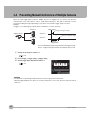
3-4 Preventing Mutual Interference of Multiple Sensors
When the same trigger signal is input to multiple Sensors, the lighting from one Sensor may affect the
measurements of the other Sensors. This is called mutual interference. This kind of interference can be
prevented offsetting the image input timing of each Sensor from when the trigger signal is received.
Example:
A trigger (i.e., the TRIG signal) is input to Sensor 0 and Sensor 1 at the same time.
TRIG signal
Sensor 0
Trigger Sensor
Timing of taking the image
Sensor 0
No trigger delay
Timing of taking the image
Sensor 1
Sensor 1
Sensor 1
trigger delay
Sensor 0 immediately begins image input when the trigger is input.
Sensor 1 begins image input after the specified time has passed.
1
Change to the setup for to Sensor 1.
p. 36
2
3
Press [Image] – [Trigger setup] – [Trigger delay].
Set the trigger input delay time for Sensor 1.
p. 44
Important
• The delay time for preventing mutual interference must be longer than the shutter time.
When the lighting built into the Sensor is used, the shutter time is 4 ms max. Therefore make the delay at
least 4 ms.
46
Preventing Mutual Interference of Multiple Sensors
FQ User’s Manual
Setting Up Inspections
4-1 Inspection Item Selection Guide . . . . . . . . . . . . . . . . . . . . . . . . . . . . . 48
4-4 Inspecting with the Search Inspection Item . . . . . . . . . . . . . . . . . . . . 52
4-5 Inspecting with the Edge Position Inspection Item . . . . . . . . . . . . . . 59
4-6 Inspecting with the Edge Width Inspection Item . . . . . . . . . . . . . . . . 64
4-7 Inspecting with the Area Inspection Item . . . . . . . . . . . . . . . . . . . . . . 68
4-8 Inspecting with Color Data Inspection Item . . . . . . . . . . . . . . . . . . . . 72
4-9 Calculations and Judgements Using Inspection Item Data . . . . . . . 75
Setting Up Inspections
4-3 Configuring Inspection Items . . . . . . . . . . . . . . . . . . . . . . . . . . . . . . . 50
4
4-2 Setup Procedure for Inspection Items . . . . . . . . . . . . . . . . . . . . . . . . 49
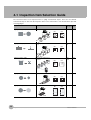
4-1 Inspection Item Selection Guide
The FQ Vision Sensor uses inspection items to judge measurement objects. There are five different
measurement objects. Select the best inspection items for the characteristics of the measurement object that
are being judged.
Inspection
Example
Inspection Referitems used ence
Judging according to shapes
Judging if there is a mark
Search
OK
ITJ
p. 52
NG
ITJ
NG
ITJ
OK
OK
Judging according to positions
Measuring the position offset of
a seal
Edge Posi- p. 59
tion
OK
Judging according to widths
Measuring the width between
lead wires
OK
Judging according to sizes
Judging according to colors
NG
Edge
Width
p. 64
Area
p. 68
NG
Judging if there is silver paste
OK
NG
OK
NG
Detecting parts
Color Data p. 72
NG
48
Inspection Item Selection Guide
FQ User’s Manual
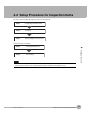
4-2 Setup Procedure for Inspection Items
The basic steps for setting up inspection items are shown below.
Step 1
Configuring Inspection Items
Step 2
Teaching
Step 3
Setting Judgement Parameters
If measurements are unstable
Step 5
Re-teaching
Setting Up Inspections
Setting Detailed Items
4
Step 4
Note
• Only one inspection item can be used with a single-function model (FQ-S1 Sensors).
• Up to 32 inspection items can be combined and used with a standard model (FQ-S2 Sensors).
FQ User’s Manual
Setup Procedure for Inspection Items
49
4-3 Configuring Inspection Items
Adding New Inspection Items
1
Press [Inspect] − [Inspection].
2
Press an unused inspection item number.
3
Press [Add item.] on the menu.
4
Select an inspection item, such as [Search].
When registering multiple inspection items, press the
inspection item number after 1.--- and set it in the
same way.
Note
If more than six inspection items are set, drag the
tion item numbers.
50
Configuring Inspection Items
icon at the bottom of the menu up to display the next inspec-
FQ User’s Manual
Modifying Existing Inspection Items
1
Press the number of the inspection item to be set.
2
Press [Modify] on the menu.
4
Setting Up Inspections
Deleting Inspection Items
1
Press the number of the inspection item to be deleted.
2
Press [Delete] on the menu.
Note
Executing Similar Measurements in Different Places
→ Copy an inspection item that is already registered: [Copy].
→ Change the name of an inspection item: [Rename].
FQ User’s Manual
Configuring Inspection Items
51
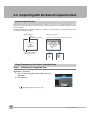
4-4 Inspecting with the Search Inspection Item
Search Inspection Item
This inspection item is used to perform inspections for shapes or for presence. The image pattern that is to be
measured is registered in advance and measurements are performed to see if the pattern is present or if the
shape is different.
The image pattern that is registered in advance is called the model. The degree to which the image matches
the model is called the correlation.
Sample Settings
Sample Measurement
Model
(desired image pattern)
Search for sections that are similar to the model.
+
Search region (region to
search for the model)
OK
NG
Setup Procedure for the Search Inspection Item
Step 1
Selecting the Inspection Item
[Inspect] − [Inspection]
1
Press an unused inspection item number and press
[Add item.].
2
Press [Search].
Registering inspection items: p. 50
52
Inspecting with the Search Inspection Item
FQ User’s Manual
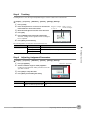
Step 2
Teaching
Teaching means to store the region and partial image as reference data for the measurement.
[Inspect] − [Inspection] − [Add item.] − [Search] − [Settings] Tab Page
1
2
Press [Teach].
3
4
5
Move the rectangle to the location to be measured.
6
Press [Back] to end teaching.
Place the object that is to be used as the measurement reference in front of the camera.
Drag the rectangle Drag a corner to
size the rectangle.
to move it.
Press [OK].
Press [TEACH] on the lower right of the display.
The basic settings will be registered when teaching has
been completed.
The following data is stored as the measurement reference.
Parameter
Description
Reference data
Model image
This is the partial image that is stored as the reference.
Reference position X
These are coordinates of the model image that are stored as reference.
4
Item
Setting Up Inspections
Reference position Y
Step 3
Adjusting Judgement Parameters
[Inspect] − [Inspection] − [Add item.] − [Search] − [Settings] Tab Page
1
2
Press [Judgement].
3
4
Press [OK] to accept the value.
Lower limit Upper limit
Set the correlation range for an OK judgement.
Continuous measurements will be performed for the images that are taken.
Press [Back] to end making the setting.
Blue for OK. Red for NG.
Parameter
Setting
Description
Correlation
Range: 0 to 100
Default: Lower limit: 60, Upper limit: 100
Adjust the upper and lower limits of the correlation for an OK judgement.
FQ User’s Manual
Inspecting with the Search Inspection Item
53
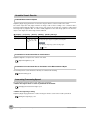
Unstable Search Results
Inclined Measurement Objects
Adjust the [Angle range] parameter to increase the range in which a search is made for the model.
The Search inspection item judges whether an image is OK or NG according to the correlation with a
previously registered image pattern. For this reason, if the object is at an angle, the correlation is reduced and
the image may be judged as NG. To achieve an OK judgement for the same image pattern even when the
object is at an angle, the rotation range must be widened.
[Inspect] − [Inspection] − [Search] − [Modify] − [Details] Tab Page
Parameter
Setting
Description
Angle range
±0° (default),
±5°, ±10°, ±15°, ±20°,
±25°, ±30°, ±35°, ±40°,
or ±45°
A search is performed within the set angle range.
The larger the angle range, the longer the processing time.
Important
If you change the angle range, perform teaching again.
p. 53
Correlation Is Inconsistent Due to Low Contrast
Adjust the brightness to improve the contrast of the mark.
Adjust the brightness: p. 38
Correlation Is Inconsistent Due to Variations in the Measurement Object
Inconsistent portions can be masked so that they are omitted from matching.
Model masking: p. 56
Increasing Processing Speed
The following two methods can be used to reduce processing time.
• Reduce the range in which a search is performed for the model.
Changing the measurement region: p. 57
• Reduce the angle range setting.
Adjust the [Angle range] parameter to reduce the range in which a search for the model is performed.
Setting the angle range: p. 54
54
Inspecting with the Search Inspection Item
FQ User’s Manual
Editing the Model and Measurement Regions
This section describes how to edit the following regions.
Model registration region
Measurement region
(region that is searched for the model)
Important
If the model region is changed, perform teaching again.
4
p. 53
Setting Up Inspections
Changing the Model Registration Region to a Shape Other Than a Rectangle
One rectangular region is registered as the default model registration region.
Other than rectangles, circles and polygons can be set as the model registration regions.
[Inspect] − [Inspection] − [Search] − [Modify] − [Settings] Tab Page − [Teach] − [
region]
1
2
Press [
3
4
5
6
7
Press [Yes].
] − [Model
] – [Model region].
Press [ ] – [Delete] in the model registration editing
display.
The rectangle will be deleted.
Press [Add] in [
].
Press the shape of the region that you want to use.
Draw the region.
Press [OK].
Note
Up to 8 shapes can be combined to create a region for one model.
FQ User’s Manual
Inspecting with the Search Inspection Item
55
Masking Parts of the Model
The model registration region can be formed freely by combining enabled and disabled regions.
Example:
Figure 1: Enabled range
Figure 2: Disabled range
The gray section
is the model
region.
Figure 3: Enabled range
[Inspect] − [Inspection] − [Search] − [Modify] − [Settings] Tab Page − [Teach] − [
region]
1
] − [Model
Draw the figure according to the section that you want to mask.
p. 55
2
While the figure to be masked is selected, press [ ]
on the right of the display and then press [OR/NOT]
The selected area will be removed from the model.
Every time you press [OR/NOT], the area will switch between being enabled and disabled.
OR: Enabled range
NOT: Disabled range
Fine-tuning the Position of the Region
This section describes the console which is useful to fine-tune the position of the measurement region or the
model registration region in 1-pixel increments.
[Inspect] − [Inspection] − [Search] − [Modify] − [Settings] Tab Page − [Teach] − [
region]
56
1
Press [ ] – [Console] on the right side of the display
where you draw the region.
The console will appear.
2
To adjust the position of the figure, press within the
frame. To adjust the size of the figure, press a corner
of the figure.
3
Use the cross-key to align the figure with the search
object.
The position of the figure can be adjusted by pressing the
cross-key. Pressing it once will change the coordinate
values by one pixel.
Inspecting with the Search Inspection Item
] − [Model
Coordinates
FQ User’s Manual
Changing the Measurement Region
The region within which the model is searched can be changed. In the default settings, the whole display is set
as the measurement region.
[Inspect] − [Inspection] − [Search] − [Modify] − [Settings] Tab Page − [Teach]
1
Press [ ] − [Insp. region] on the right of the display.
The [Insp. region] Display will appear.
2
Adjust the size and position of the measurement region.
• Change the size.
Press the frame at one corner.
The processing time can be shortened by making the
region smaller.
• Change the position.
Drag the figure to move it.
4
• Measurement Data That Can Be Used for External Outputs and Calculations
Expression text string
Data name
Description
Setting Up Inspections
The following values can be used as measurement data and output to external devices via the Ethernet or used
in calculations.
Data range
−2: No judgement (not measured),
0: Judgement is OK,
−1: Judgement is NG,
−13: Teaching not performed error,
−14: Figure not registered error,
−15: Out of range error
JG
Judgement
This is the judgement result.
X
Position X
This is the X coordinate of the position −99999.9999 to 99999.9999
where the model was found.
Y
Position Y
This is the Y coordinate of the position −99999.9999 to 99999.9999
where the model was found.
TH
Angle
This is the angle of the position where −180 to 180
the model was found.
CR
Correlation
Correlation
SX
Reference position X
This is the X coordinate of the position −99999.9999 to 99999.9999
where the model was registered.
SY
Reference position Y
This is the Y coordinate of the position −99999.9999 to 99999.9999
where the model was registered.
ST
Reference angle
This is the angle when the model was −180 to 180
registered.
0 to 100
4-9 Calculations and Judgements Using Inspection Item Data: p. 75
• Measurement Data That Can Be Logged
The following values can be logged as measurement data.
Parameter
Range of value
Description
Correlation
0 to 100
This is the measured correlation.
7-4 Logging Measurement Data and Image Data: p. 110
FQ User’s Manual
Inspecting with the Search Inspection Item
57
Errors
Errors in Teaching
A teaching error message will appear if the contrast of the image within the model registration region is too low.
Select a region with a larger contrast between light and dark areas compared to the region that was registered
as the model and re-register it as the model.
58
Inspecting with the Search Inspection Item
FQ User’s Manual
4-5 Inspecting with the Edge Position Inspection Item
Edge Position
This inspection item is used to inspect positions. For example, it can be used to see if a label is attached at the
correct position or if a product is set in the correct position.
Places where the color changes greatly are called edges. The positions of these edges are measured.
Sample Settings
Measurement region
OK
Color of edge
to be found
NG
4
Edge search
direction
Sample Measurement
An edge is detected within the region
according to set direction and color.
Setting Up Inspections
Setup Procedure for Edge Position
Step 1
Selecting the Inspection Item
[Inspect] − [Inspection]
1
2
Press an unused inspection item number and press
[Add item.].
Press [Edge position].
Registering inspection items: p. 50
FQ User’s Manual
Inspecting with the Edge Position Inspection Item
59
Step 2
Teaching
Teaching means to store the region and the edge position in the region as reference data for the measurement.
[Inspect] − [Inspection] − [Add item.] − [Edge Position] − [Settings] Tab Page
1
2
Press [Teach].
3
4
5
Move the rectangle to the location to be measured.
6
Press [Back] to end teaching.
Place the object that is to be used as the measurement reference in front of the camera.
The arrow in the middle shows the
direction for detecting an edge.
Press [OK].
Press [TEACH] on the lower right of the display.
The basic settings will be registered when teaching has
been completed.
Changing the measurement region: p. 57
Drag to move
the region. Changes the
width of the
Moves the
measurestarting point of
ment region.
the measurement region.
Moves the
end point of
the measurement region.
The following data is stored as basic measurement data.
Item
Parameter
Description
Reference data
Reference position X
The reference coordinates (X, Y) of the position are set automatically.
Reference position Y
Step 3
Adjusting Judgement Parameters
[Inspect] − [Inspection] − [Add item.] − [Edge Position] − [Settings] Tab Page
1
2
Press [Judgement].
3
Press [OK] to enter the value.
Lower limit
Upper limit
Set the range within which the D. Position is judged
as OK.
Continuous measurements will be performed for the images that are displayed.
Blue for OK. Red for NG.
60
Item
Parameter
Setting
Description
Judgement Parameter
D. Position
Range: −893 to 893
Default: Lower limit: −893, Upper
limit: 893
Set the upper and lower limits from the
reference position as the offset within
which the judgement will be OK.
Inspecting with the Edge Position Inspection Item
FQ User’s Manual
Unstable Edge Position Results
There Is an Edge But It Cannot Be Detected
[Inspect] − [Inspection] − [Edge Position] − [Modify] − [Details] Tab Page
Parameter
Setting
Description
Edge level
Range: 0 to 100
Default: 50
Set the color change level to detect as an edge.
The edge point is found based on a threshold that is set for a color change.
Important
If you change the edge level, perform teaching again.
Note
Edge Level
4
An edge is detected in the following way.
1. The color change distribution of the entire measurement region is determined.
2. The minimum color change is 0%. The maximum color change is 100%.
3. The location where the color change intersects with the edge level is detected as the edge.
Setting Up Inspections
Maximum color change
100%
Measurement 50%
region
0%
Edge level
Minimum color change
Noise Is Mistaken as an Edge
[Inspect] − [Inspection] − [Edge Position] − [Modify] − [Details] Tab Page
Parameter
Setting
Description
Noise level
Range: 0 to 422
Default: 10
Sets the density level to be considered as noise.
If the difference between the maximum and minimum color changes in the
region is below the noise level, it will be assumed that there is no edge.
Increase this value if noise is incorrectly detected as an edge.
Important
If you change the noise level, perform teaching again.
Note
Noise Level
The maximum and minimum color changes within the edge detection region are determined. If the difference
is less than the noise level, it is assumed that there are no edges. Normally there is no problem with the
default value of 10, but if noise is mistakenly detected as an edge, make this value higher.
Within the Region
Max. color change − Min. color change < Noise level → No edge found → Measurement result: NG
Max. color change − Min. color change ≥ Noise level → Edge found → Perform measurement
Measurement
region
Max. color
change: 60
Min. color
change: 15
60 − 15 > 30
Judges that there is an edge and performs measurements.
FQ User’s Manual
Measurement
region
Max. color
change: 25
Min. color
change: 10
25 − 10 < 30
Judges that there is no edge (measurement result is NG).
Inspecting with the Edge Position Inspection Item
61
Screen Display When the Edge Level and Noise Level Are Changing
A bar showing the threshold level moves up and down on the graphic as the edge level/noise level value changes.
A cross-key cursor will also appear at the detected edge position.
Edge level
Noise level
Undesired Edge Position Is Automatically Detected When Teaching
Manually set the color of the edge that you want to detect.
[Inspect] − [Inspection] − [Edge Position] − [Modify] − [Settings] Tab Page − [Teach]
1
2
3
4
Press [
5
6
7
Press [OK] to enter the edge color.
] – [Color ON/OFF] on the right side of the display.
Press [ON].
Press [
] − [Set color.] on the right of the display.
Draw a rectangle around the color that you want to
use to extract an edge.
The specified color will be extracted.
Press [TEACH] again.
Press [Back].
(Only a rectangle can be used to specify the region.)
Note
It is also possible to check the extraction colors or specify them using the color palette.
The RGB values of the extraction color can be checked and adjusted using the color palette.
If you press [
] − [Color palette], a color palette will appear.
When a color is pressed on
the color palette, its RGB
values will be displayed.
Increasing Processing Speed for Edge Position
Make the measurement region smaller to reduce the processing time.
Changing the measurement region: p. 57
62
Inspecting with the Edge Position Inspection Item
FQ User’s Manual
• Measurement Data That Can Be Used for External Outputs and Calculations
The following values can be used as measurement data and output to external devices via the Ethernet or used
in calculations.
Expression text string
Data name
Description
Data range
JG
Judgement
This is the judgement result.
−2: No judgement (not measured),
0: Judgement is OK,
−1: Judgement is NG,
−13: Teaching not performed error,
−14: Figure not registered error,
−15: Out of range error
X
Edge position X
This is the X coordinate of the measured edge position.
−99999.9999 to 99999.9999
Y
Edge position Y
This is the Y coordinate of the measured edge position.
−99999.9999 to 99999.9999
DF
Offset amount
This is the offset from the measured
reference position.
−99999.9999 to 99999.9999
SX
Reference position X
This is the X coordinate of the edge
position when a range is set.
−99999.9999 to 99999.9999
SY
Reference position Y
This is the Y coordinate of the edge
position when a range is set.
−99999.9999 to 99999.9999
4-9 Calculations and Judgements Using Inspection Item Data: p. 75
4
Setting Up Inspections
• Measurement Data That Can Be Logged for Edge Position
The following values can be logged as measurement data.
Measured item
Range of value
Description
D. Position
−893 to 893
This is the offset from the measured reference position.
7-4 Logging Measurement Data and Image Data: p. 110
Errors
Errors in Teaching
A teaching error message will appear if the edge position cannot be detected when teaching. Perform the
following.
• If the color of the measurement object has changed from the specified color, set the color again and try
teaching again.
• If there is an edge and it cannot be detected, adjust the [Noise level] on the [Details] Tab Page and try
teaching again.
Edge Not Found
If an edge is not found, the measurement result will be NG. Perform the following.
• If a color was specified, make sure the color of the measurement object has not changed from the specified
color.
• Set the color again if necessary.
• If there is an edge and it cannot be detected, make sure the [Edge level] parameter on the [Details] Tab Page
is correct.
Edge level: p. 61
FQ User’s Manual
Inspecting with the Edge Position Inspection Item
63
4-6 Inspecting with the Edge Width Inspection Item
Edge Width Inspection Item
This inspection item is used to measure dimensions. Places where the color changes greatly are called edges.
The distance between two edges is called the edge width.
Sample Settings
Measurement region
Color of edge to be found
Sample Measurement
Edges are searched from
two directions and the
distance is calculated.
OK
NG
Setup Procedure for Edge Width Inspection Item
Step 1
Selecting the Inspection Item
[Inspect] − [Inspection]
1
Press an unused inspection item number and press
[Add item.].
2
Press [Edge Width].
Registering inspection items: p. 50
64
Inspecting with the Edge Width Inspection Item
FQ User’s Manual
Step 2
Teaching
Teaching means to store the region and the edge width in the region as reference data for the measurement.
[Inspect] − [Inspection] − [Add item.] − [Edge Width] − [Settings] Tab Page
1
2
Press [Teach].
3
4
5
Move the rectangle to the location to be measured.
6
Press [Back] to end teaching.
Place the object that is to be used as the measurement reference in front of the camera.
The middle arrow is the direction for
detecting an edge.
Press [OK].
Press [TEACH] on the lower right of the display.
The basic settings will be registered when teaching has
been completed.
Changing the measurement region: p. 57
Moves the
end point of
the
measurement region.
4
Setting Up Inspections
Moves the Drag to
Changes the
move the width of the
starting
point of the region.
measuremeasurement region.
ment
region.
The following data is stored as the measurement reference.
Item
Parameter
Description
Reference data
Reference width
The reference edge width is set automatically.
Step 3
Adjusting the Judgement Parameters
[Inspect] − [Inspection] − [Add item.] − [Edge Width] − [Settings] Tab Page
1
2
Press [Judgement].
3
Press [OK] to enter the value.
Lower limit
Upper limit
Set the D. Width range for an OK judgement.
Continuous measurements will be performed for the images that are displayed.
Blue for OK. Red for NG.
Item
Parameter
Setting
Description
Judgement Parameter
D. Width
Range: −893 to 893
Default: Lower limit: −893, Upper
limit: 893
Set the upper and lower limits of the
reference width for an OK judgement.
Unstable Edge Width Results
If the measurement result is not stable, adjust the [Edge level], [Noise level], and [Set color.] parameters.
p. 61
FQ User’s Manual
Inspecting with the Edge Width Inspection Item
65
Increasing Edge Width Processing Speed
Make the measurement region smaller to reduce the processing time.
Changing the measurement region: p. 57
Measurement Data That Can Be Used for External Outputs and Calculations
The following values can be output to external devices or used in calculations as measurement data.
Expression text string
Data name
Description
Data range
This is the judgement result.
−2: No judgement (not measured),
0: Judgement is OK,
−1: Judgement is NG,
−13: Teaching not performed error,
−14: Figure not registered error,
−15: Out of range error
Edge Width
Edge Width
0 to 99999.9999
Width amount
This is the difference between the ref- 0 to 99999.9999
erence width and the measured edge
width.
Reference width
This is the reference width when the
model was registered.
JG
Judgement
W
DF
SW
0 to 99999.9999
4-9 Calculations and Judgements Using Inspection Item Data: p. 75
Measurement Data That Can Be Logged for Edge Width
The following values can be logged as measurement data.
Measured item
Range of value
Description
D. Width
−893 to 893
This is the difference between the reference width and the measured
edge width.
7-4 Logging Measurement Data and Image Data: p. 110
Errors
Errors in Teaching
A teaching error message will appear if the edge position cannot be detected when teaching. Perform the
following.
• If the color of the measurement object has changed from the specified color, set the color again and try
teaching again.
• If there is an edge and it cannot be detected, adjust the [Noise level] on the [Details] Tab Page and try
teaching again.
If an edge is not detected when teaching, 0 will be registered as the reference width. If the result is OKed when
there is not edge, set the judgement parameters for a reference position of 0.
66
Inspecting with the Edge Width Inspection Item
FQ User’s Manual
Edge Not Found
The measured edge width will be 0. Perform the following.
• If a color was specified, make sure the color of the measurement object has not changed from the specified
color.
• Set the color again if necessary.
• If there is an edge and it cannot be detected, make sure the [Edge level] parameter on the [Details] Tab Page
is correct.
Edge level: p. 61
4
Setting Up Inspections
FQ User’s Manual
Inspecting with the Edge Width Inspection Item
67
4-7 Inspecting with the Area Inspection Item
Area Inspection Item
This inspection item is used to measure sizes. It measures the amount of a color within the measurement
region. The size is calculated as a number of pixels and it is called the area.
Sample Settings
Measurement region
Sample Measurement
Judges according to the
number of pixels (area) of the
specified color.
Specified color
OK
NG
Setup Procedure for Area
Step 1
Selecting the Inspection Item
[Inspect] − [Inspection]
1
Press an unused inspection item number and press
[Add item.].
2
Press [Area].
Registering inspection items: p. 50
68
Inspecting with the Area Inspection Item
FQ User’s Manual
Step 2
Teaching
Teaching means to store the region and the color area in the region as reference data for the measurement.
[Inspect] − [Inspection] − [Add item.] − [Area] − [Settings] Tab Page
1
2
Press [Teach].
3
4
5
Move the rectangle to the location to be measured.
6
Press [Back] to end teaching.
Place the object that is to be used as the measurement reference in front of the camera.
Drag the rectangle
to move it.
Drag a corner to
size the rectangle.
Press [OK].
Press [TEACH] on the lower right of the display.
The basic settings will be registered when teaching has
been completed.
Changing the measurement region: p. 57
4
The following data is stored as the measurement reference.
Parameter
Description
Reference data
Extract color
This is the color for which to measure the area. The color occupying the largest area will be automatically registered.
Reference area
The area to use as a reference is set automatically.
Step 3
Setting Up Inspections
Item
Adjusting Judgement Parameters
[Inspect] − [Inspection] − [Add item.] − [Area] − [Settings] Tab Page
1
2
Press [Judgement].
3
Press [OK] to enter the value.
Lower limit
Upper limit
Set the D. Area range for an OK judgement.
Continuous measurements will be performed for the images that are displayed.
Blue for OK. Red for NG.
Item
Parameter
Setting
Description
Judgement Parameter
D. Area
Range: −360,960 to 360,960
Default: Lower limit: −360,960, Upper
limit: 360,960
Set the upper and lower limits for an OK
judgement. The set range is the difference between the reference area and
the measured areas.
FQ User’s Manual
Inspecting with the Area Inspection Item
69
Unstable Area Results
The Desired Color Cannot Be Detected
Add a specific color or enlarge the color range.
Extraction Is Automatically Performed for an Undesired Color When Teaching
Manually set the color for which to measure the area.
[Inspect] − [Inspection] − [Area] − [Modify] − [Settings] Tab Page − [Teach]
1
2
Press [
3
Press [OK].
4
5
Press [TEACH].
] − [Set color] on the right of the display.
Drag around the color for which you want to measure
the area.
Areas with that color will be automatically detected.
Continuous measurements will be performed for the images that are displayed.
Only the extracted color will appear on the display.
Press [Back] to end teaching.
Note
Measuring More Than One Color
Set the colors using the color palette.
Press [ ] – [Color palette] on the Set Color Display to display the color palette. Up to four colors can be specified.
If the Color inv. Option is selected, the color outside the region will become the selected color.
Making the Extract Color Easier to Check
• The display for the extracted color can be switched by using [
] − [Display setting].
(The following display patterns can be selected for the extracted color: [Measurement image], [All color image]
(default), [Selected color image], or [Binary image].)
• Press [
] – [Background color] to change the display for colors other than the extraction color.
(The color can be chosen from [Black] (default), [White], [Red], [Green], or [Blue].)
70
Inspecting with the Area Inspection Item
FQ User’s Manual
Increasing Processing Speed for Area
Make the measurement region smaller to reduce the processing time.
Changing the measurement region: p. 57
Measurement Data That Can Be Used for External Outputs and Calculations
The following values can be used as measurement data and output to external devices via the Ethernet or used
in calculations.
Expression text string
Data name
Description
Data range
−2: No judgement (not measured),
0: Judgement is OK,
−1: Judgement is NG,
−13: Teaching not performed error,
−14: Figure not registered error,
−15: Out of range error
This is the judgement result.
AR
Area
This is the area in the measurement region 0 to 999999999.9999
with the specified color.
X
Gravity X
This is the X coordinate of the center of the −99999.9999 to 99999.9999
measurement area with the specified color.
Y
Gravity Y
This is the Y coordinate of the center of the −99999.9999 to 99999.9999
measurement area with the specified color.
SA
Reference area
This is the area with the specific color to be 0 to 999999999
measured when a range is set.
SX
Reference point X
This is the X coordinate of the center of
gravity when a range is set.
−99999.9999 to 99999.9999
SY
Reference point Y
This is the Y coordinate of the center of
gravity when a range is set.
−99999.9999 to 99999.9999
DF
Area difference
This is the difference between the reference −99999.9999 to 99999.9999
area and the measured area.
Setting Up Inspections
Judgement
4
JG
4-9 Calculations and Judgements Using Inspection Item Data: p. 75
Measurement Data That Can Be Logged for Area
The following values can be logged as measurement data.
Measured item
Range of value
Description
D. Area
−360,960 to 360,960
This is the difference between the standard color area and
the measured color area.
7-4 Logging Measurement Data and Image Data: p. 110
Errors
Errors in Teaching
A teaching error message will appear if the reference area registered during teaching is 0. Perform the
following.
• If the color of the measurement object has changed from the specified color, set the color again and try
teaching again.
If the specified color is not found during teaching, the reference area will be registered as 0. If having no area is
OK, adjust the judgement parameters with this value as the reference.
FQ User’s Manual
Inspecting with the Area Inspection Item
71
4-8 Inspecting with Color Data Inspection Item
Color Data Inspection Item
This inspection item is used to perform inspections for foreign matter with a different color or for presence. The
region is set for a portion of the image with the color that is to be measured. This region is called the
measurement region. The average color within the measurement region is measured.
Sample Settings
Measurement region
Sample Measurement
Judges using the average
color of the measurement
region.
OK
NG
Setup Procedure for Color Data Inspection Item
Step 1
Selecting the Inspection Item
[Inspect] − [Inspection]
1
Press an unused inspection item number and press
[Add item.].
2
Press [Color Data].
Registering inspection items: p. 50
72
Inspecting with Color Data Inspection Item
FQ User’s Manual
Step 2
Teaching
Teaching means to store the region and the average color in the region as reference data for the measurement.
[Inspect] − [Inspection] − [Add item.] − [Color Data] − [Settings] Tab Page
1
2
Press [Teach].
3
4
5
Move the rectangle to the location to be measured.
6
Press [Back] to end teaching.
Place the object that is to be used as the measurement reference in front of the camera.
Drag the rectangle to move it.
Drag a corner to
size the rectangle.
Press [OK].
Press [TEACH] on the lower right of the display.
The basic settings will be registered when teaching has
been completed.
Changing the measurement region: p. 57
4
The following data is stored as the measurement reference.
Parameter
Reference data
Hue
The hue to use as a reference is set automatically.
Saturation
The saturation to use as a reference is set automatically.
Brightness
The brightness to use as a reference is set automatically.
Step 3
Setting Up Inspections
Item
Description
Adjusting Judgement Parameters
[Inspect] − [Inspection] − [Add item.] − [Color Data] − [Settings] Tab Page
1
2
Press [Judgement].
3
Press [OK] to enter the value.
Upper limit
Lower limit
Set the range of color differences that are to be
judged as OK.
Continuous measurements will be performed for the images that are displayed.
Blue for OK. Red for NG.
Item
Parameter
Setting
Description
Judgement Parameter
Color Dif.
Range: 0 to 442
Default: Lower limit: 0, Upper limit:
442
Sets the upper and lower limits of the
difference between the average color
and reference color that is to be judged
as OK.
FQ User’s Manual
Inspecting with Color Data Inspection Item
73
Measurement Data That Can Be Used for External Outputs and Calculations
The following values can be used as measurement data and output to external devices via the Ethernet or used
in calculations.
Expression text string
Data name
Description
Data range
JG
Judgement
This is the judgement result.
−2: No judgement (not measured),
0: Judgement is OK,
−1: Judgement is NG,
−13: Teaching not performed error,
−14: Figure not registered error,
−15: Out of range error
AR
R average
This is the average value of the R
(red) component.
0 to 255
AG
G average
This is the average value of the G
(green) component.
0 to 255
AB
B average
This is the average value of the B
(blue) component.
0 to 255
AD
Color difference
This is the difference between the
average color and reference color
within the region.
0 to 442
DV
Color deviation
This is the color deviation within the
region.
0 to 221
4-9 Calculations and Judgements Using Inspection Item Data: p. 75
Measurement Data That Can Be Logged (Color Data)
The following values can be logged as measurement data.
Measured item
Range of value
Description
Color Dif.
0 to 442
This is the difference between the color that was registered
as the reference and the measured color. The average color
within the measurement area is used in both cases.
7-4 Logging Measurement Data and Image Data: p. 110
Increasing Processing Speed for Color Data
Make the measurement region smaller to reduce the processing time.
Changing the measurement region: p. 57
74
Inspecting with Color Data Inspection Item
FQ User’s Manual
4-9
Calculations and Judgements Using Inspection Item Data
You can set inspection item judgement results and measurement data with the Calculation menu command to
use them in basic arithmetic operations and functions. The judgement results of the calculations are reflected
in the overall judgement.
Calculation
Use the Calculation menu command to set the calculation expressions and the judgement parameters for the
calculation results.
Expression
You can get up to 32 expressions. You can also combine expressions.
You can use the following values in calculations.
• Inspection item data (measurement data, reference values, and judgement results)
• Constants
• Other calculation results
4
Judgement
Setting Up Inspections
Upper and lower limit values are used for the judgement of calculation results (D0 to D31). Each calculation
judgement result (J0 to J31) is turned ON if the result falls within the upper and lower limits. The OR logic of
these results will be the overall judgement result JG.
FQ User’s Manual
Calculations and Judgements Using Inspection Item Data
75
Outputting the Calculation Results
The overall judgement (JG) of the calculations are reflected in the overall judgement of the inspection item. The
calculation results (D0 to 31) can be output as Ethernet outputs or it can be output by using logging.
Individual
judgement results
(OR0 to OR31)
Inspection items*
(I0 to I31)
• Data logging
Data
• Judgement results
Reflected in the overall
judgement result.
• Reference values • Reference values
Calculation
Process
* The position compensation values
can also be referenced as data.
Calculation (Z0)
Expression 0
Calculation
results (D0)
Upper and lower
limit judgement
Calculation judgement
result (J0)
OR logic
Expression 31
Calculation
results (D31)
No-protocol Output
p. 142
Ethernet output
The results can be allocated
to data 0 to 31 for Ethernet
output.
76
Overall judgement
result (OR)
Upper and lower
limit judgement
Overall judgement
result of calculations (JG)
Calculation judgement
result (J31)
Logging
p. 110
SD card/
Computer
The results can be
recorded as logging data.
Calculations and Judgements Using Inspection Item Data
FQ User’s Manual
Examples for Calculation
Finding the Distance between Two Measured Points
This example finds edge position 2 by detecting the two edge positions of inspection item 0 and inspection item
1, and calculates the distance between the two points.
Calculate this distance.
Region 0
Region 1
Edge position
Edge position
• Region 0 (edge position coordinates of inspection item 0): (I0.X,I0.Y)
• Region 1 (edge position coordinates of inspection item 1): (I1.X,I1.Y)
• Distance between two points = DIST (I0.X,I0.Y,I1X,I1.Y)
4
Procedure (Calculation)
Setting Up Inspections
1
Press [Inspect] − [Calculation].
Setting Expressions
1
Press [Expression] on the [Settings] Tab Page.
2
Press the expression number that you want to use.
FQ User’s Manual
Calculations and Judgements Using Inspection Item Data
77
3
Press [Modify] on the menu.
Note
Performing Similar Calculations At Different Locations
• [Rename] The name of the calculation can be changed. (16
characters max.)
• [Copy] Previously registered calculation expressions can be
copied.
4
Set the expression by selecting items from the [Data], [Const.], and [Math.] Tab Pages.
The expression will be displayed in the space under [Expression settings].
Do not exceed 255 characters in the expression.
Item
Description
Const.
Press this to input constants or a mathematical operator. The following operators can be used:
+ (addition), − (subtraction), × (multiplication), and / (division).
Data
Press this to use measurement data, reference values, and judgement results of other items.
Math.
Press this to use functions.
Expression Notation
Expressions must have the following notation.
I0.X
Text string corresponding to the item:
position correction data, inspection item,
or calculation settings.
Position correction data: P0
Inspection item: I + inspection item number
calculation settings data: Z0
Example: Finding the distance between the centers of gravity of inspection item 1 and inspection item
2 using a function.
DIST(I1.X,I1.Y,I2.X,I2.Y)
Inspection item data
Function
Example: Subtracting 120 from the calculation result of expression 0.
Constant
Mathematical operator
Result of expression 0
78
Calculations and Judgements Using Inspection Item Data
FQ User’s Manual
Example: Adding the judgement result of inspection items 0 and 1.
Judgement result for inspection item 1
Mathematical operator
Judgement result for inspection item 0
Function List
The following functions can be used in calculations.
SIN
Finds the sine. The result is a value between −1 and 1.
The angle in the expression is in degrees.
SIN(angle)
COS
Finds the cosine. The result is a value between −1 and 1.
The angle in the expression is in degrees.
COS(angle)
ATAN
Finds the arctangent of the value (Y component, X component). The result is a radian value between
−π and π.
ANGL(Y_component,X_component)
Example: Finding the angle between the straight line joining the centers of region 0 and region 1 and
horizontal.
ATAN(R1.Y-R0.Y,R1.X-R0.X)
If the two arguments are both 0, the result is 0 and the judgement is NG.
AND
Finds the logical AND.
If one of the arguments is 0, the calculation result is 0. Otherwise it is −1.
AND(argument_1,argument_2)
OR
Finds the logical OR.
If both of the arguments are 0, the calculation result is 0. Otherwise it is −1.
OR(argument_1,argument_2)
NOT
Applies a logical NOT operation.
If the argument is 0, the calculation result is −1. Otherwise it is 0.
NOT(argument)
ABS
Finds the absolute value.
ABS(argument)
MAX
Returns the larger of the two arguments.
MAX(argument_1, argument_2)
MIN
Returns the smaller of the two arguments.
MAX(argument_1, argument_2)
FQ User’s Manual
Calculations and Judgements Using Inspection Item Data
Setting Up Inspections
Description
4
Function
79
Function
Description
ANGL
Finds the angle of the straight line joining two points (the center of gravity and center of the model).
The angle against the horizontal is found. The result is a value between −180 and 180.
ANGL(Y_component,X_component)
Example: Finding the angle of the straight line joining the centers of region 0 and region 1
ANGL(R1.Y-R0.Y,R1.X-R0.X)
(Horizontal)
First point
Second point
If the two arguments are both 0, the result is 0 and the judgement is NG.
MOD
Finds the remainder after dividing a non-ordinal number with an ordinal number.
MOD(non-ordinal, ordinal)
If any of the arguments are real numbers, the decimals are rounded off before calculating the remainder. The remainder is the result of dividing integers.
Example: MOD(13,4) ... Result: 1 (remainder when 13 is divided by 4)
MOD(25.68,6.99) ... Result: 5 (remainder when 26 is divided by 7)
SQRT
Finds the square root.
If the argument is negative, the result is 0. The judgement will be NG.
SQRT(argument)
DIST
• Finds the distance between two points (the center of gravity and the center of the model).
DIST(first_position_X, first_position_Y, second_poistion_X, second_position_Y)
Example: Finding the distance between the centers of gravity of region 0 and region 1
DIST(R0.X,R0.Y,R1.X,R1.Y)
The following calculation is performed internally.
2
(R1.X−R0.X) +(R1.Y−R0.Y)
2
• Finds the length of a perpendicular line from point (x,y) to line ax + by + c = 0.
DIST (X_coordinate_of_point, Y_coordinate_of_point, coefficient_a_of_line, coefficient_b_of_line,
coefficient_c_of_line)
80
Calculations and Judgements Using Inspection Item Data
FQ User’s Manual
Setting Judgement Parameters for Expressions
1
Press [Judgement] on the [Settings] Tab Page.
2
Press an expression between 0 to 31 and set the corresponding judgement parameters using the slider.
3
Press the [OK] Button.
4
Setting Up Inspections
FQ User’s Manual
Calculations and Judgements Using Inspection Item Data
81
Inspection Item Data That Can Be Used in Expressions
Inspection item
Position compensation
Search
Edge position
Edge Width
82
Data name
Expression text
string
Data range
Default
Judgement
JG
−2: No judgement (not measured)
0: Judgement is OK
−1: Judgement is NG
−13: Teaching not performed error
−14: Figure not registered error
−15: Out of range error
−2
Position X
X
−99999.9999 to 99999.9999
0
Position Y
Y
−99999.9999 to 99999.9999
0
Correlation
CR
0 to 100
0
Reference position X
SX
−99999.9999 to 99999.9999
0
Reference position Y
SY
−99999.9999 to 99999.9999
0
Scroll X
DX
−99999.9999 to 99999.9999
0
Scroll Y
DY
−99999.9999 to 99999.9999
0
Judgement
JG
−2: No judgement (not measured)
0: Judgement is OK
−1: Judgement is NG
−13: Teaching not performed error
−14: Figure not registered error
−15: Out of range error
−2
Position X
X
−99999.9999 to 99999.9999
0
Position Y
Y
−99999.9999 to 99999.9999
0
Angle
TH
−180 to 180
0
Correlation
CR
0 to 100
0
Reference position X
SX
−99999.9999 to 99999.9999
0
Reference position Y
SY
−99999.9999 to 99999.9999
0
Reference angle
ST
−180 to 180
0
Judgement
JG
−2: No judgement (not measured)
0: Judgement is OK
−1: Judgement is NG
−13: Teaching not performed error
−14: Figure not registered error
−15: Out of range error
0
Edge position X
X
−99999.9999 to 99999.9999
−2
Edge position Y
Y
−99999.9999 to 99999.9999
0
Offset amount
DF
−99999.9999 to 99999.9999
0
Reference position X
SX
−99999.9999 to 99999.9999
0
Reference position Y
SY
−99999.9999 to 99999.9999
0
Judgement
JG
−2: No judgement (not measured)
0: Judgement is OK
−1: Judgement is NG
−13: Teaching not performed error
−14: Figure not registered error
−15: Out of range error
−2
Edge width
W
0 to 99999.9999
0
Width difference
DF
0 to 99999.9999
0
Reference width
SW
0 to 99999.9999
0
Calculations and Judgements Using Inspection Item Data
FQ User’s Manual
Inspection item
Area
Color data
Data name
Expression text
string
Data range
Default
Judgement
JG
−2: No judgement (not measured)
0: Judgement is OK
−1: Judgement is NG
−13: Teaching not performed error
−14: Figure not registered error
−15: Out of range error
−2
Area
AR
0 to 999999999.9999
0
Gravity X
X
−99999.9999 to 99999.9999
0
Gravity Y
Y
−99999.9999 to 99999.9999
0
Reference area
SA
0 to 999999999
0
Reference position X
SX
−99999.9999 to 99999.9999
0
Reference position Y
SY
−99999.9999 to 99999.9999
0
Area difference
DF
−99999.9999 to 99999.9999
0
Judgement
JG
−2: No judgement (not measured)
0: Judgement is OK
−1: Judgement is NG
−13: Teaching not performed error
−14: Figure not registered error
−15: Out of range error
−2
0 to 255
0
AG
0 to 255
0
B average
AB
0 to 255
0
Color difference
AD
0 to 442
0
Color deviation
DV
0 to 221
0
Setting Up Inspections
AR
G average
4
R average
The following values can be specified as calculation data to output them.
Data name
Expression text string
Description
Judgement
JG
This is the judgement result. It is the OR logic of the judgement results of all
expressions.
Data 0
D00
This is the result of expression 0.
Data 1
D01
This is the result of expression 1.
Data 2
D02
This is the result of expression 2.
Data 3
D03
This is the result of expression 3.
Data 4
D04
This is the result of expression 4.
Data 5
D05
This is the result of expression 5.
Data 6
D06
This is the result of expression 6.
Data 7
D07
This is the result of expression 7.
Data 8
D08
This is the result of expression 8.
Data 9
D09
This is the result of expression 9.
Data 10
D10
This is the result of expression 10.
Data 11
D11
This is the result of expression 11.
Data 12
D12
This is the result of expression 12.
Data 13
D13
This is the result of expression 13.
Data 14
D14
This is the result of expression 14.
Data 15
D15
This is the result of expression 15.
Data 16
D16
This is the result of expression 16.
Data 17
D17
This is the result of expression 17.
Data 18
D18
This is the result of expression 18.
Data 19
D19
This is the result of expression 19.
Data 20
D20
This is the result of expression 20.
Data 21
D21
This is the result of expression 21.
Data 22
D22
This is the result of expression 22.
FQ User’s Manual
Calculations and Judgements Using Inspection Item Data
83
Data name
Expression text string
Description
Data 23
D23
This is the result of expression 23.
Data 24
D24
This is the result of expression 24.
Data 25
D25
This is the result of expression 25.
Data 26
D26
This is the result of expression 26.
Data 27
D27
This is the result of expression 27.
Data 28
D28
This is the result of expression 28.
Data 29
D29
This is the result of expression 29.
Data 30
D30
This is the result of expression 30.
Data 31
D31
This is the result of expression 31.
Measurement Data That Can Be Logged
The following values can be logged as measurement data.
Parameter
Results 0 to 31
84
Setting
−999999999.9999 to 999999999.9999
Calculations and Judgements Using Inspection Item Data
Description
This is the results of expressions 1 to 31.
FQ User’s Manual
Testing and Saving Settings
5-1 Performing Test Measurements.............................................................86
5-2 Shortening the Measurement Takt Time ...............................................88
5-3 Adjusting the Judgement Parameters...................................................89
5-4 Checking a List of All Inspection Item Results ....................................91
5
5-5 Saving Data to the Sensor......................................................................92
Testing and Saving Settings
5-1 Performing Test Measurements
After completing the settings in the [Image], [Inspect], and [In/Out] Tab Pages, move to the [Test] Tab Page.
The displayed image is measured automatically. This is called a test measurement. A test measurement is
used to verify that the settings that have been made will produce stable results and, if necessary, to fine-tune
the settings. An overall judgement of all inspection items can be performed.
Test measurements can be performed for through images (default) or saved images.
Performing Test Measurements with Samples
[Test] − [Continuous test]
1
2
Press [Graphics+Details].
3
When you finish checking the results, press [Back].
Input an image of a previously prepared object.
Check the judgement results.
Note
The same five types of displays are available for the [Continuous test] on the [Test] Tab Page, i.e., [Graphic], [Graphics + Details], [All results/region], [Trend monitor], and [Histogram]. Press the [Back] Button to access the menu to
change the display.
Changing the Run Mode display: p. 96
Performing Test Measurements with Saved Images (Re-measuring)
This Sensor can save measured images in the Sensor’s built-in memory or on an SD card. Test measurements
can be performed using these saved images.
This function is useful for adjusting the judgement parameters when objects are not available.
[Test] − [Continuous test] − (Any display)
1
86
Press
−
.
Performing Test Measurements
FQ User’s Manual
2
Select [Log] or [File].
Images in the Sensor's built-in
memory: Press Log.
Images on the SD card: Press File.
3
The display switches to the saved image and measurements are taken again.
Saving images: p. 122
5
Testing and Saving Settings
FQ User’s Manual
Performing Test Measurements
87
5-2 Shortening the Measurement Takt Time
Checking the Measurement Takt Time
The measurement time of this Sensor can be checked from the Setup or Run Mode display.
Measurement
time
The measurement time is the time taken from when a trigger is input until when all measurement processes are
executed.
During the measurement time, this Sensor will not accept the next trigger. This means that the measurement
time is the basic measurement takt time.
Inputting a trigger
Measurement time
= Measurement takt time
Image input
Measurement
File
logging
Display
Increasing Image Input Speed
With the partial input function, it is possible to input only images that are in the region that is necessary for
measurements.
The image measurement region becomes smaller and thus the image input time is shortened.
[Image] − [Camera setup]
1
Press [
play.
2
3
4
Change the input size.
] – [Partial input] on the right side of the dis-
Press [OK].
Press [Back].
Important
If you use partial input, perform teaching again.
88
Shortening the Measurement Takt Time
FQ User’s Manual
5-3 Adjusting the Judgement Parameters
Adjusting Judgement Parameters While Looking at Measurement Results
If correct judgements are not possible, you can move directly from the Setup Mode display to the judgement
parameters display to make adjustments.
[Test] – [Continuous test] – (Either display)
1
Press [ ] − [Adjust judgement] on the right of the
display.
2
Adjust the judgement parameters.
Upper limit
Lower limit
5
Setting Up the Best Judgement Parameters Automatically
Testing and Saving Settings
The judgement parameters of the selected inspection items can be automatically adjusted by using actual
workpieces which are considered as good and faulty products.
[Test] − [Continuous test]
1
Move to the inspection item for which you want to automatically adjust the judgement parameters and
press [ ] – [Adjust judgement] on the right side of
the display.
2
3
Press [
4
5
Repeat these steps for at least three samples each.
6
Press [OK].
] – [Auto adjustment].
Display a sample image of a good object and press
[OK Teach]. Display a sample image of a bad object
and press [NG Teach].
Press [Back].
The best judgement parameters will be set automatically.
FQ User’s Manual
Adjusting the Judgement Parameters
89
Note
You can select one of the following three patterns as the judgement method.
[
] − [Select the method.] on the right side of the display
1) Threshold (minimum): The lower limit of the variations between OK object is used as the judgement
condition.
2) Threshold (average): The median value between the OK object variations and NG object variations is
used as the judgement condition.
3) Threshold (maximum): The upper limit of the variations between NG object is used as the judgement
condition.
Number of
registered
samples
Press [OK Teach] to register.
Press [NG Teach] to register.
Measurement
value
3)
90
Adjusting the Judgement Parameters
2)
1)
FQ User’s Manual
5-4 Checking a List of All Inspection Item Results
Individual judgement results for all inspection items can be checked in a list. The individual inspection items
can be selected to change the judgement parameters.
[Test] − [Continuous test]
1
Press [All results/region] to display the list.
Note
Judgement parameters can also be changed from this display.
Select an inspection item and press [ ] – [Adjust judgement].
5
Testing and Saving Settings
FQ User’s Manual
Checking a List of All Inspection Item Results
91
5-5 Saving Data to the Sensor
Until you have saved your settings explicitly to the memory in the FQ Vision Sensor, the settings are only stored
temporarily. They will be lost if the power is turned OFF. Execute [Save data] after you have finished making
your settings. The FQ Vision Sensor will remind you to do so with a message if you switch from Setup Mode to
Run Mode. You can use this feature to keep the previous settings and discard the new settings if desired, but
keep in mind that all settings that are not saved explicitly are replaced by the settings that are stored in the
memory of the FQ Vision Sensor the next time you turn ON the FQ Vision Sensor.
Important
Do not turn the power supply OFF while data is being saved. The data that is being saved may become
corrupted.
[Test]
1
2
Press [Save data].
Press [Yes].
Note
• Scene data and system data can be saved in this way.
Scene data and system data details: p. 117
• Measurement data and image data cannot be saved in this way.
Logging measurement data: p. 110
• Settings data can also be backed up to an external memory.
Saving settings: p. 117
92
Saving Data to the Sensor
FQ User’s Manual
Operation
6-1 Starting Operation. . . . . . . . . . . . . . . . . . . . . . . . . . . . . . . . . . . . . . . . . 94
6-2 Configuring the Run Mode Display . . . . . . . . . . . . . . . . . . . . . . . . . . . 96
6-3 Checking the Trend of Measurement Results with Graphs. . . . . . . . 98
6-4 Adjusting Judgement Parameters during Operation . . . . . . . . . . . . 101
6
Operation
6-1 Starting Operation
When test measurements and adjustments in Setup Mode have been finished, the display moves to Run Mode
and actual measurements begin. In Run Mode, the Sensor operates stand-alone and outputs the
measurement judgement results on the I/O lines accordingly to the settings. If the Touch Finder or the PC Tool
is connected via network to the Sensor, the operation of the Sensor can be monitored in the following ways.
Run Mode Display
The present display
name.
Overall judgement
Selected inspection item
Measurement processing time
The time taken from when an
image is input until all
measurements have been
completed.
Connected
Sensor name
Selected scene
number
Sub-menu
Inspection results can be
displayed in six formats, such
as in a list or as a trend graph.
p. 96
These buttons are
displayed both in Setup
and Run Mode.
p. 16
Tool Button or
OK Button
Moving to Run Mode
You can move from Setup Mode to Run Mode by using the following procedure.
94
1
2
Press [Run].
3
Press [Yes].
If you press [No], the setting will not be saved and
you will move to Run Mode.
Press [Switch to Run mode.].
Starting Operation
FQ User’s Manual
Note
• Returning to Setup Mode
Press
and press [Sensor settings].
• Signal Status When Moving to Run Mode
When moving to Run Mode, the signal will change as shown below and data can be input from and output to an
external device.
Display
ON
Setup Mode
Run Mode
The BUSY signal that was
always ON will turn OFF.
BUSY signal
OFF
6
Operation
FQ User’s Manual
Starting Operation
95
6-2 Configuring the Run Mode Display
There are six types of displays that can be used, as shown below.
Select the display as desired.
Checking the Judgement Results of Inspection Items
Graphics
The image and region currently being
measured will appear.
Checking the Judgements of All
Inspection Items in a List
Checking the Overall Judgement Result History
Graphics + Details
In addition to [Graphics] display, individual judgement results and measurement values of selected inspection
items will appear.
The currently measured image and history of
the overall judgement results (measurement
count, NG count, and NG rate) will appear.
Displaying Measurement Result Histories
All results/region
(Standard Models Only)
The judgement results of all inspection
items can be checked in a list.
Statistical data
Trend monitor
The statistical data for the currently
selected inspection item can be
checked against time.
Histogram
The distribution of measurement results of the
currently selected inspection item can be
checked.
p. 98
p. 99
(Run Mode) − [Select display]
The following displays are convenient if more than one Sensor is connected.
Multi sensor
NG sensor
Displays the measurement results of
all connected Sensors.
Green display: OK, Red display: NG
Automatically changes to the display for
any Sensor with an NG result.
(Run Mode) − [Sensor monitor]
96
Configuring the Run Mode Display
FQ User’s Manual
Specifying the Startup Run Mode Display
The display that appears when power supply is turned ON can be set.
The default setting is [Graphics].
(Setup Mode or Run Mode) − [TF settings] − [Startup display] − [Display pattern]
Note
You can set the scene to be displayed when the power supply is turned ON.
Setting the Startup Scene: p. 105
Displaying the Inspection Item Results
You can scroll though the measurement results of all the configured inspection items by using the following
operations.
Switches to the previous inspection item.
Switches to the next
inspection item.
6
Note
Operation
The following are also displayed in addition to the measurement results for each inspection item.
• Camera input: The image that is being measured is displayed.
• Position comp.: The result of position compensation is displayed.
• All Region: The measurement regions for all inspection items are displayed.
FQ User’s Manual
Configuring the Run Mode Display
97
6-3 Checking the Trend of Measurement Results with Graphs
Measurement result histories can be checked using the trend monitor and histograms.
Trend Monitor
Changes in the measurement values of the selected inspection item against time can be observed from the
graph. It becomes possible to predict when malfunctions may occur or to analyze the cause of the malfunction
by checking the trends in the measurement values. The most recent 1,000 measurement values are displayed
on the graph.
• [Trend Monitor] Display
Switches the display
to the previous
inspection item
number.
Switches the display to the
next inspection item number.
Measurement
values
Changes in the measured value of the selected
inspection item are displayed against time in a graph.
(Run Mode) − [Select display] − [Trend monitor]
Arranging the Trend Monitor Display
The display range for the vertical axis and display conditions for the horizontal axis can be changed. However,
the display range and the number of data settings are disabled when a display other than the trend monitor is
displayed.
• Disabling Automatic Selection of the Display Range
1
2
Press [
] − [Auto display] on the right of the trend monitor.
Press [OFF].
• Changing the Display Range of the Vertical Axis
1
2
Press [
] − [Display range] on the right of the trend monitor.
Set the minimum and maximum values of the measurement values.
• Changing the Number of Values That Are Displayed
1
2
98
Press [
] − [Number of data] on the right of the trend monitor.
Select the number of values from 200, 400, and 1,000.
Checking the Trend of Measurement Results with Graphs
FQ User’s Manual
Note
• Trend monitor data is held until the power supply is turned OFF.
• You can select whether to display all data on the trend monitor or only data for which the overall judgement is NG.
Logging settings are applied to the trend monitor as well.
However, they are not applied to trend monitor when it is displayed in Setup Mode.
Check recent measurement trends (recent results logging): p. 113
Histograms
The distribution of each measurement value can be checked on a histogram.
The most recent 1,000 measurement values are displayed on a graph.
Switches the display to
the next inspection
item number.
Switches the display
to the previous
inspection item
number.
Number of
measurement
values
Measurement values
This is equivalent to the judgement value of the selected inspection item.
The distribution of measurement values is displayed in a histogram.
6
(Run Mode) − [Select display] − [Histogram]
Operation
Arranging Histogram Display
The display range on the horizontal axis and the number of data on the vertical axis of the histogram can be
changed.
• Disabling Automatic Adjustment of the Display Range
1
2
Press [
] − [Auto display] on the right of the histogram.
Press [OFF].
• Changing the Display Range of the Horizontal Axis
1
2
Press [
] − [Display range] on the right of the histogram.
Select the maximum measurement value, the minimum measurement value, and the class.
• Changing the Number of Data on the Vertical Axis
1
2
Press [
] − [Number of data] on the right of the histogram.
Select the maximum number of data to display.
FQ User’s Manual
Checking the Trend of Measurement Results with Graphs
99
Note
• Histogram data is held until the power supply is turned OFF.
• You can select whether to display all data in the histogram or only data for which the overall judgement is NG.
Logging settings are applied to the histogram as well.
However, they are not applied to histograms displayed in Setup Mode.
Check recent measurement trends (recent results logging): p. 113
100
Checking the Trend of Measurement Results with Graphs
FQ User’s Manual
6-4 Adjusting Judgement Parameters during Operation
This Sensor enables judgement parameters to be adjusted while measurements are being performed.
Downtime can be eliminated with this feature because the production line does not have to be stopped while
making adjustments.
Preparations
This function is switched OFF as a default to prevent it from inadvertently working during operation.
Turn ON the function if you want to use it.
(Setup Mode) − [Sensor settings] − [Adjustment mode in Run]
1
Press [ON].
Changing the Judgement Parameters in Run Mode
This section describes how to change the judgement parameters without stopping measurement in Run Mode.
Run Mode
1
Select the inspection item for which you want to adjust the judgement parameters using the
and
Buttons.
2
Press [
3
4
Change the adjustment parameters with the slider.
] – [Adjust judgement].
6
Operation
Press [OK].
The judgement results with the changed judgement
parameters will appear.
Important
The changed judgement parameters will not be reflected in the measurement result until [OK] is pressed.
FQ User’s Manual
Adjusting Judgement Parameters during Operation
101
MEMO
102
Adjusting Judgement Parameters during Operation
FQ User’s Manual
Convenient Functions
7-1 Changing the Scene to Change the Line Process .............................104
7-2 Display Functions .................................................................................106
7-3 Monitoring the Signal I/O Status..........................................................109
7-4 Logging Measurement Data and Image Data .....................................110
7-5 Saving Sensor Settings ........................................................................117
7-6 SD Card Operations ..............................................................................118
7-7 Convenient Functions for Operation...................................................120
7-8 Convenient Functions for Setup..........................................................122
7-9 Functions Related to the System ........................................................123
7
Convenient Functions
7-1 Changing the Scene to Change the Line Process
What Are Scenes?
With an FQ Vision Sensor, the inspection items that can be processed at the same time are registered as
scenes. A command input from an external device or a touch panel operation can be used to select a certain
scene.
If a scene is registered for each type of measurement object or inspection, the line process can be changed
simply by changing the scene when the measurement object or inspection changes.
Example:
Cap color
(Inspection item 0: Color Data)
Label detection
(Inspection item 1: Search)
These can be registered as
one scene.
Text alignment
(Inspection item 2: Edge Position)
Line Process Changes:
Scene 0
Scene 1
Inspection for
product A
Inspection for
product B
Scene 2
Scene 31
Inspection for
product C
Inspection for
product Z
• Maximum Number of Scenes
Model
Standard model (FQ-S2)
Single-function model (FQ-S1)
Item
Number of scenes
32
8
• Settings Included with Scenes
The following settings are changed when the scene is changed: Camera image ([Image] Tab Page) and
Inspection Items ([Inspect] Tab Page). The settings related to external I/O specifications that are included in
the output settings and the system settings for the overall Sensor are used for all of the scenes.
Refer to the following information for the data that is included in the scene data.
10-1 Menu Tables: p. 172
104
Changing the Scene to Change the Line Process
FQ User’s Manual
Creating New Scenes
The default scene number is 0. To create another scene, use the following procedure to switch the scene and
then make the settings.
(Setup Mode) − [Select scene]
1
Press the number of the scene to change to and then
press [Select].
2
The scene will change. Make the settings for the
scene.
Changing Scene Names, Copying Scenes, and Deleting Scenes
(Setup Mode) − [Select scene]
1
Press the number of the scene and then press [Rename], [Copy], or [Clear].
2
To change the name, enter a new scene name in 15 alphanumeric characters or less.
To copy a scene, press the number of the scene to
copy.
Switching Scenes from an External Device
7
• Controlling with Parallel Inputs
Convenient Functions
Changing the Scene: p. 137
• Controlling with Ethernet Inputs
Command Details: p. 149
Setting the Startup Scene
(Setup Mode) − [Sensor settings] − [Startup settings]
The following items can be set.
Item
Purpose
Setting range
Startup mode
Select whether the startup scene number is set
manually.
ON
OFF (The scene number when the settings were
saved will be the startup scene number. The startup mode is set to OFF in the default settings.)
Startup scene
Set the scene number to use at startup.
Standard models: 0 to 31,
Single-function models: 0 to 8,
Default: 0
FQ User’s Manual
Changing the Scene to Change the Line Process
105
7-2 Display Functions
The procedures given in this section can be used to make the Sensor easier to use and the display easier to see.
Image Zoom
The display can be zoomed in or out to make the image easier to see.
(Setup Mode or Run Mode)
Enlarges the display.
Reduces the display.
Fits the image to the display size.
Press [Back] to end setting the display.
Displaying a Live Image
You can display a live image to check the image that is input by the Sensor in realtime.
(Setup Mode)
1
2
3
4
Press
.
Press [Camera].
Press [Live].
Press the [Back] Button to return to the [Display] Display.
Displaying a Frozen Image
You can display a frozen image to stop image refreshing and display the last image that was input.
(Setup Mode)
4
1
2
3
4
106
Press
.
Press [Camera].
Press [Freeze].
Press the [Back] Button to return to the [Display] Display.
Display Functions
FQ User’s Manual
Displaying a Saved Image
You can display an image that was saved in internal memory in the Sensor or in an SD card. This can be done
to configure inspection items or to check measurements using saved images.
(Setup Mode)
1
2
Press
3
Press the [Back] Button to return to the [Display] Display.
.
Images in the Sensor’s built-in memory: Press [Log].
Images on the SD card: Press [File].
Note
Refer to the following information for the procedures to save images.
Logging Measurement Data: p. 110
Updating the Display and Measurement Results Only for NG Measurement Results
In Run Mode, you can specify updating the display of the image and measurement results only when the
measurement result is NG.
(Run Mode)
Press
.
7
Press [Last NG image].
Press [Back].
Convenient Functions
1
2
3
Change the following setting to display the last NG image after restarting.
(Setup Mode or Run Mode) - [TF Settings] - [Startup display] - [Display update mode]
1
Press [Last NG image].
FQ User’s Manual
Display Functions
107
Note
If an operation to change the display is performed (e.g., if the display pattern is changed or the inspection item is
changed) when displaying images for NG results is set, the display will change to refreshing the most recent measurement results and the most recent NG display will disappear.
To ensure that you can check the NG results, log the NG results.
Checking Recent Measurement Trends (Recent Results Logging): p. 113
Automatically Changing to the Display for Any Sensor with an NG Result
You can change the settings to automatically display the Sensor for which the measurement result is NG if
more than one Sensor is connected.
(Run Mode) − [Sensor monitor] − [NG Sensor]
Hiding the Menu
You can hide the menu and display only the image on the Touch Finder or PC Tool to check the part of the
image hidden behind the menu.
If you press the icon again, the menu will be displayed.
(Setup Mode or Run Mode)
Turning ON/OFF the Touch Finder Backlight
You can use Eco Mode to turn OFF the LCD backlight and reduce the power consumed by the Touch Finder
whenever there is no operation on the Touch Finder for 30 seconds or longer. The LCD backlight will turn ON
whenever any part of the touch panel is pressed.
(Setup Mode or Run Mode) − [TF settings] − [LCD Backlight] − [ECO mode]
Changing the Brightness of the Touch Finder
The brightness of the LCD backlight can be changed to any of five levels.
(Setup Mode or Run Mode) − [TF settings] − [LCD Backlight] − [Brightness]
108
Display Functions
FQ User’s Manual
7-3 Monitoring the Signal I/O Status
You can check if the I/O connections are working normally.
[In/Out] − [I/O monitor] − [I/O Monitor]
1
The I/O status of the external devices will be displayed.
2
Press the [OK] Button to return to the [I/O monitor]
Display.
Input Signals (TRIG and IN0 to IN5)
Signals that are displayed in red are
currently being input from the
external devices to the Sensor.
Output Signals
(OUT0, OUT1, and OUT2)
Signals that are displayed in red are
currently being output from the Sensor
to the external devices.
You can turn the signals ON and OFF
by pressing them to test the outputs.
7
Convenient Functions
FQ User’s Manual
Monitoring the Signal I/O Status
109
7-4 Logging Measurement Data and Image Data
There are two ways to log data. Data can be temporarily saved in memory inside the Sensor (called recent
results logging) or large amounts of data can be saved in SD cards or other external media (called file logging).
The amounts of data that can be logged are given in the following table.
Logged data
Recent results logging
Measurement data (Measured val- 1,000 measurement values max.
ues and calculation results)
Image data (Measured values and
calculation results)
File logging
Up to the capacity of the external memory
20 images max.
Logging All Data (File Logging)
Large amounts of measurement and image data can be saved in files in external memory (SD cards or computer).
Touch Finder
Image logging file
FQ Vision Sensor
Data logging file
SD card
Saved for
each
measurement
Computer*1
Hard disk drive
*1: Image data and measurement data can be logged in the same way as for the Touch Finder by installing the PC Tool for FQ.
System Configuration: p. 20
Note
Only the data for the Sensor that is currently being displayed will be logged even if more than one Sensor is connected.
If multiple sensors are displayed, or if the most recent NG sensor is displayed, only the results of the sensor that was
displayed before changing to the other sensor monitor screen will continue to be logged. Simultaneous logging of the
results of multiple sensors is not possible.
Setting the Data To Be Logged
You can select the data to be logged.
[In/Out] − [Log setting]
110
1
Press the data for which to change the logging parameter.
2
Change the logging parameter and then press [Back].
Logging Measurement Data and Image Data
FQ User’s Manual
Item
Description
Image logging
• All: All images will be logged regardless of the measurement results.
• Only NG: Only images for which the overall judgement was NG will be logged.
• None: No images will be logged (default).
Data logging
• All: All measurement data (Measured values and calculation results) will be logged regardless of the
measurement results.
• Only NG: Only measurement data (Measured values and calculation results) for which the overall
judgement was NG will be logged.
• None: No measurement data (Measured values and calculation results) will be logged (default).
Note
The logging parameter settings are the same for file logging and recent results logging.
Starting and Stopping Logging
After logging is started (i.e., set to ON), the specified image data and measurement data will be saved in the
SD card or computer hard disk each time measurements are performed.
(Run Mode)
1
2
3
Press [Logging].
4
Press [Back].
Press [Image logging] or [Data logging].
Press [ON] to start logging.
Press [OFF] to stop logging.
Saved Log Data
• Storage Locations and File Names for Logged File Data
File name
Image logging
\sensor_name\
LOGIMAGE\number*1, *2
YYYY_MM_DD-HH_MM_SS.IFZ
Example: The following name would be used for measurements performed at
10:10:21 pm on March 10, 2010.
2010_03_10-22_10_21.IFZ
Data logging
\sensor_name\LOGDATA*2
YYYY_MM_DD-HH_MM_SS.CSV
Example: The following name would be used for measurements performed at
10:10:21 pm on March 10, 2010.
2010_03_10-22_10_21.CSV
Convenient Functions
Storage location
7
Data
*1: A five-digit number is assigned as a name to the image data storage folder in the order of folder creation as
shown below.
Up to 100 images are stored in each folder.
00000
00001
:
:
*2: Files are stored in the following folder when the PC Tool is used.
\My Documents\OMRON FQ\ SDCard
• File format
Image logging: Image data is saved in a special format for OMRON Vision Sensors. (The file name extension
is IFZ.)
Data logging: Measurement data is saved in the following CSV format.
<Date*1>,<Time*1>,<Measurement value for inspection item 0>,<Measurement value for inspection item 1>,...,<Measurement value for inspection item 31>,
<D0 of expression 0>, ..., <D31 of expression 31>Delimiter
Field separator
Record separator
FQ User’s Manual
Logging Measurement Data and Image Data
111
*1: The date is given in the following format: 2010/6/1 (for June 1, 2010). The time is given in the following format: 12:01:20 (for 12:01 and 20 seconds pm).
Changing the File Format
The output CSV file format can be changed according to the external device.
Item
Symbol
Field separator
None, comma (default), tab, space, or semicolon
Decimal symbol
None, point (default), or comma
Record separator
None, comma, tab, space, or CR or CF+LF (default)
Use the following menu command to change the output CSV file format.
(Setup Mode or Run Mode) − [TF settings] − [File format]
Ensuring That All Measurement Results Are Logged in External Memory
To ensure that all measurement results are actually saved, change the settings so that the BUSY signal
remains ON until logging has been completed. During operation, do not input the next trigger until the BUSY
signal turns OFF.
[In/Out] − [I/O setting] − [I/O terminals] − [Output] Tab Page − [BUSY output]
Change the BUSY output parameter to [Data logging].
Trigger signal
Touch Finder
Sensor
Image input
Measurements
Data
Logging
Image
Logging
Display
ON
BUSY
OFF
Note
• File logging cannot be used when performing continuous measurements.
• If you use the PC Tool, the logging time may vary by up to 100 ms depending on the application conditions of your
computer.
• If logging data to an SD card, the write time varies depending on the amount of the available space on the SD
card.
Reference value: For SDHC class 4, the time required to write image data is approx. 200 to 800 ms.
112
Logging Measurement Data and Image Data
FQ User’s Manual
Checking Recent Measurement Trends (Recent Results Logging)
The most recent measurement results can be logged inside the Sensor.
Even if data is not logged in external memory, such as an SD card, trends in measurement results can be
easily checked on the Touch Finder.
However, if the power supply is turned OFF or the scene is changed, this data will be lost.
Trend monitor
Recent measurement results
Inspection data, Calculation result: Most recent 1,000 values
Sensor
Image data: Most recent 20 images
Statistical Data
p. 98
Touch Finder
Histogram
p. 99
Statistical data
7
p. 96
Convenient Functions
FQ User’s Manual
Logging Measurement Data and Image Data
113
Setting the Data To Be Logged
Use the following procedure to set the statistical data, image data, and measurement data that will be logged.
[In/Out] − [Log setting]
1
Press the data for which to change the logging parameters.
2
Change the logging parameter and then press [Back].
Item
Description
Statistical Data
Statistical data, such as the number of measurements, the number of NG overall judgements, and the
NG rate, since the power supply was turned ON will be logged.
• ON: Statistical data will be displayed (default).
• OFF: Statistical data will not be displayed.
Image logging
These are the same as for file logging.
Data logging
Logging All Data (File Logging): p. 110
Note
The logging parameters for image data and measurement data are the same as those for file logging.
Starting Logging
Logging will be started as soon as the data to be logged has been set.
If the settings are saved, logging will start automatically the next time the power supply is turned ON.
Checking the Results of Logging
The results of logging can be checked using the trend monitors, histograms, or statistical data.
p. 96
Use the following menu command to check the measurement images.
(Setup Mode) −
− [Log]
Deleting Logged Data
The logged data will be deleted when the power supply to the Sensor is turned OFF or the scene is changed.
The logged data can also be deleted without turning OFF the power supply.
• Setup Mode
[In/Out] − [Log setting]
1
114
Press [Delete Log].
Logging Measurement Data and Image Data
FQ User’s Manual
Saving Logged Recent Results Data in a File
Although the logged recent results data will be deleted when the power supply is turned OFF, it can be saved in
a file in external memory.
The most recent 1,000 measurement values and the most recent 20 images will be saved.
(Setup Mode) − [Save to file] − [Logging] Tab Page
1
Press the data to save.
2
The following display will appear if [Logging image] is
pressed.
Select whether to save the most recently logged image or
to save all of the data that is logged in the Sensor.
The file storage locations and file format are given in the following table.
Item
Statistical data
Storage location
\sensor_name\LOGDATA
File name
*1
YYYY_MM_DD-HH_MM_SS.CSV
Example: The following name would be used for
files saved at 10:10:21 pm on March 10, 2010.
2010_03_10-22_10_21.CSV
Logging data
Logging image
\sensor_name\LOGIMAGE*1
YYYY_MM_DD-HH_MM_NNN.IFZ
Example: The following name would be used for
files saved at 10:10:21 pm on March 10, 2010.
2010_03_10-22_10_21_000.IFZ
“NNN” is a serial number that is added when
images are logged at the same time.
7
* Files are stored in the following folder when the PC Tool is used.
\My Documents\OMRON FQ\ SDCard
Convenient Functions
• File format
Statistical data:
Logging image:
Logging data:
The data is saved in the following CSV format.
Number of measurements, number of OKs, number of NGs, OK rate, NG rate (delimiter)
Image data is saved in a special format for OMRON Vision Sensors.
(The file name extension is IFZ.)
Measurement data is saved in the following CSV format.
<Data number*1>,<Measurement value for inspection item 0>,<Measurement value for inspection item 1>,...,<Measurement value for inspection item 31>,
<D0 of expression 0>, ..., <D31 of expression 31>Delimiter
Field separator
Record separator
*1: Data number 1 is always the data for the oldest measurement and data number 1,000 is always the most recent.
Note
• The saved recent measurement data cannot be loaded back into the Sensor and displayed on a trend monitor or histogram.
• The data and time are not recorded with the measurement data.
• The file name is created from the time when the file is saved. It does not indicate when the measurement was made.
• The recent log data will be cleared if the scene is changed.
FQ User’s Manual
Logging Measurement Data and Image Data
115
Changing the File Format
The output CSV file format can be changed as shown below according to the external device.
Changing the File Format: p. 112
116
Logging Measurement Data and Image Data
FQ User’s Manual
7-5 Saving Sensor Settings
The Sensor settings are saved in flash memory inside the Sensor.
This section describes how to back up the settings in and restore them from an SD card or other external
memory.
Backing Up Settings in External Memory
(Setup Mode) − [Save to file] − [Setting] Tab Page
1
2
Press the data to save.
Enter the file name in 15 characters or less.
After entering the file name, press [OK]. The data will be
saved and the display will return to [Save to file].
Applicable Data
Data
Storage location
Description
\sensor_name\SCN
The following data is backed up for each scene.
• Settings for all inspection items
• Order of inspection items
Scene group data (The file
name extension is SGP.)
\sensor_name\SGP
All scene data is backed up.
Sensor system data (The file
name extension is SYD.)
\sensor_name\SYD
All system data in the Sensor is backed up.
The system data is the same for all scenes.
All Sensor data (The file
name extension is BKD.)
\sensor_name\BKD
All settings in the Sensor (all scene data and Sensor system data) is
backed up.
Touch Finder data (The file
name extension is MSD.)
\MSD
All settings in the Touch Finder are backed up.
7
Scene data (The file name
extension is SCN.)
Convenient Functions
For the PC Tool, data will be saved in the following folder: \\..\My Documents\OMRON FQ
Restoring Data to the Sensor from External Memory
(Setup Mode) − [Load from file]
1
Press the data to be restored.
2
The selected data will be read from external memory
and displayed.
Press the file to load.
FQ User’s Manual
Saving Sensor Settings
117
7-6 SD Card Operations
With an FQ Vision Sensor, the following folders are automatically created in the SD card according to the data
that is saved. The specified data is saved in files in these folders.
Storage folder*1
\sensor_name\SCN
Data
Scene data (The file name extension is SCN.)
\sensor_name\SGP
Scene group data (The file name extension is SGP.)
\sensor_name\SYD
Sensor system data (The file name extension is SYD.)
\sensor_name\BKD
All sensor data (The file name extension is BKD.)
\MSD
Touch Finder data (The file name extension is MSD.)
\sensor_name\LOGIMAGE
Image data (The file name extension is IFZ.)
\sensor_name\LOGDATA
Statistical data and measurement data (The file name extension is CSV.)
\CAPTURE
Captured images (The file name extension is BMP.)
*1: For the PC Tool, data will be saved in the following folder: \\..\My Documents\OMRON FQ
Note
The PC Tool does not support SD card operations.
Inserting and Removing SD Cards
Inserting an SD Card in the Touch Finder
118
1
Open the cover to the SD card slot on the top of the
Touch Finder.
2
Insert the SD card with the back of the SD card facing
the front of the Touch Finder and press it in until it
clicks into place.
3
Close the cover to the SD card slot.
SD Card Operations
FQ User’s Manual
Removing an SD Card from the Touch Finder
1
Open the cover to the SD card slot on the top of the
Touch Finder.
2
3
4
Press in on the SD card until you hear a click.
Pull out the SD card.
Close the cover to the SD card slot.
• Never remove the SD card while data is being saved or read. The data on the SD card may be corrupted.
Important
Do not restart or turn OFF the power supply to the Sensor or Touch Finder while a message is being displayed
saying that data is being saved to or read from the SD card. The settings or system data may be corrupted.
Checking the Available Space on the SD Card
Before saving data to the SD card, use the following display to make sure that there is sufficient space available
on the SD card.
(Setup Mode or Run Mode) − [TF settings] − [SD card] − [SD card information]
The following information in the SD card inserted in the Touch
Finder can be checked.
7
Convenient Functions
Formatting an SD Card
(Setup Mode or Run Mode) − [TF settings] − [SD card] − [Format]
Press [Yes] to start formatting.
FQ User’s Manual
SD Card Operations
119
7-7 Convenient Functions for Operation
This section describes the functions that can be used during Sensor operation.
Setting a Password to Prevent Unwanted Changes
A password can be set to prevent unwanted changes to settings.
If a password is set, you cannot change from Run Mode to Setup Mode without entering the password.
Setting a Password
(Setup Mode) − [Sensor settings] − [Password settings]
1
2
3
Press [Password on/off] and press [ON].
Press [Enter password].
Enter a password containing up to 15 characters and press [OK].
Clearing the Password
(Setup Mode) − [Sensor settings] − [Password settings]
Press [Password on/off] and press [OFF].
Entering the password when switching from [Run] Mode to [Setup] Mode.
1
If a password is set and you try to change from Run
Mode to Setup Mode, the following password entry
display will appear.
(Setup Mode) − [Sensor settings]
2
Press the text box. A keyboard display will appear.
Enter the password and press [OK]. If the password
is correct, the Setup Mode will be displayed.
Important
• This password restricts only the operation to switch from Run Mode to Setup Mode.
It does not restrict other operations.
• If you forget the password, contact your OMRON representative for the procedure to clear the password.
• The password is deleted when the Sensor is initialized.
120
Convenient Functions for Operation
FQ User’s Manual
Capturing the Displayed Image
The current display on the Touch Finder or PC Tool can be captured and used in text files and other files on the
computer.
The captured images are saved in external memory*1 as bit maps.
*1: Images captured on the Touch Finder are saved in the SD card. Images captured with the PC Tool are saved in the computer’s hard disk drive.
(Setup Mode or Run Mode)
The image that is being displayed when the button is pressed is saved in external memory.
• Storage Location and File Names
Storage location
\CAPTURE
File name
YYYY_MM_DD-HH_MM_SS_MS.BMP
Example: The following name would be used for an image that was captured at 10:10:21.350 pm on March 10, 2010.
2010_03_10-22_10_21_350.BMP
Important
Make sure an SD card is inserted in the Touch Finder before capturing display images.
Note
For the PC Tool, data will be saved in the following folder: \\..\My Documents\OMRON FQ
7
Convenient Functions
FQ User’s Manual
Convenient Functions for Operation
121
7-8 Convenient Functions for Setup
This section describes the functions that can be used when setting inspection items.
Making Settings with Stored Images
With an FQ Vision Sensor, judgement parameters can be set by using the following images.
• Images saved in internal Sensor memory
• Image files in an SD card
Saving Image Data
• Temporarily Saving Images in the Sensor
The measured images can be temporarily saved inside the Sensor.
These images are held until the Sensor power supply is turned OFF.
[In/Out] − [Log setting] − [Image logging]
Setting Logging Parameters for Image Data: p. 113
• Saving Images in the Sensor to an SD Card
The images that are temporarily saved inside the Sensor can be saved to an SD card.
(Setup Mode) − [Save to file] − [Logging] Tab Page
1
2
Press [Logging image].
Select whether to save the most recently logged image or to save all of the data that is logged in the
Sensor.
Storage location
\sensor_name\LOGIMAGE
File name
YYYY_MM_DD-HH_MM_SS.IFZ
Example: The following name would be used for files saved at 10:10:21 pm on March 10,
2010.
2010_03_10-22_10_21.IFZ
• Saving Images in an SD Card
The image data can be saved in the SD card each time measurements are performed.
(Run Mode) − [Logging]
Logging All Data (File Logging): p. 110
Displaying Image Data
• Images Saved in Internal Sensor Memory
(Setup Mode) −
− [Log]
• Image Files in a SD Card
(Setup Mode) −
− [File]
Arranging the Display - Displaying a Saved Image: p. 107
122
Convenient Functions for Setup
FQ User’s Manual
7-9 Functions Related to the System
This section describes system settings.
Turning OFF the Integrated Sensor Lighting
The internal light can be turned OFF to use external illumination.
[Image] − [Camera setup] − [
] − [Lighting control]
Press [OFF].
Switching the Display Language
Any of the following languages can be selected for display on the Touch Panel or PC Tool.
Japanese, English, German, French, Italian, Spanish, Traditional Chinese, Simplified Chinese, or Korean
(Setup Mode or Run Mode) − [TF settings] − [Language]
Press the language to be displayed.
Setting the Time on the Touch Finder
You can set the date and time.
(Setup Mode or Run Mode) − [TF settings] − [Time settings]
Initializing the Sensor and Touch Finder
• Initializing the Sensor
(Setup Mode) − [Sensor settings] − [Initialize]
7
• Initializing the Touch Finder
Convenient Functions
(Setup Mode or Run Mode) − [TF settings] − [Initialize]
Restarting the Sensor and Touch Finder
• Restarting the Sensor
(Setup Mode) − [Sensor settings] − [Restart]
• Restarting the Touch Finder
(Setup Mode or Run Mode) − [TF settings] − [Restart]
FQ User’s Manual
Functions Related to the System
123
Checking Versions
• Checking the Sensor Version
(Setup Mode) − [Sensor settings] − [Information]
• Checking the Touch Finder Version
(Setup Mode or Run Mode) − [TF settings] − [Information]
Checking the Touch Finder Battery Level
(Setup Mode or Run Mode) − [TF settings] − [Battery level]
Important
• The battery level is displayed only for a Touch Finder with a DC/AC/battery power supply (FQ-D31).
• The settings will be lost if the battery runs out while you are making the settings. If the battery level is low,
save the settings and charge the battery immediately.
Changing the Sensor Name
An alphanumeric name can be assigned to a Sensor to make it easier to recognize. This is convenient when
more than one Sensor is connected.
(Setup Mode) − [Sensor settings] − [Information] − [
] − [Rename]
Checking Available Memory in the Sensor
If a setting cannot be made, check the amount of memory that is available in the Sensor.
(Setup Mode) − [Sensor settings] − [Information] − [
] − [Memory State]
Correcting the Touch Screen Positions of the Touch Finder
Use this function to correct the touch screen positions if they are offset from the opposite position.
(Setup Mode) − [TF settings] − [Touch screen calib]
Setting the Resolution of Measurement Objects Displayed on the PC Tool
Use this function to set the resolution of measurement object that are displayed on the Touch Finder on the PC.
(Run Mode) − [TF settings] − [Resolution]
124
Functions Related to the System
FQ User’s Manual
Communications with External Devices
8-1 Controlling/Outputting in Parallel. . . . . . . . . . . . . . . . . . . . . . . . . . . . 126
8-2 Outputting/Controlling with Ethernet. . . . . . . . . . . . . . . . . . . . . . . . . 142
8
Communications with External Devices
8-1 Controlling/Outputting in Parallel
Operation with Default Configuration
This section describes the basic connections and signal flow with external devices.
With the default settings, the Sensor operates in the following manner.
Trigger Sensor
(1) Measurement
trigger input
(1) Measurement
trigger input
(TRIG signal)
External device
FQ Vision Sensor
ON
(3) Judgement
results output
(2) Measurements
performed
The trigger to perform measurements once is turned ON.
OFF
You can confirm if measurements are in progress.
(2) Executing
ON
measurement
OFF
processing
(BUSY signal)
This signal stays ON until the next
measurement trigger can be input.
ON while measurements are in progress
Turned ON when overall judgement is NG.
Retained until the next
judgement results are
output.
(3) Judgement results
output (overall
judgement: OR
signal)
Important
• Create the ladder program to control the TRIG and IN5 input signals so that they do not turn ON while the BUSY
signal is ON. If not, a TRIG input error will occur and the ERROR signal will turn ON.
• Operation When the Sensor Power Supply Is Turned ON
The BUSY signal will operate as shown below when the Sensor’s power supply is turned ON.
Create the ladder program in the PLC or other external device so that the BUSY signal is ignored while it turns OFF,
ON, and OFF again for up to 5 s after the power supply is turned ON.
24 V
Power supply
0V
1.5 s
3.5 s*
ON
Turns OFF when the
Sensor is ready for
operation.
BUSY
OFF
Sensor system is initializing
* Depends on the scene data.
126
Controlling/Outputting in Parallel
FQ User’s Manual
Configuring the Operation
The following settings can be selected depending on the system configuration and application.
Type of change
Change
Reference
Changing the type of measurement trigger
Performing continuous measurements
p. 129
Changing the output method of the judgement results
Obtaining individual judgement results
p. 132
Adjust the judgement output timing
p. 134
Changing the judgement output ON conditions
p. 136
Reversing the polarity of the BUSY signal
p. 136
Changing the polarity of the BUSY output
Setting the Measurement Trigger
The measurement trigger can be chosen from the following two types:
• One-shot measurement: One measurement is performed for each external trigger.
• Continuous measurement: Measurements are performed continuously.
Performing One Measurement for Each External Trigger
A measurement trigger is input as the TRIG signal from a proximity sensor, PLC, or other external device.
One measurement is performed when the TRIG signal turns ON.
(1) TRIG signal ON
Or other
device
Trigger input Sensor
(2) Performs
measurements once
Wiring
Color
Signal
Description
Pink
TRIG
Trigger signal
Black
OUT0 (OR)
Overall judgement (default
assignment)
Processing in progress (default
assignment)
Communications with External Devices
FQ User’s Manual
Wiring: p. 28
8
Orange OUT1 (BUSY)
The signals shown at the left are used.
Refer to the following information for signal wiring.
Controlling/Outputting in Parallel
127
Timing Chart
ON
TRIG signal
ON for 1 ms min.
OFF
ON
BUSY signal
OFF
ON while measurements are
being processed (depends
on BUSY output conditions)
OR signal
Turned ON when overall judgement is NG.
(Output polarity: ON for NG)
1. Turn ON the TRIG signal while the BUSY signal is OFF.
2. Measurement begins and the BUSY signal is turned ON during the measurement process.
3. When the measurement has been finished, the measurement result is output using an OR signal, and the
BUSY signal is turned OFF. *1
*1: You can also set the signal to be turned OFF after data logging, image logging, or displaying results in the [BUSY output].
Important
When the Brightness Correction Mode is ON, the timing when images are taken is delayed.
Timing Chart When the Brightness Correction Mode Is ON: p. 38
Sample Ladder Program
The following sample program is used to input a TRIG signal to perform a single measurement. A single
measurement will be performed when W0.00 turns ON.
W0.00
OUT1
Single
BUSY signal
measurement
command bit
TRIG
SET
TRIG
When the single measurement
command bit (W0.00) turns
ON, the TRIG signal is turned
ON if the BUSY signal is OFF.
TMHH
0000
TRIG signal
#2
T0000
The TRIG signal is kept ON for
2 ms and then turned OFF.
RSET
TRIG
RSET
W0.00
OUT1
OUT0
BUSY signal
OR signal
OUT0
OR signal
128
Controlling/Outputting in Parallel
++L
1000
++L
1002
When the BUSY signal turns OFF to
indicate that the measurement has been
finished, the judgement result is added
to the total count.
OK measurements: CIO 1000
NG measurements: CIO 1002
FQ User’s Manual
• I/O Signal Allocations
Signal
Address
Output signals
Input signals
OUT0 (OR signal)
CIO 0.00
OUT1 (BUSY signal)
CIO 0.01
TRIG
CIO 1.00
Important
The BUSY signal will remain ON while the measurement is being executed.
Performing Continuous Measurements
Continuous measurements are performed while the continuous measurement command is input from an
external device.
Immediately after a measurement is performed, the next measurement is performed.
This is repeated while a continuous measurement command is input with the IN0 to IN5 signals.
(1) IN5 signal ON (IN0 to IN4 are OFF)
Or other
device
PLC
(2) Performs continuous
measurements
Note
This function can be used only when the input mode is set to Expanded Mode.
Wiring
Color
Signal
State
Description
Gray
IN0
OFF
Command parameters for continuous measurements
Green
IN1
OFF
Red
IN2
OFF
White
IN3
OFF
Purple
IN4
OFF
Yellow
IN5
ON
Command input for continuous
measurements
Black
OUT0 (OR)
--
Overall judgement (default assignment)
Orange
OUT1 (BUSY)
--
Processing in progress (default
assignment)
Wiring: p. 28
8
Controlling/Outputting in Parallel
Communications with External Devices
FQ User’s Manual
The signals shown at the left
are used.
Refer to the following information for signal wiring.
129
Timing Chart
ON
IN0 to IN4 signals
are OFF
Allow 5 ms min. and then turn ON IN5.
OFF
ON
IN5 signal
OFF
End continuous measurements
Start continuous measurements
ON
BUSY signal
OFF
ON while measurements are
being processed (depends on
BUSY output conditions)
Turned ON when overall judgement is NG.
(Output polarity: ON for NG)
OR signal
1. Turn ON IN5 while IN0 to IN4 are OFF. If status is held while the BUSY signal is OFF, continuous
measurements will begin and the BUSY signal will remain ON while continuous measurements are being
performed.
2. Continuous measurements end when IN5 is turned OFF.
Settings
[In/Out] − [I/O setting] − [I/O terminals] − [Input] − [Input mode]
Press [Expanded mode].
Sample Ladder Program
The following sample program is used to input a IN5 signal to perform continuous measurements. Continuous
measurements will be started when W0.00 turns ON and stopped when W0.01 turns ON.
W0.00
MOV
#0000
Continuous
measurement
command bit
Q:1
When the continuous measurement command
bit (W0.00) turns ON, the command
parameter for continuous measurements
(00000) is output to Q:1 (IN0 to IN4).
TMHH
W0.00
0000
Continuous
measurement
command bit
T0000
#5
OUT1
BUSY signal
If the BUSY signal is OFF 5 ms after the
command parameter is output, the command
input for continuous measurements (IN5) is
turned ON and continuous measurements start
SET
IN5
RSET
W0.00
W0.01
Continuous
measurement
stop bit
RSET
IN5
When the continuous measurement stop bit
(W0.01) turns ON, the command input for
continuous measurements (IN5) is turned
OFF and continuous measurements stop.
RSET
W0.00
130
Controlling/Outputting in Parallel
FQ User’s Manual
• I/O Signal Allocations
Signal
Address
Output signals
OUT1 (BUSY signal)
CIO 0.01
Input signals
IN0
CIO 1.08
IN1
CIO 1.09
IN2
CIO 1.10
IN3
CIO 1.11
IN4
CIO 1.12
IN5
CIO 1.15
Setting the Outputs
Using the Overall Judgement Result
When the results of the inspection items are judged, if even one individual judgement result is NG, the OR
output signal is turned ON.
Individual judgement results
Inspection
item 0
Inspection
item 1
OK
Inspection
item 31
Expression*1
OK
Overall judgement
NG
NG (OR signal ON)
If there is even one NG judgement,
the overall judgement will be NG
and the output will be turned ON.
OK
*1: When judgement results from calculations are set to be reflected in overall judgement.
Note
The overall judgement result output signal can also be turned ON when all individual judgement results are OK.
Changing the judgement output ON condition: p. 136
8
Wiring
Signal
Description
Black
OUT0 (OR)
Overall judgement (default
assignment)
The signals shown at the left are used.
Refer to the following information for signal wiring.
Communications with External Devices
Color
2-4 Wiring: p. 28
FQ User’s Manual
Controlling/Outputting in Parallel
131
Timing Chart
The OR signal that is output is held until the next overall judgement is output.
ON
TRIG signal
ON for 1 ms min.
OFF
ON
BUSY signal
OFF
ON while measurements are
being processed (depends
on BUSY output conditions)
OR signal
Overall judgement
Turned ON when overall
judgement is NG.
(Output polarity: ON for NG)
Note
The timing for updating the OR signal and the ON time after judgement processing can be adjusted.
Adjusting the judgement output timing: p. 134
Obtaining Individual Judgement Results
Up to three judgement results of individual inspection items (individual judgement signals OR0 to OR31) can
be assigned to terminals OUT0 to OUT2 and output to external devices.
Output terminal
Output signals that can be assigned
OUT0
• OR (Total judgement)...(default)
• OR0 (Item 0 judgement) to OR31 (Item 31 judgement)
OUT1
• BUSY (default)
• OR0 (Item 0 judgement) to OR31 (Item 31 judgement)
OUT2
• ERROR (default)
• OR0 (Item 0 judgement) to OR31 (Item 31 judgement)
Wiring
Example: Signals are assigned to terminals OUT0 to OUT2 as shown below.
• OUT0: Inspection number 2 (OR2)
• OUT1: Inspection number 5 (OR5)
• OUT2: Inspection number 14 (OR14)
Color
Signal
Description
Black
OUT0 (OR2)
Outputs the judgement for
OR2.
Orange
OUT1 (OR5)
Outputs the judgement for
OR5.
Light
blue
OUT2 (OR14)
Outputs the judgement for
OR14.
The signals shown at the left are used.
Refer to the following information for signal wiring.
2-4 Wiring: p. 28
As described above, if terminals OUT0 to OUT2 are all assigned to individual judgement output signals, the
BUSY signal and ERROR signal assigned as the default settings will no longer be output.
132
Controlling/Outputting in Parallel
FQ User’s Manual
Timing Chart
Output OR0 to OR31 signals are held until the next judgement output.
TRIG signal
ON
ON for 1 ms min.
OFF
ON
BUSY signal
OFF
Example:
OR0 signal
ON while measurements are
being processed (depends
on BUSY output conditions)
Turned ON when individual
judgement is NG.
(Output polarity: ON for NG)
Turned ON when individual
judgement is NG.
(Output polarity: ON for NG)
OR1 signal
Individual
judgement*1
*1: The timing for updating the OR signal is when the measurement results are finalized, regardless of the output settings of the BUSY signal
(BUSY output conditions).
Note
The timing for updating the OR0 to OR31 signals and the ON time after judgement processing can be
changed.
Adjusting the judgement output timing: p. 134
Settings
[In/Out] − [I/O setting] − [I/O terminals] − [Output]
1
2
Press [OUT0].
3
Assign the others in the following manner.
OUT1: OR5
Press [OR2 (Item 2 judgement)].
OR2 output signal was assigned to OUT0.
8
OUT2: OR14
Communications with External Devices
FQ User’s Manual
Controlling/Outputting in Parallel
133
Adjusting the Judgement Output Timing
The output timing of the OR signal or OR0 to OR31 signals can be selected from two modes depending on the
external device.
Selecting the OFF Timing
• Level output (default)
The status of the output OR signal is held until the next OR signal is output.
ON
TRIG signal
ON for 1 ms min.
OFF
BUSY signal
ON
ON while measurements are being
processed (depends
on BUSY output
conditions)
OFF
ON
OR signal
NG
OFF
OK
Overall judgement
(Output polarity: ON for NG)
Held until the next
judgement result is output
• One-shot output
The status of the output OR signal is turned OFF after a specified time has passed. (Setting range: 0 to 1,000 ms)
ON
ON for 1 ms min.
TRIG signal
OFF
BUSY signal
ON
OFF
OR signal
ON
ON while
measurements are
being processed
(depends on BUSY
output conditions)
NG
OK
OFF
Overall judgement
(Output polarity: ON for NG)
One-shot
output time Turns OFF.
Delaying the Output Timing
When using one-shot output, the output timing of the OR signal can be delayed. (Setting range: 0 to 1,000 ms)
TRIG signal
ON
ON for 1 ms min.
OFF
BUSY signal
ON
OFF
OR signal
ON
ON while
measurements are
being processed
(depends on BUSY
output conditions)
NG
OFF
Overall judgement
One-shot
(Output polarity: ON for NG) output delay
134
Controlling/Outputting in Parallel
One-shot
output time
FQ User’s Manual
Settings
[In/Out] − [I/O setting] − [I/O terminals] − [Output]
1
Press [Output mode] and press [Level output] or
[One-shot output].
2
Press [Output delay] and set the one-shot output delay.
3
Press [OK].
4
5
Press [Output time] and set the one-shot output time.
Press [OK].
Item
Output mode
Description
One-shot output
After the measurement results are finalized, if the judgement output ON condition
is met, the OR signal is turned ON for the one-shot output time. It is then turned
OFF once the specified time has expired.
Level output (default)
The judgement is output after measurement results are finalized and the ON/OFF
status of the OR signal is held until it is changed for the next measurement result.
Output delay
When one-shot output mode is selected, this parameter sets the delay from when
a measurement is completed until when the OR signal turns ON. (Setting range: 0
to 1,000 ms)
Output time
When one-shot output mode is selected, this parameter sets the time that the OR
signal is ON. (Setting range: 1 to 1,000 ms)
8
Important
Communications with External Devices
When one-shot output is selected as the output mode, make the following value smaller than the trigger input
period.
• One-shot delay time + One-shot output time
FQ User’s Manual
Controlling/Outputting in Parallel
135
Changing the Judgement Output ON Conditions
The ON condition for the OR signal or the OR0 to OR31 signals can be set to be output when the judgement
results are OK or when they are NG. The default setting is when they are NG.
Settings
[In/Out] − [I/O setting] − [I/O terminals] − [Output] − [Output polarity]
Item
Output polarity
Description
OK: ON
The output is turned ON if the judgement is OK.
For the overall judgement, the output is turned ON if all judgements are OK.
NG: ON (default)
The output is turned ON if the judgement is NG.
For the overall judgement, the output is turned ON if even one judgements is NG.
Changing the Polarity of the BUSY Output
The Sensor turns ON the BUSY output signal during measurements and other processing to indicate that a
measurement trigger cannot be received. The polarity of the BUSY signal can be reversed so that it is ON only
when a trigger signal can be received.
Settings
[In/Out] − [I/O setting] − [I/O terminals] − [Output] − [BUSY polarity]
Item
BUSY polarity
Description
BUSY: ON (default)
The BUSY signal is ON while the Sensor is processing data.
READY: ON
The BUSY signal is ON while the Sensor can receive a trigger signal.
Important
All timing charts in this manual show the operation of the BUSY signal at the default setting. If you change the
polarity of the BUSY signal, take this into consideration when reading the timing charts.
Changing the BUSY Output Condition
The end timing of the BUSY signal can be changed.
[In/Out] − [I/O setting] − [I/O terminals] − [Output] Tab Page − [BUSY output]
Item
BUSY output
136
Description
Measurement (default)
The BUSY signal turns OFF when the measurement is completed.
Data logging
The BUSY signal turns OFF when data logging is completed.
Image logging
The BUSY signal turns OFF when image logging is completed.
Result display
The BUSY signal turns OFF when the result display is completed.
Controlling/Outputting in Parallel
FQ User’s Manual
Controlling the Sensor from an External Device
The following Sensor functions can be controlled with command inputs from an external device without
connecting the Touch Finder.
Function
Description
Reference
Switching the scene
This command changes the scene when the line process changes.
p. 137
Re-registering the model or reference color
This command re-registers the judgement references for measurement when levels are changed.
p. 139
Clearing an error
This command turns the ERROR signal OFF.
p. 141
Continuous measurement
Continuous measurement is performed while this command is input.
p. 129
Changing the Scene
This section describes how to change the line process by changing the scene.
Wiring
Color
Signal
State
The signals shown at the left
are used.
Refer to the following
information for signal wiring.
Description
Input Mode
Gray
IN0
Green
IN1
Red
IN2
White
IN3
Purple
IN4
Yellow
IN5
Orange
OUT1
(BUSY)
Standard Mode
Expanded Mode
Scene number
(0 to 31)
Scene number
(0 to 15)
Specifies the scene number.
2-4 Wiring: p. 28
ON
ON
--
Trigger to change the scene
Processing in progress (default)
Timing Chart
Allow 5 ms min. and then turn ON IN5.
IN5 signal
ON
ON for 1 ms min.
OFF
BUSY signal
ON
OFF
Communications with External Devices
Scene number 0 to 31
8
IN0 to IN4 signals
(in Standard Mode)*1
1 Specify the scene number
with the IN0 to IN4 signals.
(Standard Mode)
2 Turn ON the IN5 signal while
the BUSY signal is ON to
change the scene to the
specified scene.
3 The BUSY signal turns ON
while the scene is being
switched.
Start scene change
End scene change
*1: In Expanded Mode, specify scene numbers 0 to 15 using the
IN0 to IN3 signals.
FQ User’s Manual
Controlling/Outputting in Parallel
137
Settings
[In/Out] − [I/O setting] − [I/O terminals] − [Input] − [Input mode]
The scene numbers that can be used depend on the input mode.
[Standard mode] (default): Scene 0 to 31
[Expanded mode]: Scene 0 to 15
Sample Ladder Program
This sample program is used to change the scene when the input mode is set to Expanded Mode. The scene
changes to scene 1 when W0.00 turns ON.
W0.00
MOV
#1100
Scene change
bit
Q:1
W0.00
TMHH
0000
Scene change
bit
T0000
When the scene change bit (W0.00) turns ON,
the scene number is input to IN0 to IN3 and
IN4 is turned ON.
If the BUSY signal is OFF 5 ms after the
scene number is input, the trigger to change
the scene (IN5) is turned ON.
#5
OUT1
SET
IN5
BUSY
RSET
W0.00
IN5
TMHH
0001
#2
T0001
The trigger to change the scene (IN5) is kept
ON for 2 ms and then turned OFF.
RSET
IN5
BUSY
SET
W0.01
When the BUSY signal turns OFF to indicate
that the scene has been changed, processing
after changing the scene is performed (W0.01
turned ON).
• I/O Signal Allocations
Signal
Address
Output signals
OUT1 (BUSY signal)
CIO 0.01
Input signals
IN0
CIO 1.08
IN1
CIO 1.09
IN2
CIO 1.10
IN3
CIO 1.11
IN4
CIO 1.12
IN5
CIO 1.15
Note
The BUSY signal will be ON while the scene it being changed.
Important
If the cycle time is too long, the PLC may not be able to detect when the BUSY signal is ON. If necessary, turn
OFF W0.00 after a suitable time elapses.
138
Controlling/Outputting in Parallel
FQ User’s Manual
Registering the Measurement Reference Again
The model and reference color can be re-registered with commands from an external device, such as a PLC,
based on the image that was just input when the line process was changed.
Inspection item
Re-registered data
Search
Model data
Color data
Reference color (hue, saturation, and brightness)
Edge Position, Edge Width, Area
None
Note
• Application is possibly only from the Run Mode
• If the parameter is applicable to more than one inspection item, it will be re-registered for all inspection items.
Settings
[In/Out] − [I/O setting] − [I/O terminals] − [Input] − [Input mode]
Press [Expand mode].
Wiring
Color
Signal
State
Description
Gray
Green
IN0
OFF
Command parameter for registering the model
again
IN1
OFF
Red
IN2
OFF
White
IN3
ON
2-4 Wiring: p. 28
Purple
IN4
OFF
Yellow
IN5
ON
Command input for registering the model again
--
Processing in progress (default)
Orange OUT1 (BUSY)
The signals shown at the left are
used.
Refer to the following information for
signal wiring.
8
Timing Chart
ON
IN5 signal
Allow 5 ms min. and then turn
ON IN5.
ON for 1 ms min.
OFF
BUSY signal
Communications with External Devices
IN0 to IN4 signals
1 Turn OFF IN 0 to IN4 and turn ON
IN3.
2 Turn ON the IN5 signal while the
BUSY signal is OFF to register the
model data and reference color again
from the image that was just input.
3 The BUSY signal turns ON while the
parameters are being re-registered.
ON
OFF
Start re-registering
End re-registering
FQ User’s Manual
Controlling/Outputting in Parallel
139
Sample Ladder Program
This sample program is used to input IN5 to re-register a model.
W0.00
MOV
#800
Model
re-register bit
Q:1
W0.00
TMHH
0000
Model
re-register bit
T0000
When the mode re-register bit (W0.00) turns
ON, IN3 is turned ON.
#5
OUT1
If the BUSY signal is OFF 5 ms after IN3 turns
ON, the command input for registering the
mode again (IN5) is turned ON.
SET
IN5
BUSY
RSET
W0.00
IN5
TMHH
0001
#2
T0001
The command input for registering the mode
again (IN5) is kept ON for 2 ms and then
turned OFF.
RSET
IN5
BUSY
SET
W0.01
When the BUSY signal turns OFF to indicate
that model has been re-registered, processing
after re-registration is performed (W0.01
turned ON).
• I/O Signal Allocations
Signal
Address
Output signals
OUT1 (BUSY signal)
CIO 0.01
Input signals
IN0
CIO 1.08
IN1
CIO 1.09
IN2
CIO 1.10
IN3
CIO 1.11
IN4
CIO 1.12
IN5
CIO 1.15
Note
The BUSY signal will be ON while the model is being re-registered.
Important
If the cycle time is too long, the PLC may not be able to detect when the BUSY signal is ON. If necessary, turn
OFF W0.00 after a suitable time elapses.
140
Controlling/Outputting in Parallel
FQ User’s Manual
Turning the ERROR Signal OFF
The ERROR signal turns ON when an error occurs.
After removing the cause of the error, turn the ERROR signal OFF using one of the following methods.
Method 1: Input an error clear command from an external device such as a PLC.
Method 2: Input a measurement trigger again.
(For example, turn the TRIG signal ON during a one-shot measurement.)
The ERROR signal will turn OFF when measurement is executed correctly.
Note
This function can be used in Run Mode only.
Settings
[In/Out] − [I/O setting] − [I/O terminals] − [Input] − [Input mode]
Press [Expand mode].
Wiring
Color
Signal
State
Description
Gray
IN0
OFF
Command parameter for clearing errors
Green
IN1
OFF
Red
IN2
ON
White
IN3
OFF
Purple
IN4
OFF
Yellow
IN5
ON
Command input for clearing errors
Orange
OUT1 (BUSY)
--
Processing in progress (default)
--
ERROR signal (default)
Light blue OUT2 (ERROR)
The signals shown at the left
are used.
Refer to the following
information for signal wiring.
2-4 Wiring: p. 28
Timing Chart
Communications with External Devices
Allow 5 ms min. and then
turn ON IN5.
8
IN0 to IN4 signals
1 Turn OFF IN0 to IN1 and IN3 to IN4
and turn ON IN2.
2 Turn ON the IN5 signal while the
BUSY signal is OFF to clear the error.
ON
IN5 signal
ON for 1 ms min.
OFF
ON
BUSY signal
OFF
ERROR signal
ON
OFF
FQ User’s Manual
Controlling/Outputting in Parallel
141
8-2 Outputting/Controlling with Ethernet
Data can be input and output to external devices via Ethernet. The two methods are described below.
• No-protocol Data Output
Data that is already specified for output is automatically output from the Sensor to Ethernet when an overall
judgement result is output. Up to 32 data can be output in the specified format (ASCII format or binary format).
Sensor
External device
Data
Up to 32 specified data
are automatically output.
• No-protocol Command/Response Method
The external device sends a command to the Sensor and receives a response from the Sensor.
External device
Command
Sensor
Switch the scene number.
Execute one measurement.
Etc.
Response
OK
NG
Etc.
142
Outputting/Controlling with Ethernet
FQ User’s Manual
Connections
Connect the Switching Hub and PLC using an FQ-WN@@ Special Ethernet Cable.
Setup Tool
Touch Finder or PC Tool
PLC to control Sensor
Switching Hub
Standard RJ45
Ethernet Cable
Standard RJ45
Ethernet Cable
FQ Sensor
Special
Ethernet Cable
Important
When connecting more than one Sensor, set the IP addresses so that the same IP address is not used for
more than one Sensor.
Set the Basic Settings of the Ethernet
Use the following procedure to turn OFF automatic settings for Ethernet, and enter the IP address and subnet
mask.
[Sensor settings] − [Network] − [Ethernet]
1
2
Press [Auto connection].
3
Enter the IP address and subnet mask.
Press [OFF] to select it.
You can now set the IP address manually.
Item
Purpose
Setting range
IP address
Enter the IP address of the Sensor.
a.b.c.d
a:1 to 223
b: 0 to 255
c: 0 to 255
d: 2 to 254
(Default: 10.5.5.100)
Subnet mask
Enter the subnet mask.
0.0.0.0 to 255.255.255.255
(Default: 255.255.255.0)
8
Note
Communications with External Devices
The port number is always 9876.
FQ User’s Manual
Outputting/Controlling with Ethernet
143
Setting the Data to Output via Ethernet
Allocate the data to output via Ethernet according to the output method for the Ethernet as shown below.
• No-protocol Command/Response Method
When executing one-shot measurements and continuous measurements with commands (MEASURE or M,
MESAURE/C or M/C), set the data to output via Ethernet as a response.
• No-protocol Data Output
Set in advance the data to output via Ethernet after the measurements (32 max.).
Data That Can Be Output
Up to 32 data can be output (data 0 to data 31). The measurement data from position compensation and
inspection items that can be output and the results from the expression settings can be output. For data that
can be output, refer to the Measurement Data That Can Be Used for External Outputs and Calculations for
each inspection item.
Allocating Output Data
Allocate Ethernet output data to data 0 to 31. This section describes the setting procedure when the X
coordinate (Position X) of measurement 0.search is output as binary data to data 0.
[In/Out] − [I/O setting] − [Ethernet] − [Output data set]
1
2
Press [0. Data 0].
3
Press [0. Search].
4
Press [Position X].
Press [Settings].
This process is repeated to register data 1 or higher. The settings are enabled after restarting the Sensor.
144
Outputting/Controlling with Ethernet
FQ User’s Manual
Note
Measurement data of inspection items for which logging is not supported can be logged by using the Ethernet output
settings. Set the measurement data of inspection items for which logging is not supported as calculation parameters
using the Calculation menu command, and use them as the calculation results. Allocate the results to Ethernet outputs. In this way, measurement data can be logged as calculation results.
Outputting Data to an External Device Using No-protocol Communications
Setting the Data To Output Automatically
Refer to Setting the Data to Output via Ethernet.
Setting the Data Format
[In/Out] − [I/O setting] − [Ethernet]
1
2
3
Press [Output form].
Set the output format to ASCII or binary.
Set the data format.
• When Output Format Is ASCII
Set the parameters for integer digits, decimal digits, negative numbers, 0 suppression, the field separator,
and the record separator.
• Output Format
,
Measured value of
data 1
,
···
Measured value of
data 7
CR
8
Measured value of
data 0
The data output method, digits, and data separators can be changed as needed.
Example: Integer digits: 5, decimal digits: 3, negative number expression:−, field separator: comma, record
separator: CR
1 2 3 4 5 . 6 7 8 ,
Measured value of data 0
5 6 7 . 3 2 1 ,
7 6 . 9 2 1 ,
Measured value of data 1 Measured value of data 2
Field separator
, 6 5 9 8 7 . 1 6 5 CR CR*1
Measured value of data 7
Delimiter
Record separator
*1 Because the record separator is set to CR, only one record is output for each measurement. A blank line (CR:
delimiter) will therefore be entered after the record separator. If you do not want a blank line, set the record separator to None.
FQ User’s Manual
Outputting/Controlling with Ethernet
145
Communications with External Devices
Note
Note
The field separator is not output unless the data continues.
The following range of values can be output.
−999,999,999.9999 ≤ Measured value ≤ 999,999,999.9999
If the measured value is lower than −999,999,999.9999, then −999,999,999.9999 is output.
If the measured value is higher than 999,999,999.9999, then 999,999,999.9999 is output.
The following values are output if JG (Judge) is set.
OK: 1
NG: −1
Note
Data that is output after measurement is output until the last data even after the measurement is finished. Data output is not interrupted midway.
• When Output Format Is Binary
Set the numerical expression.
Select either fixed decimal or floating-point decimal.
• Output Format
<Measured value of data 0 × 1,000><Measured value of data 1 × 1,000> · · · <Measured value of data 7 × 1,000>
4 bytes
4 bytes
4 bytes
CR
Delimiter
The measurement data multiplied by 1,000 is output continuously at 4 bytes per data. Negative numbers are
output as two’s complements.
Example: When Data 0 Is 256.324 and Data 1 Is −1.000.
$00
$03
$E9
Data 0: 256324
(256.324 × 1000)
$44
$FF
$FF
$FC
Data 1: −1000
(−1.000 × 1000)
$18
$0D
A delimiter will
be attached to
the end.
Note
Binary output does not use data separators, i.e., field separators or record separators. These separators are used
only for ASCII output.
The following range of values can be output.
−2,147,483.648 ≤ Measured value ≤ 2,147,483.647
If the measured value is lower than −2,147,483.648, then −2,147,483.648 is output.
If the measured value is higher than 2,147,483.648, then 2,147,483.648 is output.
The following values are output if JG (Judge) is set.
OK: 1000 (1 × 1000)
NG: −1000 (−1 × 1000)
Note
Data that is output after measurement is output until the last data even after the measurement is finished. Data output is not interrupted midway.
146
Outputting/Controlling with Ethernet
FQ User’s Manual
Controlling the Sensor from an External Device (Procedure for No-protocol Command/Response Communications)
Command Format
This section describes the command format for no-protocol communications.
Commands defined in the command list can be used.
Set commands and parameters in ASCII.
If the command has an argument parameter, set the parameter after inserting a space (0×20).
If it has multiple parameters, insert a space before each parameter.
Place a delimiter at the end of the command. No space is required before the delimiter.
The delimiter is always CR.
<Command Format>
Command
P
O
S
I
T
I
O
Parameter 1
N
D
A
T
A
1
Parameter 2
0
1
0
Parameter 3
1
Space
Space
Space
(0x20)
(0x20)
(0x20)
0
0
CR
Delimiter
<Response Format>
If a parameter is attached, the parameter and delimiter are output when the command is processed normally,
and the command execution result is OK. A delimiter is inserted at the end of the response.
The delimiter is always CR.
Command Execution Result
Parameter
1
0
CR
Delimiter
O
K CR
8
Delimiter
Communications with External Devices
If the command is not processed normally, the command execution result is NG.
Command Execution Result
N
G CR
Delimiter
An error occurs in the following cases.
• A non-existent command was specified.
• The number of parameters is incorrect.
• The parameter range is incorrect.
• The parameter content is incorrect.
• Operation could not be performed normally for the operation command.
FQ User’s Manual
Outputting/Controlling with Ethernet
147
Command List
The following table lists the no-protocol commands.
Commands that can be used in no-protocol Ethernet communications are listed below.
Type of command
Command
Abbreviation
Function
Reference
Scene control commands
SCENE
S
Acquires the current scene
number.
p. 149
SCENE Scene_number
S Scene_number
Changes the scene number
being used.
p. 150
MEASURE
M
Executes one measurement. p. 151
MEASURE/C
M/C
Starts continuous measurements.
p. 152
MEASURE/E
M/E
Ends continuous measurements.
p. 153
POSITIONDATA
PD
Acquires the position comExternal_reference_data_nu External_reference_data_nu pensation data.
mber
mber
p. 154
Measurement control
commands
Data acquisition/setting
commands
POSITIONDATA
External_reference_data_nu
mber
Set_value
Sets the position compensa- p. 155
PD
External_reference_data_nu tion data.
mber
Set_value
ITEMDATA
ID Inspection_item_number Acquires the inspection item p. 156
Inspection_item_number
External_reference_data_nu data.
External_reference_data_nu mber
mber
ITEMDATA
Inspection_item_number
External_reference_data_nu
mber
Set_value
ID Inspection_item_number Sets the inspection item data. p. 157
External_reference_data_nu
mber
Set_value
MODEL
None
Re-registers the models for p. 158
registered Search and Color
Data inspection items.
Setting acquisition com- VERGET/S
mand
None
Acquires the version informa- p. 159
tion of the Sensor software.
VERGET/H
None
Acquires the Sensor model
information.
ERRGET
None
Acquires the latest error code p. 161
of the Sensor.
CLRMEAS
None
Clears the measurement val- p. 162
ues.
CLRERR
None
Clears the error output status p. 163
(error signal and error indicator).
RESET
None
Restarts the Sensor.
Model re-registration
command
Utility commands
148
Outputting/Controlling with Ethernet
p. 160
p. 164
FQ User’s Manual
Command Details
Scene Control Commands
● SCENE or S
Acquire Scene Number
This command acquires the scene number currently being used.
<Command Format>
S
C
E
N
E CR
or
Delimiter
S CR
Delimiter
<Response Format>
When the Command Is Processed Normally
CR
Delimiter
Scene number
(2 digits max.)
O
K CR
Delimiter
When the Command Is Not Processed Normally
E
R CR
Delimiter
<Parameter Descriptions>
Scene number
The acquired scene number (currently used scene number) is returned.
8
Example:
When Scene 0 Is Being Used
Communications with External Devices
<Command>
S
C
E
N
E CR
<Response>
0
CR
O
K
CR
FQ User’s Manual
Outputting/Controlling with Ethernet
149
Change Scene Number
This command changes the scene number to use.
<Command Format>
S
C
E
N
E
or
CR
S
CR
Delimiter
Scene number
(2 digits max.)
Delimiter
Scene number
(2 digits max.)
<Response Format>
When the Command Is Processed Normally
O
K CR
Delimiter
When the Command Is Not Processed Normally
E
R CR
Delimiter
<Parameter Descriptions>
Scene number
150
Specifies the scene number (0 to 31) to change to.
Outputting/Controlling with Ethernet
FQ User’s Manual
Measurement Control and Measurement Acquisition Commands
● MEASURE or M
Execute Measurement
This command executes one measurement.
If Ethernet output is not set, only the measurement is performed.
If Ethernet output is set, the measurement is performed and the result is returned as response data.
<Command Format>
M
E
A
S
U
R
E CR
or
Delimiter
M CR
Delimiter
<Response Format>
When the Command Is Processed Normally
O
K CR
Measurement
CR
result
Delimiter
When the Command Is Not Processed Normally
E
R CR
Delimiter
<Parameter Descriptions>
Measurement result
The measurement result is output as the response when Ethernet output is set.
The measurement result is not output when Ethernet output is not set.
Reference: Setting the Data to Output via Ethernet (p. 144)
8
Communications with External Devices
FQ User’s Manual
Outputting/Controlling with Ethernet
151
Start Continuous Measurements
This command starts continuous measurements.
If Ethernet output is not set, only continuous measurement is performed.
If Ethernet output is set, continuous measurement is performed and the results corresponding to the number of
measurements made are returned as response data.
<Command Format>
M
E
A
S
U
R
E
/
C CR
Delimiter
or
M
/
C CR
Delimiter
<Response Format>
When the Command Is Processed Normally
O
K CR
Measurement result
CR
Measurement result
CR
Measurement result
CR
Data returned for the
number of continuous measurements
made.
Delimiter
When the Command Is Not Processed Normally
E
R CR
Delimiter
<Parameter Descriptions>
Measurement result
The measurement results corresponding to the number of measurements made are output when Ethernet output is set.
The measurement result is not output when Ethernet output is not set.
Reference: Setting the Data to Output via Ethernet (p. 144)
152
Outputting/Controlling with Ethernet
FQ User’s Manual
End Continuous Measurements
The command ends continuous measurements.
<Command Format>
M
E
A
S
U
R
E
/
E
CR
or
Delimiter
M
/
E
CR
Delimiter
<Response Format>
When the Command Is Processed Normally
O
K CR
Delimiter
When the Command Is Not Processed Normally
O
K CR
Measurement
result
CR
Measurement
result
CR
Data returned
for the number
of continuous
measurements
made.
Delimiter
Note
Set the Ethernet output to output measurement results.
If Ethernet output is not set, only the command response is output.
Reference: Setting the Data to Output via Ethernet (p. 144)
8
Communications with External Devices
FQ User’s Manual
Outputting/Controlling with Ethernet
153
Data Acquisition/Setting Commands
● POSITIONDATA or PD
Acquire Position Compensation Data
The command acquires position compensation parameters and measurement values.
<Command Format>
Command
P
O
S
I
T
I
O
External reference data (3 digits max.)
N
D
A
T
CR
Space
(0×20)
or
P
A
D
Delimiter
CR
Delimiter
External reference data
(3 digits max.)
Space
(0×20)
Command
<Response Format>
When the Command Is Processed Normally
Acquired
CR
value
O
K
CR
Delimiter
When the Command Is Not Processed Normally
E
R CR
Delimiter
<Parameter Descriptions>
Data number
Specifies the data number.
Refer to 10-2 External Reference Parameters (p. 183) for details.
Acquired value
The position compensation data and threshold value are returned.
Refer to 10-2 External Reference Parameters (p. 183) for details.
154
Outputting/Controlling with Ethernet
FQ User’s Manual
Sets the Position Compensation Data.
The command sets position compensation parameters and measurement values.
<Command Format>
External reference data
(3 digits max.)
Command
P
O
S
I
T
I
O
N
D
A
T
P
A
CR
Space
(0×20)
or
D
Set value
Space
(0×20)
Delimiter
CR
Delimiter
Command
External
Set value
reference data
(3 digits max.) Space
Space
(0×20)
(0×20)
<Response Format>
When the Command Is Processed Normally
O
K CR
Delimiter
When the Command Is Not Processed Normally
E
R CR
Delimiter
<Parameter Descriptions>
External reference data
number
Specifies the external reference data number.
Setting
Specifies the set value.
Refer to 10-2 External Reference Parameters (p. 183) for details.
8
Refer to 10-2 External Reference Parameters (p. 183) for details.
Communications with External Devices
FQ User’s Manual
Outputting/Controlling with Ethernet
155
● ITEMDATA or ID
Acquire Inspection Item Data
This command acquires the parameters and measurement values of the specified inspection item.
<Command Format>
External reference
Inspection item number data number
(3 digits max.)
(2 digits max.)
Command
I
T
E
M
D
A
or
I
T
CR
A
Space
(0×20)
D
Space
(0×20)
Delimiter
CR
Inspection item
External reference
number
data number
(2 digits max.)
(3 digits max.)
Space
Space
(0×20)
(0×20)
Delimiter
Command
<Response Format>
When the Command Is Processed Normally
Acquired
CR
value
O
K
CR
Delimiter
When the Command Is Not Processed Normally
E
R CR
Delimiter
<Parameter Descriptions>
Inspection item number
Specifies the inspection item number. (0 to 31)
External reference data
number
Specifies the external reference data number. (0 to 999)
Acquired value
Returns the data for the specified inspection item.
Refer to 10-2 External Reference Parameters (p. 183) for details.
Refer to 10-2 External Reference Parameters (p. 183) for details.
156
Outputting/Controlling with Ethernet
FQ User’s Manual
Set Inspection Item Data
This command sets the parameters and measurement values of the specified inspection item.
<Command Format>
External reference
Inspection
data number
item number
(3 digits max.)
(2 digits max.)
Command
I
T
E
M
D
A
A
Setting
Space
(0×20)
or
I
T
Set value
D
Space
(0×20)
Space
(0×20)
CR
Delimiter
Setting CR
Inspection item External reference
Set value Delimiter
number
data number
(2 digits max.)
(3 digits max.)
Space
Space
Space
(0×20)
(0×20)
(0×20)
Command
<Response Format>
When the Command Is Processed Normally
O
K CR
Delimiter
When the Command Is Not Processed Normally
E
R CR
Delimiter
<Parameter Descriptions>
Inspection item number
Specifies the inspection item number. (0 to 31)
External reference data
number
Specifies the external reference data number. (0 to 999)
Acquired value
Returns the data for the specified inspection item.
Refer to 10-2 External Reference Parameters (p. 183) for details.
8
Communications with External Devices
Refer to 10-2 External Reference Parameters (p. 183) for details.
FQ User’s Manual
Outputting/Controlling with Ethernet
157
● MODEL
Re-register Models
This command re-registers the models for registered Search and Color Data inspection items.
<Command Format>
Command
M
O
D
E
L
CR
Delimiter
<Response Format>
When the Command Is Processed Normally
O
K CR
Delimiter
When the Command Is Not Processed Normally
E
R CR
Delimiter
158
Outputting/Controlling with Ethernet
FQ User’s Manual
● VERGET
Acquire Software Version
This command acquires the version information of the Sensor software.
<Command Format>
Command
V
E
R
G
Parameter
E
T
/
Space
(0×20)
S
CR
Delimiter
<Response Format>
When the Command Is Processed Normally
Date
Software version
1
.
2
0
2
0
1
0
/
Space
(0×20)
O
1
2
/
1
3 CR
Delimiter
K CR
Delimiter
When the Command Is Not Processed Normally
E
R CR
Delimiter
<Parameter Descriptions>
Returns the software version.
Example: When the software version is 1.20, the response is 1.20.
Date
Returns the date.
Example: When the date is 13 December 2010, the response is 2010/12/13.
8
Software version
Communications with External Devices
FQ User’s Manual
Outputting/Controlling with Ethernet
159
Acquire Sensor Model
This command acquires the Sensor model.
<Command Format>
Command
V
E
R
G
Parameter
E
T
/
H CR
Space
(0×20)
Delimiter
<Response Format>
When the Command Is Processed Normally
Model
F
Q
-
S
2
0
0
1
0
F
CR
Delimiter
O
K CR
Delimiter
When the Command Is Not Processed Normally
E
R CR
Delimiter
<Parameter Descriptions>
Model
160
Returns the model.
Example: When the model is FQ-S20010F, the response is FQ-S20010F.
Outputting/Controlling with Ethernet
FQ User’s Manual
● ERRGET
Acquire Error Information
This command acquires the latest error code from the Sensor.
<Command Format>
Command
E
R
R
G
E
T
CR
Delimiter
<Response Format>
When the Command Is Processed Normally
Model
0
0
0
0
0
0
0
0 CR
Delimiter
O
K CR
Delimiter
When the Command Is Not Processed Normally
E
R CR
Delimiter
<Parameter Descriptions>
Error code
Returns the latest error code. If there is no error history, the response is 00000000.
Refer to 9-1 Error Table (p. 168) for details.
8
Communications with External Devices
FQ User’s Manual
Outputting/Controlling with Ethernet
161
● CLRMEAS
Clear Measurement Values
This command clears the measurement values.
<Command Format>
Command
C
L
R
M
E
A
S
CR
Delimiter
<Response Format>
When the Command Is Processed Normally
O
K CR
Delimiter
When the Command Is Not Processed Normally
E
R CR
Delimiter
162
Outputting/Controlling with Ethernet
FQ User’s Manual
● CLRERR
Clear Errors
This command clears the error output status (error output and error indicator).
<Command Format>
Command
C
L
R
E
R
R CR
Delimiter
<Response Format>
When the Command Is Processed Normally
O
K CR
Delimiter
When the Command Is Not Processed Normally
E
R CR
Delimiter
8
Communications with External Devices
FQ User’s Manual
Outputting/Controlling with Ethernet
163
● RESET
Restarts the Sensor.
This command restarts the Sensor.
<Command Format>
Command
R
E
S
E
T
CR
Delimiter
<Response Format>
When the Command Is Processed Normally
If process is completed normally, the Sensor is restarted. There is therefore no response.
When the Command Is Not Processed Normally
E
R CR
Delimiter
164
Outputting/Controlling with Ethernet
FQ User’s Manual
Communications Example
An example of the communications log when a computer is connected and communications is performed with
a no-protocol command from a terminal application is shown below.
Example 1: Changing Scenes (Scene number 1 is specified.)
S1
OK
Space
Example 2: Acquiring inspection item data (Acquires the judgement result for a search registered to inspection
item 10.)
ITEMDATA 100
Space
0
OK
Example 3: Measurement when Ethernet Output Is Not Set
M
OK
Example 4: Measurement when Ethernet Output Is Set
M
OK
1.0000
0.0000
0.0000
306.0000
2.0000
0.0000
0.0000
0.0000
M
OK
8
Communications with External Devices
FQ User’s Manual
Outputting/Controlling with Ethernet
165
166
Outputting/Controlling with Ethernet
FQ User’s Manual
Troubleshooting
9-1 Error Table .............................................................................................168
9-2 Basic Troubleshooting .........................................................................170
Troubleshooting
9
9-1 Error Table
Error History
Up to 10 errors will be stored in the error history in the Sensor or Touch Finder.
This section describes the causes of and measures for errors that are stored in the error history.
Errors Stored in the Error History
Error in error history
Cause
Points to check
TRIG input error
(Error code: 01040302)
The TRIG signal was input while
the BUSY signal was ON.
IN input error
(Error code: 11020900)
The IN5 signal was input while
the BUSY signal was ON.
Scene data error
(Error code: 01030800)
The scene could not be
--switched for an input signal from
an external device.
Model error
(Error code: 01050405,
01050500)
The model could not be registered for a command from an
external device.
Check the image to see if the
Increase the image contrast and
contrast is too low to register the try again to register the model.
model.
Logging error
(Error code: 02160702,
02160703)
All of the data was not saved
when logging data to a file.
Check to see if the BUSY output Set the BUSY output parameter
parameter is set to Measureto Data logging or Image logment.
ging.
SD card output error
(Error code: None)
A write to the SD card failed.
Check to see if the SD card is
Unlock the SD card. Delete
locked. Check to see if there is unnecessary files from the SD
sufficient space available on the card.
SD card.
• Check the program in the
PLC or other host to see if an
interlock or similar measure
has been implemented.
• If a relay or other device with
contacts is being used as the
input device, see if chattering
has occurred.
Measures to perform
• Program interlocks to control
the TRIG and IN5 input signals so that they do not turn
ON while the BUSY signal is
ON.
• Switch from a device with
contacts (e.g., relay) to a
device without contacts (e.g.,
SSR or PLC transistor output).
The scene data to be switched
to is corrupted.
Reset the scene data from the
beginning.
If an error that is indicated by this icon occurs, the ERROR operation indicator will light and the ERROR signal will turn ON.
168
Error Table
FQ User’s Manual
Checking the Error Histories
• Checking the History of Errors That Have Occurred in the Sensor
(Setup Mode) − [Sensor settings] − [Error history] − [View history]
Errors will be displayed in order with the most recent ones on
top.
• Checking the Log of Errors That Have Occurred in the Touch Finder
(Setup Mode or Run Mode) − [TF settings] − [Error history] − [View history]
Clearing the Error Histories
• Deleting the History of Errors That Were Detected in the Sensor
(Setup Mode) − [Sensor settings] − [Error history] − [Delete history]
• Deleting the History of Errors That Were Detected in the Touch Finder
(Setup Mode or Run Mode) − [TF settings] − [Error history] − [Delete history]
Note
Refer to the following information for the measures to take when errors occur.
Errors Stored in the Error History: p. 168
Checking the Latest Error Information (for No-protocol Connection to Ethernet)
Troubleshooting
The error code of the latest error can be acquired as a response using the error information acquisition
command (ERRGET).
• Error Codes: p. 168
• Error Information Acquisition Command (ERRGET): p. 161
9
Error Messages
If an error occurs while making settings on the Touch Finder, an error message will appear on the display.
For these errors, the ERR indicator on the Sensor will not light, the ERROR signal will not be output, and the
error will not be recorded in the error history.
Follow the instructions that are given in the error message.
If the following messages appear, the hardware may be faulty.
Contact your OMRON representative.
• System error.
• Application system error. Please reboot.
• Failed to startup.
FQ User’s Manual
Error Table
169
9-2 Basic Troubleshooting
Problem
Measures to perform
Reference
The Sensor or Touch Finder will not start. Check the power supply capacity to see if it is sufficient.
---
The Sensor cannot be detected.
Check the Ethernet cable to see if it is connected correctly.
---
Check the Ethernet settings to see if they are correct between the
devices.
p. 33
Check if there are any Sensors that were not detected by the Sensor
connection check.
p. 180
Check the communications cable to see if it is disconnected.
---
Check the switching hubs to see if any of them are faulty. (If switching
hubs are used.)
---
The results display is not updated.
Updating the results display is slow.
Data is not logged properly.
Check to see if the TRIG signal is being correctly input to the Sensor.
p. 109
Check to see if the most recent NG result is being displayed.
p. 16
If other devices are connected to the same network as the Sensor, disconnect the other devices from the network and check the update
speed.
If the update speed returns to normal, check the specifications of the
disconnected devices and take suitable measures.
---
If there are power lines running in parallel with the Ethernet cable or if
there are inverters or other sources of noise near the communications
cable, separate the communications cable from them and check the
update speed.
Noise may be adversely affecting the communications response.
---
Check to see if the logging setting in the Sensor are correct.
p. 110
If logging to an SD card is not possible, check the available space on the p. 118
SD card and check to see if the SD card is write-protected.
The ERROR indicator lights.
Check the error history to see what error has occurred and take suitable p. 168
measures.
The image brightness does not stabilize. Turn ON the brightness correction mode.
When the Brightness Correction Mode is ON, the timing when images
are taken changes. Check that the images of the measured objects
taken when the Brightness Correction Mode is ON are appropriate.
170
Basic Troubleshooting
p. 38
FQ User’s Manual
Appendices
10-1 Menu Tables.........................................................................................172
10-2 External Reference Parameters .........................................................183
10-3 Specifications and Dimensions.........................................................188
10-4 Updating the Software........................................................................199
10-5 LED Safety ...........................................................................................200
10-6 Requirements from Regulations and Standards..............................201
Appendices
10
10-1 Menu Tables
Image Tab Page
The value shown here is used as a refer- --ence when adjusting the focus with the
focus adjustment screw.
Trigger setup
Description
Camera setup
Setting range
Menu command
Focus
Brightness
Reference
---
p. 37
Adjusts the brightness of the image.
AUTO or 1 to 100
Scene
p. 38
HDR
Suppresses reflections and differences
in brightness.
OFF (default) or 1 to 4
Scene
p. 39
Brightness correction
Use to stabilize the brightness.
ON or OFF (default)
Scene
p. 170
AUTO
R: 0.001 to 7.999
G: 0.001 to 7.999
B: 0.001 to 7.999
Scene
p. 41
White balance
Corrects differences in coloring between
the image and the actual object.
Partial input
Used to make the image input range
smaller.
752 × 8 to 752 × 480
Scene
p. 88
Lighting control
Turns the light in the Sensor ON and
OFF.
ON (default) or OFF
Scene
p. 123
Adjusts the time until the Camera shutter 0 to 163 ms (default: 0)
opens after the trigger signal is received.
System
p. 44
Adjusts the position of the measurement ON or OFF (default)
object before measurement.
Scene
p. 42
Trigger delay
Position compensation (Standard
Models Only)
Settings
Data
Mode
ON/
OFF
Teach
Performs teaching and sets the judgement parameters.
•
•
•
•
---
Model region
Insp. region
Judgement
Correlation: 0 to 100
(Defaults: Upper limit: 100, Lower limit:
60)
p. 43
Inspect Tab Page
Inspection
Item selected
Menu command
Add item
Modify
Description
Setting range
Used to add, modify, delete, copy, or
change the name of an inspection item.
Search, Edge Position, Edge Width, Area, --Color Data
p. 50
---
---
p. 51
---
p. 51
Delete
Copy
Rename
172
Menu Tables
Data
Reference
--15 alphanumeric characters
---
FQ User’s Manual
Description
Scene
Model region Used to specify the region of the image to --register as the model with a combination
of figures.
Add
Rectangle, Ellipse, Wide circle, or Polygon Scene
Delete
---
Scene
Copy
---
Scene
Reference
p. 55
p. 55
---
Console
---
Scene
p. 56
OR/NOT
OR (default) or NOT
Scene
p. 56
One/All
One or All
Scene
---
Insp. region
Adjusts the size and position of the measurement region.
---
Scene
p. 57
Adjusts the size and position of the measurement region, changes the measurement direction, etc.
---
Scene
p. 62
Color ON/
OFF
Sets whether to specify an edge color.
ON or OFF (default)
Scene
p. 62
Set color.
Specifies the color of the image for edge
detection (i.e., the border between the
measurement object and background).
R: 0 to 255
B: 0 to 255
G: 0 to 255
Scene
for Edge Position and Edge Width
Teach
Data
Color palette
Displays a palette for color specification.
for Area
for Search
Setting range
Insp. region
Insp. region
Adjusts the size and position of the measurement region.
---
Scene
p. 71
Set color
The color for which to find the area is
specified.
---
Scene
p. 70
Color palette
Displays a palette for color specification.
Hue: 0 to 359, Saturation: 0 to 255
Brightness: 0 to 255
Exclusion: ON or OFF
Color inv.: Yes or No (default)
Scene
Display
Setting
Scene
Specifies the type of image to display on Measurement Image, All Color Image
the color specification display to check on (default), Selected Color Image, or Binary
Image
the image the color that was set for the
reference color.
Background
color
Specifies the background color of the
extracted image.
for Color Data
Settings
Inspection
Menu command
Insp. region
Black (default), white, red, green, or blue
Moves the measurement region or adjusts --the size of the measurement region.
Scene
Scene
p. 74
Appendices
10
FQ User’s Manual
Menu Tables
173
Description
Corre. (for
Search)
Used to specify the parameters for an OK 0 to 100
(Defaults: Upper limit: 100, Lower limit:
judgement for individual judgements.
The range for the reference value to judge 60)
OK is specified.
Data
Scene
Reference
--p. 53
−893 to 893
(Defaults: Upper limit: +893, Lower limit: −
893)
p. 60
Width (for Edge
Width)
−893 to 893
(Defaults: Upper limit: +893, Lower limit: −
893)
p. 65
Area (for Area)
−360,960 to 360,960
(Defaults: Upper limit: +360,960,
Lower limit: −360,960)
p. 69
Color Dif. (for
Color Data)
0 to 442
(Defaults: Upper limit: +442, Lower limit:
0)
p. 73
Adjust judge- Adjusts judgement parameters without
ment
stopping measurements.
---
p. 89
Auto
adjustment
Automatically adjusts the judgement
parameters by using actual workpieces
which are considered as good or faulty
products.
OK Teach or NG Teach
p. 89
Method
Sets the calculations to use to automati- Threshold (minimum), Threshold (average) (default), or Threshold (maximum)
cally adjust the judgement parameters.
For Search Angle
range
Sets the rotational range for when the
measurement object is at an angle.
±0° (default), ±5°, ±10°, ±15°, ±20°, ±25°, Scene
±30°, ±35°, ±40°, or ±45°
p. 54
For Edge
Edge
Width or
level
Edge PosiNoise
tion
level
Sets the color density level of the edge.
0 to 100 (default: 50)
Scene
p. 61
Sets the color density level to treat as
noise.
0 to 442 (default: 10)
Scene
Expression 0 Sets the number of the expression for
to expression which to set a calculation.
31
---
Scene
Expression
settings
Sets the expressions.
---
Scene
Const.
Inputs constants or mathematical
operators.
0 to 9, calculation symbol ( ( ) / * − , +
TJG)
Scene
p. 77
Data
Uses the measurement result of other
items.
Inspection item, calculation symbols ( ( ) Scene
/ * − , + TJG)
p. 82
Math.
Uses functions in expressions.
SIN, COS, ATAN, AND, OR, NOT, ABS, Scene
MAX, MIN, MOD, SQRT, ANGL (angle of
straight line joining two points (center of
gravity and model center)), DIST
(distance between two points),
calculation symbols ( ( ) / * − , + TJG)
p. 79
Deletes/copies the expression or
changes the expression name.
---
Scene
p. 77
---
Scene
---
Scene
Rename
Copy
Delete
Judgement
174
Setting range
Position (for
Edge Position)
[MENU]
Settings
Judgement
Expression
Settings
Calculation
Details
Inspection
Menu command
Menu Tables
Specifies the parameters for judgement of
results.
Scene
p. 77
p. 81
FQ User’s Manual
Setting range
Data
Reference
Log setting
Statistical data
Sets whether to record the number of
measurements and the number of NG
overall judgements.
ON (default) or OFF
System
p. 114
Image logging
Sets the parameter to log measurement
image data.
All, Only NG, or None (default)
System
p. 110
p. 114
Data logging
Sets the parameter to log measurement
data from inspection items.
All (default), Only NG, or None (default)
System
Delete Log
Resets the log data without turning OFF --the power supply.
---
p. 114
Used to assign output signals to OUT0,
OUT1, and OUT2.
OR (Total judgement) (default) or OR0
(Item0 judgement) to OR31 (Item31
judgement)
System
p. 132
OUT1
BUSY (default) or OR0 (Item0 judgement) to OR31 (Item31 judgement)
System
OUT2
ERROR (default) or OR0 (Item0 judgement) to OR31 (Item31 judgement)
System
Input
Output
Description
I/O setting
Menu command
I/O terminals
In/Out Tab Page
OUT0
Output polarity
Sets the ON condition for the OR signal. OK: ON or NG: ON (default)
System
p. 136
Output mode
Sets the output timing for the judgement One-shot output or Level output (default) System
result.
p. 134
Output delay
When one-shot output mode is selected, 0 to 1,000 ms (default: 0 ms)
this parameter sets the delay from when
measurement processing is completed
until when the OR signal turns ON.
System
Output time
When one-shot output mode is selected, 0 to 1,000 ms (default: 5 ms)
this parameter sets the time that the OR
signal is ON.
System
BUSY output
Specifies when to turn OFF the BUSY
signal after starting measurement processing.
System
p. 112
BUSY polarity
Sets the ON condition for the BUSY sig- BUSY: ON (default), READY: ON
nal output.
System
p. 136
Input mode
Specifies whether to use functions other Standard mode (default) or Expanded
than scene switching for external parallel mode
commands.
System
p. 137
Measurement (default), Data logging,
Image logging, or Result display
Appendices
10
FQ User’s Manual
Menu Tables
175
Description
Setting range
Data
Reference
Output data set
---
Data 0 to data 31
---
p. 144
[MENU]
Settings
Sets data to output to selected data
number.
Text strings of the set inspection items
and expressions.
---
Rename
Changes the name of the selected data
number.
The name can be changed to a name
with up to 15 alphanumeric characters.
---
Copy
Copies the contents registered in the
selected data number to another data
number.
---
---
Delete
Clears the content of the selected data
number.
---
---
---
---
---
Output form
Selects the format of the data to be
output.
ASCII (default) or Binary
Scene
When
output
format
is
ASCII
Sets the digits of the integer part,
1 to 10 (Default: 6)
including the sign. However, + is not output for positive numbers.
Example: Setting 4-digit data: −5963 is
output as −999.
Ethernet
I/O setting
Menu command
Output form
Digits
of integer
I/O monitor
Output form
Digits
Sets the output digits for the decimal
of deci- part. If it is set to 0, the decimal part is
mal
rounded off before the data is output.
176
0 to 4 (default: 4)
p. 145
Scene
Scene
Minus
Selects what to display as the sign when − (Default) or 8
the number is negative.
Scene
0 suppress
Selects the method to adjust unused dig- ON or OFF (default)
its on the left in output data.
ON: Zeros are inserted for unused digits.
OFF: Spaces are inserted for unused
digits.
Example:
The following examples are for when five
integer digits and three decimal digits are
set and the data is 100.000.
ON: 00100.000
OFF: _100.000 (The underscore indicates a space.)
Scene
When
Output
Format
Is
ASCII
Field
Selects the separator to use between
separa- output data.
tor
None (default), comma, tab, space, CR,
LF, or CR+LF
Scene
p. 152
Record Selects the separator to use between
separa- sets of output data.
tor
None (default), comma, tab, space, CR,
LF, or CR+LF
Scene
p. 145
When
output
format
is
Binary
Decimal
output
form
Selects the numerical expression for
Floating-point decimal or fixed decimal
binary output.
(default)
Fixed-decimal-point data is multiplies by
1,000 and the result is output.
Scene
p. 146
Used to check I/O connections.
---
p. 109
I/O monitor
Menu Tables
---
FQ User’s Manual
Test Tab Page
Menu command
Description
Setting range
Data
Reference
Continuous test
Used to check the individual judgement
results for the inspection items and to
adjust the judgement parameters.
---
---
p. 86
Graphic
Displays the input image.
Graphics + Details
Displays the inspection item individual
judgement results and measurement values.
All results/Region
Displays the inspection item individual
judgement results for all inspection
items.
p. 91
Trend Monitor
Displays the individual judgement results
saved in the Sensor in a trend monitor.
p. 86
Histogram
Displays the individual judgement results
saved in the Sensor in a histogram.
Adjust
judgement
Adjusts judgement parameters without
stopping measurements.
---
Auto
adjustment
Automatically adjusts the judgement
parameters by using actual workpieces
which are considered as good or faulty
products.
OK Teach, NG Teach
Method
Selects the expression to use to automatically adjust the judgement parameters.
Threshold (minimum), Threshold (average) (default), or Threshold (maximum)
Auto display
(trend monitor and
histogram only)
Same as the trend monitor and histogram for [Run] Mode.
Scene
p. 89
---
p. 98
p. 99
Display range
(trend monitor and
histogram only)
Number of data
(trend monitor only)
p. 98
Number of data
(histogram only)
p. 99
Save data
Saves scene data and system data.
---
---
p. 92
Run Tab Page (from Setup Display)
Description
Setting range
Data
Reference
Switch to Run mode
Switches to Run Mode.
---
---
p. 94
Appendices
Menu command
10
FQ User’s Manual
Menu Tables
177
Tool
Setup Mode
Description
Menu command
Select scene
Setting range
Data
Reference
---
---
p. 104
---
p. 117
---
---
p. 110
---
---
p. 117
p. 124
Select
Switches to a registered scene.
---
Rename
Used to delete, copy, or change the
name of a scene.
15 alphanumeric characters
Copy
---
Setting
Save to file
Clear
Scene data
Saves scene data with an SCN file name --extension.
Scene group data
Saves all scene data with an SGP file
name extension.
Sensor settings
Load from file
Logging
Sensor system data Saves system data with an SYD file
name extension.
All Sensor data
Saves all Sensor data with a BKD file
name extension.
Touch Finder data
Saves Touch Finder data with an MSD
file name extension.
Statistical data
Saves statistical data with a CSV file
name extension.
Logging image
Saves image data with an IFZ file name
extension.
Logging data
Saves measurement data with a CSV file
name extension.
Scene data
Loads scene data.
Scene group data
Loads scene group data.
Sensor system data
Loads system data.
All Sensor data
Loads all Sensor data.
Touch Finder data
Loads Touch Finder data.
Information
Used to check the Sensor information.
---
---
Used to check the model and software
version of the connected Sensor.
---
System
Model
Version
Name
Displays the name of the connected
Sensor.
MAC address
Used to check the MAC address of the
connected Sensor.
---
---
Rename
Used to change the name of a connected Sensor.
15 alphanumeric characters max.
---
p. 124
Memory
state
Used to check the status of Sensor
memory.
---
---
p. 124
Displays a history of errors that have
occurred in the Sensor.
---
System
p. 168
---
p. 169
Error history View
history
Delete
history
178
Menu Tables
Deletes the error history.
FQ User’s Manual
Menu command
Description
Setting range
Data
Reference
Sensor settings
Startup set- Startup
tings
mode
Sets whether the startup scene number
is set manually.
ON or OFF (Scene number when settings were saved is startup scene number.)
System
p. 105
Startup
scene
Set the scene number to use at startup.
Standard models: 0 to 31, Single-function models: 0 to 7, Default: 0
System
Password Enables (ON) or disables (OFF) the
ON/OFF
password.
OFF (default) or ON
System
Enter
password
Sets a password.
15 characters max.
System
Sets whether to adjust judgement
parameters in Run Mode.
OFF (default) or ON
---
Password
settings
TF settings
Network settings
Adjustment mode in
Run
Ethernet
p. 120
p. 101
p. 33
Auto
Selects whether to use the automatic IP
address setting method.
ON (default) or OFF
System
IP address
Enter the IP address of the Sensor.
(Enabled when automatic setting is
OFF.)
a.b.c.d
a:1 to 223
b: 0 to 255
c: 0 to 255
d: 2 to 254
(Default: 10.5.5.100)
System
p. 33
Subnet mask
Inputs the subnet mask.
(Enabled when automatic setting is
OFF.)
0.0.0.0 to 255.255.255.255
(Default: 255.255.255.0)
System
p. 33
---
p. 123
Initialize
Initializes the Sensor settings and saved --data.
Restart
Restarts the Sensor
---
---
Update
Updates the Sensor system to the most
recent data.
---
---
p. 199
Information
Used to check the Touch Finder informa- --tion.
System
p. 124
Model
Used to check the Touch Finder model.
---
---
---
Version
Used to check the software version of
the Touch Finder.
---
---
p. 124
MAC address
Used to check the MAC address of the
Touch Finder.
---
---
Used to check the Touch Finder memory --state.
---
p. 124
Displays a history of errors that have
occurred in the Touch Finder.
System
p. 168
Memory state
Error history View
history
Deletes the error history.
---
Used to check the battery level.
---
---
p. 124
File format
Used to set the output format for output
log data to a file.
---
---
p. 111
None, Comma (default), Tab, Space,
Colon, Semicolon, CR, or CR+LF
---
Field separator
Decimal symbol
None, Point (default), or Comma
---
Record separator
None, Comma, Tab, Space, Colon,
Semicolon, CR, or CR+LF (default)
---
FQ User’s Manual
Menu Tables
10
Battery level
Appendices
Delete
history
---
179
Description
Setting range
Data
Reference
SD card
information
Displays the capacity and remaining
memory in the SD card.
---
---
p. 119
Format
Formats an SD card.
---
---
p. 119
Display
pattern
Sets the display to use in Run Mode.
Graphic, Graphics + Details, All results/
Region, Statistical data, Trend monitor,
Histogram
System
p. 96
Display
update
mode
Sets the image to update in Run Mode.
Latest image, Last NG image
Brightness
Sets the brightness.
0 to 5
System
p. 108
ECO
mode
Enables (ON) or disables (OFF) ECO
Mode.
ON, OFF
System
p. 108
---
System
p. 33
TF settings
Menu command
SD card
Startup
display
LCD backlight
Ethernet
IP address
Inputs the IP address of the Touch
Finder.
a.b.c.d
a:1 to 223
b: 0 to 255
c: 0 to 255
d: 0 to 255
(Default: 10.5.5.100)
p. 33
Subnet mask
Inputs the subnet mask.
0.0.0.0 to 255.255.255.255
(Default: 255.255.255.0)
p. 33
Search unreachable Displays the IP address if the same IP
--sensors
address is used for more than one Sensor or if there is Sensor that is not in the
subnet. You can change this IP address
and subnet mask. This setting is valid
only when automatic setting of the Sensor’s IP address is OFF.
180
p. 107
---
---
Language
Changes the language to display on the
Touch Finder.
English, German, French, Italian, Spanish, Traditional Chinese, Simplified Chinese, Korean, or Japanese (The default
language is selected at startup.)
System
p. 123
Time settings
Used to set the current date and time.
Default: Selected at startup.
System
p. 123
Touch screen calib
Used when there is an offset between
--the touch screen positions and pointers.
---
p. 124
Initialize
Initializes the Touch Finder settings.
---
---
p. 123
Restart
Restarts the Touch Finder.
---
---
p. 123
Update
Updates the Touch Finder system to the --most recent data.
---
p. 199
Menu Tables
FQ User’s Manual
Run Mode
Logging
Select display
Menu command
Description
Setting range
Data
Reference
Graphic
Displays the input image.
---
Graphics + Details
Displays the inspection item individual
judgement results and measurement values.
---
p. 96
Statistical data
Displays the total number of measurements and the total number of NG overall
judgements and the NG ratio from when
the power supply was turned ON.
All results/Region
Displays the inspection item individual
judgement results for all inspection
items.
---
Trend Monitor
Displays the individual judgement results
saved in the Sensor in a trend monitor.
---
p. 98
Histogram
Displays the individual judgement results
saved in the Sensor in a histogram.
---
p. 99
---
Adjust judgement
Adjusts judgement parameters without
(Except for statistical stopping measurements.
data)
---
---
p. 101
Auto display
(trend monitor and
histogram only)
Automatically sets the display range
according to the measurement results.
OFF or ON (default)
---
p. 98,
p. 99
Display range
(trend monitor and
histogram only)
Changes the display range of measurement values.
-999,999,999 to 999,999,999
p. 98,
p. 99
Number of data
(trend monitor only)
Changes the number of displayed measurement values.
200, 400, or 1,000 (default: 200)
p. 98
Number of data
(histogram only)
Changes the number of displayed mea- 5 to 1,000
surement values (i.e., the vertical display
range of the histogram).
---
p. 99
Clear results
Clears the measurement results of the
(graphic or graphic + inspection items.
details list)
---
---
---
Delete stats (total
data)
Clears the total results of the inspection
items.
---
---
---
Starts and stops logging in external
memory.
ON: Start or OFF: Stop
---
p. 110
ON: Start or OFF: Stop
---
Image logging
Data logging
The same as for Setup Mode. (This does not apply to the PC Tool.)
The resolution of the measurement image can be set on the PC Tool.
---
p. 123
Sensor setting
Switch sensor
---
---
p. 94
Simultaneously displays the images for
multiple connected Sensors.
---
---
p. 96
NG sensor
From multiple connected Sensors, dis--plays the image of only the Sensors with
NG results.
---
Select
Switches to the selected Sensor.
---
Connections
Displays the name of the Sensor
detected by the Touch Finder and the
connection status.
Auto
connect
FQ User’s Manual
---
10
Switches to Setup Mode.
Multi sensor
Appendices
Sensor monitor
TF settings
---
Automatically detects and connects the
Sensors that are connected.
Menu Tables
181
Common Menu Commands
Menu command
Only-image Button
Zoom-in
Button
Display
Button
Menu Tables
Setting range
Data
Reference
Hides text and displays only the image.
---
---
p. 108
Enlarges the image display.
---
---
p. 106
Zoom-out Reduces the image display.
Button
---
FIT
Button
Fits the image to the display size.
---
Display
Button
Changes the image display method.
Setup Mode: Camera (Live, Freeze)
Log, or File
Run Mode: Latest image or Last NG
image
---
Used to capture the current display and
save it in external memory, e.g., an SD
card.
---
---
Capture Button
182
Description
p. 121
FQ User’s Manual
10-2 External Reference Parameters
Position compensation
External
reference
number
Data name
Setting/Acquisition
Data range
Default
Expression
text string
Logged data/
Judgement
parameter
0
Judgement
Acquisition only
−2: No judgement (not measured),
0: Judgement is OK,
−1: Judgement is NG,
−13: Teaching not performed error,
−14: Figure not registered error,
−15: Out of range error
−2
JG
---
5
Scroll X
Acquisition only
−99999.9999 to 99999.9999
0
DX
---
6
Scroll Y
Acquisition only
−99999.9999 to 99999.9999
0
DY
---
8
Position X
Acquisition only
−99999.9999 to 99999.9999
0
X
---
9
Position Y
Acquisition only
−99999.9999 to 99999.9999
0
Y
---
11
Reference position Acquisition only
X
−99999.9999 to 99999.9999
0
SX
---
12
Reference position Acquisition only
Y
−99999.9999 to 99999.9999
0
SY
---
14
Correlation
0 to 100
0
CR
---
124
Reference position Setting/AcquisiX
tion
0 to 99999.9999
0
---
---
125
Reference position Setting/AcquisiY
tion
0 to 99999.9999
0
---
---
166
Correlation judgement upper limit
Setting/Acquisition
0 to 100
100
---
Adjust judgement
167
Correlation judgement lower limit
Setting/Acquisition
0 to 100
60
Acquisition only
Search
Setting/Acquisition
Data range
Default
Expression Logged data/
text string
Judgement
parameter
0
Judgement
Acquisition only
−2: No judgement (not measured),
0: Judgement is OK,
−1: Judgement is NG,
−13: Teaching not performed error,
−14: Figure not registered error,
−15: Out of range error
−2
JG
---
5
Correlation
Acquisition only
0 to 100
0
CR
Logged data
6
Position X
Acquisition only
−99999.9999 to 99999.9999
0
X
---
7
Position Y
Acquisition only
−99999.9999 to 99999.9999
0
Y
---
8
Angle
Acquisition only
−180 to 180
0
TH
---
9
Reference position Acquisition only
X
−99999.9999 to 99999.9999
0
SX
---
10
Reference position Acquisition only
Y
−99999.9999 to 99999.9999
0
SY
---
FQ User’s Manual
External Reference Parameters
10
Data name
Appendices
External
reference
number
183
External
reference
number
Data name
Setting/Acquisition
Data range
Default
Expression Logged data/
text string
Judgement
parameter
11
Reference angle
Acquisition only
−180 to 180
0
ST
---
142
Correlation upper
limit
Setting/Acquisition
0 to 100
100
---
Adjust judgement
143
Correlation lower
limit
Setting/Acquisition
0 to 100
60
151
Angle range
Setting/Acquisition
0: no rotation, 1: ±5, 2: ±10, 3: ±15, 0
4: ±20, 5: ±25, 6: ±30, 7: ±35, 8: ±40,
or 9: ±45
---
---
Edge position
184
External
reference
number
Data name
Setting/Acquisition
Data range
Default
Expression
text string
Logged data/
Judgement
parameter
0
Judgement
Acquisition only
−2: No judgement (not measured),
0: Judgement is OK,
−1: Judgement is NG,
−13: Teaching not performed error,
−14: Figure not registered error,
−15: Out of range error
−2
JG
---
5
Edge position X
Acquisition only
−99999.9999 to 99999.9999
0
X
---
6
Edge position Y
Acquisition only
−99999.9999 to 99999.9999
0
Y
---
7
Reference position X
Acquisition only
−99999.9999 to 99999.9999
0
SX
---
8
Reference position Y
Acquisition only
−99999.9999 to 99999.9999
0
SY
---
9
Offset amount
Acquisition only
−99999.9999 to 99999.9999
0
DF
Logged data
120
Edge color specifi- Setting/Acquisication
tion
0: none or 1: enabled
0
---
---
121
Edge color R
Setting/Acquisition
0 to 255
255
---
---
122
Edge color G
Setting/Acquisition
0 to 255
255
---
---
123
Edge color B
Setting/Acquisition
0 to 255
255
---
---
132
Edge level
Setting/Acquisition
0 to 100
50
---
---
133
Noise level
Setting/Acquisition
0 to 442
5
---
---
145
Offset amount
upper limit
Setting/Acquisition
−99999.9999 to 99999.9999
893
---
Adjust judgement
146
Offset amount
lower limit
Setting/Acquisition
−99999.9999 to 99999.9999
−893
External Reference Parameters
FQ User’s Manual
Edge width
External
reference
number
Data name
Setting/Acquisition
Data range
0
Judgement
Acquisition only
5
Edge width
6
Reference width
7
8
Default
Expression
text string
Logged data/
Judgement
parameter
−2: No judgement (not measured), −2
0: Judgement is OK,
−1: Judgement is NG,
−13: Teaching not performed error,
−14: Figure not registered error,
−15: Out of range error
JG
---
Acquisition only
0 to 99999.9999
0
W
---
Acquisition only
0 to 99999.9999
0
SW
---
Width difference
Acquisition only
0 to 99999.9999
0
DF
Logged data
Edge position X0
Acquisition only
−99999.9999 to 99999.9999
0
---
---
Acquisition only
−99999.9999 to 99999.9999
0
---
---
Edge position X1
Acquisition only
−99999.9999 to 99999.9999
0
---
---
11
Edge position Y1
Acquisition only
−99999.9999 to 99999.9999
0
---
---
12
Reference position X0
Acquisition only
−99999.9999 to 99999.9999
0
---
---
13
Reference position Y0
Acquisition only
−99999.9999 to 99999.9999
0
---
---
14
Reference position X1
Acquisition only
−99999.9999 to 99999.9999
0
---
---
15
Reference position Y1
Acquisition only
−99999.9999 to 99999.9999
0
---
---
16
Position offset X0
Acquisition only
−99999.9999 to 99999.9999
0
---
---
17
Position offset Y0
Acquisition only
−99999.9999 to 99999.9999
0
---
---
18
Position offset X1
Acquisition only
−99999.9999 to 99999.9999
0
---
---
19
Position offset Y1
Acquisition only
−99999.9999 to 99999.9999
0
---
---
121
Edge color specifi- Setting/Acquisication
tion
Edge color specification
0: Not specified,
1: Specified
0
---
---
131
Edge color R
Setting/Acquisition
0 to 255
255
---
---
132
Edge color G
Setting/Acquisition
0 to 255
255
---
---
133
Edge color B
Setting/Acquisition
0 to 255
255
---
---
137
Edge level
Setting/Acquisition
0 to 100
50
---
---
139
Noise level
Setting/Acquisition
5 to 442
5
---
---
192
Width upper limit
Setting/Acquisition
−893.0000 to 893.0000
893
---
Adjust judgement
193
Width lower limit
Setting/Acquisition
−893.0000 to 893.0000
−893
FQ User’s Manual
External Reference Parameters
10
Edge position Y0
10
Appendices
9
185
Area
186
External Data name
reference
number
Setting/Acquisition
Data range
Default
Expression text
string
Logged data/
Judgement
parameter
0
Acquisition only
−2: No judgement (not measured),
0: Judgement is OK,
−1: Judgement is NG,
−13: Teaching not performed error,
−14: Figure not registered error,
−15: Out of range error
−2
JG
---
Judgement
5
Area
Acquisition only
0 to 999999999.9999
0
AR
---
6
Gravity X
Acquisition only
−99999.9999 to 99999.9999
0
X
---
7
Gravity Y
Acquisition only
−99999.9999 to 99999.9999
0
Y
---
8
Reference area
Acquisition only
0 to 99999.9999
0
SA
---
9
Reference point X
Acquisition only
−99999.9999 to 99999.9999
0
SX
---
10
Reference point Y
Acquisition only
−99999.9999 to 99999.9999
0
SY
---
11
Area difference
Acquisition only
−999999999.9999 to
999999999.9999
0
DF
Logged data
127
Background color
Setting/Acquisition
0: black, 1: white, 2: red, 3: green,
or 4: blue
0
---
---
129
Area color inversion
Setting/Acquisition
0: None or 1: Enabled
0
---
---
144
Image type
Setting/Acquisition
0: Measurement Image
1: All Color Image
2: Selected Color Image
3: Binary Image
0
---
---
145
Enable/disable
multiple selection
Setting/Acquisition
0: Enabled
1: Disabled
0
---
---
146
Area difference
upper limit
Setting/Acquisition
−999999999.9999 to
999999999.9999
360960.0000
---
Adjust judgement
147
Area difference
lower limit
Setting/Acquisition
−999999999.9999 to
999999999.9999
−360960.0000
160+N×1
0
Use registered
color flag
Setting/Acquisition
0: Enabled
1: Disabled
1 (N=0)
0 (N=1 to 3)
---
---
161+N×1
0
Registered color
OR/NOT flag
Setting/Acquisition
0: OR
1: NOT
0
---
---
162+N×1
0
Maximum registered hue
Setting/Acquisition
0 to 359
359
---
---
163+N×1
0
Minimum registered hue
Setting/Acquisition
0 to 359
0
---
---
164+N×1
0
Maximum registered saturation
Setting/Acquisition
0 to 255
255
---
---
165+N×1
0
Minimum registered saturation
Setting/Acquisition
0 to 255
0
---
---
166+N×1
0
Maximum registered brightness
Setting/Acquisition
0 to 255
255
---
---
167+N×1
0
Minimum registered brightness
Setting/Acquisition
0 to 255
0
---
---
External Reference Parameters
FQ User’s Manual
Color data
External Data name
reference
number
Setting/Acquisition
Data range
Default
Expression
text string
Logged data/
Judgement
parameter
0
Judgement
Acquisition only
−2: No judgement (not measured),
0: Judgement is OK,
−1: Judgement is NG,
−13: Teaching not performed error,
−14: Figure not registered error,
−15: Out of range error
−2
JG
---
5
R average
Acquisition only
0 to 255
0
AR
---
6
G average
Acquisition only
0 to 255
0
AG
---
7
B average
Acquisition only
0 to 255
0
AB
---
8
Color difference
Acquisition only
0 to 442
0
AD
Logged data
9
Color deviation
Acquisition only
0 to 221
0
DV
---
124
Color difference
upper limit
Setting/Acquisition
0 to 442
442
---
Adjust judgement
125
Color difference
lower limit
Setting/Acquisition
0 to 442
0
Appendices
10
FQ User’s Manual
External Reference Parameters
187
10-3 Specifications and Dimensions
Sensor
Specifications
Item
Model
Single-function models
Standard models
NPN
FQ-S10@@@@
FQ-S20@@@@
PNP
FQ-S15@@@@
FQ-S25@@@@
Field of view
Refer to Table 1.
Installation distance
Refer to Table 1.
Main functions
Inspection items
Search, area, color data, edge position, and edge width
Number of simultaneous measurements
1
32
Position compensation
None
Supported
Number of registered 8
scenes
Image input
Lighting
Data logging
188
32
Image processing
method
Real color
Image filter
High dynamic range (HDR), polarizing filter (attachment), and white balance
Image elements
1/3-inch color CMOS
Shutter
1/250 to 1/30,000
Processing resolution
752 × 480
Lighting method
Pulse
Lighting color
White
Measurement data
In Sensor: 1,000 items (If a Touch Finder is used, results can be saved up to the capacity of an SD card.)
Images
In Sensor: 20 images (If a Touch Finder is used, images can be saved up to the capacity
of an SD card.)
Auxiliary function
Math (arithmetic, calculation functions, trigonometric functions, and logic functions)
Measurement trigger
External trigger (single or continuous)
Specifications and Dimensions
FQ User’s Manual
Item
I/O specifications
Single-function models
Standard models
Input signals
7 signals
• Single measurement input (TRIG)
• Control command input (IN0 to IN5)
Output signals
3 signals
• Control output (BUSY)
• Overall judgement output (OR)
• Error output (ERROR)
Note: The three output signals can be allocated for the judgements of individual inspection items.
Ethernet specifications
100Base-TX/10Base-T
Numerical outputs and control commands are supported with no-protocol communications.
Input specifications
Refer to Table 2.
Output specifications
Connection method
Indications
Ratings
Special connector cables
Power supply and I/O: 1 cable (FQ-WD@@@)
Touch Finder and computer: 1 cable (FQ-WN@@@)
Judgement results indicator (color: orange), ERROR indicator (color: red), and BUSY
indicator (color: green)
Power supply voltage 20.4 to 26.4 VDC (including ripple)
Insulation resistance Between all lead wires and case: 0.5 MΩ (at 250 V)
Current consumption 2.4 A max.
Environmental
immunity
Ambient temperature range
Operating: 0 to 50°C
Storage: −25 to 65°C
(with no icing or condensation)
Ambient humidity
range
Operating and storage: 35% to 85% (with no condensation)
Ambient atmosphere No corrosive gas
Vibration resistance
(destruction)
10 to 150 Hz, single amplitude: 0.35 mm, X/Y/Z directions
8 min each, 10 times
Shock resistance
(destruction)
150 m/s2 3 times each in 6 direction (up, down, right, left, forward, and backward)
Degree of protection IEC 60529 IP67 (Except when Polarizing Filter Attachment is mounted.)
Sensor: PBT, PC, SUS
Mounting Bracket: PBT
Polarizing Filter Attachment: PBT, PC
Ethernet connector: Oil-resistance vinyl compound
I/O connector: Lead-free heat-resistant PVC
Weight
Depends on field of view and installation distance. Refer to Table 1.
Accessories
Mounting Bracket (FQ-XL)(1)
Polarizing Filter Attachment (FQ-XF1) (1)
Instruction Manual
Quick Startup Guide
Member Registration Sheet
Warning Label
LED class*2
Class 2
Appendices
Materials
10
FQ User’s Manual
Specifications and Dimensions
189
Table 1
Single-function models
Standard models
Field of view
(H×V) *1
Installation dis- Num- Weight
tance
ber of
LEDs
NPN
PNP
NPN
PNP
FQ-S10010F
FQ-S15010F
FQ-S20010F
FQ-S25010F
7.5 × 4.7 to 13 ×
8.2 mm
38 to 60 mm
FQ-S10050F
FQ-S15050F
FQ-S20050F
FQ-S25050F
13 × 8.2 to 53 × 33 56 to 215 mm
mm
FQ-S10100F
FQ-S15100F
FQ-S20100F
FQ-S25100F
53 × 33 to 240 ×
153 mm
220 to 970 mm 8
FQ-S10100N
FQ-S15100N
FQ-S20100N
FQ-S25100N
29 × 18 to 300 ×
191 mm
32 to 380 mm
4
200 g
max.
4
8
*1: Tolerance: ±10% max.
*2: Applicable standards: JIS C 6802:2005
Table 2
Item
190
NPN
PNP
Input specifi- ON: Shorted to 0 V, or 1.5 V max.
cations
OFF: Open (leakage current: 0.1 mA max.)
ON: Shorted to power supply voltage, or power supply voltage −1.5 V max.
OFF: Open (leakage current: 0.1 mA max.)
Output speci- NPN open collector
fications
30 VDC, 50 mA max., residual voltage: 1.2 V max.
PNP open collector
30 VDC, 50 mA max., residual voltage: 1.2 V max.
Specifications and Dimensions
FQ User’s Manual
Dimensions
FQ-S10010F/-S10050F
FQ-S15010F/-S15050F
FQ-S20010F/-S20050F
FQ-S25010F/-S25050F
(Unit: mm)
The mounting bracket can be attached to any side.
44
1
46
(25)
9
38
(57)
8
(15.58)
11
4-M4
Depth: 6
20
89
32
67
(105.58)
45
Optical
axis
1/4-20UNC
Depth: 6
20
38
42
Mounting hole dimensions
Two, 4.5 dia.
20±0.1
Tightening torque: 1.2 N·m
FQ-S10100F/-S10100N/-S20100N
FQ-S15100F/-S15100N/-S25100N
FQ-S20100F
FQ-S25100F
44
1
46
8
20
(105.58)
(25)
9
38
(49)
1/4-20UNC
Depth: 6
20
38
42
10
(15.58)
3
4-M4
Depth: 6
Appendices
32
67
89
45
Optical
axis
(Unit: mm)
Mounting hole dimensions
Two, 4.5 dia.
20±0.1
Tightening torque: 1.2 N·m
FQ User’s Manual
Specifications and Dimensions
191
Touch Finder
Specifications
Item
Model with DC power supply
Model with AC/DC/battery power supply
FQ-D30
FQ-D31
Number of connectable Sensors
8 max.
Main
functions
Types of measurement displays
Last result display, last NG display, trend monitor, histograms
Types of display images
Through, frozen, zoom-in, and zoom-out images
Indications
Data logging
Measurement results, measured images
Menu language
English, German, French, Italian, Spanish, Traditional Chinese, Simplified Chinese, Korean,
or Japanese
LCD
Display device
3.5-inch TFT color LCD
Pixels
320 × 240
Backlight
Display colors
16,777,216
Life expectancy*1
50,000 hours at 25°C
Brightness
adjustment
Provided
Screen saver
Provided (The time setting can be changed.)
Indicators
Opera- Touch
tion
screen
interface
192
Power indicator (color: green): POWER
Error indicator (color: red): ERROR
SD card access indicator (color: yellow): SD
ACCESS
Method
Resistance film
Life expectancy*2
1,000,000 operations
ExterEthernet
nal interSD card
face
100BASE-TX/10BASE-T
Ratings
DC power connection: 20.4 to 26.4 VDC
(including ripple)
Power supply voltage
Power indicator (color: green): POWER
Error indicator (color: red): ERROR
SD card access indicator (color: yellow): SD
ACCESS
Charge indicator (color: orange): CHARGE
SDHC-compliant, Class 4 or higher recommended
DC power connection: 20.4 to 26.4 VDC
(including ripple)
AC adapter (manufactured by Sino-American Japan Co., Ltd) connection: 100 to 240
VAC, 50/60 Hz
Battery connection: FQ-BAT1 Battery (1 cell,
3.7 V)
Continuous operation on Bat- --tery*3
1.5 h
Current consumption
DC power connection: 0.2 A
DC power connection: 0.2 A,
Charging battery: 0.4 A
Insulation resistance
Between all lead wires and case: 0.5 MΩ (at 250 V)
Specifications and Dimensions
FQ User’s Manual
Item
Environ- Ambient temperature range
mental
immunity
Model with DC power supply
Model with AC/DC/battery power supply
FQ-D30
FQ-D31
Operating: 0 to 50°C
Storage: −25 to 65°C
(with no icing or condensation)
Operating: 0 to 50°C when mounted to DIN
Track or panel
0 to 40°C when operated on a Battery
Storage: −25 to 65°C
(with no icing or condensation)
Ambient humidity range
Operating and storage: 35% to 85% (with no condensation)
Ambient atmosphere
No corrosive gas
Vibration resistance (destruc- 10 to 150 Hz, single amplitude: 0.35 mm, X/Y/Z directions
tion)
8 min each, 10 times
Shock resistance (destruction)
150 m/s2 3 times each in 6 direction (up, down, right, left, forward, and backward)
Degree of protection
IEC 60529 IP20
Weight
Approx. 270 g (without Battery and hand strap)
Dimensions
95 × 85 × 32.5 mm
Materials
Case: ABS
Accessories
Touch Pen (FQ-XT), Instruction Manual
*1
*2
*3
This is a guideline for the time required for the brightness to diminish to half the initial brightness at room temperature and humidity. No
guarantee is implied. The life of the backlight is greatly affected by the ambient temperature and humidity. It will be shorter at lower or
higher temperatures.
This value is only a guideline. No guarantee is implied. The value will be affected by operating conditions.
This value is only a guideline. No guarantee is implied. The value will be affected by the operating environment and operating conditions.
• Battery Specifications
Item
FQ-BAT1
Battery type
Secondary lithium ion battery
Nominal capacity
1,800 mAh
Rated voltage
3.7 V
Dimensions
35.3 × 53.1 × 11.4 mm
Ambient temperature range
Operating: 0 to 40°C
Storage: −25 to 65°C (with no icing or condensation)
Ambient humidity range
Operating and storage: 35% to 85% (with no condensation)
Charging method
Charged in Touch Finder (FQ-D31).
Charging
time*1
Usage time*1
Battery backup
1.5 h
life*2
Weight
300 charging cycles
50 g max.
This value is only a guideline. No guarantee is implied. The value will be affected by operating conditions
This is a guideline for the time required for the capacity of the Battery to be reduced to 60% of the initial capacity. No guarantee is implied.
The value will be affected by the operating environment and operating conditions.
Appendices
*1
*2
2h
10
FQ User’s Manual
Specifications and Dimensions
193
Dimensions
• FQ-D30/-D31
20
(Unit: mm)
44.5
27.9
12.1
23.8
14
52.9
35.5
*1
85
95
70
33
13.5
15
27
17.3
19.2
10
*1
*1: Provided on the FQ-D31 only.
194
Specifications and Dimensions
FQ User’s Manual
• Panel Mounting Adapter (FQ-XPM)
(Unit: mm)
(36.9)
(2)
3.5
31.6
116
(133.4)
85
116
95
(8.1)
• Panel cutout dimensions
Appendices
111±1
111±1
10
FQ User’s Manual
Specifications and Dimensions
195
System Requirements for PC Tool for FQ
The system requirements for the PC Tool are given in the following table.
Item
Requirement
OS
• Microsoft Windows XP Home Edition/Professional SP2 or higher*1
Microsoft Windows 7 Home Premium or higher*1
Hardware
•
•
•
•
CPU: Core 2 Duo 1.06 GHz or the equivalent or higher
RAM: 1 GB min.
HDD: 500 MB min. available space*2
Monitor: 1,024 x 768 dots min.
*1. The Japanese and English versions support only 32-bit OS versions.
*2. Available space is also required separately for data logging.
Options
Specifications
• I/O Cables
Item
Model FQ-WD002
Cable length
2m
Cable type
Robot cable
Wire gauge
Power line
AWG24
Other lines
AWG28
Cable diameter
6.4
Minimum bending radius
41.4 mm
Weight
100 g
FQ-WD010
FQ-WD020
10 m
20 m
AWG24 to AWG20
6.4 to 6.7
500 g
1500 g
FQ-WN010
FQ-WN020
10 m
20 m
620 g
1780 g
• FQ Ethernet Cable
Item
196
Model FQ-WN002
Cable length
2m
Cable type
Robot cable
Minimum bending radius
40 mm
Weight
125 g
Specifications and Dimensions
FQ User’s Manual
• AC Adapter
Item
Model FQ-AC1
FQ-AC2
FQ-AC3
FQ-AC4
FQ-AC5
FQ-AC6
Plug type
A
A
A
C
BF
O
Certified standards
PSE
UL/CSA
CCC mark
---
---
---
Input voltage
100 to 240 VAC (90 to 264 VAC)
Input current
0.4 A max., 100 VAC, 50 Hz when connected to maximum load
Input frequency
47 to 63 Hz
Output voltage
15 VDC±5%
Output current
1 A max.
Ambient temperature range
Operating: 0 to 40°C
Storage: −20 to 65°C (with no icing or condensation)
Ambient humidity range
Operating and storage: 35% to 80% (with no condensation)
Material
Case: PPE
Cable length
1.5 m
Dimensions
78 × 50 × 30 mm (without power cable)
Weight
Approx. 270 g
Contents of label on AC
Adapter
Dimensions
• I/O Cables
FQ-WD002
(Unit: mm)
L*1
(39.8)
35
6.4 dia.
(5)
19.5 dia.
(15.5 dia.)
(100)
Model
L
FQ-WD002
2m
Appendices
*1: The cable length is given in the following table.
10
FQ User’s Manual
Specifications and Dimensions
197
FQ-WD010/WD020
(39.8)
(Unit: mm)
L*1
5000
+50
0
(100)
(5)
19.5 dia.
(15.6 dia.)
(100)
6.7 dia.
6.4 dia.
35
*1: The cable length is given in the following table.
Model
L
FQ-WD010
10 m
FQ-WD020
20 m
• FQ Ethernet Cable
FQ-WN002/WN010/WN020
(Unit: mm)
(44.7)
(54.7)
L*1
19.5 dia.
35
(5)
(19.9)
(14.9 dia.)
35
6.5 dia.
(5)
19.5 dia.
(100)
*1: The cable lengths are given in the following table.
Model
L
FQ-WN002
2m
FQ-WN010
10 m
FQ-WN020
20 m
• AC Adapter
FQ-AC@
(Unit: mm)
78
1,500
30
50
1,800 to 2,000
198
Specifications and Dimensions
FQ User’s Manual
10-4 Updating the Software
The most recent version of the software and PC Tool can be downloaded from the following website for
OMRON members. Refer to the Member Registration Sheet that is enclosed with the Sensor.
http://www.omron-cxone.com/vision_sys
After you download the software, use the following procedure to update.
• Updating from the PC Tool
1
2
Store the update file you obtained in the following directory.
\\....\My Documents\OMRON FQ\SDCard\UPDATE\SENSOR
To update the software in the Sensor, press
(Setup Mode) - [Sensor settings] - [Update].
• Updating from the Touch Finder
1
2
3
4
Place the update file that you obtained directly in the root folder of the SD card.
Insert an SD card into the Touch Finder.
To update the software in the Sensor, press
(Setup Mode) - [Sensor settings] - [Update].
To update the software in the Touch Finder, press
(Setup Mode) - [TF settings] - [Update].
The software will be updated automatically.
Important
Do not turn OFF the power supply until updating the software has been completed.
The Sensor or Touch Finder may not start normally if power is turned OFF during the update.
Appendices
10
FQ User’s Manual
Updating the Software
199
10-5 LED Safety
For LED devices, class classification to indicate dangerous level and safety standards are stipulated in
respective countries. Take necessary safety preventive measures according to the standards.
Warning Label
Warning labels are supplied as accessories with products that comply with the Class 2 Laser Product
Classification. Attach them to appropriate positions near the Sensor where they can be easily noticed.
200
LED Safety
FQ User’s Manual
10-6 Requirements from Regulations and Standards
Summary of Requirements to Manufactures
For Europe
EN 60825-1 “Safety of Laser Products, Equipment Classification, Requirements and User’s Guide”
Summary of Manufacturer’s Requirements
Requirements
subclause
Description of
hazard class
Classification
Class 1
Class 1M
Class 2
Class 2M
Class 3R
Class 3B
Class 4
Safe under
reasonably
foreseeable conditions
As for
Class 1
except may
be hazardous if user
employs
optics
Low power;
eye protection normally
afforded by
aversion
responses
As for
Class 2
except may
be more
hazardous
if user
employs
optics
Direct intrabeam viewing may be
hazardous
Direct intrabeam viewing
normally
hazardous
High
power; diffuse reflections may
be hazardous
Protective housing
Required for each laser product; limits access necessary for performance of
functions of the products
Safety interlock in
protective housing
Designed to prevent removal of the panel until
accessible emission values are below that for Class
3R
Remote control
Not required
Permits easy addition of
external interlock in laser
installation
Key control
Not required
Laser inoperative when
key is removed
Emission warning
device
Not required
Attenuator
Not required
Give means beside the
On/Off switch to temporarily block beam
Location controls
Not required
Controls so located that there is no
danger of exposure to AEL above
Classes 1 or 2 when adjustments are
made
Viewing optics
Not
required
Designed to prevent removal of the
panel until accessible emission values
are below that for Class 3B
Give audible or visible warning when
laser is switched on or if capacitor bank
of pulsed laser is being charged. For
Class 3R only, applies invisible radiation is emitted
Scanning
Scan failure shall not cause product to exceed its classification
Class label
Required wording
Not required
Service entry label
Required as appropriate to the class of accessible radiation
Override interlock
label
Required under certain conditions as appropriate to the class of laser used
Wavelength range
label
Required for certain wavelength ranges
10
Figures A required wording
Aperture label
FQ User’s Manual
Appendices
Emission from all viewing systems must be below Class 1M AEL
Specified wording required
Requirements from Regulations and Standards
201
Requirements
subclause
Classification
Class 1
Class 1M
Class 2
Class 2M
Class 3R
Class 3B
Class 4
LED label
Make required word substitutions for LED products
User information
Operation manuals must contain instructions for safe use. Additional requirement apply for
Class 1M and Class 2M
Purchasing and ser- Promotion brochures must specify product classification; service manuals must contain safety
vice information
information
Note: 1. This table is intended to provide a convenient summary of requirements. See text of this standard for complete requirements.
2. For the safety medical laser products, IEC 60601-2-22 applies.
3. AEL: Accessible Emission Limit
The maximum accessible emission level permitted within a particular class. For your reference, see ANSI
Z136.1-1993, Section 2.
Symbol and border: black
Background: yellow
Figure A Warning label - Hazard symbol
202
Requirements from Regulations and Standards
FQ User’s Manual
Summary of Requirements to User
For Europe
EN 60825-1
Requirements
subclause
Laser safety
officer
Remote interlock
Key control
Beam attenuator
Emission
indicator device
Warning signs
Beam path
Specular
reflection
Eye protection
Protective
clothing
Class 1M
Class 2
Appendices
Training
Classification
Class 2M
Class 3R
Class 3B
Class 4
Not required
for visible
Not required but recommended for applications that
emission
Required
Required for
involve direct viewing of the laser beam
non-visible
emission
Connect to room or door
Not required
circuits
Remove key when not in
Not required
use
When in use prevents
Not required
inadvertent exposure
Indicates
laser is
energized
Indicates laser is enerNot required
for non-visi- gized
ble wavelengths
Follow precautions on
Not required
warning signs
Class 1M
Class 2M
Not
as for Class Not
as for
Terminate beam at end of useful length
required
3B
required
Class3B
(see note 2)
(see note 3)
Class 1M
Class 2M
No require- as for Class No require- as for
Prevent unintentional reflections
ments
3B
ments
Class3B
(see note 2)
(see note 3)
Not required
Required if engineering
for visible
and administrative proceemission
No requirements
Required for dures not practicable and
non-visible
MPE exceeded
emission
Specific
Sometimes
No requirements
requirerequired
ments
Class 1M
Class 2M
No require- as for Class No require- as for
Required for all operator and maintements
3R
ments
Class3R
nance personnel
(see note 2)
(see note 3)
Class 1
10
Note: 1. This table is intended to provide a convenient summary of requirements. See text of this standard for complete precautions.
2. Class 1M laser products that failed condition 1 of table10 of the standard. Not required for Class 1M laser
products that failed condition 2 of table10 of the standard. See the text for details.
3. Class 2M laser products that failed condition 1 of table10 of the standard. Not required for Class 2M laser
products that failed condition 2 of table10 of the standard. See the text for details.
FQ User’s Manual
Requirements from Regulations and Standards
203
Definitions of Laser Classification
For Europe
Laser Product Classifications
EN
Class
Description
Class 1
Laser that are safe under reasonably foreseeable conditions of operation, including the use
of optical instruments for intrabeam viewing.
Class 1M
Laser emitting in the wavelength range from 302.5 nm to 4000 nm which are safe under
reasonably foreseeable conditions of operation, but may be hazardous if the user employs
optics within the beam.
Class 2
Laser that emit visible radiation in the wavelength range from 400 nm to 700 nm where eye
protection is normally afforded by aversion responses, including the blink reflex. This reaction may be expected to provide adequate protection under reasonably foreseeable conditions of operation including the use of optical instruments for intrabeam viewing.
Class 2M
Laser that emit visible radiation in the wavelength range from 400 nm to 700 nm where eye
protection is normally afforded by aversion responses, including the blink reflex. However,
viewing of the output may be more hazardous if the user employs optics within the beam.
Class 3R
Laser that emit in the wavelength range from 302.5 nm to 106 nm where direct intrabeam
viewing is potentially hazardous but the risk is lower than for Class 3B lasers, and fewer
manufacturing requirements and control measures for the user apply than for Class 3B
lasers. The accessible emission limit is within five times the AEL of Class 2 in the wavelength range from 400 nm to 700 nm and within five times the AEL of Class 1 for other
wavelengths.
Class 3B
Lasers that are normally hazardous when direct intrabeam exposure occurs (i.e. within the
NOHD). Viewing diffuse reflections is normally safe (see also note).
Class 4
Lasers which are also capable of producing hazardous diffuse reflections. They may cause
skin injuries and could also constitute a fire hazard. Their use requires extreme caution.
Note: Conditions for safe viewing of diffuse reflections for Class 3B visible lasers are: minimum viewing distance of
13 cm between screen and cornea and a maximum viewing time of 10 s. Other viewing conditions require a
comparison of the diffuse reflection exposure with the MPE.
204
Requirements from Regulations and Standards
FQ User’s Manual
Appendices
10
FQ User’s Manual
Requirements from Regulations and Standards
205
Index
Definitions of Laser Classification
deleting log
deviation area
deviation position
display elements
display language
display patterns
All color image
Binary image
Measurement image
Selected color image
display settings
display types
Graphics
Graphics + Details
Statistical data
displaying image data
A
AC Adapter
AC power supply connector
Touch Finder
adjusting parameters
Adjustment mode in Run
adjustment during operation
all color images
all regions
angle range
area
auto connect
197
22
101
101
70
97
54
68
16
B
backing up data
backlight
Battery
specifications
battery level
binary images
brightness
BUSY output
BUSY polarity
BUSY: ON
READY: ON
BUSY signal
117
108
31
193
124
70
38, 73, 108
112
136
136
136
126
ECO mode
edge level
edge position
edge width
error history
deleting
viewing
ERROR signal
errors
clearing
messages
Ethernet
Ethernet cable
connector
Ethernet port
Touch Finder
exposure time
external trigger
97
37
121
104
62, 70
72
73
73
62
62, 70
50
16
56
52, 53
112
206
Index
69
60
65
117
92, 117
117
22
112
108
61
59
64
168, 169
169
169
141
137
169
33
196
21
22
39
127
F
D
D. Area
D. Position
D. Width
data
backup
saving
saving to file
DC power supply connector
Touch Finder
decimal symbol
96
96
96
122
E
C
camera input
camera setup
capturing
changing line process
using scenes
color
setting
color data
Color Dif.
color difference
Color ON/OFF
color palette
configuration
connection
automatic
console
correlation
CSV
204
114
69
60
17
123
97
70
70
70
70
70
field separator
file format
files
logging
focus
adjustment screw
formatting SD cards
FQ Ethernet Cable
frozen images
112
112
110
37
37
119
196
106
GUI
language
123
HDR function
hiding menus
high dynamic range
histograms
auto display
39
108
39
99
99
G
H
FQ User’s Manual
display range
class
number of data
hue
99
99
73
L
I
28
21
196
109
110
88
88
107
107
106
106
107
106
106
106
132
123
J
FQ User’s Manual
89
91
89
132
90
131
178, 179
56
110
70
88
129, 137
88
124
108
52
137
25
25
21
46
N
noise level
NPN
61
29
O
one-shot output
operation
operation indicators
BUSY
CHARGE
ERROR
ETN
OR
POWER
SD ACCESS
Touch Finder
Vision Sensor
optical charts
OR signal
OR/NOT
output delay
output mode
output polarity
NG: ON
OK: ON
135
93
21
22
21, 22
21
21
22
22
22
21
23
126
56
135
135
136
136
136
Index
10
judgements
adjusting
all results/region
auto adjustment
individual
method
overall
MAC address
masking
measurement data
logging
measurement images
measurement time
measurements
continuous
takt time
Memory State
menus
hiding
models
re-registering
mounting
control panel
DIN Track
Mounting Bracket
mutual interference
preventing
M
123
175
28
28
48
68
70
71
72
51
51
59
62
63
64
66
51
52
57
58
52
123
34
123
108
135
123
123
106
117
110, 111
114
113
110
110
111
Index
I/O Cable
connector
I/O Cables
I/O monitor
image data
logging
image input
increasing speed
partial input
images
displaying last NG image
displaying saved images
frozen
live
updating
zooming in
zooming out
zooming to fit display
individual judgements
initialize
initializing
Sensor and Touch Finder
input mode
inputs
IN0 to IN5
TRIG
inspection items
Area
color palette
teaching errors
Color Data
copying
deleting
Edge Position
color palette
teaching errors
Edge Width
teaching errors
renaming
Search
measurement region
teaching errors
searching
integrated Sensor lighting
IP address
language
LCD backlight
level output
lighting
control
live images
loading data from files
logging
deleting log
recent results
selecting data to be logged
settings
starting and stopping
207
output time
outputs
BUSY
ERROR
OR
OUT0
OUT1
OUT2
overall judgements
Sensor information
124
Sensor monitor
96
Sensor system data
saving
117
Sensors
renaming
124
single-function models
188
specifications
188
standard models
188
switching
36
Set color
70
Set color.
62
Setup Mode
17
returning to Setup Mode
95
startup display
97
startup mode
105
startup scene
105
startup settings
105
statistical data
logging
114
straps
26
subnet mask
34
Summary of Requirements to Manufactures
201
Summary of Requirements to User
203
Switch Sensor
36
Switching Hub
20
system configuration
20
135
28
28
28
28
28
28
131
P
Panel Mounting Adapter
password
PC Tool
PNP
Polarizing Filter
using
position compensation
power supply switch
Touch Finder
Preventing Mutual Interference of
Sensors
25, 195
120
20, 196
29
40
42, 97
22
Multiple
46
R
record separator
reference color
re-registering
remaining Sensor
re-measuring
restart
restarting
Sensor and Touch Finder
Run Mode
112
137
124
86
123
T
test measurements
continuous test
86
performing
86
Test Tab Page
86
threshold
average
90
maximum
90
minimum
90
time
Touch Finder
123
Touch Finder
192
information
124
model with AC/DC/battery power supply
192
model with DC power supply
192
time settings
123
Touch Finder data
saving
117
trend monitor
98
Auto display
98
Display range
98
Number of data
98
TRIG signal
126
trigger delay
45, 46
123
17, 94
S
saturation
saved images
displaying
saving data
saving data to files
saving image data
scene data
saving
scene group data
saving
scenes
changing
changing names
copying
deleting
switching
SD card
available space
formatting
information
operations
slot
searching
inspection items
selected color images
Sensor data
saving all Sensor data
208
Index
73
107
92, 117
117
122
117
117
104
105
105
105
137
119
119
119
118
22
52
70
U
updating
software version
199
versions
124
V
117
FQ User’s Manual
W
white balance
width amount
wiring
Sensor
Touch Finder
41
65
28
28
30
Z
zooming
106
Index
10
FQ User’s Manual
Index
209
210
Index
FQ User’s Manual
Version Upgrade Information
The following describes the content of the version upgrade.
Version 1.00 → Version 1.10
Changes
Reference
Functionality added to enable connecting multiple Sensors to one Touch Finder or PC Tool
p. 20, p.36
Functionality added to display all Sensors on the RUN mode display.
p.96
Functionality added to automatically change to the display for any Sensor with an NG result.
p.96
Version 1.10 → Version 1.20
Changes
Reference
Ethernet no-protocol communications has been added.
p. 142
Ethernet data output has been added.
p. 144
A function that makes a judgement based on the measurement results of multiple inspection items
has been added.
p. 75
A brightness correction function has been added.
p. 38
A touch screen calibration function has been added.
p. 124
FQ User’s Manual
211
Revision History
A manual revision code appears as a suffix to the catalog number at the bottom of the front and back covers of
this manual.
Cat. No. Z302-E1-03
Revision code
Revision code
01
212
Date
July 2010
Revised contents
Original production
02
September 2010 Additions for version upgrade (version 1.10).
02A
October 2010
Minor corrections (p.20,95,99,100,119)
03
February 2011
Additions for version upgrade (version 1.20).
FQ User’s Manual
OMRON Corporation
Industrial Automation Company
Authorized Distributor:
Tokyo, JAPAN
Contact: www.ia.omron.com
Regional Headquarters
OMRON EUROPE B.V.
Sensor Business Unit
Carl-Benz-Str. 4, D-71154 Nufringen, Germany
Tel: (49) 7032-811-0/Fax: (49) 7032-811-199
OMRON ELECTRONICS LLC
One Commerce Drive Schaumburg,
IL 60173-5302 U.S.A.
Tel: (1) 847-843-7900/Fax: (1) 847-843-7787
OMRON ASIA PACIFIC PTE. LTD.
No. 438A Alexandra Road # 05-05/08 (Lobby 2),
Alexandra Technopark,
Singapore 119967
Tel: (65) 6835-3011/Fax: (65) 6835-2711
OMRON (CHINA) CO., LTD.
Room 2211, Bank of China Tower,
200 Yin Cheng Zhong Road,
PuDong New Area, Shanghai, 200120, China
Tel: (86) 21-5037-2222/Fax: (86) 21-5037-2200
© OMRON Corporation 2010 All Rights Reserved.
In the interest of product improvement,
specifications are subject to change without notice.
Printed in Japan
Cat. No. Z302-E1-03
0211