1
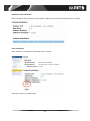
The modem is now ready for operation and all LED indicators on the status page are green.
You are now ready to surf the internet.
Adding security to the WiFi router
By default there is no security on the WiFi router, you can add a password as follows:
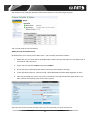
1. Make sure you are connected to the EZ-NET WiFi network and type 192.168.2.1 in the address bar of
the browser and press Enter.
2. Log in with the username admin and password admin.
3. On the top menu select Advanced and then Security (under Wireless settings).
4. In the drop down menu for “Security mode” select WPA2-PSK and leave WPA-Algorithm on Auto.
5. Enter the password you want to use in the “Pass Phrase” box and click the blue Apply button. You
don’t need to put anything in the Access Policy section.
The router will restart and you will then have to use the password you set to connect to it.
15