1
STG ENG MAN 21.2.97_P.Script
8/5/99 12:58
Page 32
5. TACTICAL COMBAT
“If you lack the proper
Conn experience, there
is no dishonor in
delegating the Conn to
another.”
–Lt. Cmdr. Worff
5. TACTICAL COMBAT
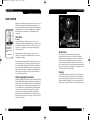
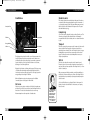
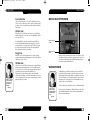
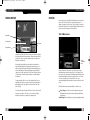
Maintain Distance to Target keeps you the same distance from your
target the moment you selected the command. While the Enterprise
may match velocities with the targeted vessel, the target may still be
able to manoeuvre around you.
Full Stop halts the Enterprise.
Stand by for Command tells the Conn that you are no longer giving it
orders so that you may either personally pilot the Enterprise or select
another command.
Warp Out of System exits the Enterprise out of the system it is
currently in—as long as the Warp engines are on line—for another
system that is randomly chosen. At that point, that combat will be
ended and will be considered a failed battle.
Maintain Current Status confirms your last command, allowing it to
continue.
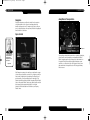
ENTERPRISE DISPLAY
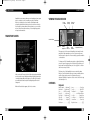
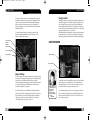
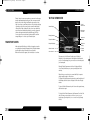
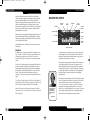
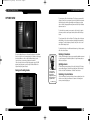
On the left side of the Tactical Control Panel is the Enterprise Display
window accompanied by the Enterprise Systems Panel. The Enterprise
Systems Panel contains the indicator bars for the ship’s different
systems with each system represented by a specific colour in a box
above the bar. These bars show the current status of any given ship
system, while the Enterprise Display identifies their specific location
onboard the ship with matching colours.
During combat, it is possible for the enemy to target certain functions
on the Enterprise or that only certain systems might receive damage.
This portion of the screen will show where the damage has occurred and
how serious it is.
In the upper left of the Enterprise Display window is the Ship Name
Indicator, which identifies the name of your starship.
User Control
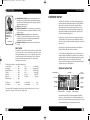
To de-activate the Conn and fly the ship yourself, either select the ‘Stand
by for Command’ order or use your mouse with your keyboard to control
the Enterprise. Whenever you use a mouse or keyboard command, that
command supersedes the last command given to the Conn. When you
are finished manually controlling the ship, the Conn will return to
following your last command.
The Keyboard commands for operating the Enterprise are:
Close on Target . . . . . . . . . . . . . . . .Key 1
Left . . . . . . . . . . . . . . . . . .Left Arrow A
Evade Target . . . . . . . . . . . . . . . . . .Key 2
Right . . . . . . . . . . . . . . .Right Arrow S
Maintain Distance . . . . . . . . . . . . . .Key 3
Climb . . . . . . . . . . . . . . .Down Arrow Z
Full Stop . . . . . . . . . . . . . . . . . . . . .Key 4
Dive . . . . . . . . . . . . . . . . . .Up arrow W
Stand By . . . . . . . . . . . . . . . . . . . . .Key 5
Roll Left . . . . . . . . . . . . . . . .Right CTRL
Warp Out . . . . . . . . . . . . . . . . . . . . .Key 6
Roll Right . . . . . . . . . . . . . . . .Keypad 0
Maintain Status . . . . . . . . . . . . . . . .Key 7
Fire Phasers . . . . . . . . . . . . .Right SHIFT
Fire Torpedoes . . . . . . . . . . . . . . . . .Enter
Increase Speed . . . . . . . . . . . . . . .Key +
Decrease Speed . . . . . . . . . . . . . .Key -
To change your field of view without moving the ship, right-click and drag the cursor across the
upper portion of the screen in the direction you want to view.
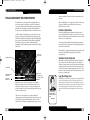
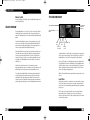
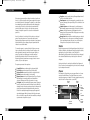
To the lower left of the display window is a button. Click that button to
change the display of the Enterprise in the window from a schematic to
a 3-D representation of the ship as viewed by the targeted enemy ship.
Click the button again to restore the schematic view of the ship.
In the lower right of the display window is the Velocity Indicator, which
shows the current speed of the Enterprise.
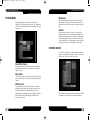
Enterprise Systems Panel
Propulsion
Forward Shield
Power
Generator
Port Shield
Computer
Systems
Starboard
Shield
Sensors
Aft Shield
Damage
Control
Weapons Systems
Life Support
Excess Energy Bar
Above the Enterprise Display is the Enterprise Systems Panel which
allows you to select any system in order to determine what amount of
power can be directed from Engineering to that specific system. You may
also determine which systems receive repair work from here.
32
33