1
6. Connect With Rand
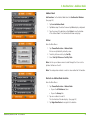
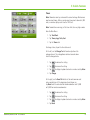
Tell Rand
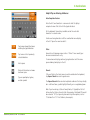
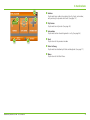
While you’re en route with your TND™, you can enter messages for Rand
McNally regarding construction, truck restrictions, addresses, your device,
and more. The next time you connect to the Rand McNally Dock, you can
reopen, edit, and send the message.
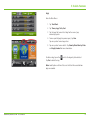
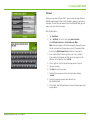
From the Main Menu:
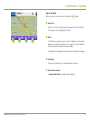
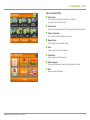
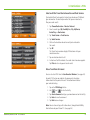
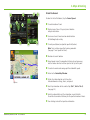
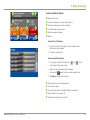
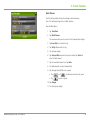
1. Tap Truck Tools.
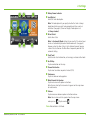
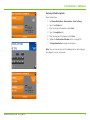
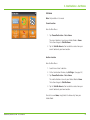
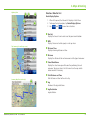
2. Tap > Tell Rand. On the left side, tap Current Location.
Enter Different Location or Find Location on Map.
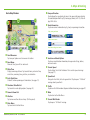
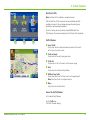
Note: You can also open a Tell Rand message by tapping the speed
limit or mile marker on the map screen, or with the power button
by setting the Quick Power Press to Tell Rand. (See page 9.)
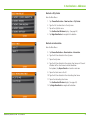
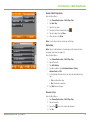
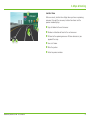
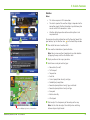
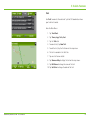
3. If you selected Enter Different Location, enter it as an address.
If you selected Find Location on Map, tap on the map to set the
crosshairs at that location, then tap Back.
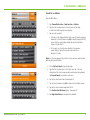
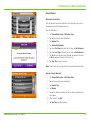
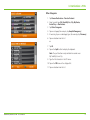
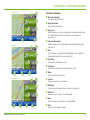
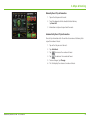
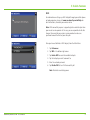
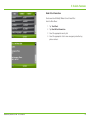
4. On the right side, tap the type of message you want to send.
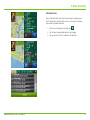
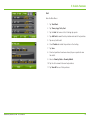
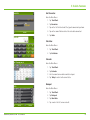
5. Type your message.
6. Tap Enter to save the message.
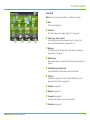
7. To
discard the message and return to the previous window,
tap Back.
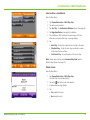
8. To send the message, connect your device to the
Rand McNally Dock.
9. On the Dock, click Tell Rand to access and send the messages saved
on your device.
Rand McNally IntelliRoute® TND™ 720 User Manual
52