1
Chapter 3
Setup Basics
1.3 Parameter List Basics
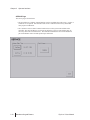
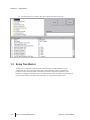
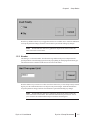
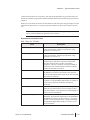
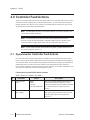
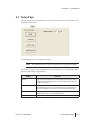
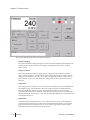
The parameters in a selected folder (if any) are listed on the lower portion of the Setup page. The
parameter list has three columns.
• ID
• Description
• Value
1.4 Setup Tree and Parameter List Navigation
If a stylus is available, the setup tree and the parameter list can be manipulated just as a computer
mouse is used to manipulate standard Windows™ controls. In most cases, a stylus is not available
and/or is not practical due to the small size of the display objects; in this case, membrane keys are
used to navigate the parameter list. Each navigation method is described below.
1.4.1 Stylus Navigation
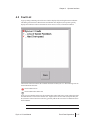
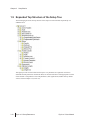
Setup tree folders can be expanded and collapsed by touching the +/- boxes to the left of each folder.
Of course, folders with no sub-folders do not have a +/- box next to them.
Parameter list items are selected by touching the parameter ID field of the appropriate parameter.
Double-click the parameter ID field to modify the current value.
1.4.2 Keypad Navigation
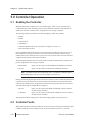
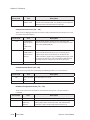
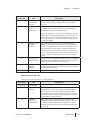
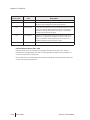
Complete navigation of the setup tree and selection and editing of parameter values can be
accomplished without a pointing device (i.e. a stylus). Keypad and touch screen keys provide the
same functionality.
Selecting a Folder
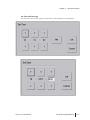
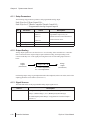
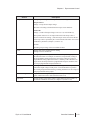
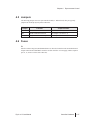
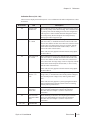
When the cursor is on the setup tree, the following keypad keys are used to navigate through the
entire setup tree.
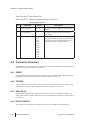
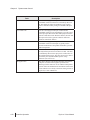
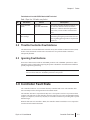
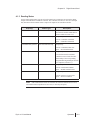
Moves the cursor to the previous folder. All parameters (if any) in this folder are displayed
in the parameter list.
Moves the cursor to the next folder. All parameters (if any) in this folder are displayed in the
parameter list.
Expands the selected folder.
Collapses the selected folder.
Dyn-Loc V User Manual
Dyn-Loc V Setup Parameters3.3