1
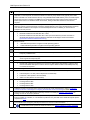
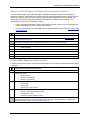
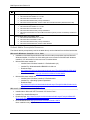
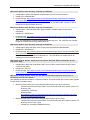
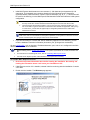
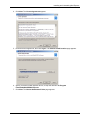
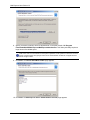
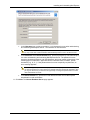
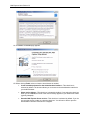
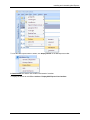
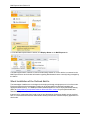
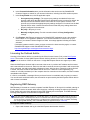
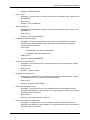
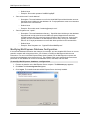
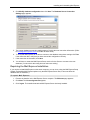
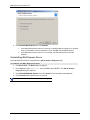
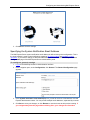
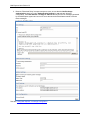
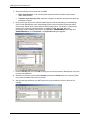
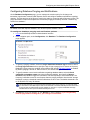
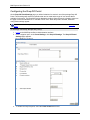
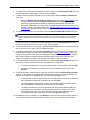
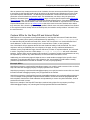
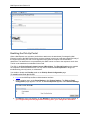
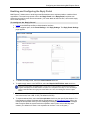
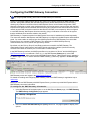
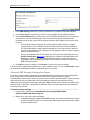
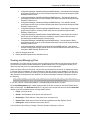
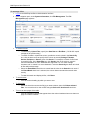
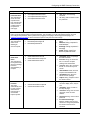
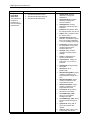
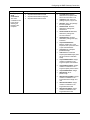
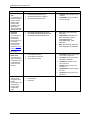
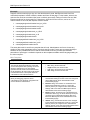
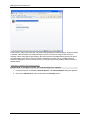
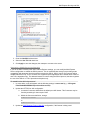
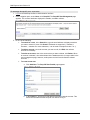
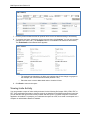
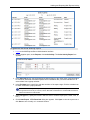
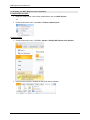
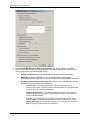
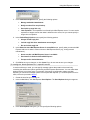
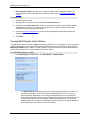
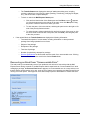
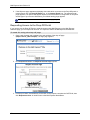
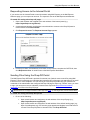
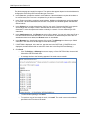
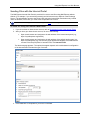
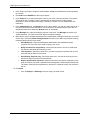
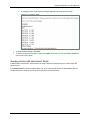
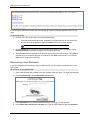
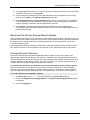
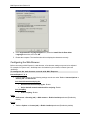
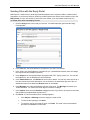
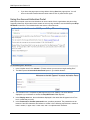
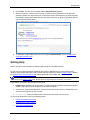
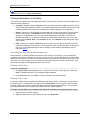
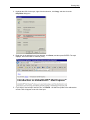
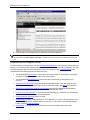
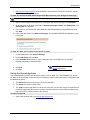
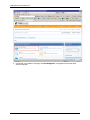
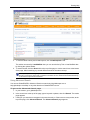
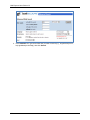
Using Mail Express in Outlook • o The Transfer Status area displays the status of attachments being sent, including recipient, subject line, size of the file, status (Pending, Transferring, Verifying File Digest, etc.), and the number of upload attempts. o To dock or undock the Mail Express Status pane Click and hold the title bar of the Status pane until the Move cursor appears (or click the down arrow on the title bar of the pane, then click Move) then drag the pane to undock it and move it where you want. To dock the pane, click in the title bar, and drag the pane back to the right or left side of the primary Outlook window. To resize the pane (when undocked) click and hold a corner of the pane (or click the down arrow on the title bar of the pane, then click Size), then drag the pane to the size you want. If the upload failed, the Transfer Status area displays the following information: o Text-based description of current status, including information on what prevented package from being uploaded in error cases o Subject of the package o Recipients of the package o Total size of package o Number of upload retry attempts for package o Recover Email button for failures that were the result of an unrecoverable error. Clicking Recover Email moves the email to the Outlook Drafts folder. Recovering an Email from "Unrecoverable Error" The Add-In will try to automatically recover from problems such as loss of connectivity with the Mail Express Server during a transfer. If the Mail Express Add-In experiences an "Unrecoverable Error" while managing a package, the Recover Email button appears. An unrecoverable error is a more serious error that the Add-In cannot resolve on its own, such as a File System error caused by the Mail Express Server running out of disk space. These types of errors will usually require an administrator to resolve the issue. 171