1
63
duration to its maximum limit - the length of the
shorter of the 2 scenes used.
An effect between two normal scenes shortens
the total storyboard length by the running time
of the transition effect. An effect between a
normal scene (background) and an Insert scene
(foreground) does not shorten the length of the
storyboard.
Transition effects may not overlap. For example,
if a scene is 5 seconds long then the total duration of the two effects connecting this scene
with the previous scene and next scene cannot
be longer than 5 seconds. For effects where an
insert scene is present, the duration of the insert
scene is the maximum limit.
Audio is automatically cross-faded. This means
that the audio of the previous scene becomes
quieter and the audio of the next scene becomes louder. If a scene's audio is too quiet or too
loud, then you should correct the volume when
dubbing (audio mix).
If an insert scene is involved with the effect, the
audio is not changed because Inserts do not affect the original audio of the background scene.
(9) The "Preview" button can only be clicked
when the inserted effect is an effect that must
be created (indicated with red outline). A screen
opens in which the last second of the first scene,
the effect, and the first second of the following
scene are displayed, so that you can view the
transition and perhaps make further corrections
(concerning color, direction, time, etc.), before
you finally create the transition effect.
The duration of the preview is approximately
that of the final version. The preview may be a
little "jittery" because it does not work at the normal frame rate. This will not occur in the created
effect. For complex effects a certain wait time
even for preview may be necessary.
A preview does not require any hard-drive
space.
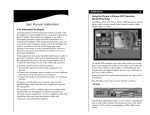
(10) After you have added a transition effect
and perhaps defined its duration, you can click
on the "Full Size" button and bring up a further
preview menu, if your system supports this
function. There you see the middle frame of the
transition effect. The video image is superimposed by an operating panel in which you can
see the effect options (if available) on the right
side.
On the left side you see the button "Frame" be-
low the effect name. You can use this button to
specify the point in time of the transition effect
you want to see.
In this way you can observe the applied effect at
any point in time of the scene. The button does
not have to be confirmed – you can scroll slowly
through this part of the scene and view it at the
same time.
The button "Display" positioned below
offers you the choice between "Original"
(representation of the new scene you have just
chosen) and "Compare". The last option divides
the screen into two parts. Your new scene is
displayed in the right half of the screen. In the
left half of the screen a scene is displayed that
you can freely choose from the scene bin with
the button "Choose scene" positioned below.
This comparison function lets you, for example,
adjust the color to correspond to an existing
scene.
You can also change the effect options to directly compare different colors or directions.
Here you’ll also get a real-time preview, too.
Therefore the selection of the sliders does not
have to be confirmed.
The settings made in this menu are confirmed
with "OK" and you are returned to the Edit
menu. With "Cancel" you leave the "Full Size"
menu without saving any changes.
The arrow button serves to move the menu bar
to the upper screen edge.
(11) If the inserted effect shows a symbol outlined in red, then it must be created. When you
click on the "Create" button a screen appears in
which the course of the effect can be seen as it
is created. After the creation is completed the
symbol's outline is blue.
(12) If your Casablanca system supports the
function "scene" you can make use of the multilayer technique. If you want to overlap several
transition effects, you at first add one effect between two scenes and create it. Then you create
a single scene from the two scenes and the inserted effect. To do this you click on the "Scene"
button so that a window appears in which you
can select the range for the new scene. The
name of the used transition effect appears next
to "Name" and is given as default name for the
new scene. If desired, you can enter another
name by clicking and using the keyboard that
appears.