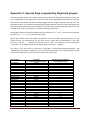
1
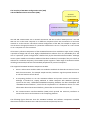
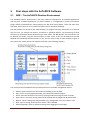
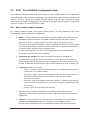
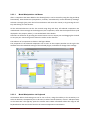
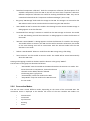
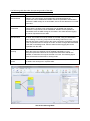
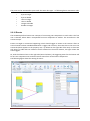
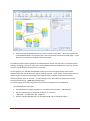
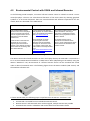
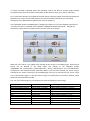
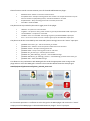
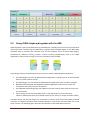
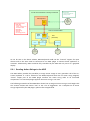
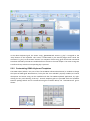
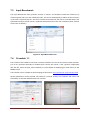
OSKA – The On-Screen Keyboard Application 5 The OSKA Suite is a commercial Assistive Technology software collection by the company ClaroSoftware (http://www.clarointerfaces.com) OSKA Suite provides a configurable On-Screen Keyboard with various features like keyboard grid editor, support of different input devices, scanning and word prediction. (Scanning is a special input method where keys are automatically highlighted and can be selected by e.g. a single switch input. Several scanning techniques exist, e.g. Row/Column scan, User-triggered scan etc.) Furthermore, several assistive tools for alternative mouse input are part of the OSKA Suite, including TenKey Mouse, OneSwitch Mouse, ScrollWheel Scanning and others. For detailed information please visit: http://www.clarointerfaces.com/products/oska-suite.php The core product of OSKA Suite is an on-screen keyboard application, which can be interfaced to the AsTeRICS system. The OSKA on-screen keyboard has 3 main components, delivered as stand-alone software applications for Windows (compatible with Windows 7, Vista and XP): OSKA Editor, to create Keyboard grids and define ARE action commands OSKA Keyboard, the actual on-screen keyboard application The OSKA Settings Editor, to select input method and options For the AsTeRICS project, the OSKA Keyboard is provided as freeware, and it is included in the “AsTeRICS-Runtime” download package. OSKA Keyboard serves as a primary Graphical User Interface for various AsTeRICS use cases. Due to a dedicated OSKA plugin for the ARE it becomes possible to influence selections in the on-screen keyboard grid with desired sensors, or to control desired parameters or actuators in the AsTeRICS model via OSKA and a touchscreen. 5.1.1 OSKA Keyboard OSKA provides a wealth of features specifically designed for users who cannot easily use common input devices: Text entry into all standard Windows applications, just like using a standard keyboard Includes a range of keyboard templates including Mouth Stick and Head Pointer Keyboard Offers a range of keyboards in different languages Keyboard templates can be edited or designed from scratch for full customization Support of existing pointing devices or switch systems Supports Full Switch/Scanning Operation Macros and User Definable Keys, Menu Shortcuts Word Prediction Fully supports touch technology such as touch screen laptops and PCs Can be seamlessly integrated with AsTeRICS sensors and actuators AsTeRICS User Manual Page 56