1
FAQs
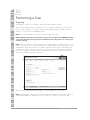
1. How do I know if the laser is on?
When the power rocker switch is turned on, the Scanner key is inserted and turned to the horizontal
position, and the safety interlock plug is inserted, you should hear the Scanner cooling fan and see
the blue laser emitting from the Scanner. Also, the yellow light on top of the Scanner should be lit.
2. What do the lights on the front of the Scanner mean?
On the top front of the Scanner there are two indicator lights. The yellow light will appear indicating
the Scanners’ laser is on. The red indicator light will appear when the Scanner is in a self diagnostics mode, and therefore not available for scanning.
Ready State: Blue laser is emitting, yellow light is on, and the red light is off.
Not Ready State: Blue laser is emitting, yellow light is on, and the red light is on.
3. What does the red light mean on the front of the Scanner?
When the red light on the front of the Scanner is on, the Scanner is NOT ready for scanning. The red
light should come on when the Scanner is turned on and will remain on until the warm-up time is
complete. If the red light comes on before you attempt a scan, the software should alert you that the
scan cannot take place until the red light turns off again. The light may be on for a couple of minutes
or up to two hours. If the red light comes on during a scan, the software will alert you to re-scan the
individual once the red light has turned off. If the Scanner is turned off while the red light is on, the
reset will be repeated when the Scanner is turned on again. If the Scanner does not reset successfully and the red light stays on for more than two hours, the Scanner will have to be replaced.
4. What does the light on the back of the Scanner indicate?
The light indicates the status of the communication between the laptop and the Scanner. The red
light indicates normal or ready status. The yellow light indicates the Scanner is communicating to
the laptop in the process of doing a scan.
5. Why does the Scanner need to be calibrated?
As with any measurement, there must be a reference from which the measurement is based. The
calibration guarantees that each instrument gives readings which are in the acceptable standard
deviation. In short, the calibration attempts to ensure accuracy for this tool.
6. Can I install Microsoft PowerPoint or other applications I use onto the laptop?
NO other applications may be installed onto the Pharmanex® BioPhotonic laptop. This laptop is
intended ONLY for use with the Scanner. Installing, changing any setting, or running any other program or application, other than the Pharmanex® BioPhotonic Scanner software, is strictly prohibited and will void all warranties.
7. Can I install the Scanner software on my own laptop or PC?
The Pharmanex® BioPhotonic Scanner software is not available to be installed on any other computer. You MUST use the laptop and software that was sent with your Scanner.
8. The Scanner laptop that was provided for my Scanner is having problems. Can I use someone
else’s Scanner laptop with my Pharmanex® BioPhotonic Scanner?
NO. You MUST use the Scanner laptop that was provided with your Pharmanex® BioPhotonic
Scanner. The laptop and Scanner that were provided to you were assigned together at Pharmanex.
The factory calibration that was performed at Pharmanex is VERY specific to your laptop and your
Scanner. If you try to switch laptops or Scanners the Scanner will go into a lockdown mode and will
not be unlocked until sent back to Pharmanex.
9. I cannot find my Pharmanex® pCal standards? Where can I purchase new ones?
Replacement pCal standards may be purchased by contacting 1.800.487.1000 (U.S./Canada only).
Scanner Technical Support 1.800.487.1000 (Outside U.S. and Canada 1.801.345.6670)
32