1
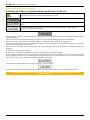
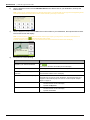
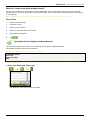
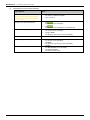
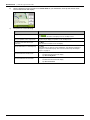
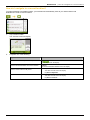
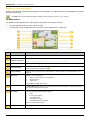
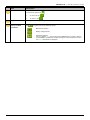
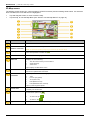
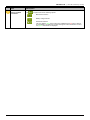
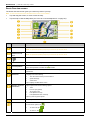
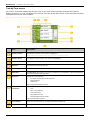
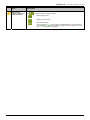
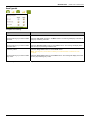
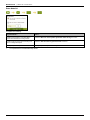
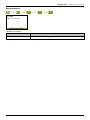
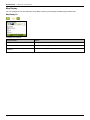
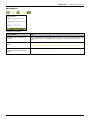
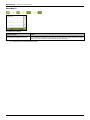
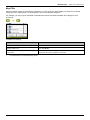
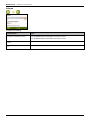
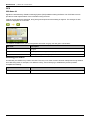
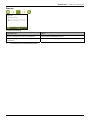
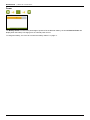
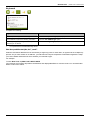
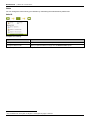
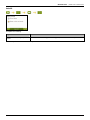
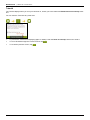
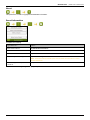
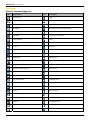
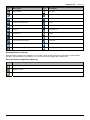
Navman F15 | How do I view my route? 2D Map screen The 2D Map screen shows your current position (if a GPS fix is active) and surrounding street names. If a route has been calculated, the route and turns are highlighted. Tap and drag the screen, to move across the map. Tap the map, to view the Map Menu (see "How do I use the Map Menu?" on page 44). Item Description Next instruction The direction and name of the street to turn in to. Direction and distance of next turn The direction and distance of your next turn. Current position Route Status bar Note: To repeat the spoken prompt of your next turn, tap the turn arrow. Your current position is marked with . Your current route is highlighted. Displays one of the following: The name of the street you are located on Speed warnings Active POIs. Tap to display the Main Menu screen. Main Menu The Main Menu button allows you to enter an address for your destination, customize preferences and receive updated traffic information. Distance and Time Information Tap to expand and see the following options: Time km/h or mph (Speed) TTG (Time to Go) DTG (Distance to Go) ETA (Estimated Time of Arrival). Tap to cycle through the options. Cancel route Zoom Map Cancels your current route. To view zoom options, tap To zoom out, tap To zoom in, tap . . . The Map button allows you to cycle through different map screens. 34