1
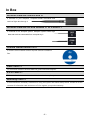
In Box
Wireless Data-link Ground End ×1
It connects to your computer. Computer sends commands and
receives flight data through it.
Wireless Data-link Air End 900MHz ×1 or 2.4GHz ×1
It connects to DJI autopilot system. Autopilot system sends flight
data and receives commands from computer by it.
Ground Station Install CD×1
It contains Ground Station and all required software installation
files.
USB Cable ×1
For connection between wireless data-link ground end and computer.
4-Pin Cable ×1
For connection between wireless data-link air end and autopilot system.
Warranty Card ×1
It recommends the necessary conditions for using this system and related safety issues. Please fill out the
customer & information card and return to DJI to register your product warranty.
-4-