1
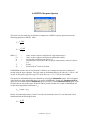
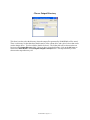
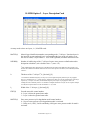
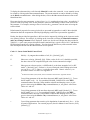
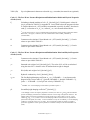
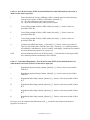
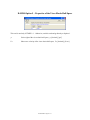
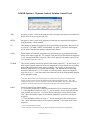
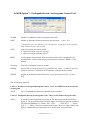
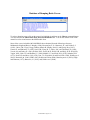
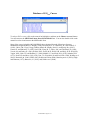
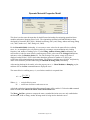
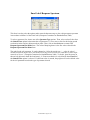
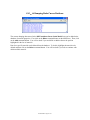
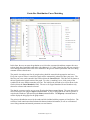
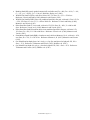
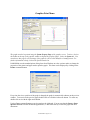
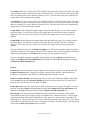
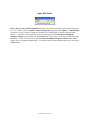
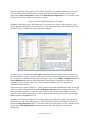
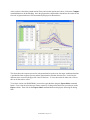
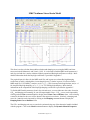
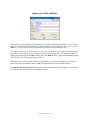
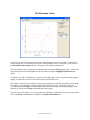
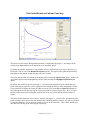
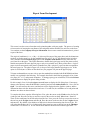
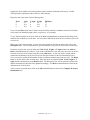
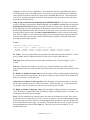
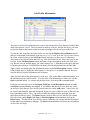
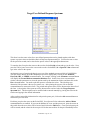
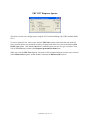
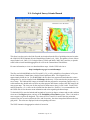
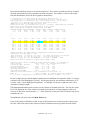
To create the average accelerogram, first select up to fifty motion files. To do this, click on the check box next to the first (click Choose to select a file) label (an x is shown on the box when a file is selected), then on the Choose command button to display the Open Acceleration Time History dialog box. Select a file then click on Ok to return to the form. Some information will be displayed on the boxes next to the file name. Use the scroll bar to display check boxes for additional files. After selecting the files, you need to choose a name for the average file. By default D-MOD2000 will give this file the name output.nmk, and will save it in the directory selected for the output files in the main menu form. The name and path will be shown on the text box next to the Weighted average accelerogram file label. If you would like to use a different name and/or path, click on the Save command button to display the Save Accelerogram File form. Then, select a file or enter a new name in the File name: text box. This file is given the extension *.NMK by default. Click on Ok to return to the file selection form. After you have selected the files and have chosen a name, click on the Motion command button to create the file. Only the files for which an x is shown on the check box will be used in the calculation of the average file. Finally, click on the Ok command button to return to the Newmark Displacement Analysis form. Import an acceleration file created by another application (e.g. ProShake, Quake/W). In short, first, you will select an output file created by another application, e.g. ProShake; then, read that output file to determine if there are any acceleration time histories and how many there are (D-MOD2000 will only read the first 6 acceleration time histories found in the file); and finally, create a series of output files, i.e. one per acceleration time history, in the format used by D-MOD2000 to perform the displacement analysis with the Newmark Method. To access this feature, click on the Import command button to display the Import Acceleration Data form. Using other acceleration history file: If you want to use the data saved in a file different from the ones described above, use the Other command button to display the Acceleration Time History dialog box to select the file that you want to use. The name of the file will be displayed next to the option button on the bottom section of the form. Now you need to enter the following information on the data cells below the file name. First, you need to select the file by clicking on the button next to the Other Acceleration Time History label. This will enable (i.e. the mouse cursor changes to the I-beam appearance when placed on the cells) the data cells to enter the data. We'll use the following example to explain the information necessary to plot the object motion. Example: D-MOD2000 Sample Object Motion Time Period = 0.01 Number of Points = 2048 0.024455 0.000868 -0.019352 -0.012488 0.003331 -0.050340 -0.025930 0.000123 0.020366 -0.000176 0.030202 -0.008401 0.021586 -0.013457 -0.022183 -0.014927 1 2 No. Values: This is the total number of acceleration values that form the object motion file. For the above example, there are 2048 points in the file, thus, you will enter 2048 in this cell. Time step: Enter the time interval between each acceleration value. For this example, it is 0.01 seconds. No. Header (or Number of header lines): Enter the number of lines at the beginning of the file that are used to describe the object motion. In the above example, the first two lines are the header lines. Thus, you will enter a 2 in this data cell. D-MOD2000 - Page No. 85