1
Running remotely (Web interface)
12
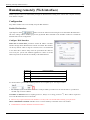
Configure Firewall
Before you can successfully use Shutter's Web Interface you need to make sure that that remote machine can access
your host machine. Usually host machine will protected by Firewall [1] software, hence, blocking the remote access.
You need to identify the the Firewall software which is running on your host machine and enable access to the
specified Web Interface IP:Port address. To start with, Windows (XP or later version only) has its own Windows
Firewall [2]; but when you install an antivirus software, it takes over with its own firewall.
Pitfalls
If you are planning to run multiple instances of Shutter and use Web Interface at the same time you should be aware
that every instance of Shutter will try to start up its own Web Interface service. This will result in the first instance
successfully activating the Web Interface service while other (later) instances failing with error message "Could not
bind socket. Address and port are already in use".
To continue using multiple instances of Shutter you need to create a dedicated copy of Shutter for running the Web
Interface service and use a separate copy for running multiple instances without the Web Interface.
References
[1] http:/ / en. wikipedia. org/ wiki/ Firewall_(computing)
[2] http:/ / en. wikipedia. org/ wiki/ Windows_Firewall
Typical uses
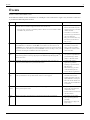
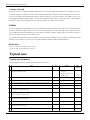
Typical uses of shutter
In this section, we will see examples of how Shutter can be used.
N
Task
1
If you suffer from RSI, set timer to take a break every few minutes and exercise
your hands, shoulder and neck.
2
Use Shutter as a count-down timer clock (to give alarm at the end of specified time)
3
Play a pre-recorded sound track every few minutes (to calm down a baby or a pet).
4
Launch an application (e.g. a downloader) at night to avail of internet free hours.
5
Share your PC on LAN till a particular time, and then turn it off
6
When the WinAmp playlist is over, pause for a specified time period and then play
another playlist, or hibernate the PC.
7
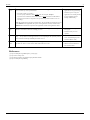
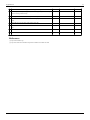
Wait till CPU usage drops below a limit for a specified period and then launch
[1]
[2]
Blender /Maya
rendering task
8
Play WinAmp when no one is using the PC for 1 minute (turn the PC into
entertainment center automatically).
9
When battery is low, take backup of critical data.
10 When battery is low, close specified applications gracefully (allow it to finish its
closing tasks rather than crash)
11 When battery is low, remind the user to plug in the laptop charger.
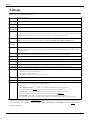
Events
Actions
Countdown 1. Pop up "Exercise NOW!"
message
2. Pause for 5 minutes
3. Restart events
Other
settings