1
9.
Voice Actions
After installing the Google Search app you can use
Voice Actions to get directions, send messages, and
perform a number of other common tasks.
To initiate a Voice Action you can:
• Tap the Microphone in the Google Search Bar on
your Home Screen
• Tap the Microphone icon in your keyboard
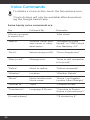
Next, speak the Voice Action you want to use. Here
are some typical examples:
“Set alarm for 8:30 a.m”
“Send email to Marcus Foster. Subject: Coming tonight? Message: Hope to see you later.”
“Navigate to Mike’s Bikes in Palo Alto”
As you speak, Voice Search analyzes your speech and
initiates the action.
If Voice Search doesn’t understand you, it lists a set of
possible meanings. Just tap the one you want.
Some Voice Actions, such as “send email” and “note
to self,” open a panel that prompts you to complete
the action by speaking or typing more information.
When prompted, you can:
• Touch any text already in the panel to add, or edit
the text by typing. (You can tap the Microphone icon
again to continue speaking instead of typing)
• Touch underlined words or phrases, drag across
multiple words to view a list of alternate transcriptions, or edit by speaking or typing.
• Touch a button at the bottom of the window to add
any optional fields (you can also speak the name and
content of any of these fields)
• When you are done, touch the button appropriate
to complete the action, such as Send.
25