1
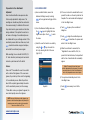
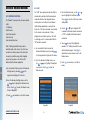
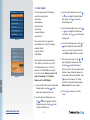
7.21 USB OPERATIONS
This feature provides the capability to upload
c) Insert the USB memory device into the
software, download verification records,
port located on the control device. At the
download user profiles and upload user
bottom of the screen, the following 3
profiles from a USB memory device.
messages will be displayed, “USB Drive
a) As an enrolled S-Admin, access the Advanced
Connected…”, “USB Drive Is Connected…”,
Settings menu by touching
Has Been Detected…”, “USB Drive Is Being
on the
keypad and verifying with the device.
b) From the Advanced Settings menu, use
the
or
keys to highlight the System
Settings menu option. Touch
to enter
the System Settings menu.
followed by the USB Operations menu option
becoming available.
keys to highlight the USB Operations
menu option. Touch
Note: Prior to inserting a USB memory
device, the USB Operations menu option is
greyed out and is not accessible. The USB
memory device must be no larger than 2GB
and formatted to FAT32.
to access the USB
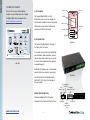
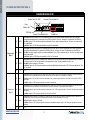
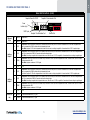
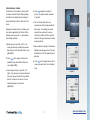
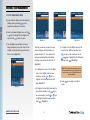
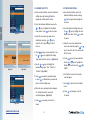
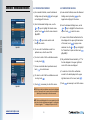
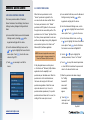
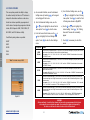
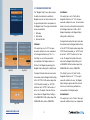
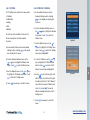
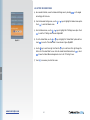
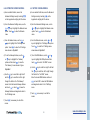
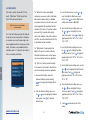
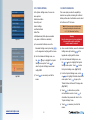
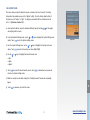
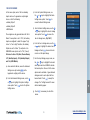
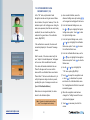
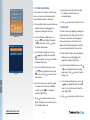
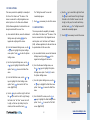
Operations menu shown in Fig 7.21-1.
e) Touch
as necessary to exit all the
menus.
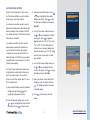
This feature provides the capability to upload a
Has Been Detected…”, “USB Drive Is Being
Connected…”, “USB Drive Is Connected…”,
followed by the USB Operations menu option
becoming available.
d) From the System Settings menu, use the
keys to highlight the USB Operations
e) From the USB Operations menu, use the
keys to highlight the Program Update
or
updates can also be performed via the network
menu option. Touch
a) As an enrolled S-Admin, access the Advanced
Settings menu by touching
on the
keypad and verifying with the device.
b) From the Advanced Settings menu, use
the
or
keys to highlight the System
Settings menu option. Touch
the System Settings menu.
64
to enter
to access the USB
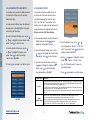
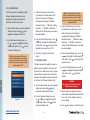
Operations menu.
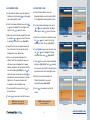
Pro device from a USB memory device. Program
or the Stone Lock® Network Software (SLN).
7.0
bottom of the screen, the following 3
menu option. Touch
7.22 PROGRAM UPDATE
by using a fully integrated access control system
www.stonelockpro.com
port located on the control device. At the
or
different version of software to the Stone Lock®
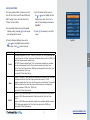
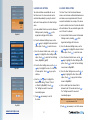
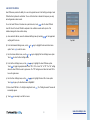
Fig 7.21-1
c) Insert the USB memory device into the
messages will be displayed, “USB Drive
d) From the System Settings menu, use the
or
Note: Prior to inserting a USB memory
device, the USB Operations menu option is
greyed out and is not accessible. The USB
memory device must be no larger than 2GB and
formatted to FAT32.
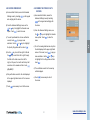
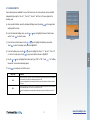
to upload the
software.
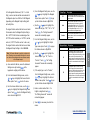
WARNING
Do not remove the USB memory device
during the download process.
f) Once the upload is completed, the device
should restart automatically. After 60 seconds
if the device has not restarted, restart the
device manually.
g) Touch
as necessary to exit all the menus.