1
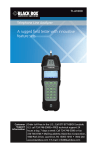
February 2010 TS4000A LanTest Pro GB Cable Tester Kit Tests all common low-voltage cabling systems. BLACK BOX ® Use it to test cable in automated homes, telephone, network, or video installations. Works in three modes: Telco, Coax, and Network. Customer Support Information Order toll-free in the U.S.: Call 877-877-BBOX (outside U.S. call 724-746-5500) • FREE technical support 24 hours a day, 7 days a week: Call 724-746-5500 or fax 724-746-0746 • Mailing address: Black Box Corporation, 1000 Park Drive, Lawrence, PA 15055-1018 • Web site: www.blackbox.com • E-mail: [email protected] FCC and IC RFI/WEEE (RoHS) Compliance Statements FEDERAL COMMUNICATIONS COMMISSION AND INDUSTRY CANADA RADIO FREQUENCY INTERFERENCE STATEMENTS This equipment generates, uses, and can radiate radio-frequency energy, and if not installed and used properly, that is, in strict accordance with the manufacturer’s instructions, may cause interference to radio communication. It has been tested and found to comply with the limits for a Class A computing device in accordance with the specifications in Subpart B of Part 15 of FCC rules, which are designed to provide reasonable protection against such interference when the equipment is operated in a commercial environment. Operation of this equipment in a residential area is likely to cause interference, in which case the user at his own expense will be required to take whatever measures may be necessary to correct the interference. Changes or modifications not expressly approved by the party responsible for compliance could void the user’s authority to operate the equipment. This digital apparatus does not exceed the Class A limits for radio noise emission from digital apparatus set out in the Radio Interference Regulation of Industry Canada. Le présent appareil numérique n’émet pas de bruits radioélectriques dépassant les limites applicables aux appareils numériques de classe A prescrites dans le Règlement sur le brouillage radioélectrique publié par Industrie Canada. WEEE Directive Compliance (RoHS) This product complies with the Waste Electrical and Electronic Equipment (WEEE) Directive, 2 002 /96/EC. It should not be disposed of as unsorted municipal waste and should be collected separately and disposed of according to your national regulations. 724-746-5500 | blackbox.com Page 1 LanTest Pro GB Cable Tester Kit Normas Oficiales Mexicanas (NOM) Electrical Safety Statement INSTRUCCIONES DE SEGURIDAD 1. Todas las instrucciones de seguridad y operación deberán ser leídas antes de que el aparato eléctrico sea operado. 2. Las instrucciones de seguridad y operación deberán ser guardadas para referencia futura. 3. Todas las advertencias en el aparato eléctrico y en sus instrucciones de operación deben ser respetadas. 4. Todas las instrucciones de operación y uso deben ser seguidas. 5. El aparato eléctrico no deberá ser usado cerca del agua—por ejemplo, cerca de la tina de baño, lavabo, sótano mojado o cerca de una alberca, etc. 6. El aparato eléctrico debe ser usado únicamente con carritos o pedestales que sean recomendados por el fabricante. 7. El aparato eléctrico debe ser montado a la pared o al techo sólo como sea recomendado por el fabricante. 8. Servicio—El usuario no debe intentar dar servicio al equipo eléctrico más allá a lo descrito en las instrucciones de operación. Todo otro servicio deberá ser referido a personal de servicio calificado. 9. El aparato eléctrico debe ser situado de tal manera que su posición no interfiera su uso. La colocación del aparato eléctrico sobre una cama, sofá, alfombra o superficie similar puede bloquea la ventilación, no se debe colocar en libreros o gabinetes que impidan el flujo de aire por los orificios de ventilación. 10. El equipo eléctrico deber ser situado fuera del alcance de fuentes de calor como radiadores, registros de calor, estufas u otros aparatos (incluyendo amplificadores) que producen calor. 11. El aparato eléctrico deberá ser connectado a una fuente de poder sólo del tipo descrito en el instructivo de operación, o como se indique en el aparato. Page 2 724-746-5500 | blackbox.com NOM Statement 12. Precaución debe ser tomada de tal manera que la tierra fisica y la polarización del equipo no sea eliminada. 13. Los cables de la fuente de poder deben ser guiados de tal manera que no sean pisados ni pellizcados por objetos colocados sobre o contra ellos, poniendo particular atención a los contactos y receptáculos donde salen del aparato. 14. El equipo eléctrico debe ser limpiado únicamente de acuerdo a las recomendaciones del fabricante. 15. En caso de existir, una antena externa deberá ser localizada lejos de las lineas de energia. 16. El cable de corriente deberá ser desconectado del cuando el equipo no sea usado por un largo periodo de tiempo. 17. Cuidado debe ser tomado de tal manera que objectos liquidos no sean derramados sobre la cubierta u orificios de ventilación. 18. Servicio por personal calificado deberá ser provisto cuando: A: El cable de poder o el contacto ha sido dañado; u C: El aparato ha sido expuesto a la lluvia; o D: El aparato parece no operar normalmente o muestra un cambio en su desempeño; o E: El aparato ha sido tirado o su cubierta ha sido dañada. B: Objectos han caído o líquido ha sido derramado dentro del aparato; o 724-746-5500 | blackbox.com Page 3 LanTest Pro GB Cable Tester Kit Trademarks Used in This Manual Black Box and the Double Diamond logo are registered trademarks of BB Technologies, Inc. Any other trademarks mentioned in this manual are acknowledged to be the property of the trademark owners. Page 4 724-746-5500 | blackbox.com Table of Contents Chapter Page 1. Specifications......................................................................................................6 2. Overview.............................................................................................................7 2.1 Introduction.................................................................................................7 2.2 Features.......................................................................................................7 2.3 What’s Included..........................................................................................8 2.4 Hardware Description.................................................................................9 3. Description........................................................................................................10 3.1 Front-Panel Keys........................................................................................11 3.2 Cable Test/Pretest.....................................................................................13 3.3 Map ID.......................................................................................................14 3.4 Length.......................................................................................................15 3.5 Tone...........................................................................................................15 3.6 Hub Blink...................................................................................................16 3.7 Setup.........................................................................................................16 3.8 Voltage Check...........................................................................................16 3.9 Diagnostics................................................................................................16 3.10Battery Low Detection..............................................................................17 3.11Backlight....................................................................................................17 3.12Auto Power Off.........................................................................................17 3.13LanTest Pro GB Cable Tester Kit LCD Display............................................18 4. Using the LanTest Pro GB Cable Tester Kit.......................................................19 4.1 Cable Testing.............................................................................................19 4.2 Testing Cable from One End.....................................................................19 4.3 Testing Installed Cable..............................................................................20 4.4 Mapping Cable IDs....................................................................................20 4.5 Placing Tone on a Cable............................................................................21 4.6 Measuring Length.....................................................................................21 4.7 Unknown Length Constant.......................................................................22 4.8 Performing Hub Blink................................................................................22 5. Interpreting Cable Test Results.........................................................................23 5.1 Pass............................................................................................................23 5.2 Definition of Errors....................................................................................23 5.2.1 Short................................................................................................23 5.2.2 Miswire...........................................................................................24 5.2.3 Split Pair..........................................................................................25 5.2.4 High-Resistance Fault.....................................................................25 5.2.5 Open...............................................................................................26 6. Replacing the Battery........................................................................................27 7. Troubleshooting................................................................................................28 7.1 Calling Black Box.......................................................................................28 7.2 Shipping and Packaging............................................................................28 724-746-5500 | blackbox.com Page 5 LanTest Pro GB Cable Tester Kit 1. Specifications Cable Types: Shielded or unshielded CAT5e, CAT5, CAT4, CAT3, and coax Coax Cable: 100 ohms maximum DC resistance, center conductor plus shield Length Measurement Range (CAT5/6): 0 to 2000 ft. (0 to 610 m) Minimum Cable Length for Pretest: 4 ft. (1.22 m) Minimum Cable Length Testing for Split Pairs: 3 ft. (0.91 m) Temperature Tolerance: Operating: 32 to 122° F (0 to 50° C); Storage: +14 to +140° F (-10 to +60° C) Humidity: 10 to 90%, noncondensing Power: (1) 9-V alkaline battery: Standby: 2.5 years; Cable Testing: 80 hours (with backlighting off); High-Voltage Protection: 120 VAC maximum Size: Without F-connector: 1.3"H x 2.6"W x 6.2"D (3.3 x 6.7 x 15.7 cm); With F-connector: 1.3"H x 2.6"W x 6.6"D (3.3 x 6.7 x 16.8 cm) Weight: 8.3 oz. (235.3 g) with battery and remote Page 6 724-746-5500 | blackbox.com Chapter 2: Overview 2. Overview 2.1 Introduction The LanTest Pro GB Cable Tester Kit is an easy-to-use, versatile compact handheld unit that tests all common low-voltage cabling systems. Use it to test cable installed in today’s homes and small offices, including telephone, network, or video. It has an LCD display and operates in three modes: Telco, Coax, and Network. CAUTION: Do not attach test leads to energized cables. The Cable Length Meter might be damaged. CAUTION: Improperly crimped, damaged, or uncrimped plugs can damage the jacks on the LanTest Pro GB Cable Tester Kit. You can use a sample cable to extend the life of the LanTest Pro GB Cable Tester Kit’s RJ-45 jack. Contacts should always be recessed into the plug’s plastic grooves. 2.2 Features • Two-line by 16-character full alphanumeric LCD with icons for clear results • Designed to test network (8-wire), telephone (6-wire), and coax cabling systems • Separate Telco, Coax, and Network mode buttons allow for easy test selection • Built-in jacks and F-connector for Telco, Network, and Coax connections • Cable test results displayed in wire map format along with messages for shorts and split pairs • Integrated remote bay for easy storage of the modular test remote • Tests for shorts, opens, miswires, reversals, and split pairs when the test remote is connected • One-ended cable test for shorts, opens, and split pairs (when no remote is connected) • Displays PASS icon for correctly wired TIA568A/B, both one-to-one (straightpinned) and uplink (crossover) cables • Displays PASS icon for correctly wired 6-pin telephone cables both straightthrough and reversed • Map ID feature provides a cost-effective way to identify (ID) up to 20 cable runs at a time. 724-746-5500 | blackbox.com Page 7 LanTest Pro GB Cable Tester Kit • Measures length in feet or meters using patented cable capacitance method • Tone generator mode for use with tone tracers sends four user-selectable tones on all pin/pair combos • Hub blink mode sends link pulses to network switch to blink port LED and identify port • Auto-off and timed backlight in any mode for low power consumption and long battery life 2.3 What’s Included Your package should include the following items. If anything is missing or damaged, contact Black Box Technical Support at 724-746-5500. • (1) LanTest Pro GB Cable Tester Kit unit • (1) remote • (1) 1-ft. (0.3-m) RJ-45 to alligator clip cable • (2) 1-ft. (0.3-m) RJ-45 patch cables • (1) 1-ft. (0.3-m) coax patch cable • (1) #1 coax cable test remote • (7) cable test remotes (numbered 2–8) • (1) zippered nylon case • This user’s manual Page 8 724-746-5500 | blackbox.com Chapter 2: Overview 2.4 Hardware Description Figures 2-1 and 2-2 illustrate the LanTest Pro GB Cable Tester Kit and describe its components. 3. Telephone Jack 1. Data Jack 2. F-connector Jack (Coax) Figure 2-1. LanTest Pro GB Cable Tester Kit top view. 9. LCD Screen 10. Network Mode Button 8. Coax Mode Button 7. Telco Mode Button 6. Up Button 5. Setup Button 11. Down Button 4. Power Button 12. Select Button 13. Remote 15. Telephone Jack 14. Data Jack Figure 2-2. LanTest Pro GB Cable Tester Kit bottom and side view. 724-746-5500 | blackbox.com Page 9 LanTest Pro GB Cable Tester Kit 3. Description The LanTest Pro GB Cable Tester Kit is designed to test all common low-voltage cabling systems found in today’s homes and small offices, including telephone, network, or video. It features a large LCD display and has three modes of operation (Telco, Coax and Network), each with a dedicated button for easy test selection. It also has a Setup key to allow you to easily access and select user-settable options. The main unit comes with built-in jacks and an F-connector for telco, network, and coax cables. It has an integrated remote bay that houses a detachable test remote for patch cable testing. The test remote has built-in jacks for telco and network cables. Press the Power button or any of the three mode buttons to power on the LanTest Pro GB Cable Tester Kit. When powered on, the LanTest Pro GB Cable Tester Kit returns to the same menu item or execution mode right before it was last turned off. This allows the user to power the unit off and on during a long task without reconfiguring the unit every time it powers off. When the LanTest Pro GB Cable Tester Kit is turned on for the first time after a new battery is installed, the unit is initialized to the default menu item Telco Cable Test. Press the mode button repeatedly to cycle through all the menu items available for that mode (see Table 3-1). Table 3-1. Modes. Coax Mode Network Mode Cable Test √ √ √ Map ID √ √ √ Length √ √ √ Tone √ √ √ Hub Blink √ Telco Mode While the unit is on, press any of the three mode buttons (Telco, Coax, or Network) to bring up the same menu item previously selected for that mode. Press the Power button for less than two seconds to toggle the backlight. Press the Power button for more than two seconds to turn off the unit. When the unit is off, pressing the Power button turns on the unit. While the unit is off, holding down the SETUP key and then pressing the Network button starts the unit in Diagnostic mode. Page 10 724-746-5500 | blackbox.com Chapter 3: Description 3.1 Front-Panel Keys 2 1 3 4 4 6 5 7 Figure 3-1. LanTest Pro GB Cable Tester Kit keys. Table 3-2 on the next page describes the front-panel keys shown in Figure 3-1. 724-746-5500 | blackbox.com Page 11 LanTest Pro GB Cable Tester Kit Table 3-2. LanTest Pro GB Cable Tester Kit key descriptions. Number Key Icon Description 1 Telco mode button 2 Coax mode button 3 Network mode button 4 Up and down buttons 5 Select button 6 Setup mode button 7 Power button Page 12 724-746-5500 | blackbox.com Chapter 3: Description 3.2 Cable Test/Pretest This mode performs detailed analysis on a cable. If the tester senses a remote unit at the remote end of the cable, then a wire map, the remote ID, and certain faults are displayed at the end of the cable analysis: • There are two lines of numbers displayed at the end of the test. The top line of numbers on the display represents the connector pins on the main unit. The second line of pin numbers refers to the connector pin numbers on the remote. Normally the second line is the same as the top line for a straight-through data cable. • If there is a miswire, the numbers on the second line indicate the pin numbers detected. • If no connection is detected for some of the pins, the second line will be blank in those pin locations. • If the tester detects a short, the second line has a flashing “X” in that position and the specific short condition displays on the third line. • If a high-resistance fault (for example, a “soft” short, as opposed to a hard short, of up to 125 kohm for Network and 100 kohm for Telco) is detected, the second line will have a flashing “R” in that position and a message of “High-R Fault” will be displayed on the third line. • If the tester detects a split pair, the corresponding pin positions on the second line will display flashing pin numbers detected from the remote. The specific split conditions are displayed on the third line. • If there are multiple errors to display on the third line, messages for the highest severity errors are displayed in sequence until all are displayed. So, if there are both shorts and high-R Faults, only messages for the shorts are cycled through. The ID icon will have a number directly below it indicating the remote ID number. If there is no remote, the LanTest Pro GB Cable Tester Kit uses the length and cable test capability to attempt to measure a cable for shorts, opens and split pairs (Pretest). While the test is in progress, the test icon and the wire numbers for the pair being tested are displayed. The final test results are displayed as messages on the LCD. Because a test can take up to 5 seconds, press the SEL button (which immediately starts a new test) whenever a new cable is connected and ready for test. Partial and erroneous results will be displayed until a complete test cycle has run. 724-746-5500 | blackbox.com Page 13 LanTest Pro GB Cable Tester Kit For Telco Cable Test mode, the LanTest Pro GB Cable Tester Kit assumes that the 6-position telco jacks on the main unit and the remote will be used for connecting the tester to the cable run to be tested. This mode uses the 3-pair USOC standard to define the pairs. Pins 1–6, 2–5, and 3–4 are the pairs defined by this standard. The tester will display the “PASS” icon when all 6 pins are correctly wired in a one-to-one configuration. If all 6 pins are correctly wired in the reverse configuration, the “PASS” icon along with a flashing “Rev” icon will be displayed. Standard telephone cables used between a phone set and a wall jack are usually reverse-pinned. For Network Cable Test mode, the LanTest Pro GB Cable Tester Kit assumes that the 8-position Network jacks on the main unit and the remote will be used for connecting the tester to the cable run you want to test. The TIA/EIA 568A/B standard defines the pairs connector pins 1–2, 3–6, 4–5, and 7–8. The A and B standards are the same except for the color coding and are indistinguishable from each other by electrical testing. The tester will display the “PASS” icon when all 8 pins are correctly wired in a one-to-one (straight-through) configuration. If all 8 pins are correctly wired with the 1–2 and 3–6 pairs crossed, a wire map displaying the cross-over wires, a “PASS” icon and the X-OVR message will be displayed. Uplink cables (crossover or TIA 568A-to-T568B cables) are commonly used to connect two computers or two hub/switches directly together. 3.3 Map ID The Map ID function identifies multiple Telco, Coax,or Network cables by displaying ID numbers of the ID-only remotes attached to the far end of the cables. It is a costeffective way to identify up to 20 cable runs at a time. The ID-only remotes are available in F-connector plug (Coax), RJ-45 plug (Network), and RJ-11 plug (Telephone). If there is voltage present in the cable, the “VOLTAGE!” warning message displays and a warning beep sounds repeatedly until the voltage is removed. Disconnect the LanTest Pro GB Cable Tester Kit from the live line and remove the voltage source from the cable before further testing. If no failures are detected, the PASS icon and the remote ID number will be displayed. If the wrong type of map-only remote is used (for example, a Coax remote used in Telco mode), a message with the remote type identified will be displayed. If a full-remote instead of an ID-only remote is used, an error message will be displayed. If no remote is found, or if the cable is shorted, the OPEN or SHORT icons will be displayed respectively. Page 14 724-746-5500 | blackbox.com Chapter 3: Description 3.4 Length Length mode measures the length of a cable by measuring its capacitance and using the user-adjustable capacitance per unit length (the length constant) to calculate the cable length. The LanTest Pro GB Cable Tester Kit supports three user-adjustable length constants: one for each type of cable. The LanTest Pro GB Cable Tester Kit remembers these constants even when the unit is powered off as long as a good battery is connected to the unit. In Network mode, crossover cables are recognized by displaying the PASS icon and the “X-OVER” message after the length. In Telco mode, reverse-pinned cables are recognized and a “REV-PIN’D” message is added after the measured length value. The PASS icon is displayed if it is a correctly wired, reverse-pinned 6-position cable. The measured length value is displayed on the LCD with the current value of the length constant. Pressing the SEL button cycles the pair being measured in the following sequence: For Network mode: auto-select, 1–2, 3–6, 4–5, 7–8. For Telco mode: auto-select, 1–6, 2–5, 3–4. For Coax mode: Pin + Shield (the only option for Coax cable). The pair number is displayed next to the length except in auto-select mode. If a selected pair has a fault, the fault replaces the length reading on the LCD. In autoselect mode, the LanTest Pro GB Cable Tester Kit automatically selects a pair without a fault. Use the up and down arrows to adjust the length constant. The CAL icon is displayed when the LanTest Pro GB Cable Tester Kit recalculates internal coefficients. If the unit finds network terminator patterns in length mode, the LanTest Pro GB Cable Tester Kit will display messages including “T Ring Network?”, “xbase-T Network?”, or “Network?” to alert you that the terminator patterns are unexpected. In length mode, if a full remote is present at the other end of the cable, the ID number for the full remote is displayed. Do not use ID-only remotes in length mode. If the cable length measured is longer then the specified maximum length (roughly 2000 feet for CAT 5/6 cable), the error message “> Max Length” will be displayed. 3.5 Tone The tone mode generates audio tones for use with tone tracers on all pairs, a selected pair, or a selected pin. The signal generated on a pair has the signal on one pin and the complement of the signal on the other pin of the pair, yielding a nominal 10 volts peak-to-peak across the pair. The pin(s) being driven with tone and the currently selected tone pattern are displayed on the screen along with the “Tone” icon and the icon for the connector used. Once in the tone generator mode, use the up and down buttons to step to the next connector pin(s) drive option. When the SEL button is pressed and held down for longer than 1 second, the tone pattern options 724-746-5500 | blackbox.com Page 15 LanTest Pro GB Cable Tester Kit are automatically cycled through until the button is released. The tone pattern options are Hi, Lo, Tone 1, and Tone 2. The last two options are dual or warble tones of differing pattern duration. Press any mode buttons or the Power button to exit Tone mode. 3.6 Hub Blink Hub blink mode sends link pulses to the network switch to blink the port LED and identify the port the Network cable is connected to. The Hub Blink mode sends link pulses to the NIC transmit pair for 3 seconds and then stops for 3 seconds (for an overall cycle time of 6 seconds). It must go this slow for some switches and hubs from some major manufacturers. The TEST icon is displayed when the unit sends link pulses and off when not. 3.7 Setup The setup mode is used to set user-selectable options. Use the up and down buttons to scroll through settable options. Use the SEL button to change the current setting to the alternate option. Press any mode key or the Power key to exit Setup mode and save the updated parameters. • The beep-on-pass for cable test can be turned on or off (default is on). • The pass criteria can be set for shielded or unshielded cables (default is unshielded). • The length and length constants can be set for meters or feet (default is feet). - If the length unit (meters or feet) is changed, LanTest Pro GB Cable Tester Kit automatically converts the length constants from the old unit to the new unit when exiting setup mode. 3.8 Voltage Check The LanTest Pro GB Cable Tester Kit continuously monitors voltage level on its RJ jack and F-connector in all modes (including menu selection) when it is on. When it detects voltage, the “VOLTAGE!!” warning message appears on the screen, and the beeper sounds until the voltage is removed. The LanTest Pro GB Cable Tester Kit is designed to withstand input voltage conditions that occur during normal telephony applications for a short period of time (approx. 10 seconds). 3.9 Diagnostics While the unit is off, holding the SETUP key and pressing the NETWORK button powers up the unit in diagnostic mode. Step 1 of diagnostic mode displays the revision of the firmware being used. Step 2 activates all elements of the LCD for a visual Page 16 724-746-5500 | blackbox.com Chapter 3: Description check of the LCD panel. Step 3 allows user to make 8 key presses to verify button operation: T for Telco mode button, C for Coax mode button, N for Network mode button, h for up button, S for Select button, i for down button, U for Setup button, and P for Power button. During these eight key presses, the user can press any key in any order in any repeating manner. The ninth key press starts a diagnostic test on the built-in remote. Connect the built-in remote to a known-good network cable and press the SEL key to initiate a new test cycle. The remote diagnostic test verifies that the two redundant IDs in the remote unit are both functional. If either of the two redundant IDs is defective, no ID number will be displayed in diagnostic mode. During a normal cable test, the LanTest Pro GB Cable Tester Kit needs only one of the two redundant IDs to function to recognize and display the remote ID. 3.10 Battery Low Detection The LanTest Pro GB Cable Tester Kit monitors battery status continuously when it is powered on. When the battery low icon is activated, battery voltage has dropped to below 6.4 V. The battery should be replaced as soon as practical. Below 6.0 V, the LCD display could dim or appear turned off even though the LANTest Pro is still operating (for example, you can still toggle the backlight). Cable testing results become unreliable when battery voltage drops below 4.5 V. 3.11 Backlight At power on, the backlight is off to conserve power. While the LanTest Pro GB Cable Tester Kit is on, press the power key for less than two seconds to toggle the backlight on and off. The backlight turns off automatically roughly 3 minutes after the last key press. 3.12 Auto Power Off The LanTest Pro GB Cable Tester Kit powers off automatically after a fixed period of continuous operation in any given mode: 2 minutes in Setup or diagnostic mode; 10 minutes while displaying menu selection item; 18 minutes while executing cable test, map ID, or length measurement; 70 minutes while executing tone trace or hub blink. Be sure to install a battery if you’re using the LanTest Pro GB Cable Tester Kit for the first time. See Chapter 6: Replacing the Battery. 724-746-5500 | blackbox.com Page 17 LanTest Pro GB Cable Tester Kit 3.13 LanTest Pro GB Cable Tester Kit LCD Display Cable PASSED TIA-568A/B Adjusting Length Constant Cable Has Shorts Setup or Splits Mode Test in Progress Beeper Off Icon Battery Low Icon Main Unit Pin Numbers ID Number Icon Alphanumeric (Remote ID Displayed Characters Below It) Figure 3-2. LCD display. Page 18 724-746-5500 | blackbox.com Chapter 4: Using the LanTest Pro GB Cable Tester Kit 4. Using the LanTest Pro GB Cable Tester Kit 4.1 Cable Testing NOTE: Set up the unit for shielded or unshielded cable in Setup mode before performing any cable test. To test a patch cable: 1. Plug one end of the patch cable into the main unit. 2. Remove the remote unit from the main unit by squeezing both the top and the bottom center areas of the remote and sliding it out of the remote bay at the bottom of the main unit. Plug the other end of the cable into the remote unit. 3. Press the mode button (Telco, Coax, or Network) for the type of cable being tested. If not already in cable test mode, press the corresponding mode button repeatedly until the Cable Test menu item is displayed, then press the SEL button to execute the cable test. The LanTest Pro GB Cable Tester Kit indicates that a test is in progress by displaying the TEST icon. It sounds a beep (if enabled), and it displays the wire map result and a PASS icon if the cable passes the TIA568A/B standard and the configured shield criteria. 4. Disconnect the patch cable after test. The test repeats itself every 5 seconds. NOTE: Patch cables must be at least 4 feet long for pretest to work properly. 4.2 Testing Cable from One End 1. Attach one end of the included one-foot jumper cable to the main unit and the other end to the wallplate or patch panel jack. 2. Press the mode button (Telco, Coax, or Network) for the type of cable being tested. If not already in Cable Test mode, press the corresponding mode button repeatedly until Cable Test is displayed, then press the SEL button to execute the cable test. 3. Results should appear within 5 seconds. Pressing the SEL button starts a new test immediately. 4. Disconnect the cable after test. The test repeats itself every 5 seconds. NOTE: The jumper cables must be short compared to the cable run for accurate open and split pair indication, that is, no more than 10% of the total run length or 3 feet, whichever is less. Patch cables must be at least 4 feet long for the pretest to work properly. 724-746-5500 | blackbox.com Page 19 LanTest Pro GB Cable Tester Kit 4.3 Testing Installed Cable (Office jack to patch panel with remote) 1. Remove the remote unit from the main unit by squeezing both the top and the bottom center areas of the remote and sliding it out of the remote bay at the bottom of the main unit. 2. Attach one end of the included one-foot patch cable to the remote and other end to the wall jack. 3. Attach one end of the second included one-foot patch cable to the main unit and the other end to the patch panel jack. 4. Press the mode button (Telco, Coax, or Network) for the type of cable being tested. If not already in Cable Test mode, press the corresponding mode button repeatedly until Cable Test is displayed and then press the SEL button to execute cable test. The LanTest Pro GB Cable Tester Kit indicates a test is in progress by displaying the TEST icon. If the cable passes the set shield criteria and the TIA568A/B standard, the LAN TestPro displays within 2 seconds a wire map and a PASS icon and sounds a beep (if enabled). The ID number for the remote will also be displayed. 5. Disconnect the cable after test. The test repeats itself every 5 seconds. NOTE: For accurate split pair indication, the jumper cables must be no more than 10% of the total run length. 4.4 Mapping Cable IDs 1. Turn on the unit by pressing the mode button for the type of cable being tested (the Telco, Coax, or Network button). If the tester is not already in Map ID mode, press the corresponding mode button repeatedly until Map is displayed and then press the SEL button. 2. Connect the cable to be mapped to the main unit. Insert an ID-only remote into the jack at the far end of the cable. 3. A PASS icon and the ID number for the ID-only remote will be displayed. The type of cable (Telco, Coax, or Network) being tested is indicated at the lower left corner of the screen. A FAIL icon along with an error message (OPEN or SHORT) will be displayed if there is an open or short in the cable. Page 20 724-746-5500 | blackbox.com Chapter 4: Using the LanTest Pro GB Cable Tester Kit 4.5 Placing a Tone on a Cable 1. Press the mode button (Telco, Coax, or Network) for the type of cable being tested. If the tester is not already in Tone test, press the corresponding mode button repeatedly until the Tone menu item is displayed on the screen and then press the SEL button. 2. Repeatedly press the SEL button until the desired tone is selected. The up/down arrow keys select the pin or pair(s) that carries the tone. 3. Connect the cable to be traced to the main unit. For best tone signal, do not attach a remote unit at the other end of the cable. Because of the shielding effect of a twisted pair, a stronger signal can be obtained by having only one wire of a twisted pair carrying the tone. Selecting a single pin instead of a pair will achieve this. 4. To turn tone off, press any of the three mode buttons. 4.6 Measuring Length 1. Connect the cable to the main unit. (A remote may or may not be present at other end). 2. Press the mode button (Telco, Coax, or Network) for the type of cable being tested. If not already in Length mode, press the mode button until the Length menu item is displayed and then press the SEL button. The cable length will be displayed. • U se the up and down arrow keys to adjust the length constants (unit in pF/feet or pF/m). • T o change the pair measured, press the SEL button to cycle through the pairs available for that mode. For Network mode: auto-select, 1–2, 3–6, 4–5, 7–8. For Telco mode: auto-select, 1–6, 2–5, 3–4. For Coax mode: Pin + Shield (the only option). • To change length between feet and meters, use Setup mode. NOTE: After a new battery is installed, the default length constants are initialized to 15 pF/foot for Network cable, 22.5 pF/foot for Coax cable, and 17.5 pF/foot for Telco cable. For Network cable, most CAT5, CAT5e and CAT6 cables have unit capacitances close to 15 pF/foot. (Check with your cable manufacturer for possible variances.) 724-746-5500 | blackbox.com Page 21 LanTest Pro GB Cable Tester Kit NOTE: If a selected pair has a fault, the fault replaces the length reading on the LCD. In default mode, if the 1–2 pair has a fault, the LanTest Pro GB Cable Tester Kit automatically sequences to a pair without a fault. 4.7 Unknown Length Constant If “length constant” is unknown for a particular cable, a known length of the same type of cable may be used to calibrate the constant. Attach fifty feet or more of a similar cable from the same manufacturer to the main unit. Repeatedly press the mode button for the type of cable being tested until Length is displayed. Press the up/down arrow keys until 50 feet is displayed. The length constant displayed is what you should use to measure the length of the unknown cable for the same model and from the same manufacturer. We recommend using 50 feet or more to minimize the resolution error; 1 foot in 50 is 2% of uncertainty. 4.8 Performing Hub Blink 1. Attach the main unit to the network cable that has the other end connected to a switch, router, or hub. 2. Press the Network mode button on the LanTest Pro GB Cable Tester Kit repeatedly until Hub Blink is displayed on the screen. Then press the SEL button. 3. The LED corresponding to the network cable under test should blink at a rate of 6 seconds per cycle (3 seconds on and 3 seconds off). 4. To exit Hub Blink mode, press the Network mode key. Page 22 724-746-5500 | blackbox.com Chapter 5: Interpreting Cable Test Results 5. Interpreting Cable Test Results 5.1 Pass The PASS icon will be displayed if the cable has all pins properly connected per TIA568A/B for network cables or per 3-pair USOC for telephone cables. The FAIL icon will be displayed if there is a wiring error. The wire map will display the end-toend connections measured whenever possible. The PASS icon will also be displayed if a network cable has the 1-2 and the 3-6 pairs transposed to indicate a properly wired uplink (crossover) cable. In Telephone mode, the “Reversed Pin” message will be displayed if all connected pins are in reverse order and the PASS icon will also be displayed if all 6 connections are present. Telephone modular plug cables used between the wall jack and a phone set are usually reverse pinned. Figure 5-1. Cable test result: Pass. 5.2 Definition of Errors (See Figures 5-2 through 5-5.) The four classes of faults discussed below are in order of severity. The severity has to do with the ability of a more severe error to mask lower severity errors. For example, if there is a short in the cable, miswires and split pairs may not be detected for the pairs involved in the short fault. 5.2.1 Short The pair has a low resistance connection from one wire of the pair to the other wire of the pair or to any other wire in the cable or the shield. A short is indicated by the Short icon being displayed and flashing Xs in the appropriate pin positions on the second line for the pin numbers involved in the shorts plus a flashing S icon if the shield is shorted to a pin. 724-746-5500 | blackbox.com Page 23 LanTest Pro GB Cable Tester Kit Figure 5-2. Short. 5.2.2 Miswire A wire or both wires of a pair are not connected to the correct pins at the other end of the cable. The wire map shows the pin numbers from line 1 (main) to line 2 (remote). A reverse pair is a special case of a miswire in which the pair is wired to the correct pair of pins or to another designated pair of pins, but the two leads are reversed. The LanTest Pro GB Cable Tester Kit tests for split pair errors as long as the wiring errors are in pairs. The Fail icon and the pin numbers, which are miswired, will be flashing. Figure 5-3. Miswire. Page 24 724-746-5500 | blackbox.com Chapter 5: Interpreting Cable Test Results 5.2.3 Split Pair A split pair is an error in the twisting of the wires together within the cable. The cables generally are made up of eight wires twisted together in 4 pairs. These 4 pairs are designated as pairs by the wiring standards and are intended to carry a signal and its return. 1&2, 3&6, 4&5 and 7&8 are the pairs designated by TIA 568A/B for an RJ-45 jack or plug. A cable can be wired with correct continuity but not with correct pairing. This most often happens when the cable is terminated consistently at both ends but in the wrong order. A dynamic or AC test is required to detect this type of error. If the only error is a split pair error, the cable has correct continuity. If cross talk is not a concern, as in flat satin cable, the cable is good if the only error is the split pair error. The Split icon and the pin numbers on the first and second line of the wire map with split pairs flash when there is a split pair error. Figure 5-4. Split pair. 5.2.4 High-Resistance Fault If a “soft” short of up to 125 kohm (as opposed to a hard short of 0 ohm) is detected between two pins of the same pair, the second line will have a flashing “R” in the two positions corresponding to those two pins. A message of “High-R Fault” will be displayed on the third line. If a “soft” short is detected between two pins of two different pairs, the second line will have a flashing “R” in 3 or 4 positions corresponding to the two pairs. For a shielded cable, if a “soft” short is detected between the shield and a single pin, the second line will have flashing “R” in the shield and the pin’s positions. If a “soft” short occurs in certain locations where the LanTest Pro GB Cable Tester Kit could not resolve the fault down to a single shield-and-pin combo, the second line will have a flashing “R” in more than one pin locations. The shield location will be flashing both “S” and “?” to indicate that the shield’s status could not be resolved. 724-746-5500 | blackbox.com Page 25 LanTest Pro GB Cable Tester Kit 5.2.5 Open If a wire is not connected to one of the pins, this wire map shows an open connection on Pin 2. Figure 5-5. Open. Page 26 724-746-5500 | blackbox.com Chapter 6: Replacing the Battery 6. Replacing the Battery 1. Turn the LanTest Pro GB Cable Tester Kit over on the back side and place it on a flat surface. 2. Use a Phillips screwdriver (#2) to remove the battery door screw. 3. Pull the old battery out of the battery compartment and detach the battery cap. 4. Connect a new alkaline 9-volt battery to the battery cap. 5. Slide the new battery into the battery compartment and close the battery door. 6. Replace the battery door screw using the screwdriver. Do not overtighten. NOTE: When installing a new battery, disconnect any cables connected to the LanTest Pro GB Cable Tester Kit. The length and pretest modes will be improperly calibrated if a cable is present when a new battery is connected to the LanTest Pro GB Cable Tester Kit. NOTE: The LanTest Pro GB Cable Tester Kit can retain user-defined length constants and the last mode of operation for several minutes without power if the unit is turned off before replacing the battery. 724-746-5500 | blackbox.com Page 27 LanTest Pro GB Cable Tester Kit 7. Troubleshooting 7.1 Calling Black Box If you determine that your LanTest Pro GB Cable Tester Kit is malfunctioning, do not attempt to alter or repair the unit. It contains no user-serviceable parts. Contact Black Box Technical Support at 724-746-5500. Before you do, make a record of the history of the problem. We will be able to provide more efficient and accurate assistance if you have a complete description, including: • the nature and duration of the problem. • when the problem occurs. • the components involved in the problem. • any particular application that, when used, appears to create the problem or make it worse. 7.2 Shipping and Packaging If you need to transport or ship your LanTest Pro GB Cable Tester Kit: • Package it carefully. We recommend that you use the original container. • If you are returning the unit, make sure you include everything you received with it. Before you ship for return or repair, contact Black Box to get a Return Authorization (RA) number. Page 28 724-746-5500 | blackbox.com Black Box Tech Support: FREE! Live. 24/7. Tech support the way it should be. Great tech support is just 20 seconds away at 724-746-5500 or blackbox.com. About Black Box Black Box Network Services is your source for more than 118,000 networking and infrastructure products. You’ll find everything from cabinets and racks and power and surge protection products to media converters and Ethernet switches all supported by free, live 24/7 Tech support available in 20 seconds or less. © Copyright 2010. All rights reserved.