1
Sony HDV Workflows
In Adobe Premiere Pro
Table of Contents
2 – Workflow
Overview
1 – Introduction
HDV Workflows in Adobe Premiere Pro
2 – Workflow Overview . . . . . . . . . . . . . . . . . . . . . . . . . . . . . . . . . . . . . .6
CompactFlash® Media & HVR-DR60
. . . . . . . . . . . . . . . . . . . . . . . . . . . . . . . . . . . . . . . .6
Key Workflow Features and Restrictions
System Requirements
Connections
. . . . . . . . . . . . . . . . . . . . . . . . . . . .7
. . . . . . . . . . . . . . . . . . . . . . . . . . . . . . . . . . . . . .7
. . . . . . . . . . . . . . . . . . . . . . . . . . . . . . . . . . . . . . . . . . .7
3 – Creating a Premiere Pro Project . . . . . . . . . . . . . . . . . . . . . . . . . . . .8
4 – Transferring Media to Local Hard Drive(s) . . . . . . . . . . . . . . . . . . . .10
4 – Transferring Media to
Local Hard Drive(s)
HDV™ Videotape
. . . . . . . . . . . . . . . . . . . . . . . . . . . . . .6
3 – Creating
a Premiere Pro Project
1 – Introduction . . . . . . . . . . . . . . . . . . . . . . . . . . . . . . . . . . . . . . . . . . .4
5 – Importing
Media Files
5 – Importing Media Files . . . . . . . . . . . . . . . . . . . . . . . . . . . . . . . . . . . . . . . .11
2
Settings
. . . . . . . . . . . . . . . . . . . . . . . . . . . . . . . . . . . . . . . . . . . . .12
Capturing
. . . . . . . . . . . . . . . . . . . . . . . . . . . . . . . . . . . . . . . . . . . .13
7 – Adding Clips to the Timeline . . . . . . . . . . . . . . . . . . . . . . . . . . . . . .14
8 – Output to HDV Tape . . . . . . . . . . . . . . . . . . . . . . . . . . . . . . . . . . . .15
7 – Adding Clips
to the Timeline
6 – Capturing HDVTM Video From Tape . . . . . . . . . . . . . . . . . . . . . . . . .12
6 – Capturing HDV
Video From Tape
HDV Workflows in Adobe Premiere Pro
9 – Notes
8 – Output to
HDV Tape
9 – Notes . . . . . . . . . . . . . . . . . . . . . . . . . . . . . . . . . . . . . . . . . . . . . . .16
3
1 – Introduction
This document explains how to work with HDV (MPEG2, Long GOP) based media utilizing
Adobe Premiere Pro™ software. Three acquisition formats will be covered:
1 – Introduction
HDV Workflows in Adobe Premiere Pro
• Sony HVR-DR60 Hard Disk Recording Unit
• Videotape
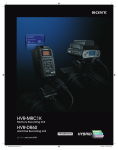
The Sony HVR-MRC1K Memory Recording Unit is an optional product for Sony's professional
HDV or DVCAM™ camcorders. It comes standard with the HVR-Z7U and HVR-S270U
camcorders. The HVR-MRC1K utilizes the widely-available standard CompactFlash card for
HDV, DVCAM, and DV file recording.
Table of Contents
• CompactFlash media (via the Sony HVR-MRC1K Memory Recording Unit)
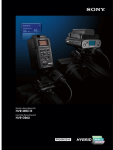
The HVR-DR60 is an optional hard disk recording unit for Sony's professional HDV and
DVCAM camcorders. Via an i.LINK®* cable connection, the HVR-DR60 can record HDV,
DVCAM, or DV streams from the camcorder and store them as video files. The internal hard
disk drive (HDD) offers a capacity of 60 GB, which translates into a recording time of
approximately 4.5 hours (270 minutes) for HDV, DVCAM, and DV formats.
These non-tape recording products offers “Hybrid recording” which records video on both
tape and non-tape media simultaneously. This Hybrid recording operation allows users to
have tape for archiving and files for NLE work at one time.
For HDV recordings, both the HVR-MRC1K and the HVR-DR60 record MPEG-2 files with the
extension “.M2T”. The file conforms to the HDV1080i specification in which MPEG-2 MP@H14 is used for its video codec and either MPEG-1 Audio Layer2 (for 2 ch) or MPEG-2 Audio
Layer2 (for 4 ch) is used for the audio codec.
The HVR-MRC1K and HVR-DR60 both use FAT32 for their file system, which allows a Windows
or Macintosh computer to recognize the recording media as an external drive without
the need for additional driver software. As FAT32 has a maximum file size of 4 GB
(approximately 20 minutes), recordings that exceed this capacity are automatically
recorded as separate new files.
In the Memory Recording Unit, all files are stored in a single folder. Each file is named
according to the format: xx_nnnn_YYYY-MM-DD_HHMMSS.extension, as follows:
XX
A two-digit number (00 - 99) useful for numbering CompactFlash cards when more than
31 is used.
nnnn
A sequential clip number, incremented by one as each new recording begins.
*i.LINK is a trademark of Sony used only to designate that a product contains IEEE 1394 connector.
All products with an i.LINK connector may not communicate with each other. Please refer to the
documentation that comes with any device having an i.LINK connector for information on compatibility,
operating conditions and proper connection.
4
YYYY_MM_DD_HHMMSS
The date and time of the recording (which are derived from the date and time data
settings of the camcorder). Recordings separated due to FAT32 limitations will have new
time data, but retain the same clip number.
1 – Introduction
The HVR-DR60 folder structure differs from CompactFlash media in that the Memory
Recording Unit creates a new folder with an associated movie file each time a recording
begins. For long clips that exceed the FAT32 file size specification, subsequent files are
stored in the same folder. For ingest into Premiere, the Sony Recording Unit Utility software
(available as a free download from the Sony Website) provides streamlined transfer of files
from a CompactFlash card or HVR-DR60. The software will reconnect M2T files that were
divided by FAT32, and will also rename HVR-DR60 files in the same style as those from a
CompactFlash card during the transfer.
Table of Contents
HDV Workflows in Adobe Premiere Pro
Please note that the workflows outlined here represent just a few examples of how
to work with the HDV format, and that workflows can vary based on the project
and/or installation.
For more detailed information on any of the software or hardware mentioned in
this document, please refer to the manufacturer-supplied Operations Guide for the
associated product.
5
HDV Workflows in Adobe Premiere Pro
2 – Workflow Overview
CompactFlash Media & HVR-DR60
1– Import MPEG2 (or DV) files from CompactFlash media, or HVR-DR60 Hard Disk
2– Edit
Table of Contents
3– Export to HDV videotape over i.LINK cable.
2 – Workflow
Overview
Recording Unit into Premiere over i.LINK cable or USB 2.0.
HDV Videotape
1– Capture HDV videotape-based media into Newscutter™ over i.LINK cable.
2– Edit
3– Export to HDV videotape over i.LINK cable.
Note: It is also possible to import DV data from the CompactFlash card, HVR-DR60, or
videotape with same workflow.
6
HDV Workflows in Adobe Premiere Pro
Key Workflow Features and Restrictions
• Support for 1080 50/60i, 24/25/30p.
System Requirements
• Windows XP ® SP 2, Windows Vista ® SP1
• Sony Recording Unit Utility software
• CompactFlash card reader or Memory Recording Unit from the camera,
mounted in an i.LINK Cradle (such as the Sony HVR-MRC1K/HVRA-CR1)
• Sony HVR-DR60 Hard Disk Recording Unit
2 – Workflow
Overview
• Adobe Premiere Pro CS4+
Connections
• When using CompactFlash media, connect the CompactFlash reader via a
USB 2.0 cable or connect the memory recording unit cradle via an i.LINK
(Firewire) cable.
• When using the Sony HVR-DR60, connect via an i.LINK (Firewire) cable.
• When using HDV videotape, connect the camcorder or deck via an i.LINK
(Firewire) cable.
Table of Contents
• Sony HVR-M35U or equivalent HDV recorder
7
HDV Workflows in Adobe Premiere Pro
3 – Creating a Premiere Pro Project
1– Launch Adobe Premiere Pro CS4.
2– When the Welcome window appears, do one of the following:
• Select an existing project from the Recent Projects list.
3– Choose a format that closely matches the majority of your material.
Below are a few examples:
For HDV 1080i60 footage
Table of Contents
3 – Creating
a Premiere Pro Project
• Create a new project by selecting New Project.
8
HDV Workflows in Adobe Premiere Pro
For HDV 1080p/24 native footage
3 – Creating
a Premiere Pro Project
For 60i DV footage
Table of Contents
For 60i DV anamorphic footage
Note: 1080/24pA material requires the Cineform Aspect HD codec.
4– Enter a name for the project.
5– Select OK.
9
HDV Workflows in Adobe Premiere Pro
4 – Transferring Media to Local Hard Drive(s)
Although Adobe Premiere Pro CS4 supports Direct Edit from CompactFlash and HVR-DR60,
the recommended ingest workflow is to first transfer the media to local hard drive(s) using
the Sony Recording Unit Utility (optional for the HVR-DR60, as explained below).
The recommended ingest workflow from CompactFlash and/or HVR-DR60 is to first transfer
the media to local hard drive(s) using the Sony Recording Unit Utility.
In the case of the HVR-DR60, a folder (e.g.,“100HDVF”) is created when recording begins,
and the recorded video is stored in that folder as a movie file (e.g.,“HDV10001.M2T”).
When a new recording is made, a new folder (e.g.,“101HDVF”) is created and a new file
(e.g.,“10101.M2T”) is stored within it. The Sony Recording Unit Utility transfers all of these
decentralized files to one specified folder on the HDD of the PC, eliminating the need to
open each folder to import the movie files to the NLE project.
Also, for HVR-DR60 files, the utility automatically changes the name of the transferred file,
according to the following format: “xx_nnnn_YYYY-MM-DD_HHMMSS”, as described in the
Introduction to this document.
Finally, the utility also connects divided .M2T files together during transfer so they can be
edited precisely in the NLE as a single file without any pauses (in the case of DV files, no
join is necessary).
1– Launch the Recording Unit Utility.
2– Select the connected CompactFlash
card drive or HVR-DR60.
3– Select the file types (HDV and/or DV)
to be transferred.
4– Select the folders containing the files
4 – Transferring Media to
Local Hard Drive(s)
To transfer files, do the following:
5– Specify a destination folder.
6– Set the prefix number of the file
name. (This number is useful when
importing files from several HVR-DR60
units).
Table of Contents
to be transferred.
7– Select the Import button to begin the
file transfer. Any files divided by the
FAT32 specification will be merged
automatically during the transfer.
10
HDV Workflows in Adobe Premiere Pro
5 – Importing Media Files
Importing From Local Hard Drive(s)
1– Use Sony Recording Unit Utility to ingest to Local Hard Drive(s)
a. Utilize the Sony Recording Unit Utility to transfer the media to the local hard
drive(s) before importing the files into Adobe Premiere Pro CS4. Then import
them in the following way:
2– Do one of the following:
• Press CTRL + I.
• Right-click in the Bin and select Import.
• Select File > Import.
3– Navigate to the folder where the transferred files are stored, and do one of
5 – Importing
Media Files
• Selectively import files by highlighting specific clips and selecting Open.
Table of Contents
the following:
• To import all media, select Import Folder. Premiere Pro will return an error message
about unsupported files. Click OK.
Note: Premire Pro CS4 has “Media Browser” function which can directly browse files
stored on a recording media. But this tool doesn't allow you to transfer files to the
local HDD or merge M2T divided files. This function is convenient to search and
use existing files in the local HDD.
11
6 – Capturing HDV Video From Tape
Settings
6 – Capturing HDV
Video From Tape
HDV Workflows in Adobe Premiere Pro
Table of Contents
1– Select File > Capture.
2– Select the Edit button (as below) and set the Capture Setting to “HDV Capture”.
3– Select the Device button (as below) and set Device Control to
“DV/HDV Device Control”.
Select “Edit” to alter Capture Settings
Click to set Device Control
12
Capturing
1– Using the transport controls, navigate the tape, set In and Out points, and enter
logging information.
6 – Capturing HDV
Video From Tape
HDV Workflows in Adobe Premiere Pro
Table of Contents
2– Select the Capture In/Out button to capture the clip.
For more detailed information, please consult the Adobe Premiere Pro User Manual.
13
HDV Workflows in Adobe Premiere Pro
7 – Adding Clips to the Timeline
To trim a clip prior to adding it to the Sequence, do one of the following to open it in
the Premiere Source window:
• Double-click on the clip icon in the Bin.
• Drag the clip to the Premiere Source Window
Navigate the clip in the Source Window, set In and Out points, then do one of
the following:
• Drag the image in the Source Window to a location in the Timeline.
7 – Adding Media
to a Sequenc
To add a clip to a Sequence without trimming, simply drag the clip from the Bin to
the Timeline.
For more detailed information, please consult the Adobe Premiere Pro User Manual.
Table of Contents
• Drag the image in the Source Window to the Program window.
14
HDV Workflows in Adobe Premiere Pro
8 – Output to HDV Tape
1– In the Timeline, set In and Out points for the range to export.
2– Cue the HDV tape to a location suitable for recording.
4 - Select Render and Record.
Table of Contents
8 – Output to
HDV Tape
3– Select File > Export > Export to Tape
Note: Only HDV-native sequences may be exported to HDV tape via i.LINK cable.
For more detailed information, please consult the Adobe Premiere Pro User Manual.
15
HDV Workflows in Adobe Premiere Pro
9 – Notes
• When archiving files from CompactFlash media or the HVR-DR60, maintain
the original folder structure.
• Perform a software “Eject” of the HVR-DR60 media prior to powering-down or
disconnecting the i.LINK cable.
Table of Contents
9 – Notes
• Perform a software “Eject” of the CompactFlash card prior to removing
the card from the reader.
©2009 Sony Electronics Inc. All rights reserved. Reproduction in whole or in part without written permission is
prohibited. Sony, DVCAM and i.LINK are trademarks of Sony. HDV and the HDV logo are trademarks of Sony
Corporation and the Victor Company of Japan. CompactFlash is a trademark of the CompactFlash
Association. Windows XP and Vista are trademarks of Microsoft Corporation. Premiere Pro is a trademark of
Adobe Corporation.
16