1
Browser
Use Browser to view web pages and search for
information.
Browser
2.Press the Menu Key > Settings > General >
Set home page.
3.Tap Current page or one of the following options:
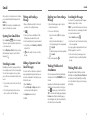
Opening the Browser
Press the Home Key > . The last web page you
were viewing is displayed. If you have not used Browser
recently, your home page opens.
Browser also opens when you tap a web link—for
example, in an email or a text message.
Opening a Web Page or Searching
the Web
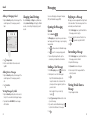
1.Open the Browser app.
2.Tap the address box at the top of the web page. If
the address box isn’t visible, swipe down a little to
show it.
3.Enter the address (URL) of a web page. Or, enter
terms you want to search for. You can also tap to
search by voice.
4.Tap a URL or search suggestion or tap Go on the
keyboard to open the web page or search results.
TIP: Tap
to open a new web page in a new tab.
• Blank page: Open browser tab without opening
a web page by default. This can make new
Browser tabs open more quickly.
• Default page: Set the factory default URL as the
home page.
• Most visited sites: Every new browser tab
displays a list of your frequently visited sites for
you to choose from.
• Site Navigation: Provide a series of sites for
you to view.
• Other: Type a URL as the home page.
Get Information About the
Current Page
Press the Menu Key > Page info.
Working With an
Opened Page
• G
o back: Tap
to return to the page you’ve
viewed previously in the same window.
Switching Between Tabs
• G
o forward: Tap
2.Swipe vertically to scroll through the list of
opened tabs.
.
• R
efresh the page: Tap
beside the address bar.
• F ind text on the page: Press the Menu Key >
Find on page and type the terms you want to
search for.
• S end the page URL to friends: Press the Menu
Key > Share page and select how you want to
send the URL.
• F ollow a link: Tap a link on the web page to open
it.
• S ave the page for offline reading: Press the
Menu Key > Save for offline reading. You can
press the Menu Key > Bookmarks > SAVED
PAGES to read them.
TIP: Besides links, Browser also recognizes some
phone numbers, addresses, and similar information for
you to act on. Try tapping them and see what happens.
Using Multiple Browser Tabs
Setting the Home Page
While viewing most web pages, you can do the
following operations:
You can open several web pages at the same time (one
page in each tab) and switch between them freely.
Your home page opens when you open a new browser
tab, when you start Browser after restarting your phone,
or after not using the app for a while.
• S croll: Swipe the screen in any direction.
• Z oom out: Tap the screen with two fingers or pinch
them together.
Opening a New Browser Tab
1.Open the page you want to set as your home page.
• Z oom in: Tap the screen with two fingers or spread
them apart.
48
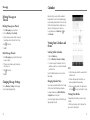
Tap
1.Tap
at the bottom of the screen.
3.Tap the thumbnail of the tab you want to open.
TIP: Swipe a thumbnail horizontally or tap its X to
close the tab.
Downloading Files
Tap and hold an image or a link to a file or to another
web page. In the menu that opens, tap Save image
or Save link.
The downloaded files are saved to your phone or
the memory card. You can view or open them in the
Downloads app ( > Downloads).
Using Bookmarks
Save web URLs as bookmarks to open them easily in
the future.
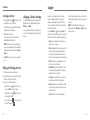
To open a bookmark, press the Menu Key >
Bookmarks in a browser tab and then tap the
bookmark.
.
49