1
Camera
Camera
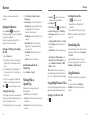
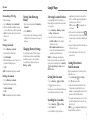
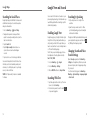
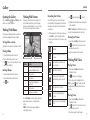
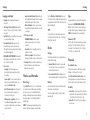
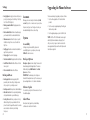
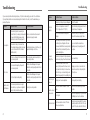
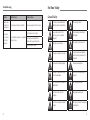
You can take photos and record videos. Photos and
videos are stored on the phone’s memory card or to the
phone’s internal storage. You can copy them to your
computer or access them in the Gallery app.
Capturing a Photo
1.Press the Home Key >
> Camera.
2.Aim the camera at the subject and make any
necessary adjustments.
TIP: Pinch or pan with two fingers on the screen
or press and hold the Volume Up/Down Keys to
zoom in or out.
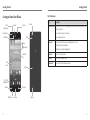
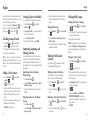
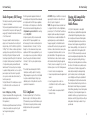
➊
➋
➌
➍
➎
➑
➐
➏
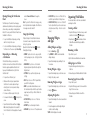
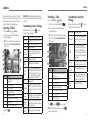
Number Function
Switch between the front-facing and rear1
facing cameras.
2
Turn the flash on or off.
3
Select a color effect.
4
Change camera modes.
5
Change camera settings.
6
View captured photos and videos.
7
Capture a photo.
8
Switch to the camcorder mode.
3.Lightly tap
54
.
WARNING: Keep a safe distance when using the
flash. Do not point the flash toward the eyes of people
or animals.
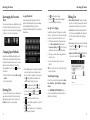
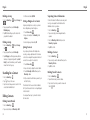
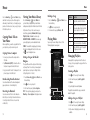
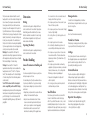
Customizing Camera Settings
Before taking a photo, you can tap
following camera setting options:
Grid
Self-timer
Shutter Tones
Picture Size
Face
detection
Auto-review
Image
Settings
White
Balance
ISO
Anti-Band
Geo-tag
Storage
location
Restore
Defaults
to open the
Show or hide the composition lines.
Set a delay before a picture is taken.
Select your preferred shutter tone.
Adjust picture size.
Turn on or off face detection, which
helps you capture people’s faces in
a picture.
Adjust the review time.
Adjust exposure and brightness.
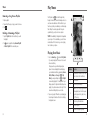
Recording a Video
1.Press the Home Key >
Customizing Camcorder
Settings
> Camera.
2.Switch to camcorder mode by sliding the
switch.
3.Aim the camera at the subject and make any
necessary adjustments.
TIP: Pinch or pan with two fingers on the screen
or press and hold the Volume Up/Down Keys to
zoom in or out.
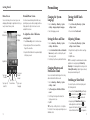
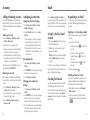
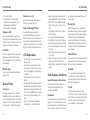
➊
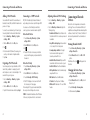
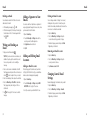
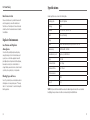
Before recording a video, you can tap
following camcorder setting options:
Video Quality
Adjust video quality.
Time Lapse
Set the time interval between each
frame when you shoot time-lapse
videos.
White
Balance
Select how the camera adjusts
colors in different kinds of light to
achieve the most natural looking
colors for your videos, or allow the
camera to adjust the white balance
automatically.
Geo-tag
Set whether your location information
is stored with each video you record.
Silent
Camcorder
Record video without sound.
Storage
location
Open the Storage settings screen
and change the save location for
captured photos and videos.
Restore
Defaults
Restore default settings.
➐
➋
➏
➌
➎
➍
Select how the camera adjusts colors
in different kinds of light to achieve the
most natural looking colors for your
shots, or allow the camera to adjust
the white balance automatically.
Adjust the ISO.
Set the anti-banding value or leave it
on Auto. This feature can avoid stripes
on pictures you take of TV or computer
screens.
Set whether your location information is
stored with each photo you take.
Open the Storage settings screen and
change the save location for captured
photos and videos.
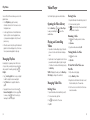
4.Tap
Restore camera to default settings.
to save the frame as a photo.
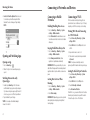
Number Function
Switch between the front-facing and rear1
facing cameras.
2
Turn the flash on or off.
3
Select a color effect.
4
Change camcorder settings.
5
View captured photos and videos.
6
Record a video clip.
7
Switch to the camera.
to start and
to open the
to stop recording.
TIP: While recording is in progress, you can tap
55