1
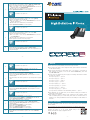
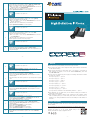
3 1) Pick up phone and press ‘****’ to start IVR. 2)Choose ‘3’ and the VIP-1000PT/T reports on WAN port subnet mask. 3)Input a new WAN port subnet mask with ‘#’ at the end. Use ‘*’ to replace ‘.’. User can input 255*255*255*0 to set the new WAN port subnet mask 255.255.255.0. Press the ‘#’ key to indicate that you have finished. 4)Report ‘operation successful’ if it’s done properly. If you want to quit, press ‘**’. Note 4 1)Pick up phone and press ‘****’ to start IVR. 2)Choose ‘4’ and the VIP-1000PT/T reports on the current gateway. 3)Input the new gateway and end with ‘#’. Use ‘*’ to replace ‘.’. User can input 192*168*20*1 to set the new gateway 192.168.20.1. Press the ‘#’ key to indicate that you have finished. 4)Report ‘operation successful’ if it’s done properly. If you want to quit, press ‘**’. Note 5 1)Pick up phone and press ‘****’ to start IVR. 2)Choose ‘5’ and the VIP-1000PT/T reports on the current DNS. 3)Input the new DNS and end with ‘#’. Use ‘*’ to replace ‘.’. User can input 192*168*20*1 to set the new DNS 192.168.20.1. Press the ‘#’ key to indicate that you have finished. 4)Report ‘operation successful’ if it’s done properly. If you want to quit, press ‘**’. Note 6 1)Pick up phone and press ‘****’ to start IVR. 2)Choose ‘6’ and the VIP-1000PT/T reports on ‘Factory reset’. 3)At the prompt, please enter password. Please refer to Operation 1 for the password input. -5- 4. NOTICE If you want to quit, press ‘**’. 6 Note 4)Report ‘operation successful’ if password is right and then the VIP-1000PT/T will be set to factory default. 5)Press ‘7’ to reboot to make changes effective. 7 1)Pick up phone and press ‘****’ to start IVR. 2)Choose ‘7’ and the VIP-1000PT/T reports on ‘Reboot’. 3)At the prompt, please enter password. Refer to Operation 1 for the password input. 4)The VIP-1000PT/T will reboot if password is right and operation is properly done. In the Voice menu, press *(asterisk) to return to the up level menu. If any changes are made in the IP assignment mode, please reboot the VIP-1000PT/T to take effect the settings. When entering IP address or subnet mask, input ‘*’ to represent ‘.’ and add ‘#’ to finish inputting, for example, to enter the IP address 192.168.1.11, press these keys:192*168*1*11#. You can enter the password by phone keypad, the matching table between numbers and letters are as follows: To input: A,B,C,a,b,c------press ‘2’ To input: D,E,F,d,e,f------press ‘3’ To input: G,H,I,g,h,i------press ‘4’ If you want to quit, press ‘**’. Note To input: J,K,L,j,k,l------press ‘5’ To input: M,N,O,m,n,o------press ‘6’ 1)Pick up phone and press ‘****’ to start IVR. 2)Choose ‘8’ and the VIP-1000PT/T reports on ‘WAN Port Login’. 3)At the prompt, please enter password. Refer to Operation 1 for the password input. To input: P,Q,R,S,p,q,r,s------press ‘7’ To input: T,U,V,t,u,v------press ‘8’ To input: W,X,Y,Z,w,x,y,z------press ‘9’ To input all other characters in the administration password------press ‘0’. 8 If you want to quit, press ‘**’. Note 4)Report ‘Operation successful’ if it’s done properly. 5)At the prompt, choose 1 (enable) or 2 (disable) and end with ‘#’. 6)Report ‘operation successful’ if it’s done properly. 9 0 1)Pick up phone and press ‘****’ to start IVR. 2)Choose ‘9’ and the VIP-1000PT/T reports on ‘Web Access Port’. 3)At the prompt, please enter password. Refer to Operation 1 for the password input. 4)Report ‘operation successful’ if it’s done properly. 5)Report the current Web Access Port. 6)Set the new Web access port and end with ‘#’. 7)Report ‘operation successful’ if it’s done properly. 1)Pick up phone and press ‘****’ to start IVR. 2)Choose ‘0’ and the VIP-1000PT/T reports on the current ‘Firmware version’. -6- Press ‘#’(pound) key to indicate that you have finished entering the IP address or subnet mask or other settings. When assigning IP address in Static IP mode, customer must set IP address, subnet mask and default gateway. If in DHCP mode, please make sure that DHCP server is available in your existing broadband connection to which WAN port of VIP-1000PT/T is connected. Further Information For further configuration, please refer to the user’s manual, which can be downloaded from the website. http://www.planet.com.tw/en/support/download.php?type1=372&model=48762&type=3 If you have any other question, please contact the dealer where you purchased this product or you can contact PLANET directly at the following email address: [email protected] -7-