1
LEGAL INFORMATION
Connecting Your Device
Copyright © 2013 ZTE CORPORATION.
Follow the number to connect your device.
NOTE:
• If you want to use the mobile network to connect to Internet, you
need to insert your (U)SIM card first.
• Your device does not support Micro/Nano or any other nonstandard
SIM cards. To avoid device damage, please do not use them.
All rights reserved.
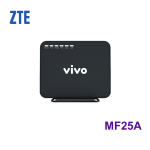
MF25A
Let’s go
Getting started with your device.
No part of this publication may be excerpted, reproduced, translated or
utilized in any form or by any means, electronic or mechanical, including
photocopying and microfilm, without the prior written permission of ZTE
Corporation.
WIFI
Off
PPP
Normal states of the indicators are shown below:
Indicator
POWER
Blinking
OFF
PHONE
The manual is published by ZTE Corporation. We reserve the right to
make modifications on print errors or update specifications without prior
notice.
Version No. : R1.0
ZTE CORPORATION
NO. 55, Hi-tech Road South, ShenZhen, P.R.China
Postcode: 518057
ON
Blinking
WLAN works normally with no data
transmission..
WLAN works normally with data transmission.
WLAN works abnormally, or this WLAN
function is disabled.
Not in use.
In calling.
ON
WAN connection established (PDP activated)
Blinking
WAN connection establishing (PDP activating)
OFF
WAN connection not established (PDP not
activated).
ON
RF signal is normal (RSSI >= -90dBm).
Different color indicates different network.
Red: GSM/GPRS/EDGE.
Green: HSDPA/HSUPA/UMTS.
Blinking
RF signal is poor (-100dBm <= RSSI <
-90dBm).
State
Description
ON
External power supply is connected normally.
OFF
RF signal is not available (RSSI < -100dBm).
External power supply is disconnected or
power off.
ON
The corresponding LAN port is connected
Blinking
The corresponding LAN port is connected
with data transmission.
OFF
LAN
Off
3. Select Internet Protocol (TCP/IP), and then click Properties.
Follow the following steps and figures for Windows XP to configure the
Internet Protocol for your connection.
NOTE:
• Wireless Network Connection is used for Wi-Fi connection.
• Local Area Connection is used for Network Cable connection.
1. Right-click My Network Places, and then select Properties.
No network cable connected.
Accessing the Internet
Before accessing the Internet, please make sure:
• Your device is connected via network cable or Wi-Fi.
• Your PC is configured.
To access the Internet:
1. Log in the WebGUI Configuration Page.
1) Launch the Internet browser and enter http://192.168.0.1 in the
address bar. The login page appears.
On Dialing, or there is an incoming call, the
phone is ringing.
On
2G/3G
Configuring Your PC
4. Select these two items, and then click OK to finish the configuration.
2. Right-click the icon for Connection, and then select Properties.
2) Input the password (the default password is admin), and then
click Login.
2. Select current mode Change.
NOTE:
If you select Bridge mode, you need to connect your clients to the LAN
ports via Ethernet cable, and use normal methods to surf directly on your
clients. If you want to use other operation mode after Bridge, you need to
restore your device.
3. Configure Settings.
NOTE: This step is used for Cable Broadband mode and Wireless
Broadband mode.
• For Cable Broadband mode
NOTE: In this mode, you can only use Wi-Fi to connect to your device.
u Please select PPPoE, set the PPPoE parameters, and then click
Apply.
NOTE: Your service provider gives you the User Name and Password.
Please select Static, input all the parameters, and then click Apply.
NOTE: Your service provider gives you the static address information.
u
4. On this mode, you can change dial-up settings, Wi-Fi settings and
device settings, and begin to enjoy your Internet service.
Wireless Connection(Optional)
NOTE:
Please set the client to obtain an IP address automatically, and the client
will get an IP address like 192.168.0.1.
3. Select the SSID of your device, and then click Connect.
After dialing the last digit
I hear nothing /silence.
Internet Related Problems
If you want to use Wi-Fi to connect to your router, please refer to the
following steps.
1. Make sure that the Wi-Fi works normally. Please check the WiFi Setting on the WebGUI Configuration page or check the Wi-Fi
indicator.
Symptoms
Troubleshooting
Voice Related Problems
Symptoms
Please select DHCP, and then click Apply.
NOTE: Your service provider does not give you any parameters.
u
2. Use your normal Wi-Fi application on the client to search for the
available wireless networks.
•
u
For Wireless Broadband mode
Please select the Wireless Broadband mode, and click Apply.
When you have finished dialing you can
press the # key or wait 4-8 seconds to
connect the call.
NOTE:
Please check the label on your device to get the default SSID.
4. Wait a moment, and then the client will connect to your device
successfully.
If you want to use WPS function to get the Wi-Fi connection, please:
1. Power on your device, and enable the Wi-Fi function on your device.
2. Enable WPS function. Please check the WPS Setting on the
WebGUI Configuration page.
3. Press the WPS button on your device to start Wi-Fi Protected Setup
authentication process.
4. E n a b l e t h e W P S f u n c t i o n o n y o u r c l i e n t t o r e s p o n d t h i s
authentication process.
5. Follow the system prompts on your client to finish the connection.
There is no dial tone,
when I lift the phone off
the hook.
Possible Problems/ Solutions
• Please wait for 1~2 minutes after the
router is turned on.
• If 2G/3G LED light is blinking, you have
no good RF reception. Change the
location of the router.
Make sure your (U)SIM card is inserted
There is a prompt/ phone
correctly and the PIN number has been
alert/ announcement as
entered. If the PIN number has been
soon as I lift the phone
entered incorrectly then you will need to
off the hook.
enter the PUK code when prompted.
The line is noisy/
distorted when I lift the
phone off the hook.
• Remove any electrical appliance which
is too close to the phone or router.
• The cable or phone set might be faulty.
I hear a rapid engaged
tone as soon as I lift the
phone off the hook.
Put the phone on hook and try again.
Possible Problems/ Solutions
I cannot access the
Internet at all.
• Please check your configuration settings.
• Please wait 1~ 2 minutes for the router
to initialize.
• Check your service indicators.
The download or upload
speeds are very slow.
The speed is dependent on signal strength.
Check your signal strength and network
type.
• Enter the correct address. The default
address is http://192.168.0.1.
Can not visit the webGUI
• Only use one network adapter in your
configuration page
PC.
• Do not use any proxy server.
• Make sure the Wi-Fi function is active.
• Refresh network list and select the
correct SSID.
• Check the IP address to make sure
Can not establish the Wiyour client can obtain an IP address
Fi connection between
automatically in the Internet protocol
your device and client
(TCP/IP) properties.
• Type the correct network key (Wi-Fi
password) when you connect to the
device.
Others
•
Symptoms
Possible Problems/ Solutions
• This indicates poor reception. Try
The 2G/3G signal
indicator is always
moving the router to another location
blinking or does not light.
near the window.
About the password
• The default password of the webGUI
configuration page is admin.
• If you changed the password and forgot
the new password, you need to restore
the device to the factory default settings.
For more assistance, please:
• Send E-mail to [email protected]
• Visit http://www.zte.com.cn
• Call Service Hotline: +86–755–26779999
Warning and Notice
•
•
•
•
•
•
•
Cleaning and Maintaining
•
Safety Precautions
•
•
•
•
•
Some electronic devices may be susceptible to electromagnetic
interference. Locate the router away from TV set, radio and other
electronic equipment to avoid electromagnetic interference.
The router may interfere with medical devices like hearing aids and
pacemakers. Consult a physician or the manufacturer of the medical
device before using the router.
Please keep yourself at least 20 centimeters away from router.
Do not use your router in dangerous environments such as oil
terminals or chemical factories where there are explosive gases or
explosive products being processed.
Please use original accessories or accessories that are authorized
by ZTE. Unauthorized accessories may affect the router
performance, damage the router or cause danger to you.
Do not attempt to dismantle the router. There are no user serviceable
parts.
Do not allow the router or accessories to come into contact with
liquid or moisture at any time. Do not immerse the router in any
liquid.
Do not place objects on top of the router. This may lead to
overheating of the device.
The device must be placed in ventilation environment for use.
Do not expose the router to direct sunlight or store it in hot areas.
High temperature can shorten the life of electronic devices.
Do not allow children to play with the router or charger.
Keep the length of the cable between the router and the phone less
than 10 meters.
The router is for indoor use only. Do not use the router outside. Do
not connect telephone extensions which run outside of the building.
These can result in lightning damage to your unit.
•
•
•
Use an antistatic cloth to clean the router. Do not use chemical or
abrasive cleanser as these could damage the plastic case. Turn off
your router before you clean it.
Use the router within the temperature range of -10°C +55°C, and
the storage temperature range is -20°C+60°C. The humidity range is
5%~95%.
Do not use your router during a thunderstorm. Remove the mains
power pack from the wall socket.
Do not take out your (U)SIM card unnecessarily. The (U)SIM card
may be easily lost or it can be damaged by static electricity.
Limited Warranty
•
This warranty does not apply to defects or errors in the Product
caused by:
i. Reasonable abrasion.
ii. End User’s failure to follow ZTE’s installation, operation or
maintenance instructions or procedures.
iii. End User’s mishandling, misuse, negligence, or improper
installation, disassembly, storage, servicing or operation of the
Product.
iv. Modifications or repairs not made by ZTE or a ZTE-certified
individual.
v. Power failures, surges, fire, flood, accidents, actions of third
parties or other events outside ZTE’s reasonable control.
vi. Usage of third-party products, or usage in conjunction with
third-party products provided that such defects are due to the
combined usage.
vii. Any other cause beyond the range of normal usage intended for
the Product.
End User shall have no right to reject or return the Product, or receive a
refund for the Product from ZTE under the above-mentioned situations.
• This warranty is End User’s sole remedy and ZTE’s sole liability
for defective or nonconforming items, and is in lieu of all other
warranties, expressed, implied or statutory, including but not
limited to the implied warranties of merchantability and fitness for a
particular purpose, unless otherwise required under the mandatory
provisions of the law.
Limitation of Liability
ZTE shall not be liable for any loss of profits or indirect, special, incidental
or consequential damages resulting from or arising out of or in connection
with using of this product, whether or not ZTE had been advised, knew
or should have known of the possibility of such damages, including, but
not limited to lost profits, interruption of business, cost of capital, cost of
substitute facilities or product, or any downtime cost.