1
POLAR FLOW WEB SERVICE
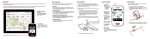
The Polar Flow web service allows you to plan and analyze every detail of your training and learn more about
your performance. Follow and visually analyze your progress, create training targets,and add them and your
favorite routes to your favorites.
With the Flow web service you can:
l
Analyze all of your training details with visual graphs and a route view
l
Compare specific data with others like laps or speed vs. heart rate
l
See how your training load affects your cumulative recovery status
l
See long-term progress by following the trends and details which matter to you the most
l
Compare training sessions with your own and others' sessions
l
Share highlights with your followers
l
Relive your and other users' sessions afterward
To start using the Flow web service, go to flow.polar.com/V650, and create your Polar account. If you
already have a Polar Account, you don’t need to register a new account in the Flow web service. You
can sign in with the same username and password you are using e.g. with polarpersonaltrainer.com.
Download and install FlowSync software from the same place to allow you to sync data between
V650 and Flow web service.
Feed
In Feed you can see what you've been up to lately, plus you can see your friends' activities and comment.
Explore
In Explore you can discover routes by browsing the map. See public training sessions that other users have
shared, and relive your own or other people’s routes and see where the highlights happened.
Diary
In Diary you can see your scheduled training sessions, as well as review past sessions. Information shown
includes: training plans in day, week or month view, individual sessions and weekly summaries.
Progress
In Progress you can follow your development with reports. Reports are a handy way to follow your progress in
training over longer periods. In week, month and year reports you can choose the sport for the report. In custom period, you can choose both the period and the sport. Choose the time period and sport for report from the
drop down lists, and press the wheel icon to choose what data you want to view in the report graph.
46