1
Troubleshooting
Problem
Solution
The power indicator light •CheckthepowerconnectionsontheTransmitterandReceivertoensuretheyareproperlyinsertedintoafunctioningpower
does not light up�
outlet�
•VerifythatthepropercableshavebeenselectedandinstalledbetweentheTransmitterinputandyourAVdeviceoutput.
•OntheTVside(connectedtotheReceiver),selecttheHDMIastheinputsource.
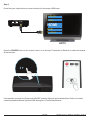
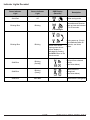
•VerifythestateofthePowerandSourceasindicatedbelow:
Power Indicator Light Flashing Blue
OSD displayed:
* Ensure the transmission range between the Transmitter and Receiver is NOT over 100 ft� (30m) line of sight and 30 ft� (9m)
through one structure�
* Move the Transmitter closer to the Receiver�
No video is displayed on
your TV screen�
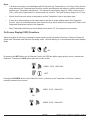
Power Indicator Light Solid Blue + Slow Flashing SOURCE Indicator Light
OSD displayed :
* Ensure your video resolution and frame rate is supported and within the transmission range�
* Connect the AV device to your TV to check and modify the video format compatibility�
* Check that the resolution of your device is set to 1080p, 1080i, 720p, 576p, or 480p� Refer to the Supported Resolution
section of the Appendix�
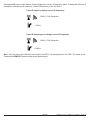
Power Indicator Light Solid Blue + Fast Flashing SOURCE Light
OSD displayed :
Poor picture quality or
intermittent video�
No audio�
* Ensure the proper cables are connected between the Transmitter and your AV devices�
* Ensure your AV devices connected to the Transmitter are powered on�
* Ensure the proper cables are connected between the Receiver and your HDTV�
•Checkthattheresolutionofyourdeviceissetto1080p,1080i,720p,576p,or480p.PleaserefertotheSupported
Resolution section of the Appendix�
•Ensurethetransmissiondistanceislessthan100ft.(30m)lineofsight(LOS)and30ft.(9m)throughonestructure.
•CheckyourHDTV’svolumeisproperlysetandnotsetin"MUTE"mode.
•CheckifyourAVdevice’saudiovolumehasbeenturnedup.
•EnsuretheaudiobitrateoftheAVdevicecanbesupported.RefertotheAudioBitRateSupportsectionoftheAppendix.
•CheckthelocationandpositionoftheIRFlasherontheAVdevice.RefertoIRFlasherSetUpintheSetupandOperation
section of this manual�
IR Flasher can’t control
•ChangetheIRFlasherfrequencytomeettheAVdevice’srequirement.RefertoOnScreenDisplay(OSD)Functionsin
AV device�
the Setup and Operation section of this manual�
OSD displayed : Transmitter
and/or Receiver
No 3D video output
* Check that both TVs support 3D video format� If either TV only supports 2D format, then 3D output will not be supported�
* If displaying 3D video on the HDTV which supports 3D video, turn off the 2D HDTV and cycle the power on 3D HDTV (turn
OFF, then ON)� Set the AV player to 3D video format output for the 3D display�
* Check that the 3D AV device is set to 24p
21 of 28
ISSUED: 07-26-12 SHEET #: 180-9024-2 08-06-12