1
Section 7: Applications
Managing Applications
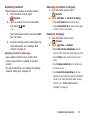
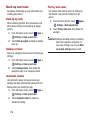
Uninstalling Apps
Your phone comes pre-loaded with popular apps,
and you can download and install apps from the
Google Play™ Store, Samsung Apps, or from
other sources.
You can uninstall apps you download and install.
Pre-loaded apps cannot be uninstalled.
Apps.
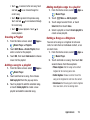
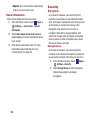
1. From the Home screen, touch
The Apps screens display all applications
installed on your phone, including the apps you
download and install.
3. Apps that can be uninstalled show
on
their icon. Touch
, then follow the
prompts to uninstall the app. Pre-loaded
apps cannot be uninstalled.
You can place shortcuts to apps on the Home
screen, for quick access to the application.
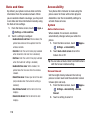
Downloading and Installing Apps
You can download an install apps from a variety
of sources, including:
•
Google Play™ Store: Find all your favorite
books, movies, apps, and games, all in one place.
You’ll need to have a Google account set up on your
phone to download a new application.
•
Samsung Apps: Find new apps to download
and install on your device.
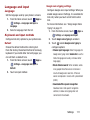
2. Touch
Menu ➔ Uninstall.
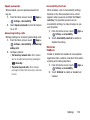
Customizing the Apps Screens
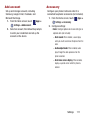
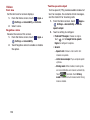
Choosing a view
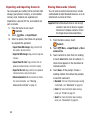
By default, app icons appear in Grid view. You
can change the view to list view.
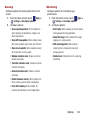
1. From the Home screen, touch
Apps.
2. Touch
Menu ➔ View type.
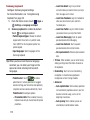
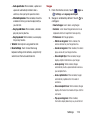
3. Choose an option:
• Customizable Grid: The default view, which
allows you to touch and hold on apps to move
them from screen to screen.
• Alphabetical grid: Icons are arranged in a grid,
in A-Z order.
• Alphabetical list: Icons display in a list, sorted
from A-Z.
58