1
One by One learning
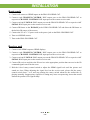
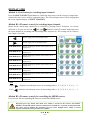
1. Select the desired Output Port and Input Channel that you want the EDID of the
display connected to this specified output port can be learned for the specified input
channel.
2. Press the “+” button of the Output Port and “−” button of the Input Channel” at the
same time for 2 seconds.
3. Release these two buttons. The EDID will be read from the receiver unit connected to
the display and sent the Output Port then written to the chosen Input Channel.
4. If the operation is successful, the Input Channel will show “O” (OK). If the operation
is not successful, it will show “F” (failure).
One to All learning
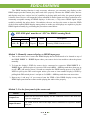
1. Press the “«” button of the Output Port and the “«” button of the Input Channel”
at the same time for 2 seconds.
2. Release these two buttons. . The EDID will be read from the receiver unit connected
to the display and sent the Output Port then written to all eight Input Channels.
3. If the operation is successful, the Input Channels will show “O” (OK). If the operation
is not successful, it will show “F” (failure).
Method 3: Use IR remote control to the receiver units
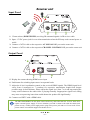
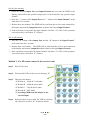
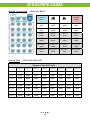
Step1. Press FN key first
Step2. Wait until the LED on the receiver showing “U”
Step3. Then press the button
“1” Default A − 1080p & 7.1ch audio
“2” Default B − 1080p & stereo audio
“3” Default C − 720p & stereo audio
“4” Default D − DVI Mode
“5” Learning EDID from this display to the
selected input
Step4. If the procedure is successful, the LED of will show
“0”, otherwise it will be “F” to indicate failure
~ 19 ~